Easy Tech Tuts
How to Use Trello and Slack Easily 2026
By Impran M NLast checked against official docs
If your team lives in Slack but plans its work in Trello, you're probably already copy-pasting card links back and forth to keep everyone in the loop. Linking the two tools removes that step: board activity like card moves, due dates, and comments can post straight into a Slack channel, and you can create or check on cards without leaving your chat window.
The setup touches two separate admin surfaces, Slack's app directory and Trello's Workspace settings, so it helps to know where both live before you start. It also has two layers people mix up: a Workspace-level link that turns on notifications, and a personal account link each teammate needs before slash commands will work for them.
01Log in to Trello
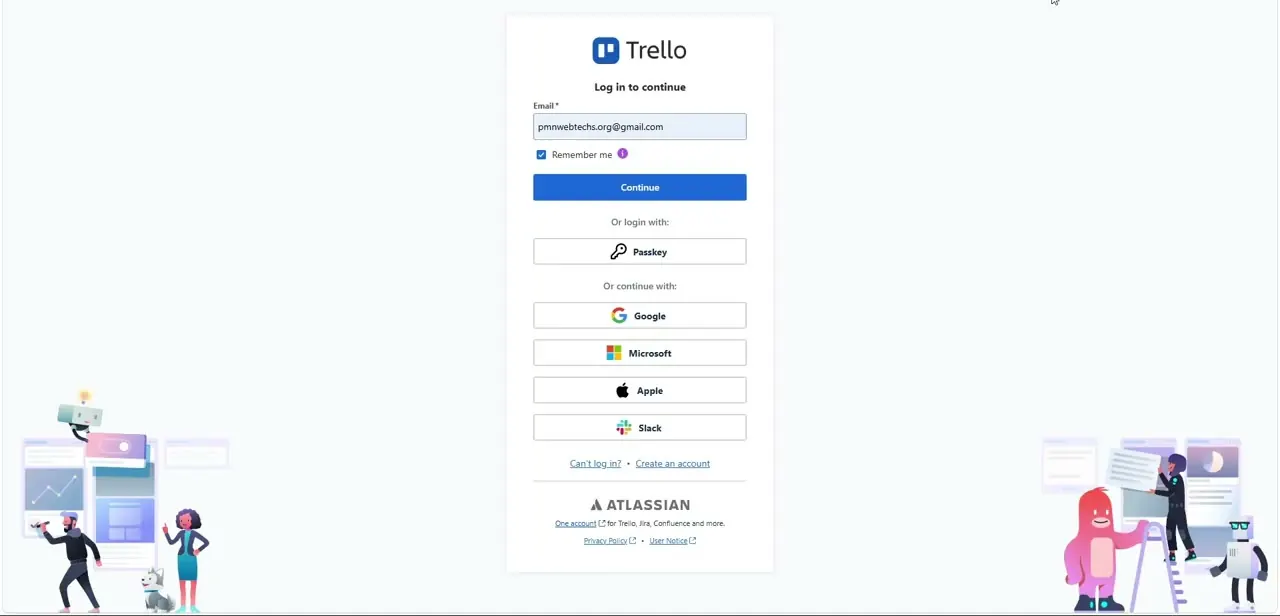
Start at Trello's login screen and sign in with your work email, or use one of the single sign-on options underneath: Google, Microsoft, Apple, or Slack itself. Signing in with the Slack button is a shortcut into Trello, not the integration covered in this guide.
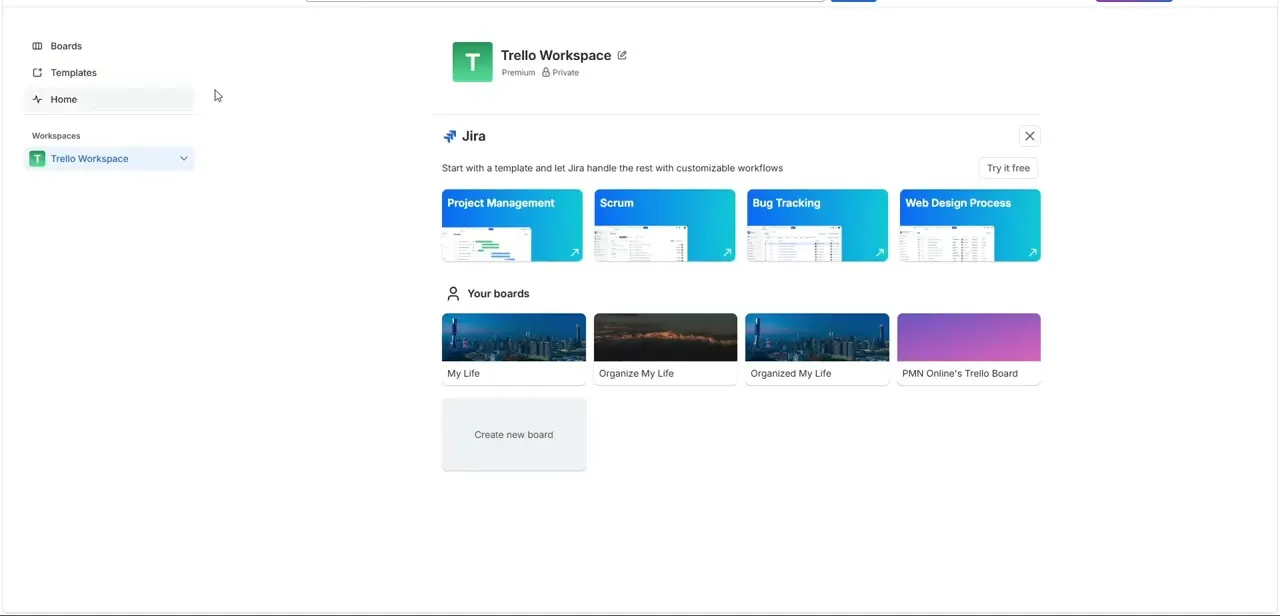
Atlassian, Trello's parent company, shares one account system across Trello, Jira, and Confluence, so this same screen is the entry point for all three. Once you're in, you land on your boards or your most recently viewed workspace.
02Link the Workspace to Slack
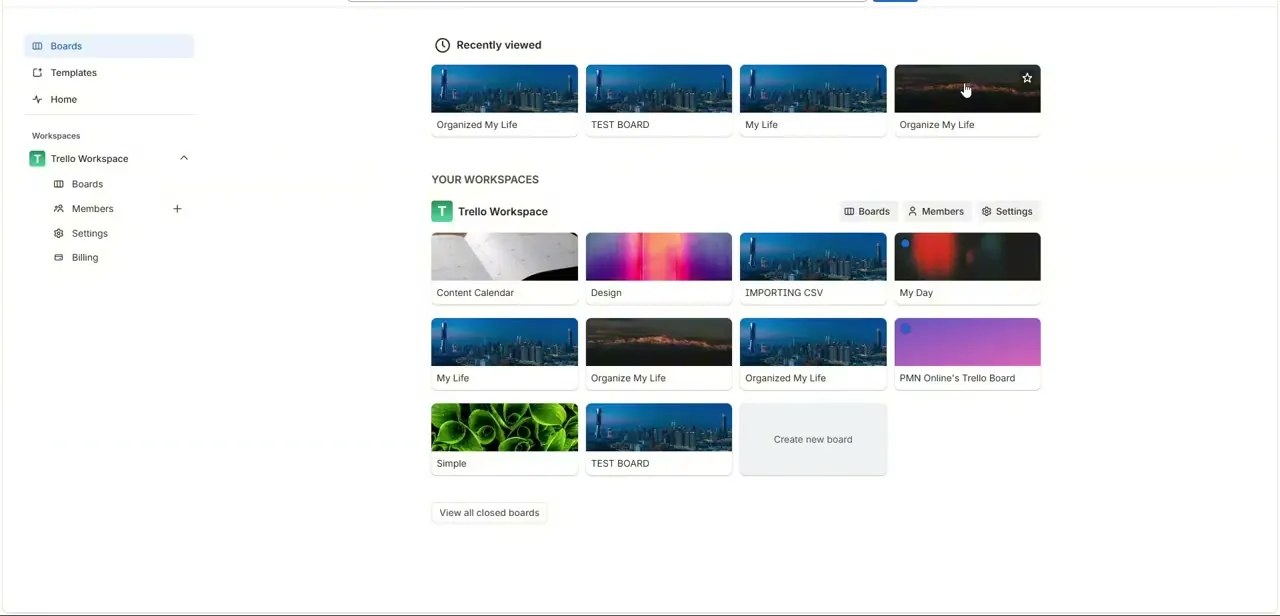
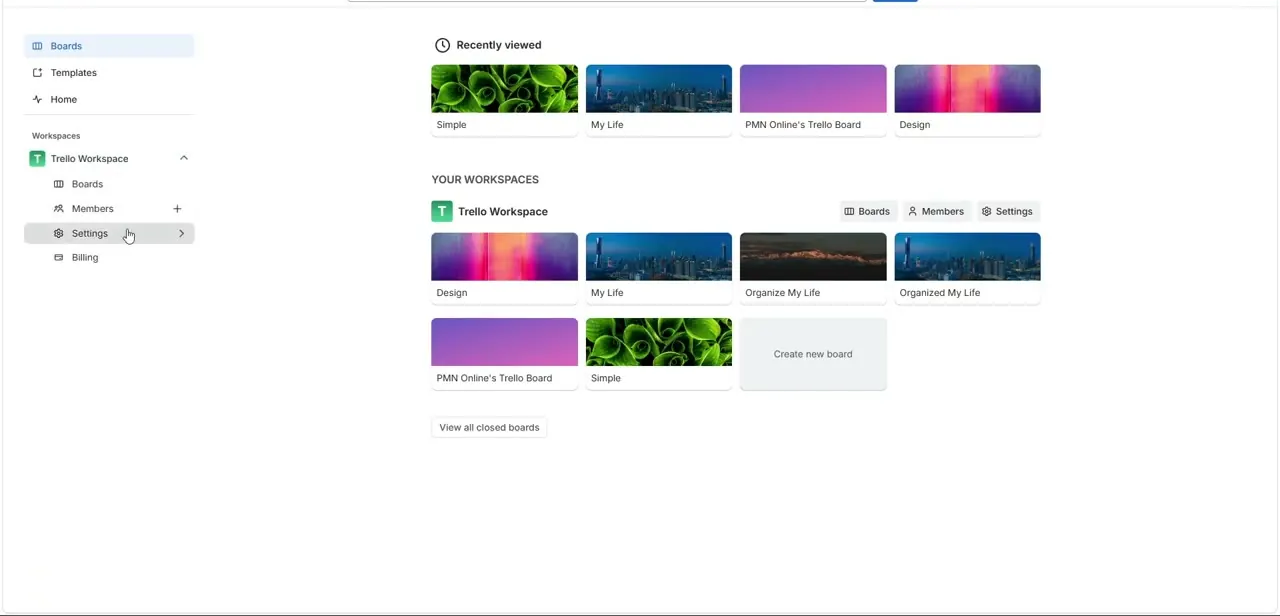
Slack integrations in Trello are configured per Workspace, not per board, so confirm which Workspace your project lives in first. From the sidebar, expand Trello Workspace to see Boards, Members, Settings, and Billing.
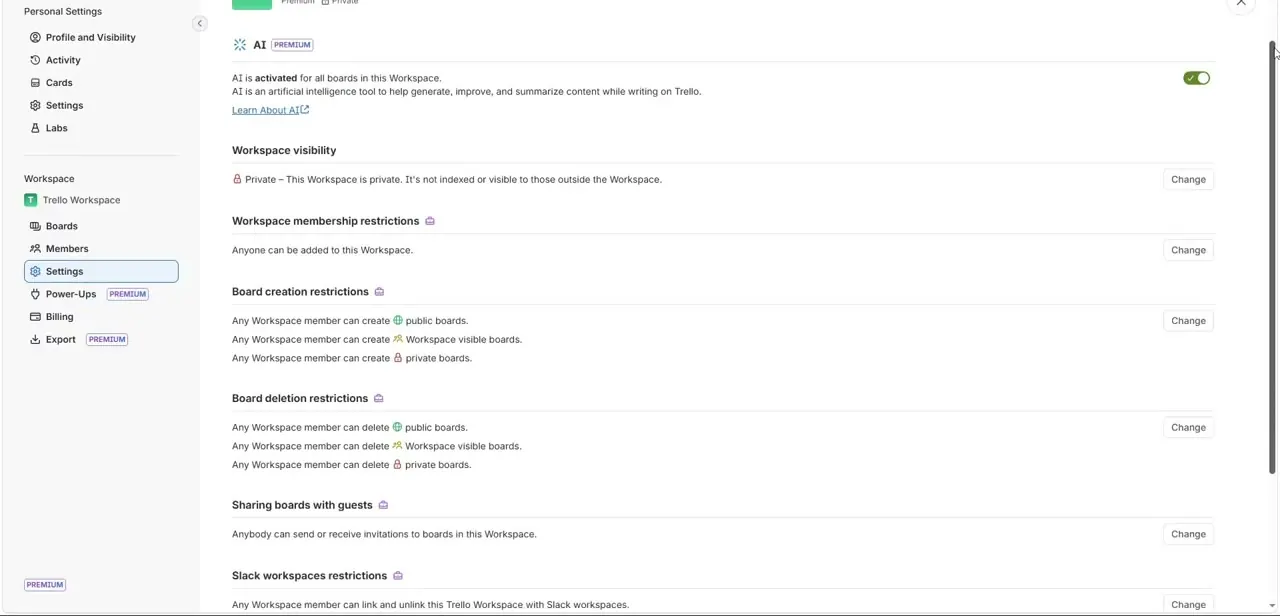
Inside Settings, any member can normally select Add to Slack to connect the Workspace to a Slack workspace. On a Premium or Enterprise Workspace, an admin can lock this down: look for "Slack workspaces restrictions" in the permissions list, which switches the link from any-member to admins-only. If a teammate says the connection won't complete, this setting is the first thing to check, and on a free Workspace it isn't there at all, since it's a Premium/Enterprise control.
03Check who's allowed to link Slack workspaces
If Settings shows "Slack workspaces restrictions," it decides whether any member can link or unlink the Trello Workspace from Slack, or whether that's locked to admins. Setting this up for a team, not just yourself?
Check it first. It's the difference between the integration working on the first try and a permissions error partway through, with no clear reason why.
04Add the Slack Power-Up to your board
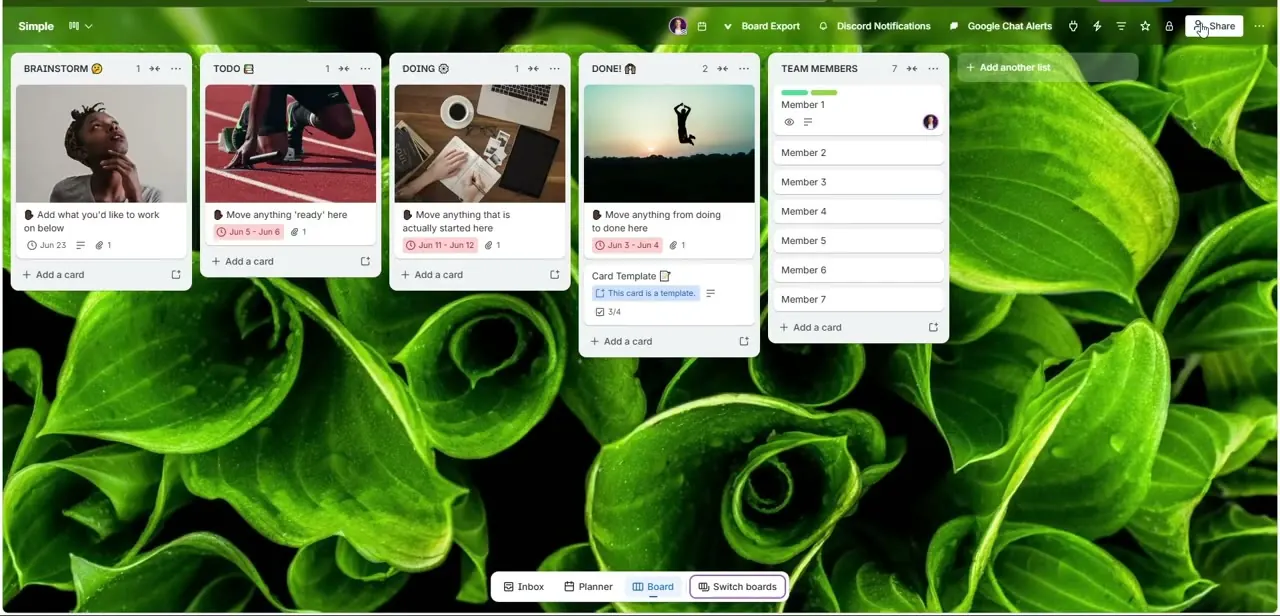
Open the board you want to connect and find Power-Ups in the board menu. Search for Slack, select Add, and follow its prompts to sign in to the Slack workspace that should receive updates.
This creates the board-level link, separate from the login-page SSO button and separate from the Workspace permission you just checked. Once authorized, pick the destination channel and select Add Slack alert to choose which triggers post there: card moves between lists, new comments, due date changes, member assignments, and more.
Turn on only what the team actually wants to see. A busy board pushing every comment into a shared channel gets muted fast.
05Link your own account for slash commands
The board-level Power-Up handles notifications, but it doesn't automatically give every member access to slash commands in Slack. Each person who wants to create or search cards from chat needs to link their own account once, by typing /trello login in any Slack message box and selecting Link account. Skip this and /trello commands either do nothing or prompt for login again the next time you try.
06Manage cards from Slack
Once both links are in place, /trello create [title] adds a card, /trello search [terms] finds one, and /trello info shows details on a linked board. Pasting a raw Trello card link into a channel usually unfurls into a preview with the card's title, list, and members. Move a card and watch for the notification in your channel before telling the rest of the team it's ready.
When it doesn't work
Slash commands like /trello create don't do anything
Why: The board-level Slack Power-Up only handles notifications. Individual slash commands need each person's own Slack account linked to their Trello account.
Fix: Type /trello login in Slack and select Link account. This is a one-time step per person, not per board.
A teammate can't link the Trello Workspace to Slack
Why: On Premium and Enterprise Workspaces, an admin can restrict this under "Slack workspaces restrictions" so only admins can complete the link.
Fix: Have a Workspace admin either complete the link themselves or change the restriction setting to allow any member.
The Power-Up is installed but nothing posts to the channel
Why: No triggers were selected when the alert was configured, or the wrong channel was chosen during setup.
Fix: Reopen the Slack Power-Up on the board, check Add Slack alert, and confirm both the channel and the specific triggers (card moves, comments, due dates) are turned on.
Frequently asked questions
Can I create Trello cards directly from Slack?
Yes, once you've linked your own account with /trello login. Typing /trello in a Slack message then opens commands for creating, assigning, and joining cards without switching apps.
How do I avoid too many notifications in my channel?
When you add the Slack Power-Up to a board, choose which triggers are active: card moves, comments, due-date changes, and so on. Turn off anything the team doesn't need alerts for.
Why can't I link my board to Slack?
Check Workspace Settings for "Slack workspaces restrictions." On Premium and Enterprise Workspaces this can be set to admins only, which blocks a regular member even with the Power-Up installed.
I installed the Slack Power-Up, so why don't slash commands work for me?
The Power-Up covers channel notifications, not personal slash commands. Run /trello login in Slack and link your own account separately.
Do I need to be a Trello board admin to set this up?
You need permission to add Power-Ups to the specific board. Depending on the Workspace's Slack restrictions setting, linking the Workspace itself may also require admin rights.
Can I preview a Trello card right inside a Slack message?
Yes. Once connected, pasting a card's link into a Slack channel typically unfurls into a live preview with the card's title, list, and members.
Sources and last check
Click path and screens come from a walkthrough recorded in July 2025. The Workspace-level Slack link, the "Slack workspaces restrictions" setting, and slash commands were re-checked against Atlassian's official Trello support documentation in September 2026. That check added the personal /trello login step, which the article previously implied happened automatically once the Power-Up was installed, and clarified that the restrictions setting only exists on Premium and Enterprise Workspaces.
About the author

Impran M N
I've been hooked on technology for as long as I can remember — especially the new tools and AI apps that seem to land every other week. Easy Tech Tuts is where I write up whatever I've just worked out: I do the task in the real product, record the screen, and turn it into the guide I wish I'd found first.