Easy Tech Tuts
How to Cancel Trello Premium Easily 2026
By Impran M NLast checked against official docs
Trello bills at the Workspace level, not the individual profile, which is the detail that trips people up when they go looking for a cancel button. The option lives inside Workspace Settings instead of your personal account menu, and you need admin rights on that Workspace to see it at all. This guide shows where the Billing screen is, what happens to your boards once the plan reverts to Free, and the general path from Premium back down.
Before you start
- Workspace Administrator permissions on the Workspace running the paid plan
- A browser at trello.com, since plan changes and cancellation aren't available in the desktop or mobile apps
01Start from your Workspace home
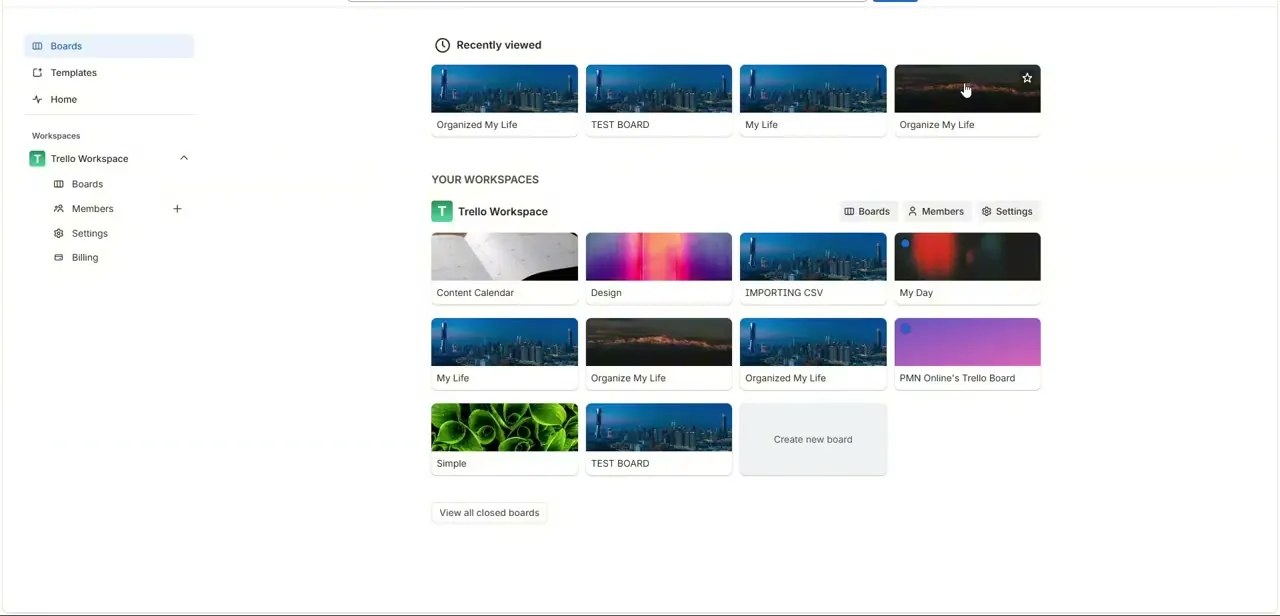
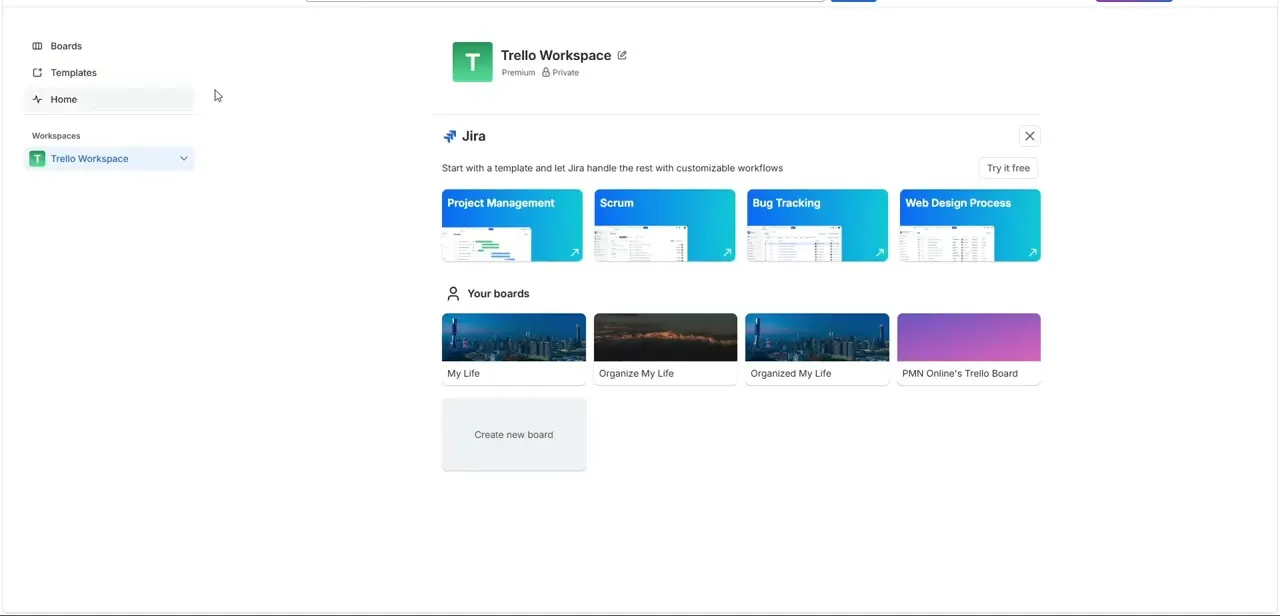
Billing is tied to a specific Workspace, so open the Workspace running the Premium plan first, not just any board. From the Workspace home you'll see your boards and, on some accounts, promotional tiles for other Atlassian products like Jira. None of that is what you're after, but it confirms you're looking at the right Workspace before heading into its settings.
02Open Workspace Settings and click Billing
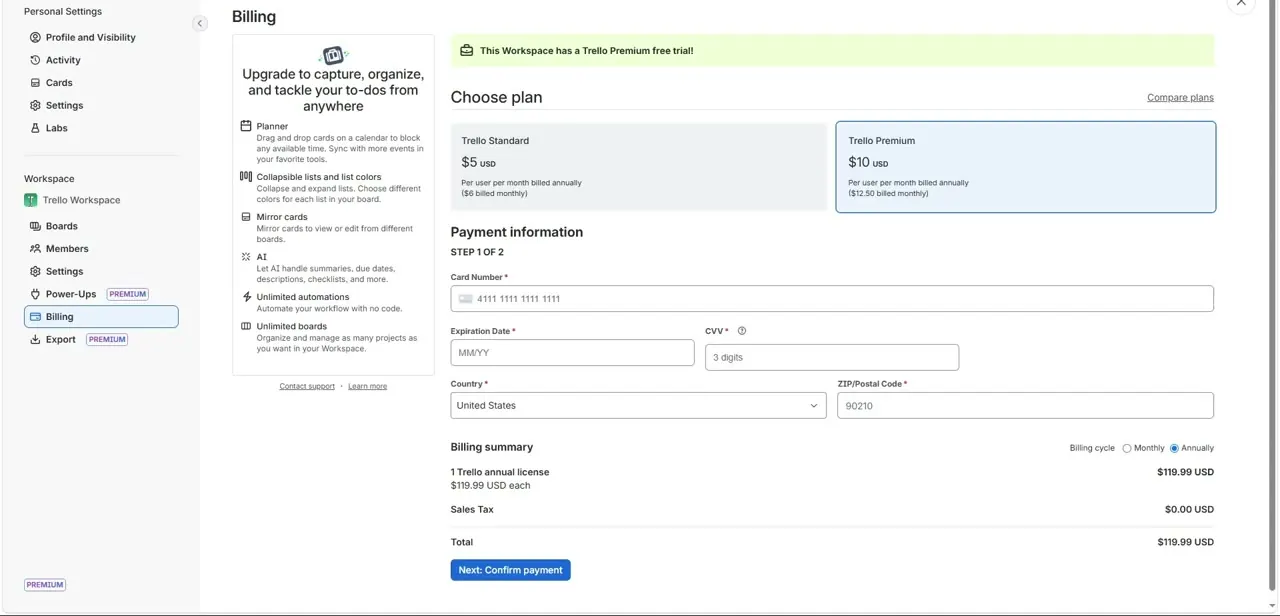
In the Workspace sidebar, Billing sits below Boards, Members, Settings, and Power-Ups (you can also reach it from the Trello logo in the header, then your Workspace name, then Billing). Clicking it opens the plan and payment screen for the whole Workspace: a banner at the top if you're on an active trial, a side-by-side comparison of Standard and Premium pricing, and the payment details on file.
This is also the screen for switching plans in the other direction, so read the comparison carefully before deciding. It tells you what you're about to lose, not just what you're paying.
03Check your renewal date and seat count first
Before changing anything, note the next billing date and how many seats are being charged, both shown on this same screen. Cancelling doesn't refund time already paid for on most plans, so if you're mid-cycle, it's often better to let the current period run out and downgrade at renewal instead of cutting it off immediately.
04Find the downgrade or cancel link
The cancel action isn't part of the plan comparison box. It's a smaller link toward the bottom of the same Billing page, below the plan and payment sections, usually labeled Cancel. Selecting it shows exactly which features get removed once the plan ends before it asks you to confirm anything, so it's easy to miss on a first pass since it's deliberately understated next to the upgrade buttons above it.
05Get through the retention screens
Clicking that link typically leads to a short sequence of screens asking why you're leaving and offering a discount or a plan swap before it lets you finish. None of these are required. Decline each one and continue straight to the cancellation confirmation if a lower price isn't what changes your mind.
06Confirm the downgrade and check what changes
After confirming, Workspace settings show a message stating the plan ends on a specific date instead of immediately. Trello lets a cancelled plan run out its paid period instead of cutting features off the same day.
Nothing is deleted by downgrading, but a Free Workspace doesn't behave exactly like the Premium one did. The table below covers what changes.
| Area | What happens |
|---|---|
| Open boards | Only the 10 most recently active boards stay open; the rest close automatically but aren't deleted |
| Boards with more than 9 members | Become view-only until membership is reduced to the free limit |
| Premium-only data (custom fields, advanced checklists, and similar) | Hidden from view, not deleted; it reappears if the Workspace upgrades again |
| Boards and cards themselves | Left intact; downgrading doesn't permanently remove anything |
Based on Atlassian's official Trello support documentation, current as of September 2026.
When it doesn't work
Some boards disappeared after the Workspace dropped to Free.
Why: A Free Workspace only keeps the 10 most recently active boards open; the rest close automatically.
Fix: Reopen the ones needed from the closed-boards list, or upgrade again if more than 10 need to stay open at once.
A board switched to view-only.
Why: Free Workspaces cap boards at 9 collaborators. A board that had more members under Premium becomes read-only until it's back under that limit.
Fix: Remove members down to the free limit, or upgrade again.
There's no obvious Cancel button.
Why: It's a small, deliberately unstyled link near the bottom of the Billing page, not a prominent button, and the option doesn't exist at all in the desktop or mobile apps.
Fix: Open trello.com in a browser, go to the Workspace's Billing tab, and scroll to the bottom of the page.
Frequently asked questions
Will I lose my boards if I cancel Trello Premium?
No board or card is deleted. But a Free Workspace only keeps the 10 most recently active boards open; the rest close automatically and can be reopened.
Who can cancel a Trello Premium subscription?
Only Workspace Administrators can see and use the Billing settings needed to cancel or downgrade, since billing is managed at the Workspace level, not the personal account level.
What happens to a board with more than 9 members after downgrading?
It becomes view-only until membership drops to the Free plan's 9-collaborator limit.
Does cancelling take effect immediately?
Usually not. Most cancellations let the current paid period run out, with the plan reverting to Free on the next billing date, not the moment you cancel.
Do I have to accept a discount offer to finish cancelling?
No. The retention screens before the final confirmation are optional; decline each one and proceed straight to cancelling.
Can I cancel from the Trello mobile app?
No. Plan changes and cancellation only work through a browser at trello.com.
Sources and last check
Click path and screens come from a recorded walkthrough. What happens to boards, collaborators, and paid-feature data after downgrading was re-checked against Atlassian's official Trello support documentation in September 2026, since the original draft only said boards and cards "stay exactly as they are" without covering the 10-open-board and 9-collaborator limits that apply on the Free tier.
About the author

Impran M N
I've been hooked on technology for as long as I can remember — especially the new tools and AI apps that seem to land every other week. Easy Tech Tuts is where I write up whatever I've just worked out: I do the task in the real product, record the screen, and turn it into the guide I wish I'd found first.