Easy Tech Tuts
How To Link Data From Cells In Different Sheets In Smartsheet Easily 2026
By Impran M NLast checked against official docs
Copy-pasting between sheets leaves you with a summary that goes stale the moment the source changes. A Smartsheet cell link keeps a live connection instead.
The destination cell shows whatever the source cell holds and updates when it changes. This guide links a column of task names from a project schedule into a summary sheet. It covers where the option is (its name differs between grid and table view), the permissions you need, the arrows that tell you which cells are linked, and the actions that break a link.
Before you start
- At least Viewer permission on the source sheet and Editor permission on the destination sheet
- Source cells that contain data. Empty cells that never held a value cannot be linked.
01Set up the destination sheet
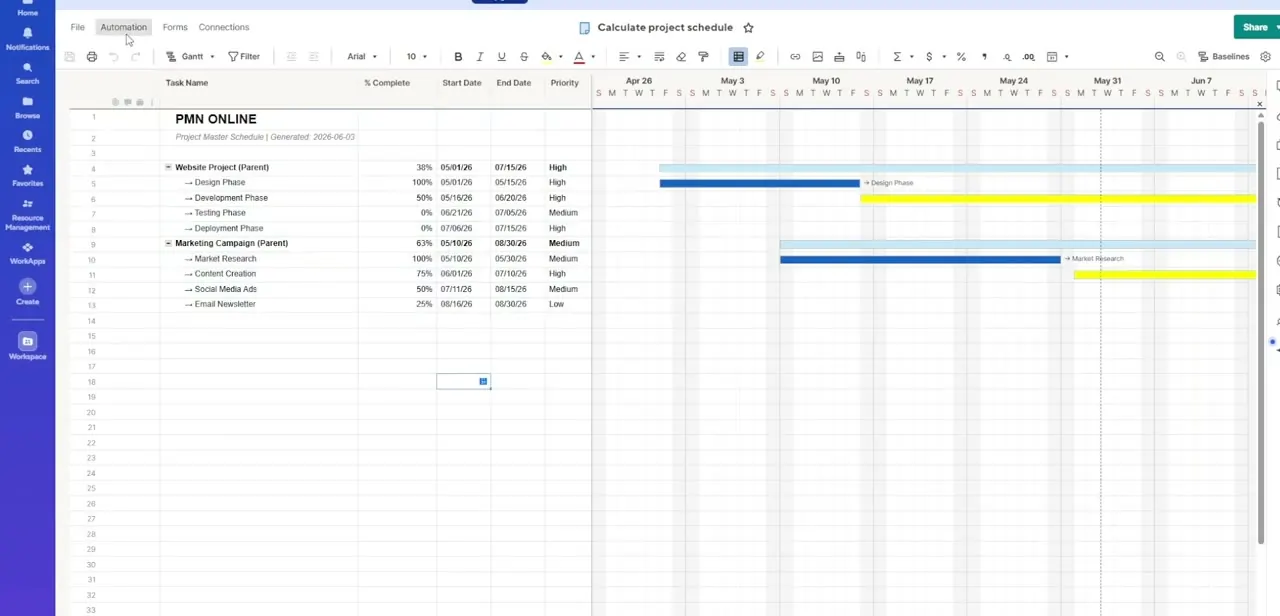
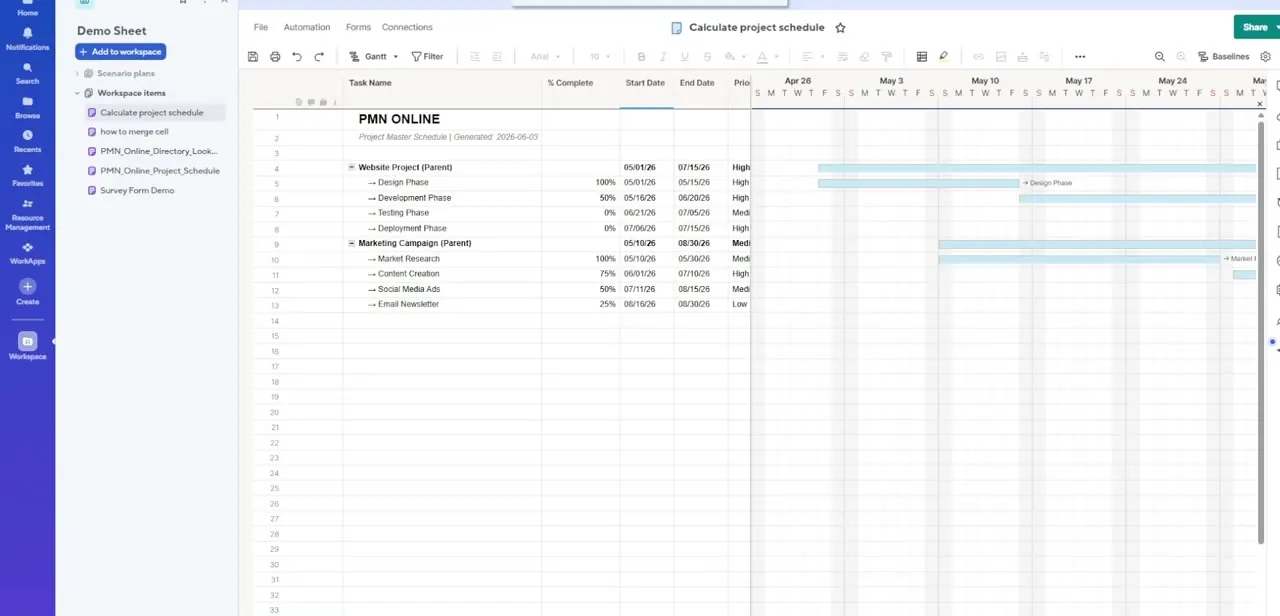
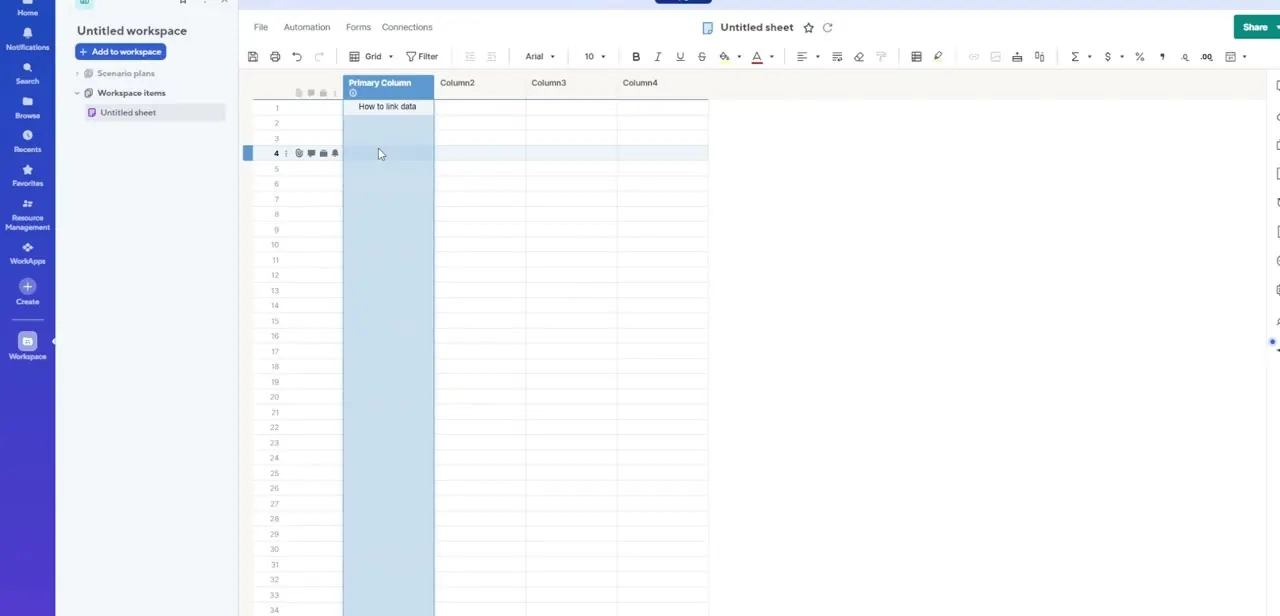
Open or create the sheet that will receive the data and label its columns clearly, so it is obvious later what the pulled-in values are. Pick empty cells for the links.
Creating a link overwrites anything already in the destination cells. Check the column types too.
Attachments and discussions columns never accept links. On a Project or Gantt sheet with dependencies turned on, cells Smartsheet calculates itself (finish dates, predecessors, parent rollups, dependent start dates and column-formula cells) cannot take an inbound link either.
02Open the cell linking form
Select the first destination cell. The option's name depends on the view.
In grid view, click Cell Linking in the toolbar. In table view, right-click the cell and choose Link cell to another sheet, or press Cmd + Shift + K.
Older guides, and some versions of the interface, call this Link from Cell in Other Sheet. It is the same feature.
03Pick the source sheet and cells
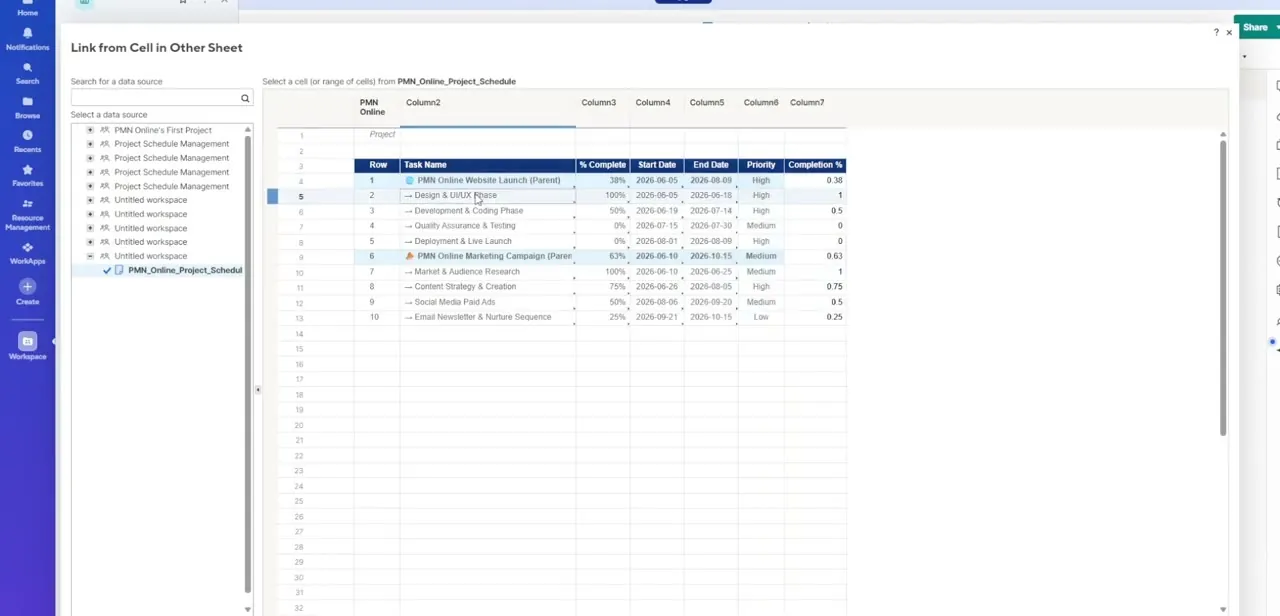
In the form, choose the source sheet from the list on the left, or type its name in the search bar. Its data appears on the right.
Click one cell, or drag across a range, then select Create Cell Links. Multiple cells each get their own link and land in the destination in the same order as the source.
One pass can create up to 500 links from the same source sheet, and a destination sheet can hold 500,000 inbound links in total. You are linking cells, not structures. Smartsheet cannot link a whole sheet, column or row, so new rows added to the source later will not appear in the destination on their own.
04Confirm the links and read the arrows
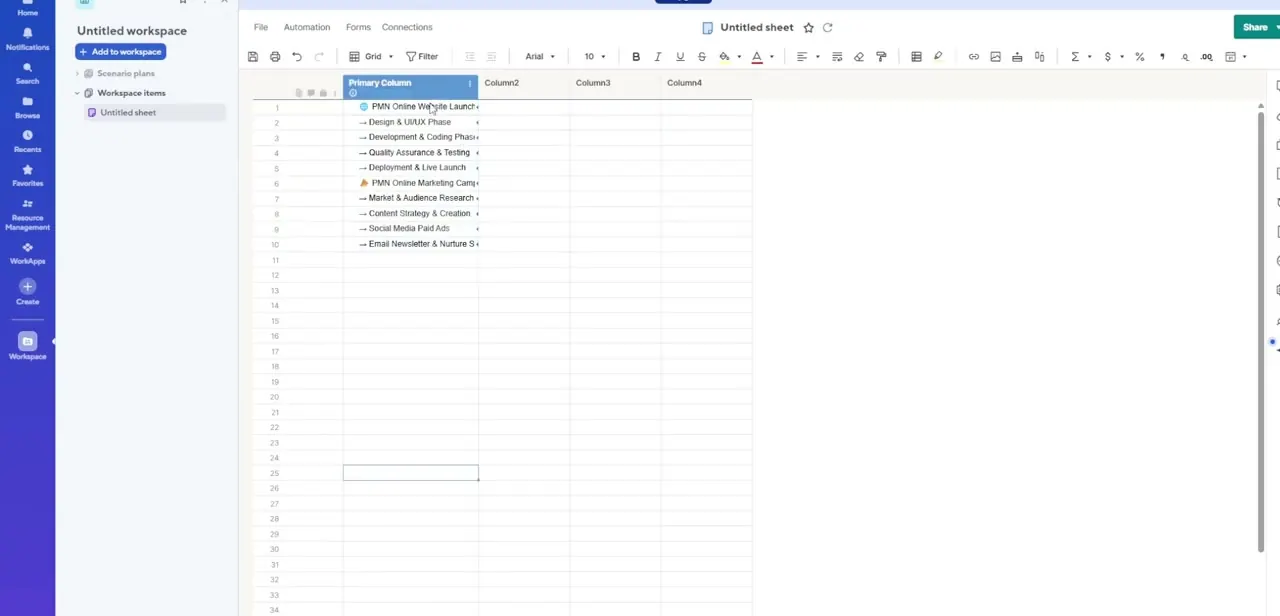
Back in the destination sheet, the linked cells show the source values. Each destination cell carries a light blue arrow on its right side, which marks an inbound link.
In the source sheet, Smartsheet adds a matching outbound link automatically, shown as a grey arrow in the cell's bottom-right corner. Select any linked cell to see which sheet it connects to, and hover over the text that appears to jump to that sheet. A destination cell can have only one inbound link, but one source cell can feed any number of destinations.
05Or start from the source sheet with Paste Special
When you are already in the source sheet, or want the same cells linked into several destinations, copy the cells there. Then, in the same browser tab, open the destination sheet, right-click the target cell (Ctrl + click on a Mac), choose Paste Special, pick Link to copied cells and click OK.
Repeat the paste in each additional destination sheet. It fails for cells in empty rows and for cells deleted after you copied them.
When it doesn't work
The cell linking button is greyed out
Why: The selected cell cannot accept a link (an attachments or discussions column, or a dependency-controlled cell on a Project sheet), or you lack Editor permission on the destination sheet.
Fix: Pick a cell in an ordinary column, or ask the sheet owner for Editor access. You also need at least Viewer access to the source sheet.
A linked cell shows as broken
Why: The row containing the source cell was deleted.
Fix: Relink the destination cell to the correct source cell. Before deleting rows in a sheet that feeds others, look for grey outbound arrows.
Linked dates change to MM/DD/YYYY
Why: When a date cell is linked into a text/number column, Smartsheet converts it to U.S. format regardless of your region settings.
Fix: Link dates into a date-type column in the destination sheet.
An automation or formula does not fire when a linked value changes
Why: Cells with cell links do not trigger actions that change the sheet automatically, including formulas that reference a cell via an inbound link.
Fix: Base the automation on the source sheet, where the value is edited, instead of the destination.
Frequently asked questions
What's the difference between a cell link and copy-paste?
A cell link stays live and updates when the source changes. An ordinary paste is a snapshot that never updates.
Can I link a whole column or sheet?
No. Smartsheet links individual cells only. You can select a range and link up to 500 cells at once, but rows added to the source later are not picked up.
How do I tell which cells are linked?
A light blue arrow on the right of a cell means it receives an inbound link. A grey arrow in the bottom-right corner means it sends data out.
Can I edit a linked cell from the mobile app or a report?
No. Linked cells cannot be edited from the mobile or tablet app, reports, update requests, edit forms or published sheets. Open the destination sheet in a browser.
How do I remove a link?
In grid view, right-click and choose Remove Link. In table view, choose Clear contents, then Remove cell link. Backspace also deletes an inbound link.
Sources and last check
Screens and the task-name example come from the original walkthrough recording. The menu names, permissions, link limits, arrow indicators and restrictions were re-checked against Smartsheet's Help Center in September 2026. That check updated the option's name (now Cell Linking in grid view and Link cell to another sheet in table view), corrected the claim that a whole column can be linked, and dropped an unsupported claim that renaming a sheet breaks links.
About the author

Impran M N
I've been hooked on technology for as long as I can remember — especially the new tools and AI apps that seem to land every other week. Easy Tech Tuts is where I write up whatever I've just worked out: I do the task in the real product, record the screen, and turn it into the guide I wish I'd found first.