Easy Tech Tuts
Can Smartsheet Send Automated Emails Easily 2026
By Impran M NLast checked against official docs
Smartsheet can send automated emails, and the setup happens inside a visual workflow builder with no scripting involved. This guide covers opening the Automation menu from a live sheet, starting from a ready-made template instead of building from scratch, and narrowing the trigger down to something specific, like a task hitting 100% complete, so the right people get notified at the right moment instead of on every row change.
Before you start
- Owner or Admin permissions on the sheet, since Editor access alone can't build or edit a workflow
- A paid Smartsheet plan that includes Automation (Pro or above; it isn't part of the Free tier)
01Open the Automation menu from your sheet
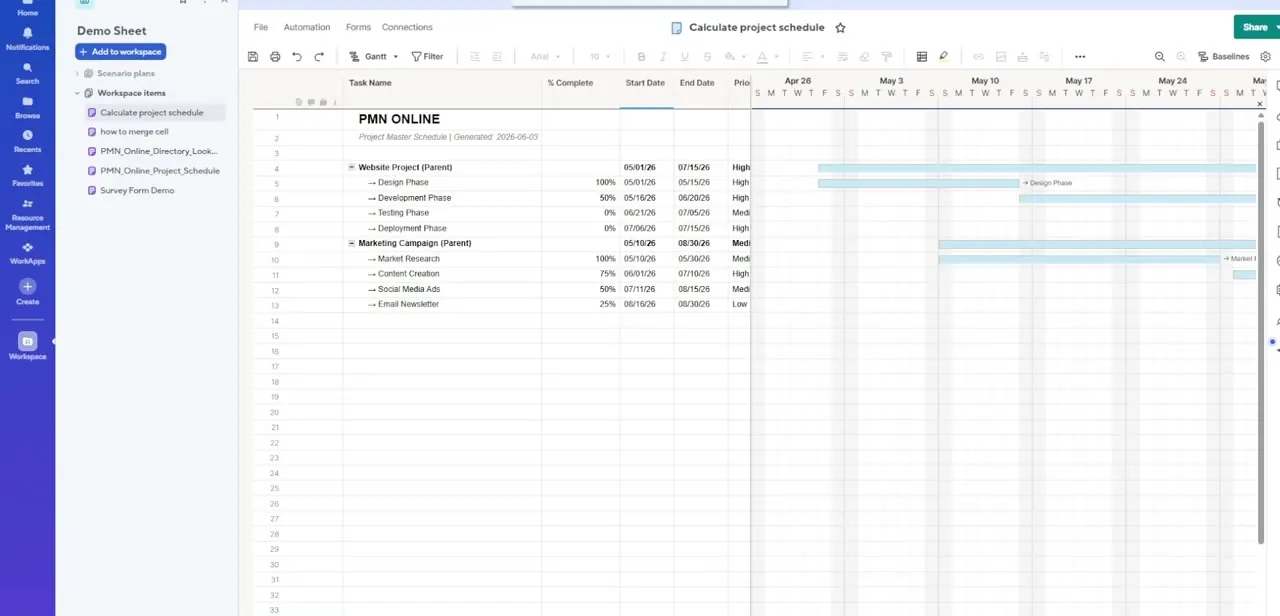
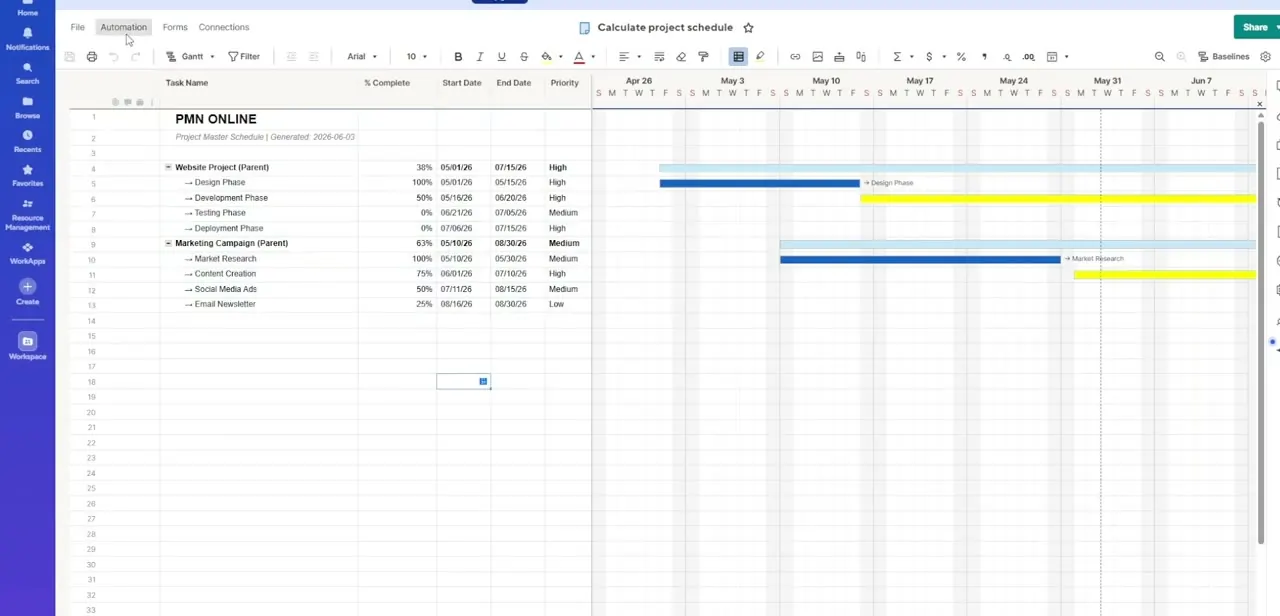
From an active sheet, like the project schedule Gantt view shown here, click Automation in the top menu bar next to File and Forms. This opens the entry point to Smartsheet's workflow builder, where every automated action for that sheet gets created and managed. Automation lives at the sheet level, so each sheet has its own independent set of workflows.
02Start from a template instead of a blank workflow
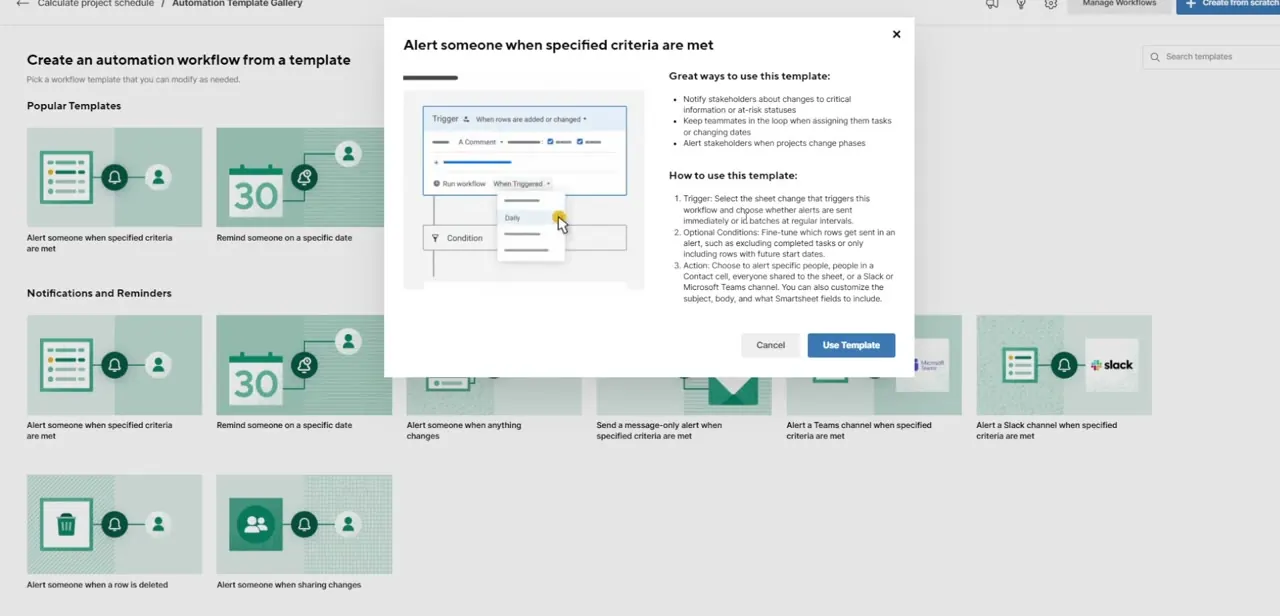
The Automation Template Gallery lists pre-built options grouped by purpose. "Alert someone when specified criteria are met" is one of the most useful starting points for email reminders.
The template preview explains what it's good for, like notifying stakeholders about at-risk statuses or alerting teammates when a task's phase changes, and spells out the three pieces you'll configure: a trigger, optional conditions, and an action. Clicking Use Template drops a working skeleton into the builder that you then customize instead of assembling one from an empty canvas.
03Set the trigger and the recipient
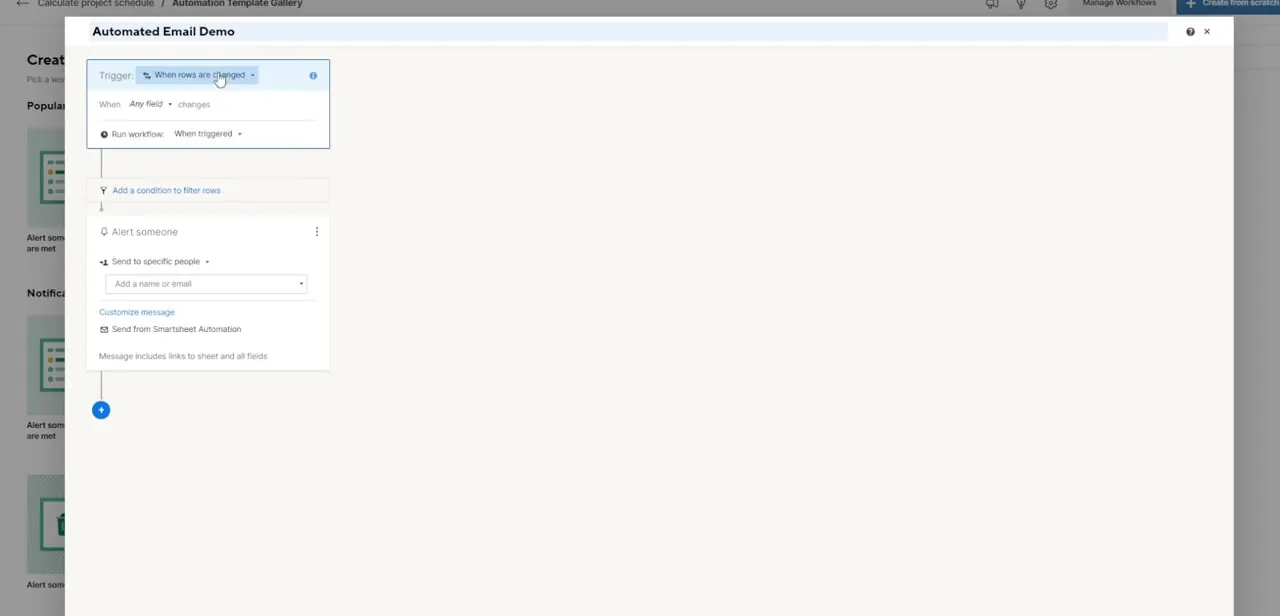
In the workflow builder, the Trigger block defaults to "When rows are changed," watching any field and running the workflow as soon as one is detected. Below it, the Alert someone action lets you send to specific people by typing a name or email, or route the message to everyone shared to the sheet.
Building or editing a workflow needs Owner or Admin permissions on the sheet; Editor access alone isn't enough. A Customize message link and a note confirming the email will be sent from Smartsheet Automation round out the action block, and a small plus button below lets you chain additional steps onto the same workflow.
04Narrow the trigger to a specific condition
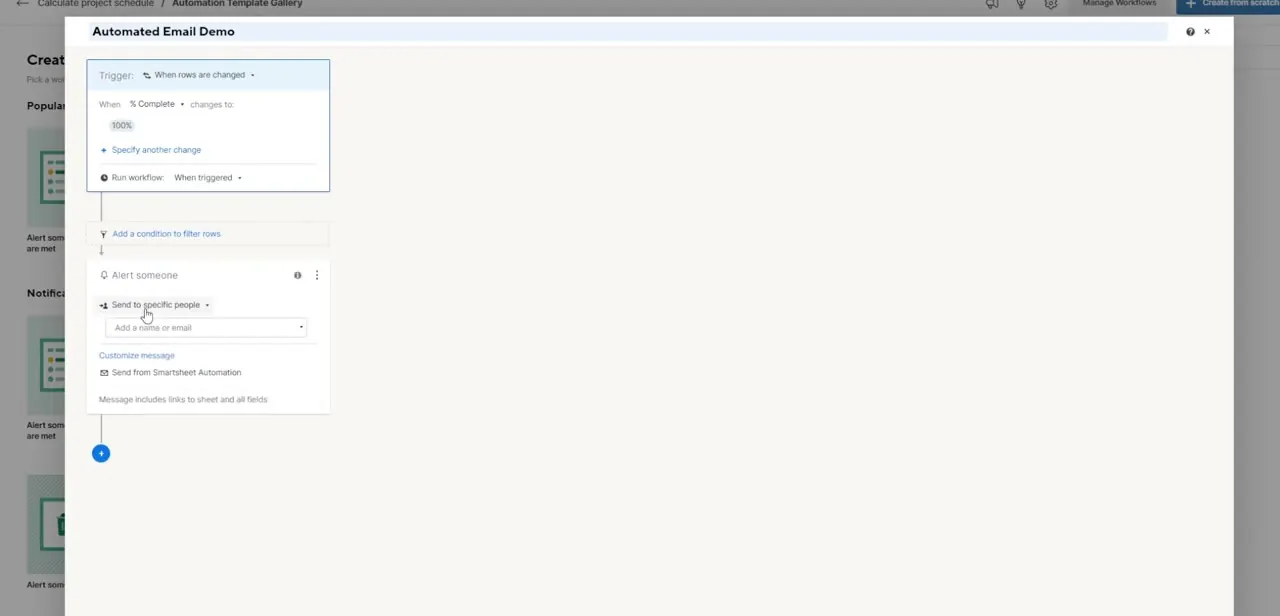
A workflow that fires on any field change gets noisy fast, so change the trigger's When condition to something specific, such as % Complete changes to 100%. That turns a generic "something happened" alert into a targeted one that fires only when a task finishes, not on every minor edit. You can click "Specify another change" to stack multiple conditions on the same trigger for more precision.
05Personalize the message content
Open Customize message to pull dynamic row data, like Task Name or Status, directly into the email's subject or body using double curly braces, for example {{Task Name}}. The placeholder has to match the column name exactly; a typo or a renamed column drops the value silently instead of throwing an error.
This same screen also lets you choose who the email appears to come from: Smartsheet Automation, your organization, or the person who triggered the workflow. Pulling in real row data instead of a generic notice is what makes the alert useful to someone who hasn't opened the sheet yet.
06Review delivery permissions and test it
Before turning the workflow on, check whether delivery should be restricted to people already shared to the sheet or opened up to external stakeholders; that setting controls who's even eligible to receive the alert. Once the workflow looks right, save it and make a live test change, like flipping a task's % Complete to 100%, to confirm the email arrives the way it was configured before relying on it for real deadlines.
When it doesn't work
Recipients never receive the email.
Why: Delivery permissions restrict alerts to people already shared to the sheet, and the address typed into Alert someone wasn't one of them.
Fix: Open the delivery permission setting and either share the sheet with that person or open delivery up to external stakeholders.
The workflow stops running partway through the month.
Why: Pro-plan automations are capped at 250 runs a month; a workflow that fires on every row change can burn through that fast on an active sheet.
Fix: Tighten the trigger condition so it fires less often, or move to a Business or higher plan for unlimited runs.
The email arrives with blank fields where the data should be.
Why: A field placeholder like {{Task Name}} has to match the column name exactly; a typo or a later column rename breaks it silently.
Fix: Reopen Customize message and re-insert the placeholder from the field picker instead of typing it by hand.
Frequently asked questions
Does Smartsheet support automated email notifications?
Yes. The Automation menu on any sheet builds workflows that send emails based on triggers like a field changing or a due date approaching.
Does automation cost extra?
It requires a paid plan. Pro includes it with a 250-run-per-month cap; Business, Enterprise, and Advanced Work Management give unlimited runs. There's no automation on the Free tier.
Can I personalize the automated email content?
Yes. Customize message lets you pull row data like Task Name and Status into the subject or body using double curly braces that match the column name exactly.
Can automated emails go to people outside my organization?
Delivery controls let you choose whether messages are restricted to people already shared to the sheet or opened up to external stakeholders.
Can I limit reminders to specific task conditions?
Yes. Setting the trigger's When condition to a specific value, like % Complete reaching 100%, keeps the workflow from firing on every minor edit.
Do I have to build the workflow from scratch?
No. The Automation Template Gallery includes ready-made templates like "Alert someone when specified criteria are met" that you customize instead of starting blank.
Sources and last check
Click path and screens come from a recorded walkthrough. The permission requirement, the {{Field}} placeholder syntax, the sender options, and the plan-based automation limits (250 runs a month on Pro, unlimited on Business and above, none on Free) were re-checked against Smartsheet's own Learning Center article and pricing page in September 2026, and added since the original draft didn't mention cost or the run cap at all.
About the author

Impran M N
I've been hooked on technology for as long as I can remember — especially the new tools and AI apps that seem to land every other week. Easy Tech Tuts is where I write up whatever I've just worked out: I do the task in the real product, record the screen, and turn it into the guide I wish I'd found first.