Easy Tech Tuts
How to Get Outlook QR Code Easily 2026
By Impran M NLast checked against official docs
Typing a long password on a phone keyboard is tedious, and Outlook has a shortcut for it: open Settings in Outlook on the web, and a temporary code appears that the Outlook mobile app can scan to add the account without you typing anything on a small screen. This guide covers the actual settings path and what the code does. It also covers a constraint most write-ups skip: Microsoft paused this feature for work and school accounts in 2024, so depending on which kind of account you use, the option may not be there at all.
Before you start
- The Outlook mobile app installed on the Android or iPhone you want to pair
01Sign in at Outlook.com
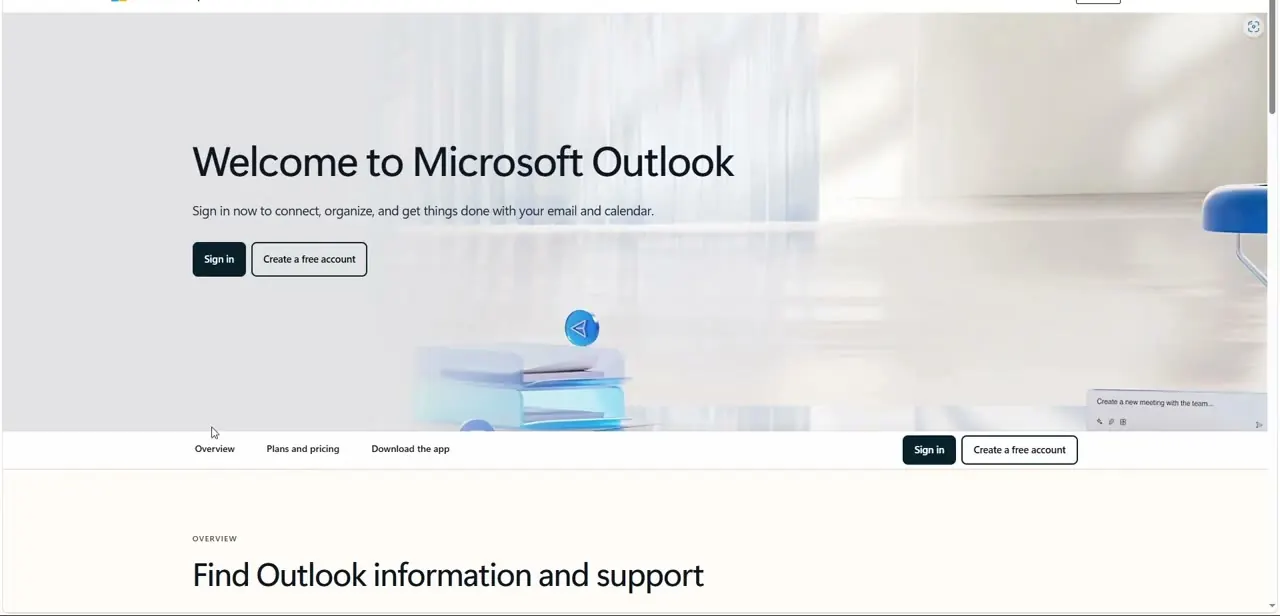
Everything starts from the Outlook web landing page, which shows "Welcome to Microsoft Outlook" and a Sign in button before any mail loads. Use the Microsoft account you want your phone linked to, personal or work — the code that appears later pairs with whichever account is signed in at the time.
02Confirm you're in the right inbox
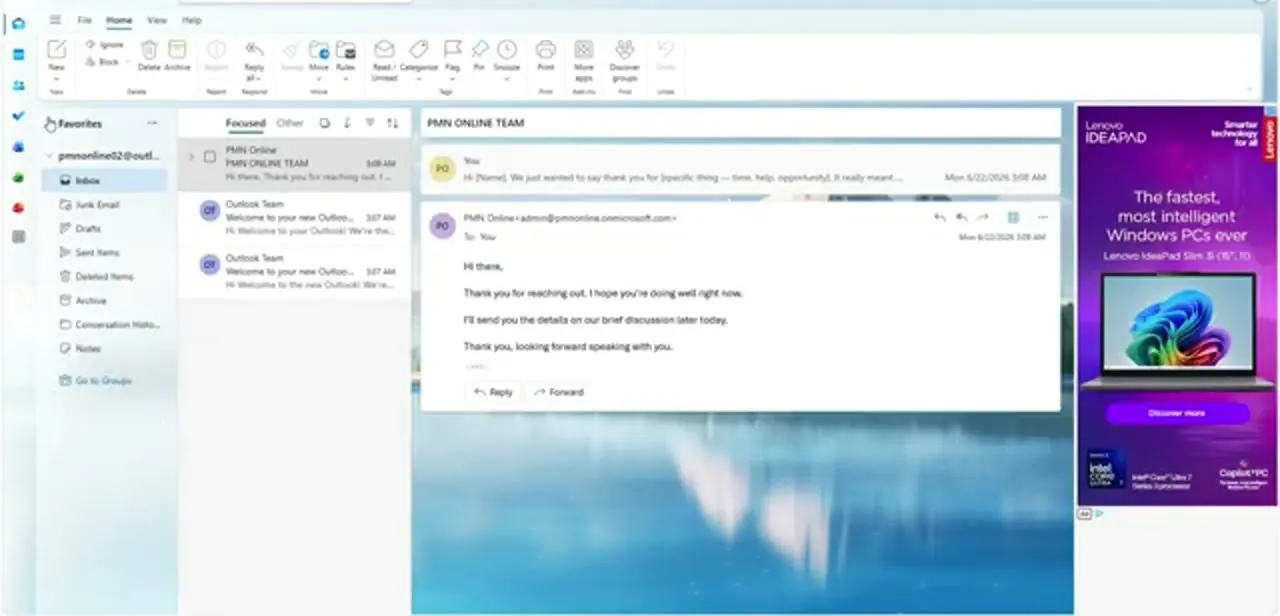
Once signed in, you land in your inbox with the Focused and Other tabs across the top and the folder list down the left side. Check the account name in that folder pane before going further, especially if you keep more than one Outlook account open in the same browser — the account switcher makes it easy to generate a code for the wrong one.
03Open Settings
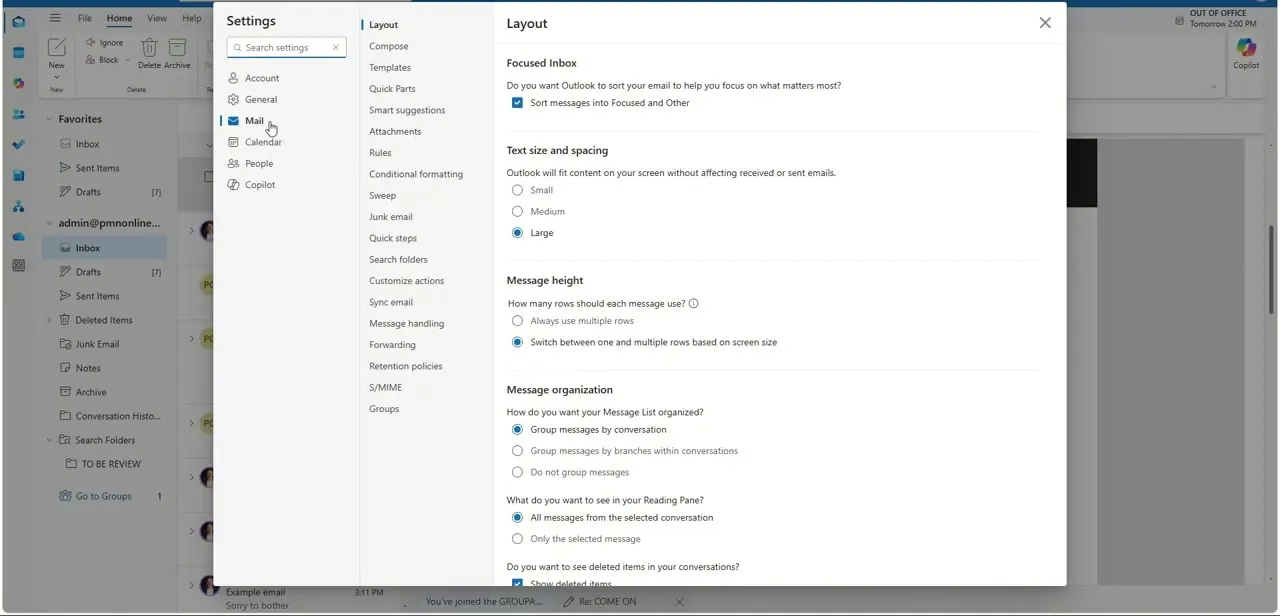
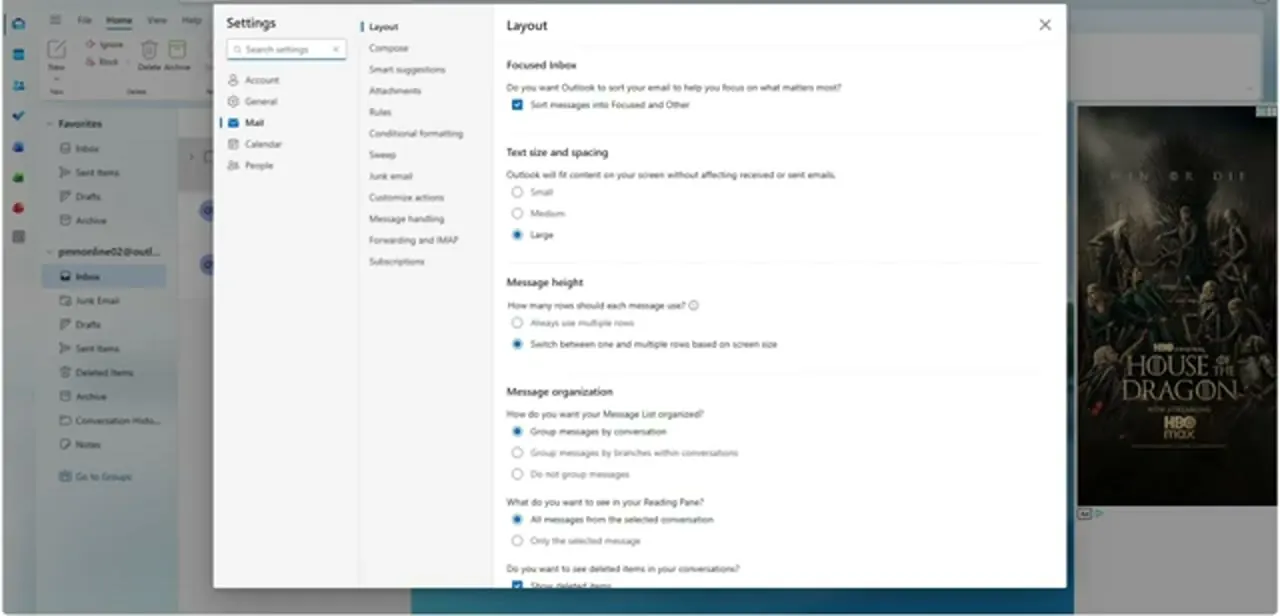
Mobile options live behind the gear icon, which opens a Settings panel: a category list on the left — Account, General, Mail, Calendar, People — and a detail pane on the right. This is the same panel used for display and layout preferences, so the layout will already look familiar if you've changed message density or the reading pane before.
04Open Accounts, then Mobile devices
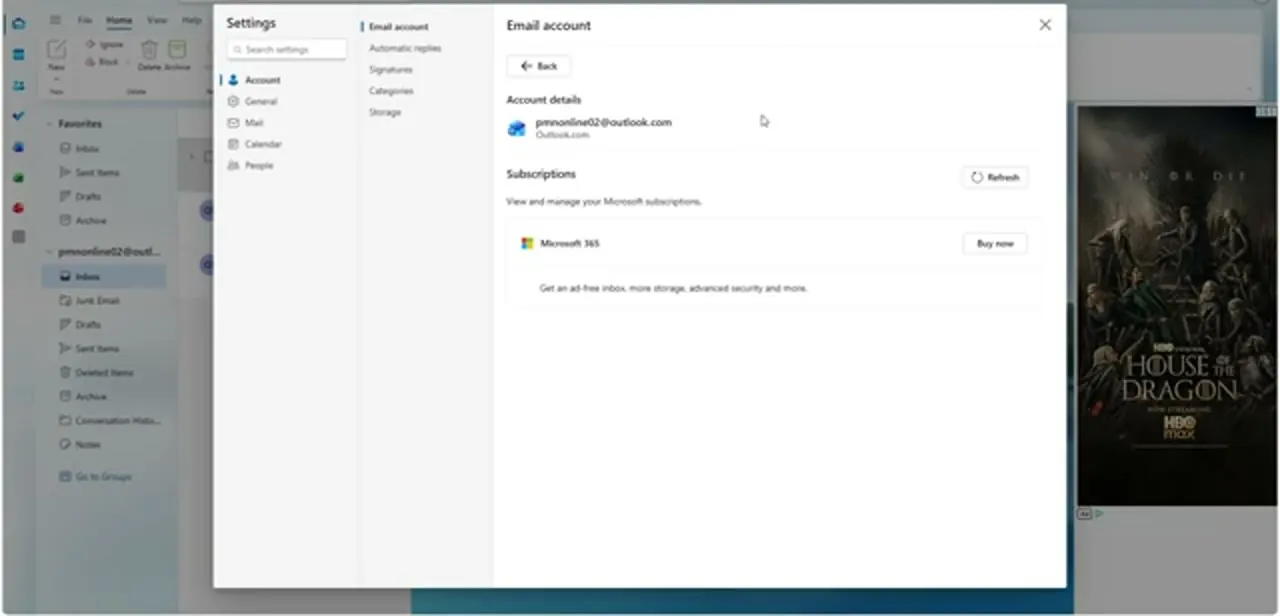
Click into Accounts and you land on your account details and any Microsoft subscription tied to that sign-in first. Mobile devices sits as its own item further down the same Accounts category; open it and select Get the Outlook app to bring up the code. If Accounts doesn't show a Mobile devices option at all, that's most likely the work-account restriction covered below, not a bug in your account.
05Generate the QR code
Get the Outlook app opens a panel with a QR code that's generated fresh each time rather than a static one you could screenshot and reuse — a code that never expired would be a standing security risk if anyone saw your screen. Give the panel a moment; codes like this can take a few seconds longer to appear than a typical settings screen.
06Scan it with the Outlook mobile app
On your Android or iPhone, open the Outlook app and go to its account-adding screen — Settings > Accounts > Add Account > Email Account > Scan QR Code if you're adding this as an extra account rather than at first launch. Point the camera at the code on your computer and accept the pairing prompt. If it times out before you finish, refresh the panel in Settings to generate a new one.
When it doesn't work
There's no Mobile devices option, or no QR code appears, on a work or school account
Why: Microsoft paused the QR sign-in rollout indefinitely for Microsoft 365 work and school accounts starting in September 2024. It's a deliberate rollback rather than something broken on your account.
Fix: Add the account with your email address and password instead, or check with your IT admin — some organizations control sign-in options through Microsoft Entra authentication policies and can re-enable it.
The phone camera won't scan the code
Why: Outlook mobile doesn't have camera permission, or screen glare and low brightness are breaking up the code.
Fix: Grant camera access in your phone's app permissions and raise your monitor's brightness before rescanning.
Frequently asked questions
Does the QR code expire?
Yes. It's generated fresh each time and is time-limited. If the pairing sequence times out before you finish scanning, refresh the panel in Settings for a new one.
Why is there no QR code option in my Outlook Settings?
If you're on a work or school (Microsoft 365) account, Microsoft paused this feature for that account type in September 2024. Personal accounts are less consistently affected, but the option can still be missing depending on your version of Outlook.
Is this the same thing as Microsoft Authenticator or the 'approve sign-in' push notifications?
No. Those are a separate passwordless sign-in method, documented on its own by Microsoft, where Outlook mobile approves or denies a login attempt. This guide's QR code does something narrower: it adds the mailbox to the app so you don't type a password once.
Do I need to touch any code to set this up?
No. Scanning the code and accepting the prompt is the entire process on both ends.
What if my phone's camera won't scan the code?
Check that the Outlook app has camera permission and that your screen is bright enough for a clean scan — a dim or glare-heavy monitor is the most common cause of a failed scan.
Sources and last check
Click path and screens come from a recorded walkthrough. The Settings > Accounts > Mobile devices path and the 2024 pause for work/school accounts were cross-checked against Microsoft support and community sources in September 2026; Microsoft's own how-to article for this exact flow returned a generic support hub rather than readable content when fetched directly in this session, so that specific detail carries slightly less certainty than the rest. What is confirmed from a Microsoft page read in full is that the Outlook-mobile-as-authenticator sign-in method is a distinct feature from the QR code covered here, which is now called out explicitly in the FAQ.
About the author

Impran M N
I've been hooked on technology for as long as I can remember — especially the new tools and AI apps that seem to land every other week. Easy Tech Tuts is where I write up whatever I've just worked out: I do the task in the real product, record the screen, and turn it into the guide I wish I'd found first.