Easy Tech Tuts
How to Create a New Outlook Account Easily 2026
By Impran M NLast checked against official docs
Setting up a free Outlook.com inbox is a short flow, but it branches depending on where you land first, and skipping the recovery step at the end leaves the account with no way back in if you're ever locked out. This guide follows the sign-up from outlook.com through username selection, password, and the profile and verification screens. It's aimed at someone creating a fresh personal inbox, not migrating an existing Microsoft 365 account.
01Start from the Outlook landing page
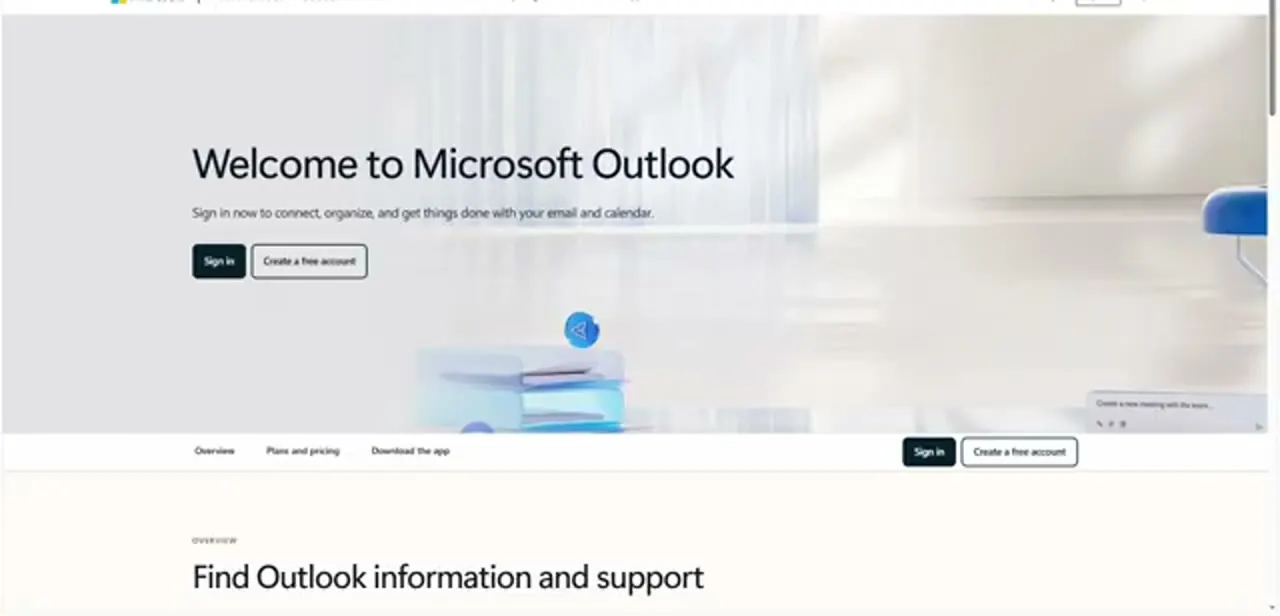
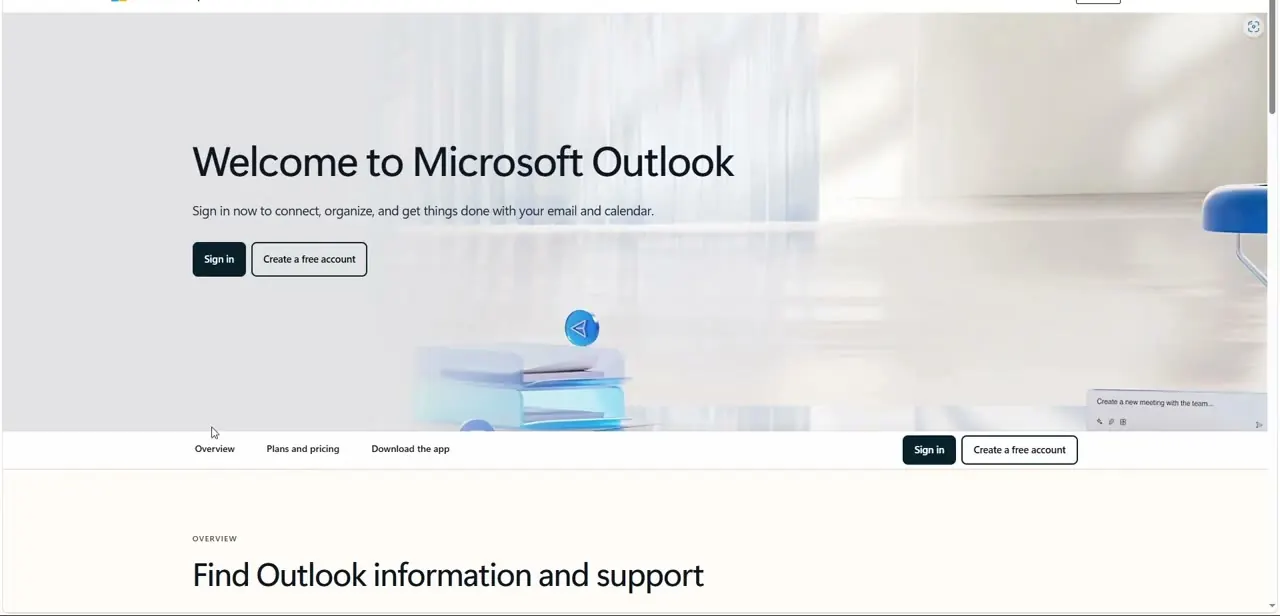
Go to outlook.com and you land on a page with two options: Sign in for an existing account, or Create a free account for a new one. The button repeats in the hero section and again in the footer, so it's hard to miss no matter how far you scroll. This is also the page a plain outlook.com link from a friend or coworker lands you on, so recognize it as the right starting point instead of hunting for a separate sign-up page.
02Use the sign-in screen's link if you land there instead
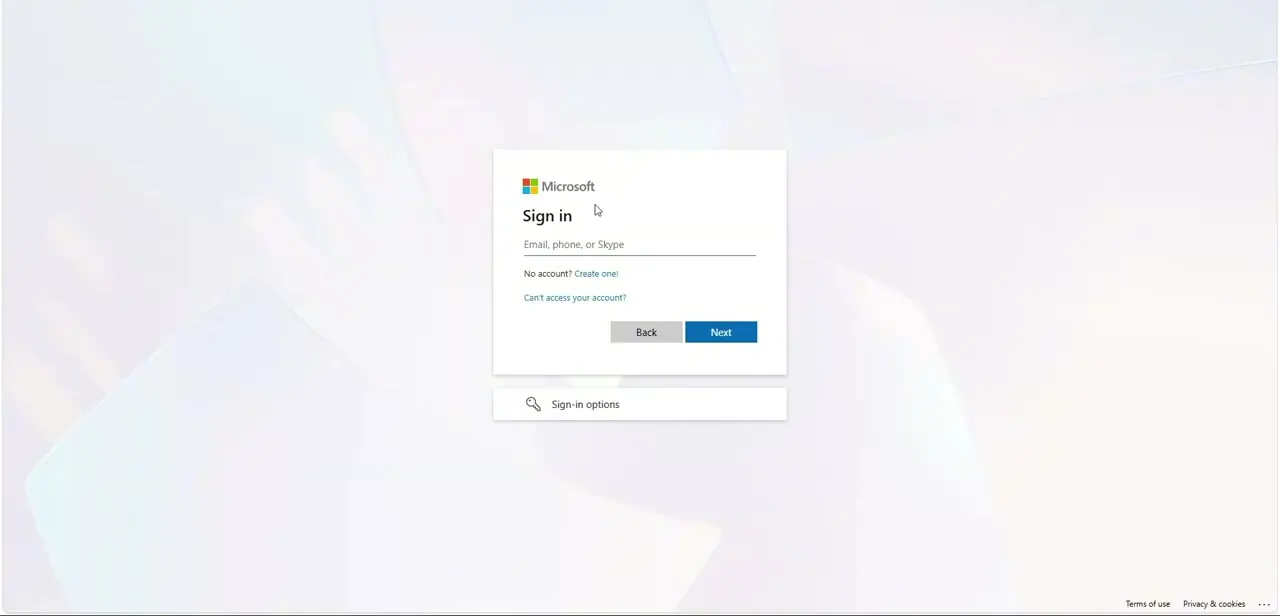
Some links point straight to the plain Microsoft sign-in box, asking for an email, phone number, or Skype name, instead of the outlook.com landing page. That's not a dead end.
Below the input field sits a "No account? Create one!" link that opens the same registration flow.
03Choose your username and domain
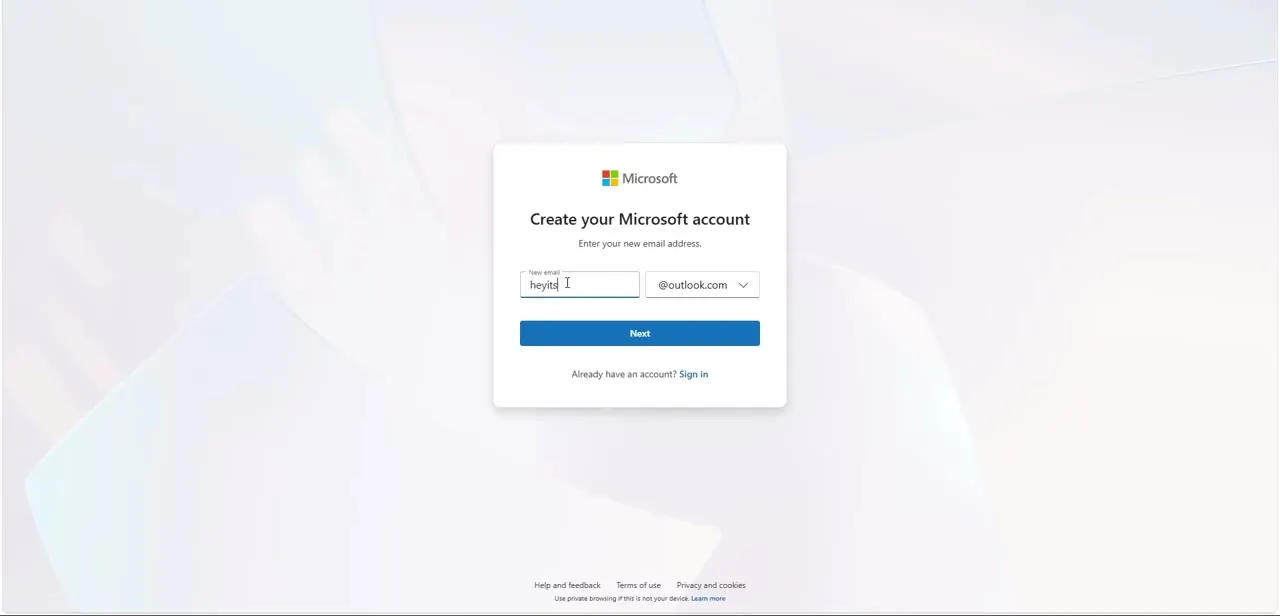
Registration starts with a Create your Microsoft account screen asking for a new email address. Type the handle you want on the left, and confirm the domain with the dropdown on the right; @outlook.com is the default, and Microsoft sometimes offers @hotmail.com in the same menu. You won't find out whether the handle is taken until after you click Next, so have a couple of backup variations ready.
04Create a password
The next screen pairs a password with the address. Mix uppercase and lowercase letters, numbers, and a symbol, and don't reuse a password from another account that matters to you.
A visibility toggle on the field lets you check what you typed before continuing. A typo here means troubleshooting a lockout before the account even exists.
05Provide your profile details
Microsoft then asks for your first name, last name, region or country, and date of birth. These aren't filler fields.
Your date of birth determines certain account protections, and in some regions signing up under the local minimum age requires a parent or guardian to complete the process instead of you. Enter real values, since correcting them later is more involved than getting them right the first time.
06Verify you're human, then set up a way back in
Before the account activates, you'll typically solve a short puzzle confirming a person is signing up, not a script. After that, Microsoft offers to add a passkey using your device's fingerprint or PIN, or a backup phone number or alternate email for recovery instead.
Set up at least one of the two in the same session. Skipping both leaves no way to recover the account if you're ever locked out. Microsoft then finishes building the mailbox, and the new inbox loads on its own.
Frequently asked questions
Is creating an Outlook account free?
Yes. Sign-up gives you a free Outlook.com inbox with 15 GB of dedicated mail storage, plus 5 GB of OneDrive storage shared across OneDrive, Outlook attachments, and the free Microsoft 365 web apps.
What if my desired username is already taken?
You'll only find out after clicking Next on the email address screen, since usernames are unique across the whole @outlook.com domain. Have a variation ready.
Do I need to add a backup phone number?
It's optional, but it's offered in the same step as the passkey option for a reason: skipping both leaves the account with no recovery path if you lose access.
Does Microsoft require a parent's involvement for a younger user?
In regions where the signup age falls below the local minimum, yes. Microsoft asks a parent or guardian to complete part of the process instead of the account holder.
Can I go straight to account creation without the sign-in screen first?
Yes. The outlook.com landing page has its own Create a free account button, so the sign-in screen's "Create one!" link is only needed if that's where a link happened to send you.
Sources and last check
Click path and screens come from a walkthrough recorded in July 2025. The sign-up flow, storage figures, and the parental-consent detail for underage sign-ups were re-checked against Microsoft's official support documentation in September 2026; the storage FAQ was corrected to separate the 15 GB mail allowance from the 5 GB OneDrive figure, which the earlier draft conflated.
About the author

Impran M N
I've been hooked on technology for as long as I can remember — especially the new tools and AI apps that seem to land every other week. Easy Tech Tuts is where I write up whatever I've just worked out: I do the task in the real product, record the screen, and turn it into the guide I wish I'd found first.