Easy Tech Tuts
How to Set Up Automated Messages in Microsoft Teams With Power Automate Easily 2026
By Impran M NLast checked against official docs
Typing the same status update into a Teams channel every morning is the kind of task that seems small until you add up the interruptions across a week. Power Automate can take it off your plate, posting a message into a Teams channel or chat on a schedule you set once.
The flow itself is short: a trigger, one Teams action, and a message body. A few choices along the way, who the message appears to come from and exactly where it lands, are easy to get wrong on a first attempt, and the action has real limits worth knowing before you build around it.
01Start from a template or build your own trigger
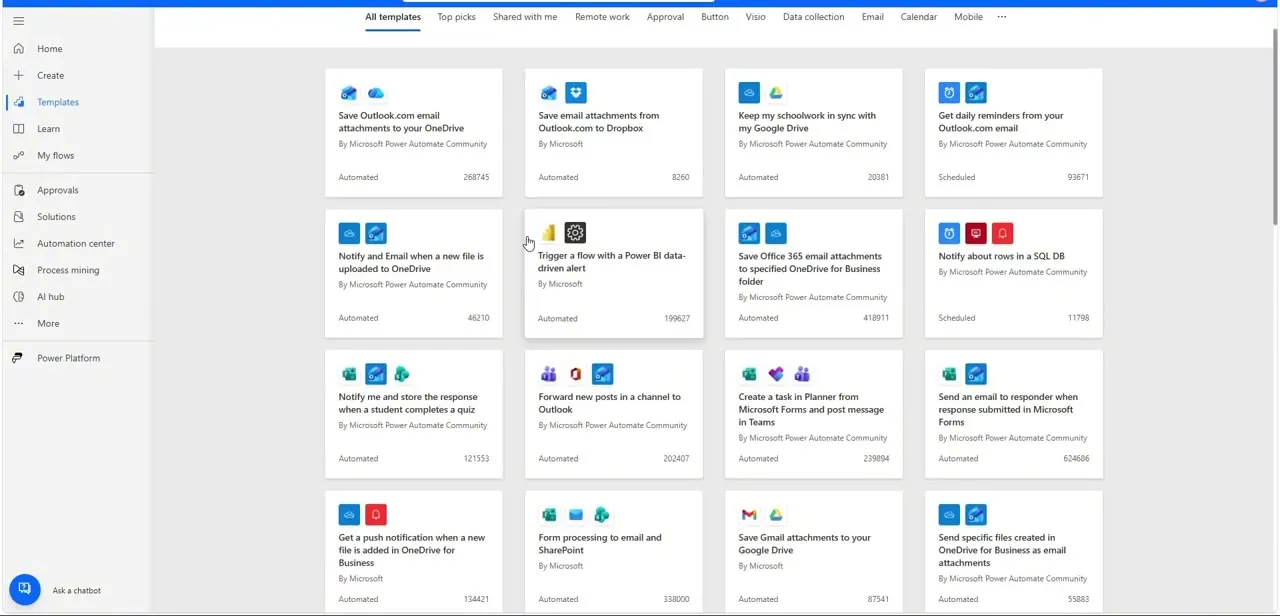
Power Automate's template gallery is worth a scan before building from scratch. Templates like "Automate weekly reminders and updates in a chat" show the Teams connector already wired up, useful as a reference even if you customize everything.
For a fully custom flow, choose Automated cloud flow, search the trigger list for Recurrence, and set how often the message should send. A manually triggered flow works the same way and is faster to test before committing to a real schedule.
02Search the trigger list and name the flow
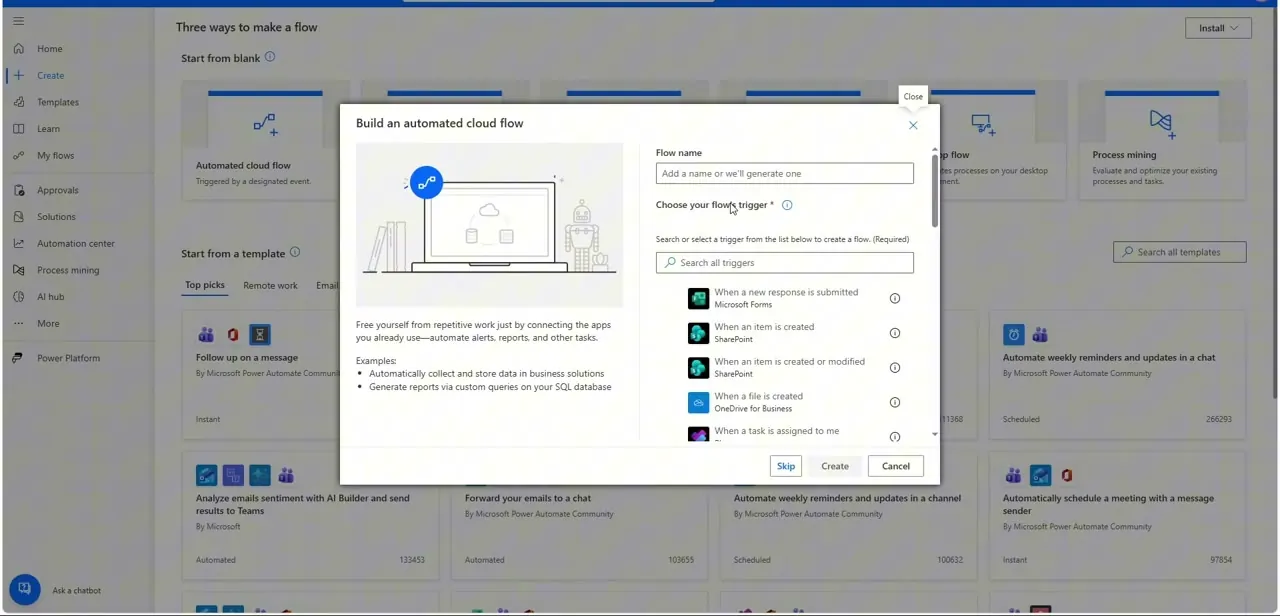
The trigger picker for a new automated cloud flow lists both event-based and app-specific starters, searchable from the same dialog. For a message that runs on its own schedule, not in response to another app, search for Recurrence and set the interval and start time there. Name the flow clearly before adding a single action; it saves confusion later once it's sitting next to a dozen others in My flows.
03Add Post a message in a chat or channel
Underneath the trigger, search for and add the Microsoft Teams action "Post a message in a chat or channel." This single action does the actual work; everything else in the flow exists to feed information into it.
04Set who the message posts as and where it lands
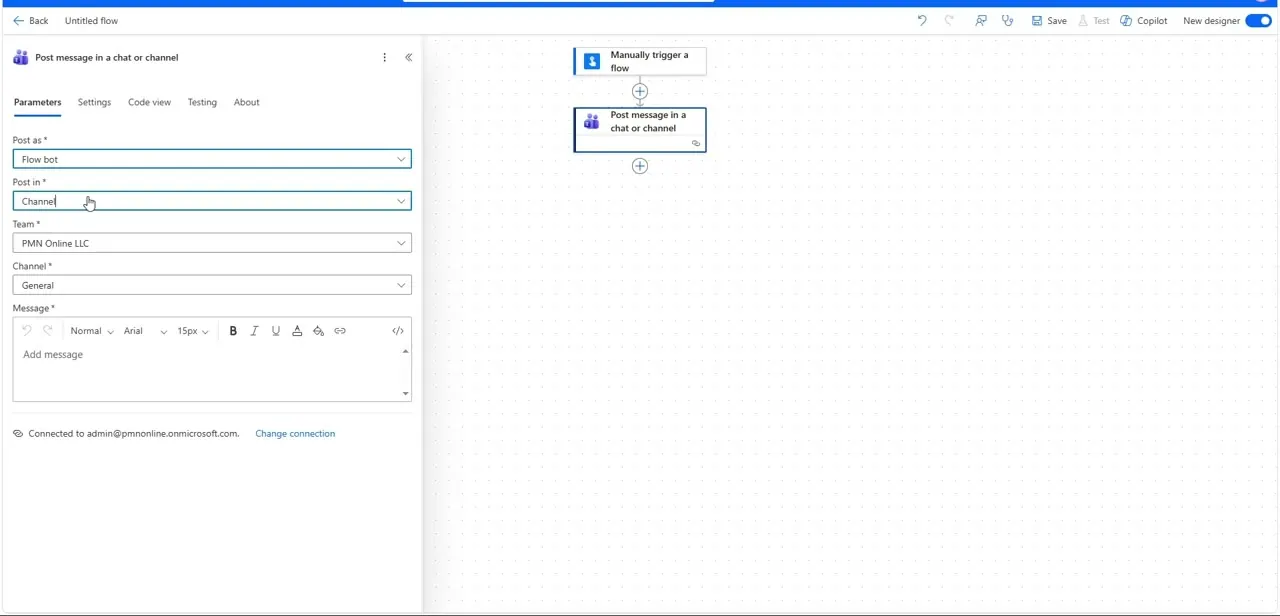
The action's Post as dropdown has three options: Flow bot, a neutral automated sender not tied to any person; User, which sends as whoever is signed into the Teams connector in the flow; and Microsoft Copilot Studio agent, for messages sent through a configured agent. Post in narrows the target: Channel, Group chat, Chat with Flow bot, or Chat with agent, depending on the Post as choice.
Choosing Channel reveals Team and Channel dropdowns so you can aim at one specific channel. Getting this combination right matters for tone: a Flow bot post in a channel reads as a system notification, posting as yourself reads as a personal update, and picking the wrong one for a sensitive announcement can land oddly.
05Write the message and add dynamic content
The Message field includes a formatting toolbar, bold, italic, underline, and a link tool, so a status update can carry real structure instead of a wall of plain text. Insert dynamic content from earlier steps by placing the cursor and selecting the lightning-bolt icon, pulling in a date, a count, or a value from a connected source so the message stays accurate on every run instead of going stale.
A few limits to know before you rely on this: you can't mark a Teams message as Urgent or Important through this action, private channels aren't a supported posting target, and @mentions inserted through the companion mention action only work for individual users. Tagging a whole channel or team isn't possible.
06Save, run a manual test, and confirm delivery
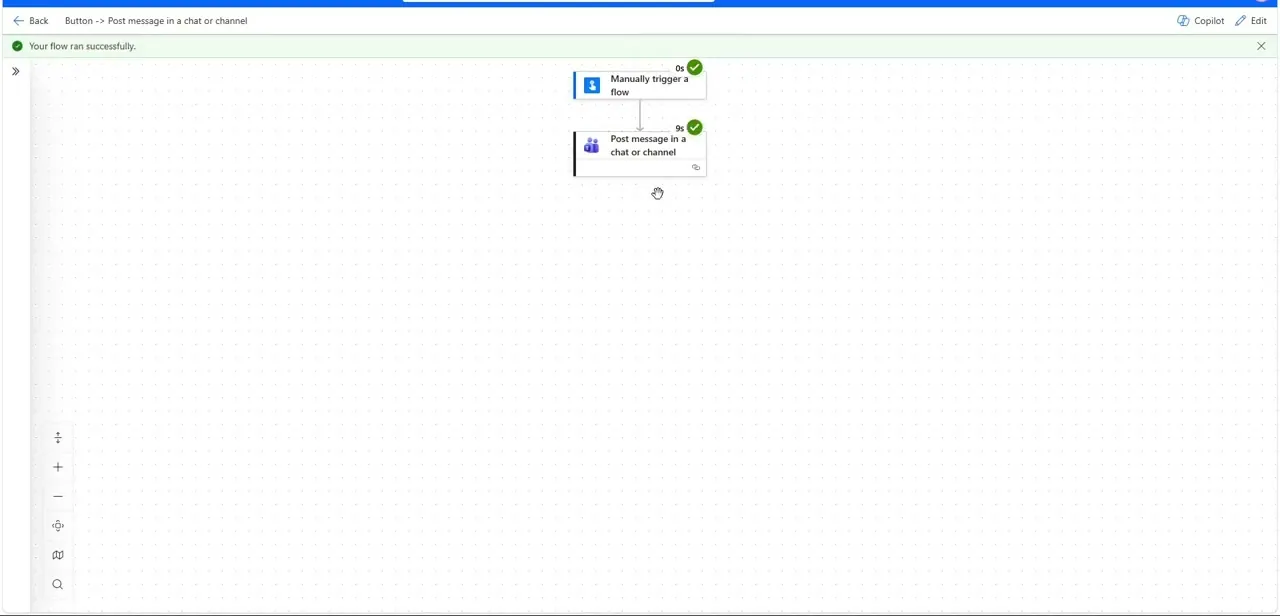
Save the flow and trigger it manually the first time, even if the real trigger will eventually be Recurrence; this confirms the message posts correctly without waiting for the clock. Power Automate's run view shows each step with a green checkmark and its execution time. Open Teams and check the actual channel to confirm the message landed where intended and reads the way you wrote it before letting the schedule take over.
When it doesn't work
The target channel doesn't show up in the Channel dropdown
Why: Posting to private channels isn't supported by the Post a message in a chat or channel action.
Fix: Pick a standard channel instead, or restructure the notification to go to a group chat if the audience needs to stay limited.
A group chat you want to post to isn't in the dropdown
Why: The Group chat dropdown only lists the 50 most recently active named group chats by default.
Fix: Use Enter custom value with the chat's Conversation ID, or pair the action with Create a chat if the chat doesn't exist yet.
Mentioning the whole team doesn't notify anyone
Why: The Get an @mention token for a user action, the only supported mention mechanism, mentions individual users. It doesn't support mentioning a channel or team.
Fix: Add a separate mention action for each person who needs to be notified directly. Tagging the group isn't an option.
Frequently asked questions
Can the message post as me instead of a bot?
Yes. The Post as dropdown offers Flow bot, User (you, as the signed-in account), or a Microsoft Copilot Studio agent.
Can I send the same automated message to multiple channels?
Add multiple Post a message in a chat or channel actions in the same flow, each targeting a different channel or chat.
Can I post an automated message into a private channel?
No. Posting to private channels isn't supported by this action.
Why didn't my scheduled message send?
Check that the Recurrence trigger is configured correctly and the flow is turned on; a paused or misconfigured trigger is the most common cause of a missed send.
What's the difference between posting to a channel and posting to a chat?
A channel post is visible to the whole team in its shared feed; a chat post goes into a specific group chat or one-on-one conversation. Use channel for broad visibility, chat for a targeted audience.
Sources and last check
Click path and screens come from a walkthrough recorded in July 2025. Re-checked against Microsoft's official Power Automate documentation in September 2026: the earlier draft described only two Post as options, but the current action offers a third, Microsoft Copilot Studio agent, and the Post in options are more specific than a plain Channel-or-Chat choice. The known limitations, no private channels, no Urgent/Important flag, mentions limited to individual users, and the 50-chat dropdown cap, come from the same page and were not in the earlier version.
About the author

Impran M N
I've been hooked on technology for as long as I can remember — especially the new tools and AI apps that seem to land every other week. Easy Tech Tuts is where I write up whatever I've just worked out: I do the task in the real product, record the screen, and turn it into the guide I wish I'd found first.