Easy Tech Tuts
How to Change Microsoft Teams Display Name Easily 2026
By Impran M NLast checked against official docs
A wrong or outdated display name in Microsoft Teams is a small thing that causes an outsized amount of confusion in meetings and chat threads. How you fix it depends entirely on what kind of account you're signed in with: a personal Microsoft account edits in a completely different place than a managed work or school account, and mixing the two up is why so many people end up staring at a name field that won't let them type.
This guide walks through the real settings screens involved, the Microsoft account panel where personal names actually live, and the in-meeting rename option for a one-off change that doesn't touch your account at all. By the end you'll know which path applies to you and where the edit button is hiding.
01Understand where Teams gets your name from
Teams doesn't store your display name itself; it pulls it from your underlying Microsoft account. The fix for a personal Microsoft account, the kind you sign up for at outlook.com or when you download Teams free, is different from a work or school account, which is managed by an organization's Microsoft 365 directory. If your name field looks greyed out or locked, that's usually the tell that you're on a managed account, and the change needs to go through your IT administrator instead of a settings menu you can reach yourself.
02Open your Microsoft account settings
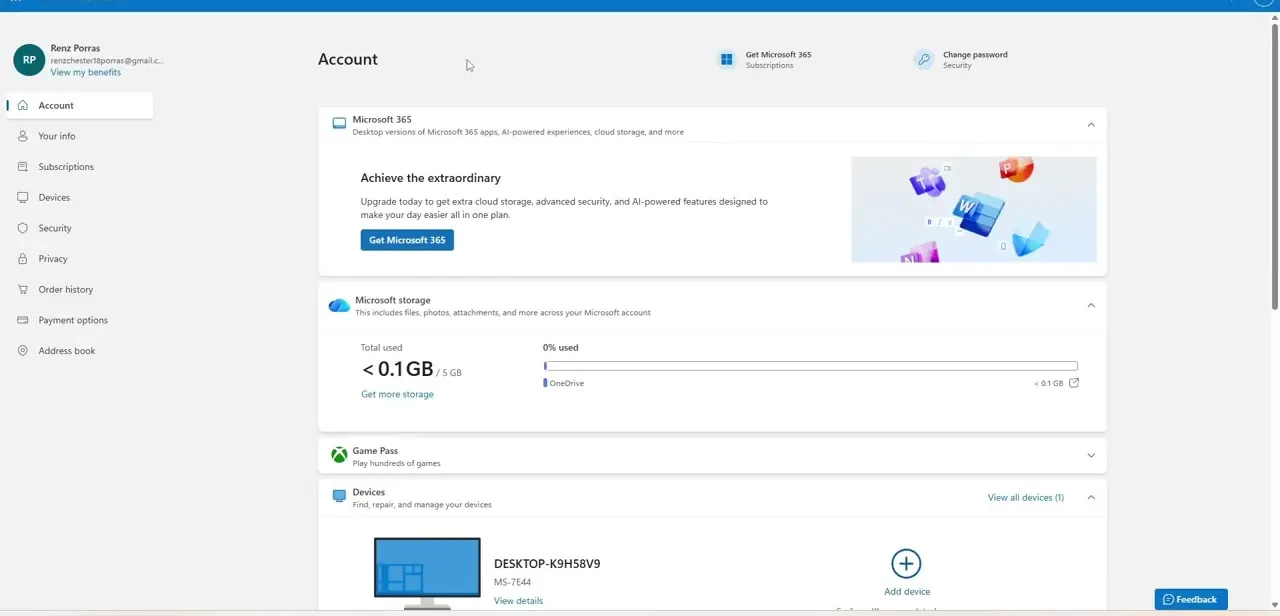
For a personal account, the edit doesn't happen inside the Teams app window; it happens on the Microsoft account website, which Teams links out to. From the account overview page you'll see your profile photo, storage usage, connected devices, and a sidebar with sections like Your info, Subscriptions, Devices, and Security. This is the same account hub that governs your whole Microsoft footprint, not just Teams, so a name change here can ripple out to other Microsoft apps signed in with that account.
03Edit your first and last name
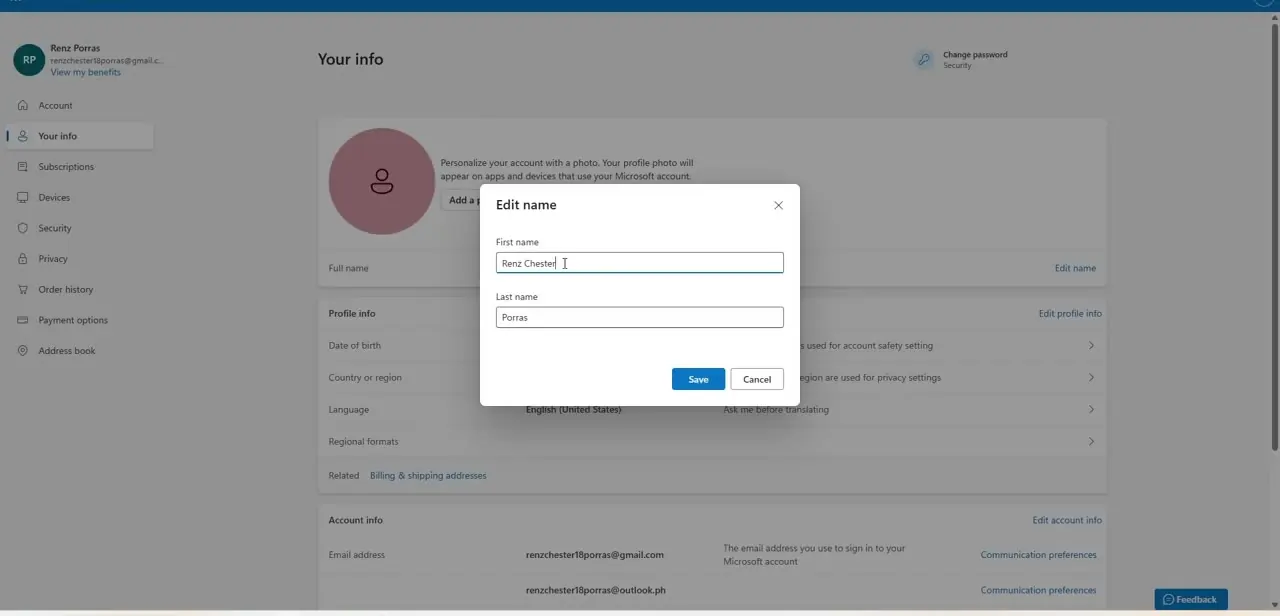
From the sidebar, click Your info, then find Edit name next to your full name. A small dialog opens with two plain text fields, First name and Last name, pre-filled with whatever's currently on file.
Clear out what's wrong, type the correct spelling, complete the verification prompt if Microsoft shows you one, and click Save. Microsoft applies the change to your account right away, but its own guidance notes the update can take up to 24 hours to show up consistently everywhere it's used.
04Force Teams to pick up the change
Teams caches your profile information locally, so a saved name change on the Microsoft account site doesn't always appear instantly inside the app. Fully close Teams, not just minimize it, and reopen it, or sign out and back in if a restart doesn't do it. That forces a fresh sync, and combined with the account-side propagation delay, the new name should show correctly in chats, the People panel, and meeting rosters within a day at most.
05Coordinate with IT for a work or school account
On a managed account, none of the steps above will work, because the name field is controlled by your organization's directory rather than your personal settings. That's intentional; company directories are usually kept consistent for compliance and searchability. Reach out to your IT or Microsoft 365 administrator with the correct spelling or preferred name, and they can update it centrally so it stays consistent across Teams, Outlook, and SharePoint.
06Change your name for a single meeting instead
Two different features cover this, and only one is guaranteed to be there. Joining a meeting link without signing in always lets you type a one-time display name for that session, with nothing about your account touched.
Editing your name while already in a meeting, signed in, through the People panel's options menu, is a separate feature that's off by default for every organization. It only works if a tenant admin has turned it on and the meeting organizer has also enabled Let people edit their display name for that specific meeting under Meeting options. If you don't see the option, that's very likely why.
Frequently asked questions
Why can't I change my display name in Teams?
On a managed work or school account, your name is usually controlled by your organization's directory and needs an IT administrator to update it rather than a setting you can change yourself.
Do I need to restart Teams after changing my name?
Yes. Fully closing and reopening the app, or signing out and back in, forces a sync with your Microsoft account. Microsoft also notes the underlying account change can take up to 24 hours to propagate everywhere, so give it a little time even after restarting.
Can I use a different name just for one meeting?
Joining without signing in always lets you type a one-time display name. Changing your name mid-meeting while signed in is a separate, admin-controlled feature that's off by default; if the option isn't in the People panel, it hasn't been enabled for your organization or that meeting.
Does changing my personal account name affect other Microsoft apps?
Yes. Because the edit happens at the Microsoft account level under Your info, it can flow through to Outlook, OneDrive, and other connected Microsoft services, not just Teams.
Where exactly do I go to edit a personal Teams name?
Click your profile avatar in Teams, follow the link to your Microsoft account, open Your info, and click Edit name next to your full name to update the first and last name fields.
Sources and last check
Click path and screens come from a walkthrough recorded in July 2025. The personal-account edit flow and the meeting rename feature were re-checked against Microsoft's official support and Tech Community documentation in September 2026. That check added two corrections: Microsoft's own guidance says a name change can take up to 24 hours to propagate, not just an app restart, and the in-meeting rename option described in the original guide is off by default and requires both tenant-admin and meeting-organizer approval, which the previous version didn't mention.
About the author

Impran M N
I've been hooked on technology for as long as I can remember — especially the new tools and AI apps that seem to land every other week. Easy Tech Tuts is where I write up whatever I've just worked out: I do the task in the real product, record the screen, and turn it into the guide I wish I'd found first.