Easy Tech Tuts
How to Add a Hyperlink in Jotform Easily 2026
By Impran M NLast checked against official docs
Linking out to terms and conditions, a product catalog, or a downloadable resource is a common need, but Jotform doesn't give hyperlinks their own dedicated field. You build them inside the Paragraph element's rich text editor instead, which is a small distinction that saves a lot of hunting once you know it. This guide covers adding the Paragraph block, selecting text, inserting the link, and setting it to open in a new tab so respondents aren't pulled away from a form they haven't finished.
01Open the form you're adding the link to
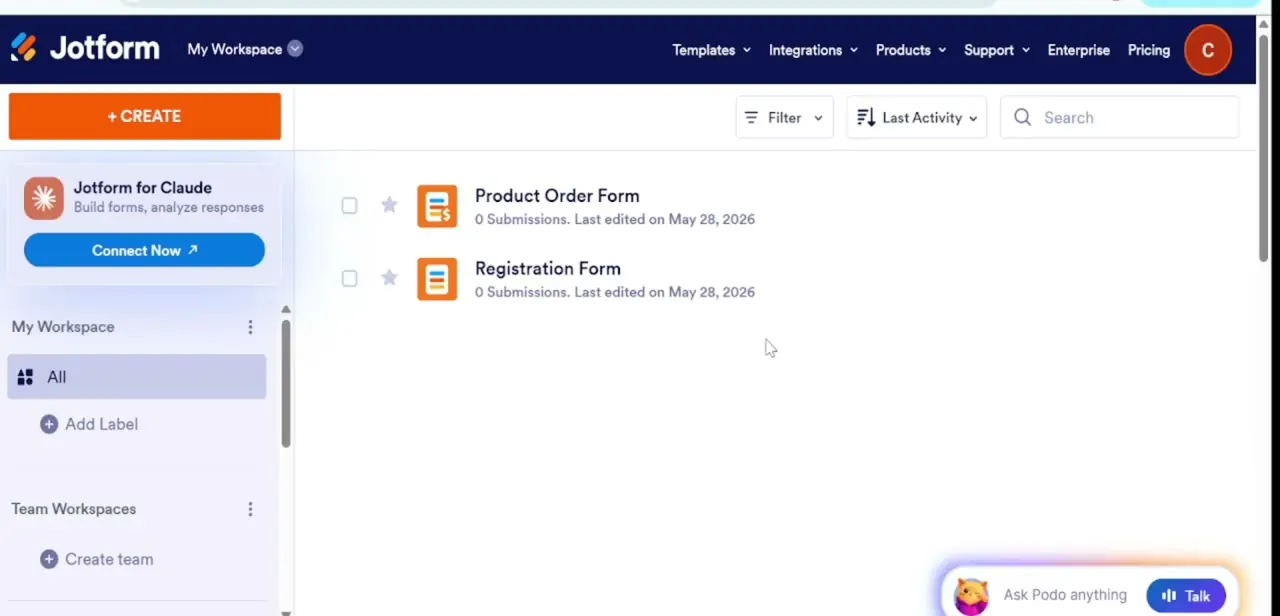
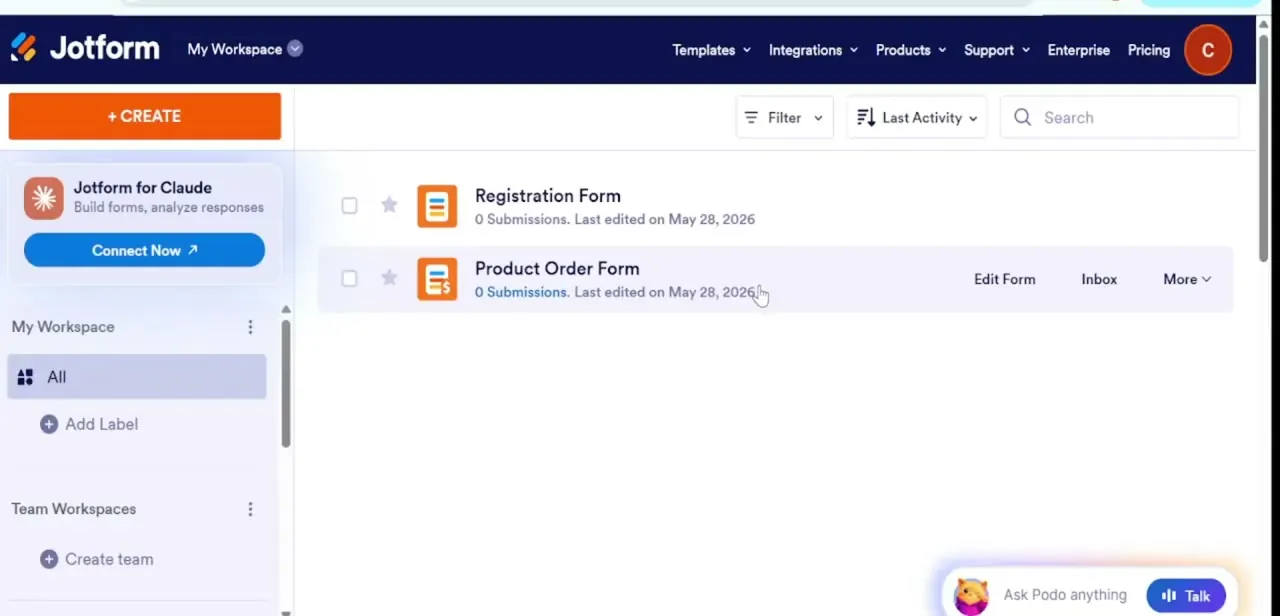
From My Workspace, hover over any form in your list to reveal quick actions like Edit Form, Inbox, and More, or click the form title to open it directly. This is the starting point regardless of which form needs the link: registration forms, order forms, anything with a Paragraph element already in it or room to add one.
02Add a Paragraph element and open its editor
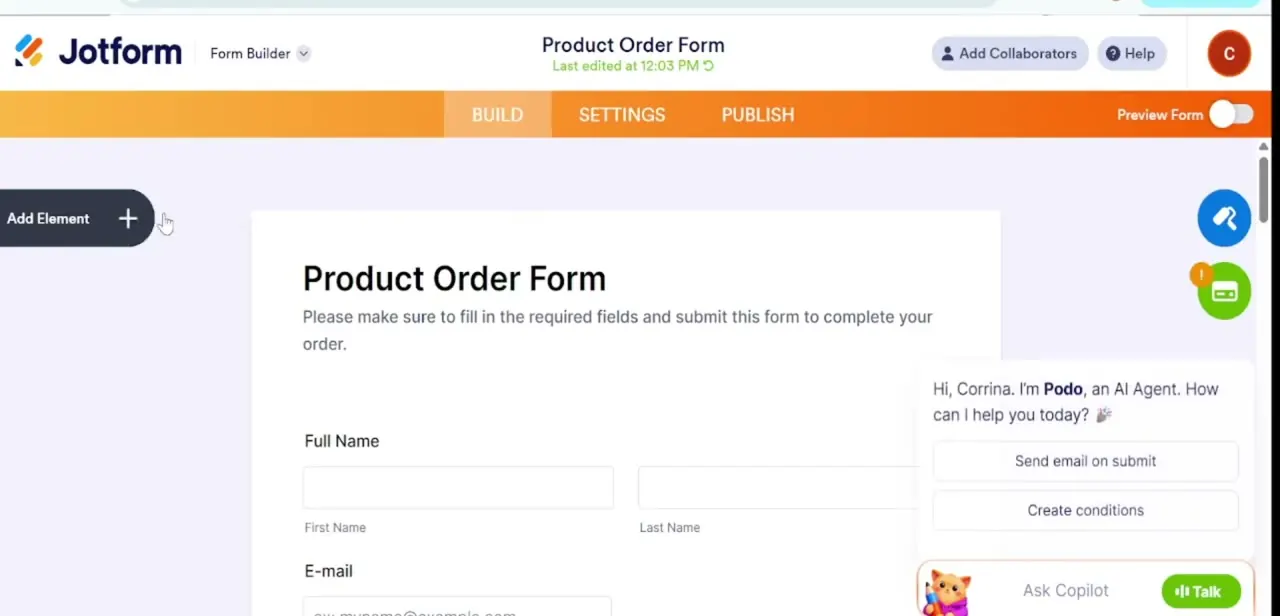
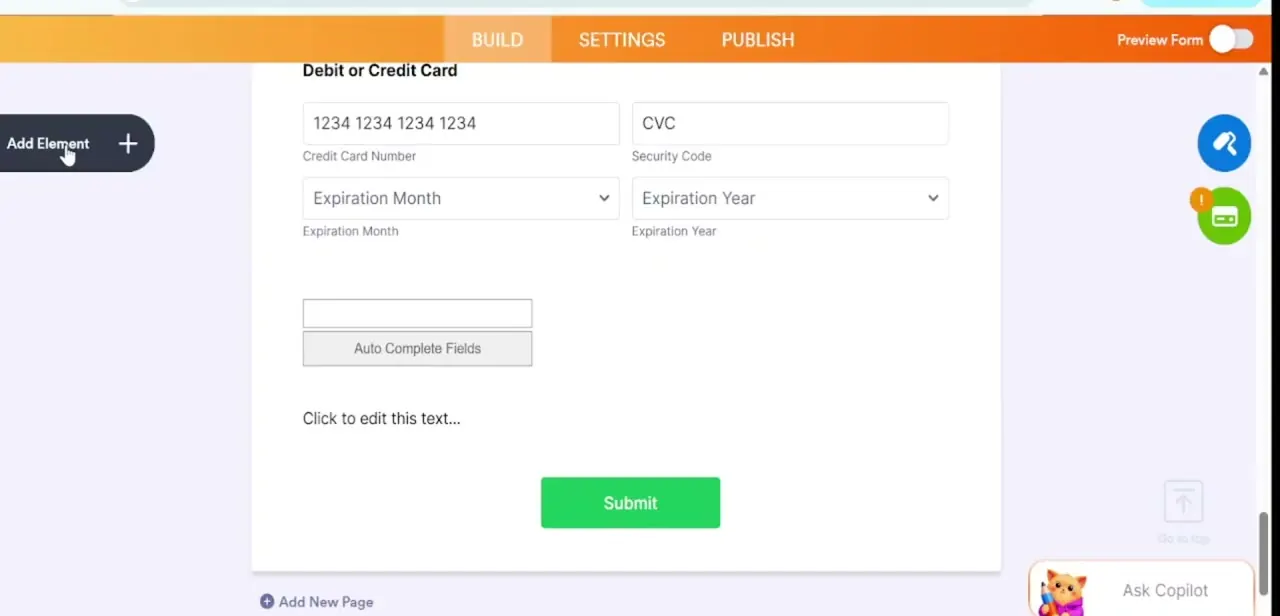
Inside the builder, scroll to where the link should live logically. Near a Submit button is common for terms and conditions, but it can go anywhere.
Click Add Element in the top-left corner, and under the Basic tab, drag Paragraph onto the canvas. Double-click the new block to open its rich text editor: a formatting toolbar appears above the text area with bold, alignment, and list options, plus a chain-link icon for inserting URLs. Type or paste the text you plan to make clickable, such as "Click Here to Visit the Website."
03Highlight your anchor text and insert the link
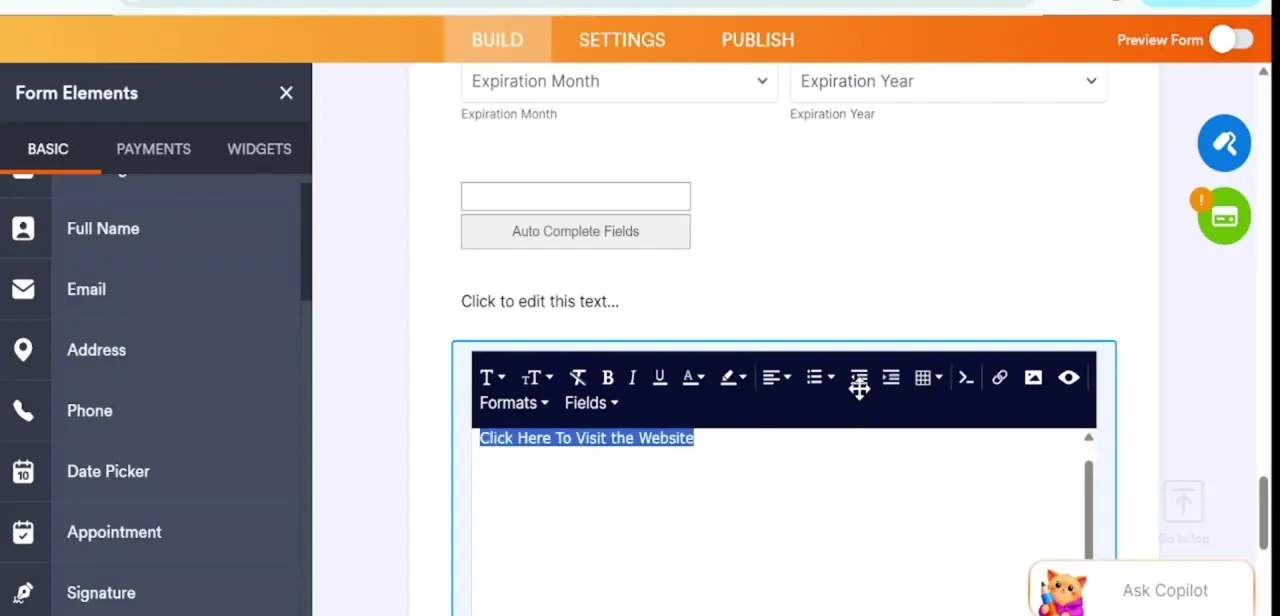
Select the exact words you want clickable. Whatever you highlight becomes the anchor text, and anything left unselected stays plain.
With the text highlighted, click the Insert/Edit Link icon in the toolbar. In the dialog, paste the destination URL including https://, and check the Text to Display field, which shows your selected words and can be edited if needed. For Target, choose New Tab instead of the default Same Window, so clicking the link doesn't navigate the respondent away from a form they haven't submitted yet.
04Match the link's styling to your form (optional)
Back in the toolbar, use the text color and formatting options so the link doesn't sit in whatever default blue the editor applies. This step is optional, but a link that clashes with the rest of your color scheme reads as an afterthought.
05Save and test the live link
Save the paragraph block, then use Preview Form to click the link exactly as a respondent would. Confirm it opens in a new tab and loads the correct destination, then check the same thing on a mobile-width preview, since tap targets on rich text links can behave differently on smaller screens than in the desktop editor.
When it doesn't work
Only part of the sentence turned into a link
Why: Only the exact text highlighted when Insert/Edit Link was clicked becomes the anchor; anything outside that selection stays plain.
Fix: Re-highlight the full phrase and reapply the link.
Clicking the link takes respondents away from the form
Why: Target was left on its default value, Same Window.
Fix: Reopen the link dialog and switch Target to New Tab.
The pasted link isn't clickable at all
Why: The URL is missing its protocol. A bare domain like example.com, without https://, isn't recognized as a link.
Fix: Edit the link and make sure the URL starts with https:// (or http://).
Frequently asked questions
Does the hyperlink open in a new tab by default?
No. Jotform's Target setting defaults to Same Window, so you have to switch it to New Tab yourself if you don't want the click to pull respondents off the form.
Can I style the hyperlink to match my form's colors?
Yes. The rich text editor's formatting options apply inline styling to linked text the same way they do to any other text in the Paragraph block.
Can I link to a downloadable file instead of a webpage?
Yes, as long as you have a direct URL to the file. Paste it into the same link dialog used for any other web address.
Why did only part of my sentence turn into a link?
Only the text you had selected when you clicked Insert/Edit Link becomes the anchor. Reselect the full phrase and reapply the link if part of it stayed plain.
Is there a limit to how many hyperlinks one form can have?
There's no hard limit, but packing several links into one Paragraph block clutters the layout and makes respondents less likely to notice any single one.
Sources and last check
Click path and screens come from a walkthrough recorded before this pass. The link dialog's field names, in particular the New Tab / Same Window target options and the Same Window default, were re-checked against Jotform's own Help Center and Answers pages in September 2026; the target label was corrected from "Open in new window" to Jotform's actual wording.
About the author

Impran M N
I've been hooked on technology for as long as I can remember — especially the new tools and AI apps that seem to land every other week. Easy Tech Tuts is where I write up whatever I've just worked out: I do the task in the real product, record the screen, and turn it into the guide I wish I'd found first.