Easy Tech Tuts
HubSpot Tutorial for Beginners, How to use Hubspot in 2026
By Impran M NLast checked against official docs
HubSpot's pitch is one connected system for contacts, deals, and communication, but the fastest way to understand it is to look at a single contact record and see how much lives in one place. This tutorial walks through the core CRM building blocks a beginner touches first: the contacts list, an individual record with its AI-generated summaries, and the task system that keeps follow-ups from falling through. It skips the marketing pitch and focuses on the screens you'll work in once you're logged in.
01Start from the Contacts list
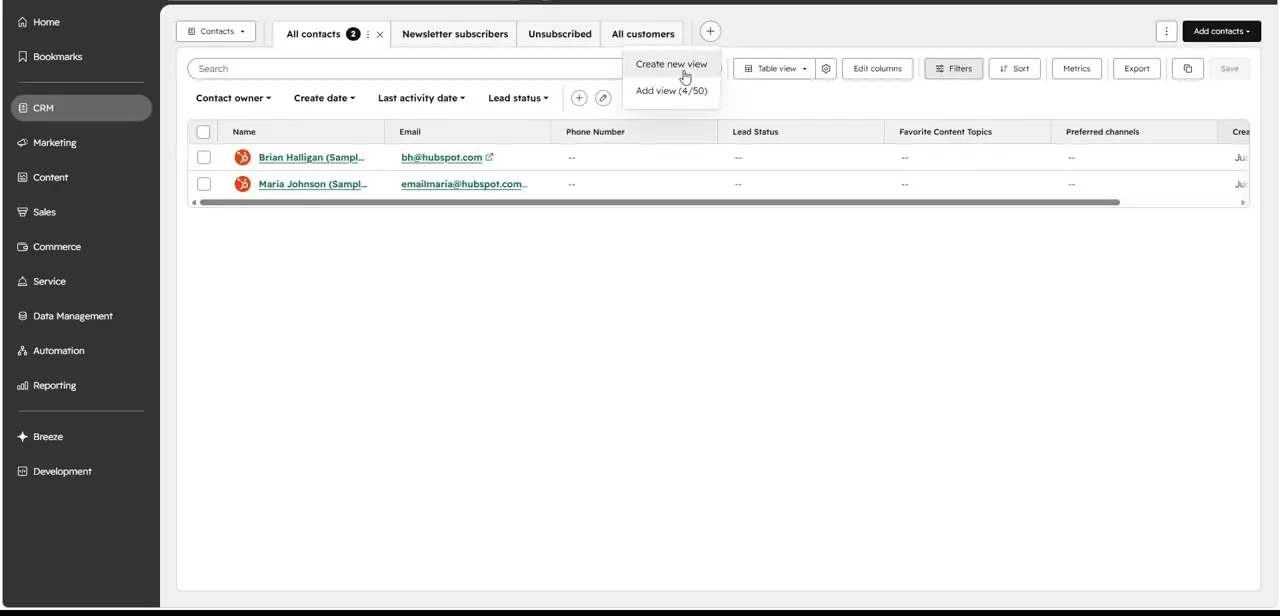
The CRM menu in the left sidebar opens into Contacts, where every person in your database shows up as a row: name, email, phone number, lead status, and any custom properties you've set up, like Favorite Content Topics or Preferred Channels. Tabs across the top let you save different filtered views, such as Newsletter Subscribers or All Customers, and a Create New View option lets you build your own. A new account starts with just a couple of sample contacts, a fine place to click around before importing real data.
02Open a single contact record
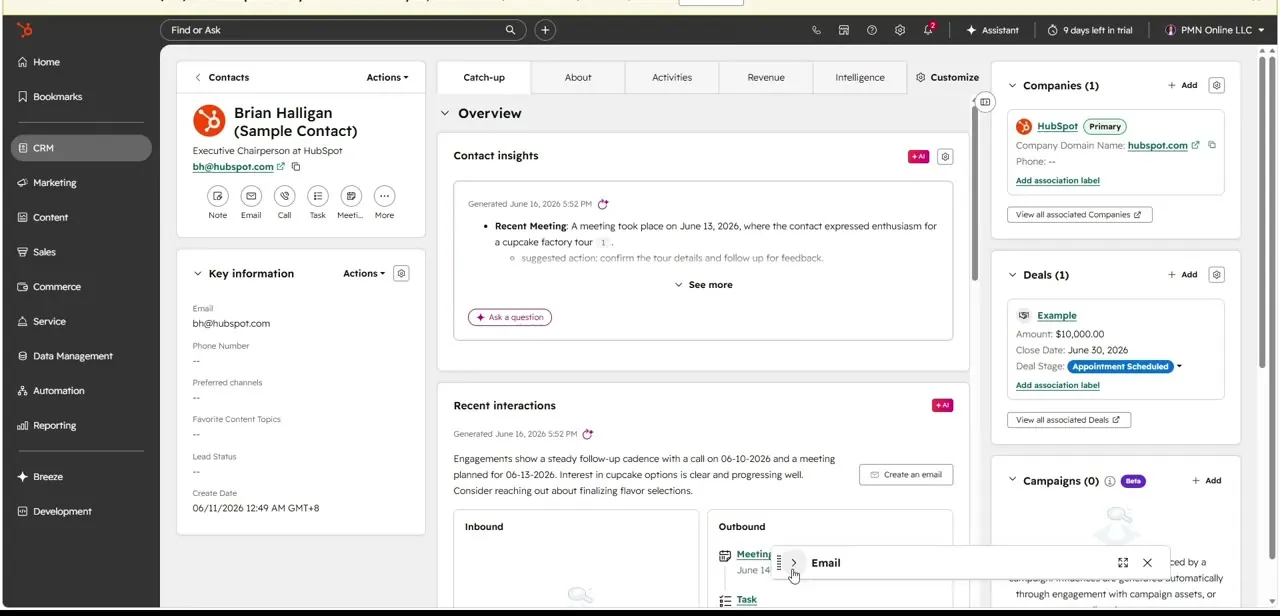
Clicking into a contact opens their full record, split into a left column of key details and a main panel with tabs across the top, commonly About, Activities, Catch-up, Revenue, and Intelligence. Quick actions sit right at the top of the record, Note, Email, Call, Task, and Meeting, so logging an interaction doesn't mean hunting through menus.
03Read the AI-generated insights on the Catch-up tab
The Catch-up tab is where HubSpot's AI assistant, Breeze, pulls together what's happened on a record without making you read the full activity log. It's organized into three sections: an Overview with a plain-language rundown of recent interactions, a Health section scoring sentiment from the contact's activity, and a Data quality section flagging what's missing from the record.
In a working example, the Overview summary read like a short recap, a meeting on a specific date where the contact expressed interest in something specific, with a suggested next step underneath, confirming details or following up for feedback. These summaries are generated on demand and timestamped, and an "Ask a question" prompt sits alongside them if you'd rather query the record directly.
04Check associated companies and deals
On the right side of the record, Companies, Deals, and Campaigns each get their own collapsible panel. A linked company shows its domain and phone number with a shortcut to view all associated companies, and an open deal shows its amount, close date, and current stage, Appointment Scheduled, for instance, right in the sidebar without opening a separate page. This is the part that earns the CRM label: the deal, the company, and the person are cross-referenced from one screen instead of living in disconnected spreadsheets.
05Create a task from a record
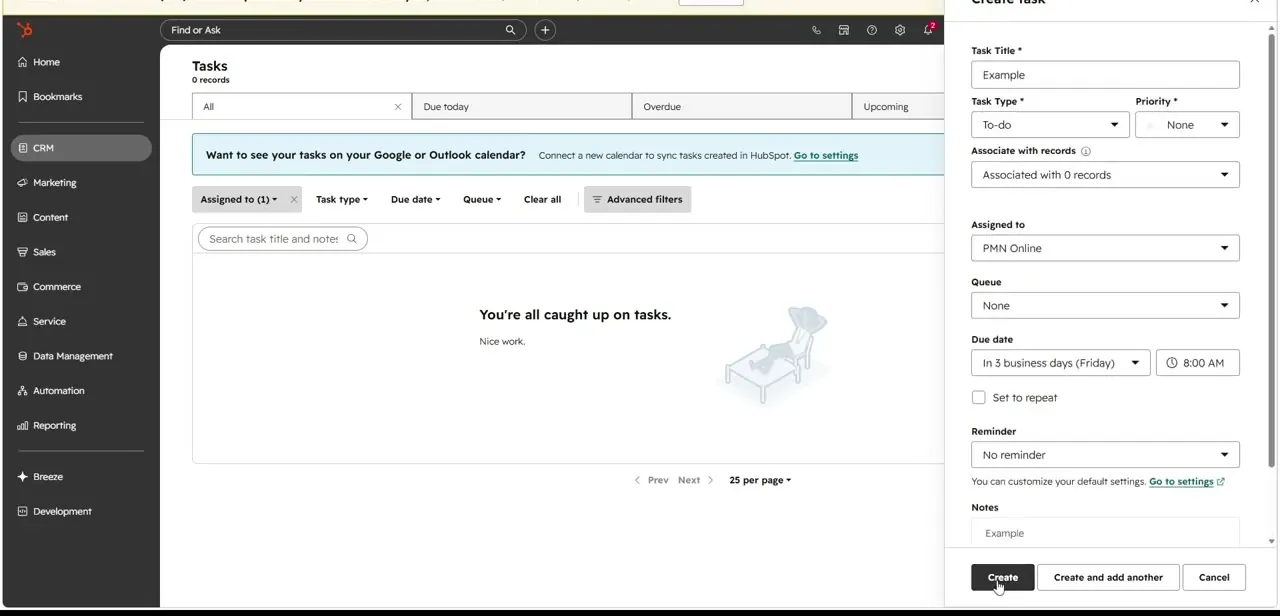
Clicking Task from the quick actions bar, or the Tasks item under CRM, opens a Create Task panel with fields for Task Title, Task Type, Priority, and an Associate With Records dropdown that links the task back to the contact you're working from. You also set who it's Assigned To, whether it belongs to a Queue, and a Due Date, defaulting to a few business days out. HubSpot offers to sync tasks to Google or Outlook calendar from a banner above the task list, worth turning on early so follow-ups show up somewhere you'll see them.
06Get comfortable with the CRM before touching Marketing or Sales Hub
Everything above, contacts, insights, companies, deals, tasks, lives under the CRM menu and is available regardless of which paid hubs you add later. The Intelligence tab is the one exception worth knowing about early: on a contact it shows basic data enrichment and associated company details on any plan, but its fuller website-visit and buyer-intent insights need a Professional or Enterprise subscription. Spending your first sessions logging real notes and tasks against real contacts builds the habit that makes the rest of HubSpot worth using; the Marketing and Sales Hub tools you'll explore later all write back to and read from these same contact records.
Frequently asked questions
Is HubSpot only for sales teams?
No. The CRM's contact records are shared across marketing, sales, and service functions, so insights, tasks, and notes logged by one team are visible to the others.
What is the AI-generated summary on the Catch-up tab?
It's Breeze, HubSpot's built-in AI, summarizing a contact's recent activity, meetings, calls, emails, in plain language with a timestamp and a suggested next action, organized into Overview, Health, and Data quality sections.
Can I create a task without leaving a contact's record?
Yes. The Task quick action at the top of a contact's record opens the Create Task panel pre-associated with that contact, so there's no need to navigate to the separate Tasks list to log a follow-up.
Do tasks sync with my calendar?
HubSpot can sync tasks to a connected Google or Outlook calendar, with a prompt to set this up shown directly above the Tasks list if it isn't connected yet.
Does the Intelligence tab require a paid plan?
Partly. Basic data enrichment and associated company details show on any plan. The fuller insights, website visit tracking and buyer intent signals, need a Professional or Enterprise subscription.
Where do deals and companies show up for a contact?
On the individual contact record's sidebar, in collapsible panels for associated Companies, Deals, and Campaigns, each showing key details like deal stage or company domain without opening a separate page.
Sources and last check
Click path and screens come from a recorded walkthrough of a HubSpot contact record. Re-checked against HubSpot's own Knowledge Base in September 2026: the record's tab names and quick actions matched, and two things the article previously left unnamed or unclear were corrected. The AI summaries under what the article called "Contact Insights" are HubSpot's Breeze assistant, organized into Overview, Health, and Data quality sections on the Catch-up tab, and the Intelligence tab's fuller insights are gated to Professional and Enterprise plans, which is now reflected in the costNote and FAQ.
About the author

Impran M N
I've been hooked on technology for as long as I can remember — especially the new tools and AI apps that seem to land every other week. Easy Tech Tuts is where I write up whatever I've just worked out: I do the task in the real product, record the screen, and turn it into the guide I wish I'd found first.