Easy Tech Tuts
How to Use HubSpot Integration With QuickBooks Online Easily 2026
By Impran M NLast checked against official docs
Sales works in HubSpot, finance works in QuickBooks Online, and without a link between them the same customer gets typed in twice. HubSpot's QuickBooks Online app syncs contacts, products, invoices and credit memos between the two.
The connection is made from HubSpot's side, and it happens in two stages. Installing the app and signing in to Intuit only authorizes the link.
Nothing moves until you also set up a sync for each object. This guide walks through both stages and the matching rules that decide whether a record syncs or fails.
Before you start
- A HubSpot user with Super Admin rights or App Marketplace permissions
- Login details for a live QuickBooks Online company. HubSpot doesn't allow QuickBooks sandbox companies to connect
01Tidy customer emails in QuickBooks first
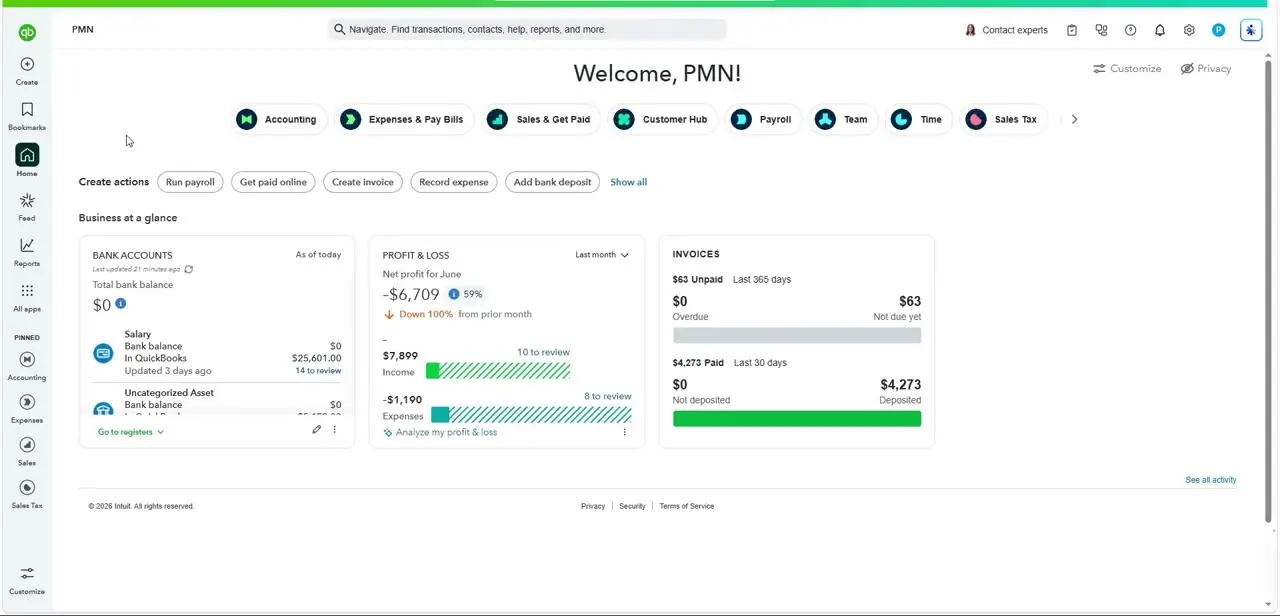
Sign in to QuickBooks Online and note roughly how many customers, products and open invoices you have. That gives you something to check against after the first sync.
More important is the customer list. HubSpot matches contacts to QuickBooks customers by email address, not by name.
Customers with no email, a shared inbox, or two records under one address are where mismatches start, so fix those before connecting. Check products too: HubSpot matches them on SKU, and by default only products that have a SKU sync.
02Install the QuickBooks Online app from HubSpot
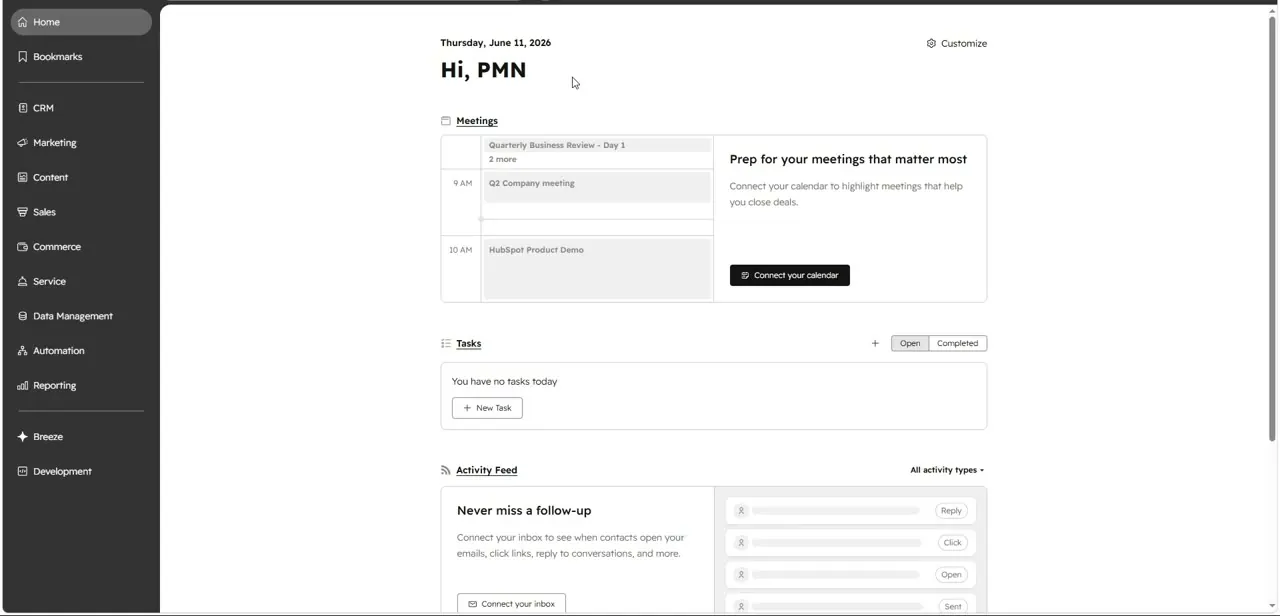
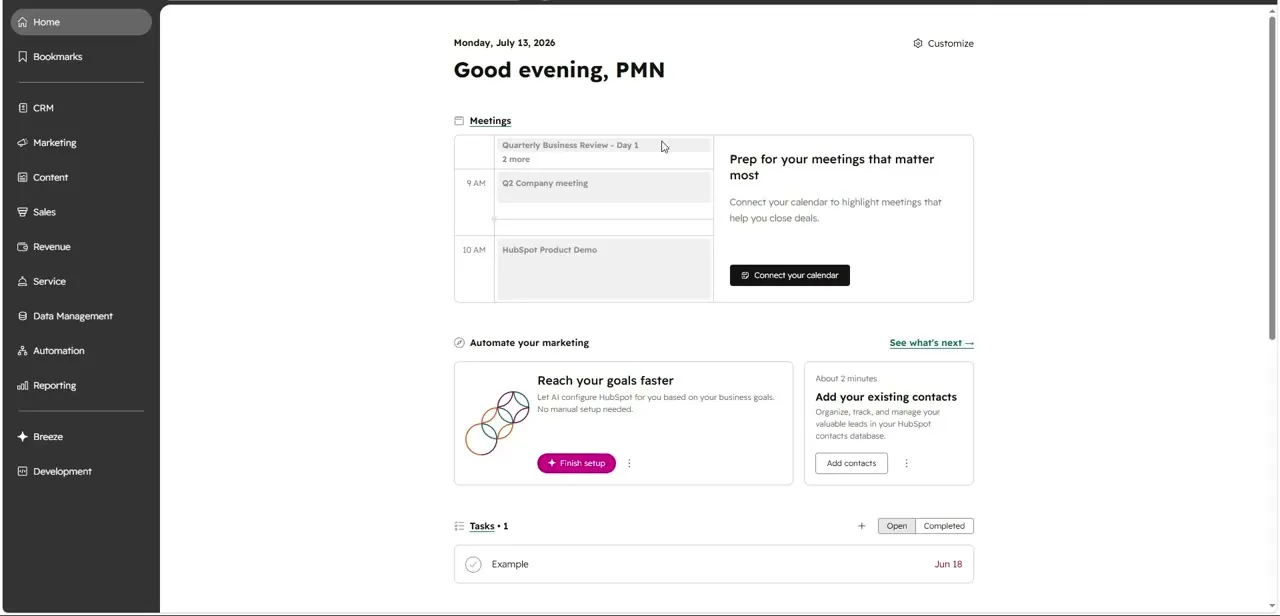
In HubSpot, click the Marketplace icon in the top navigation bar and choose HubSpot Marketplace. Search for QuickBooks Online, open the listing and click Install. The HubSpot home dashboard and left-hand menu (CRM, Marketing, Sales, Service, Automation, Reporting and so on) aren't where the connection starts, so don't hunt for it there.
03Authorize the connection with Intuit
Click Connect to QuickBooks Online. HubSpot sends you to Intuit's sign-in page, where you log in and approve access to your QuickBooks company.
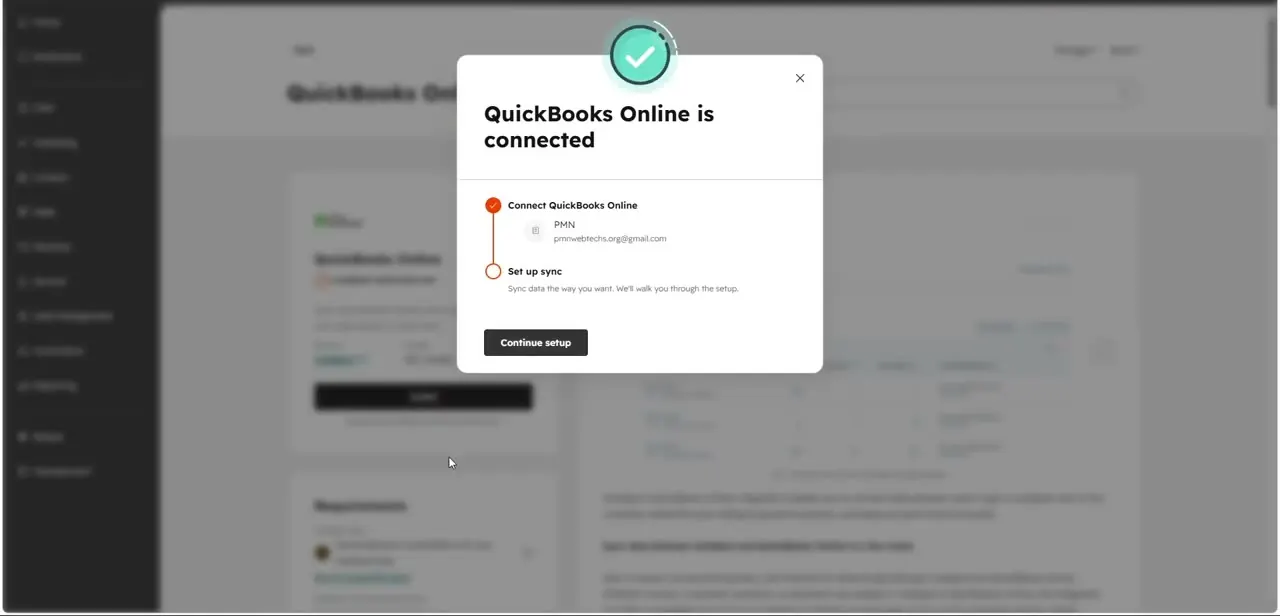
Your QuickBooks password goes to Intuit, not to HubSpot. When authorization succeeds you're returned to HubSpot, and a modal titled QuickBooks Online is connected shows the company name and account email.
Connect QuickBooks Online is ticked; Set up sync is not. Being connected is not the same as syncing. Click Continue setup instead of closing the modal.
04Set up a sync for each object
If you closed the modal, get back to the same place from Settings > Integrations > Connected apps > QuickBooks Online, then open the CRM syncs tab and click Set up your sync. Pick the object pair from the QuickBooks Online dropdown.
Click the direction arrows to choose one-way or two-way. Under Data conflict resolution, decide whether HubSpot or QuickBooks wins when both have changed the same field.
Then work through Mapped fields and toggle off anything you don't want copied. HubSpot pre-fills Limit filters based on your setup date, and you can edit them (except the filters on outbound invoice syncs).
Repeat for each object you want kept in step. Deals are not a synced object. Invoices created in HubSpot sync to QuickBooks, and payments recorded against them appear on the HubSpot invoice record's payments card.
05Check the first sync and fix failures
Changes made in HubSpot reach QuickBooks within a few minutes. Changes in QuickBooks are picked up every 30 minutes, and there's a Sync now button if you don't want to wait.
After the first pass, compare record counts against the numbers you noted in step 1. Failed records are listed on the QuickBooks Online settings page in HubSpot, and failing invoices also show a Sync failure details banner on the invoices index. The most common failures are an email mismatch between the invoice contact and the QuickBooks customer, and a duplicate display name (covered below).
| HubSpot | QuickBooks Online | How records are matched or limited |
|---|---|---|
| Contact | Customer | Matched by email address |
| Product | Products & Services | Matched by SKU; products without a SKU don't sync by default |
| Invoice | Invoice | Invoices synced from HubSpot can't have line items, pricing or tax changed in QuickBooks |
| Credit memo | Credit memo | Synced as its own object pair |
From HubSpot's knowledge base, September 2026. Sync direction is set per object during setup.
When it doesn't work
An invoice fails with a missing associated customer error
Why: The contact on the HubSpot invoice doesn't share an email address with the matching customer in QuickBooks.
Fix: Change the invoice's contact to the one synced from QuickBooks, or correct the email so the two match.
The first contact from a company syncs, later ones fail
Why: Contacts synced from HubSpot get the associated company's name as their QuickBooks Display Name. QuickBooks requires unique display names, so the second contact from the same company is rejected.
Fix: Follow HubSpot's display-name setup guidance for the sync, or keep one billing contact per company in the synced set.
An invoice stops syncing after finance edited it in QuickBooks
Why: HubSpot treats edits to a HubSpot-created invoice made in QuickBooks (line items, pricing, removed payments, tax) as unauthorized changes.
Fix: Reverse the change in QuickBooks and make the adjustment on the HubSpot invoice instead.
A duplicate document number error appears
Why: The HubSpot invoice number already exists in QuickBooks.
Fix: Adjust the QuickBooks invoice numbering, or turn off QuickBooks' Custom Transaction Number setting.
Frequently asked questions
Do I set up the integration from HubSpot or from QuickBooks?
From HubSpot. Install the QuickBooks Online app from the HubSpot Marketplace, then authorize it on Intuit's sign-in page.
Is connecting the same as syncing?
No. After authorization, the confirmation modal lists Set up sync as a separate step. Until you configure a sync on the CRM syncs tab, no records move.
Can closed deals create QuickBooks invoices automatically?
Not through the data sync, which doesn't sync deals. HubSpot's QuickBooks workflow actions can create invoices, estimates and sales receipts from workflow-enrolled records, but they need a Professional or Enterprise Hub and are US-only. The deal's line items must match products in QuickBooks.
How often does data sync?
HubSpot-to-QuickBooks changes are detected within a few minutes. QuickBooks-to-HubSpot changes are checked every 30 minutes, and Sync now forces an immediate run.
Can I connect a QuickBooks sandbox to test first?
No. HubSpot states sandbox accounts can't be connected. Test with a small Limit filter on a live company instead.
Sources and last check
Screens and the connection modal come from the original walkthrough recording. The install path, permissions, synced objects, matching rules, sync timing and error messages were re-checked against HubSpot's official knowledge base in September 2026. That check corrected two claims in the earlier version: records are matched by email (not by name), and deals are not a synced object, so invoices come from HubSpot invoices or workflow actions.
About the author

Impran M N
I've been hooked on technology for as long as I can remember — especially the new tools and AI apps that seem to land every other week. Easy Tech Tuts is where I write up whatever I've just worked out: I do the task in the real product, record the screen, and turn it into the guide I wish I'd found first.