Easy Tech Tuts
How to Use Gumroad to Build Email List Easily 2026
By Impran M NLast checked against official docs
Gumroad has subscriber and email tools built into the same dashboard you use to sell, so there's no need to bolt on a separate email service just to follow up with people. Two pieces make this work: a free product that gives someone a reason to hand over their email, and a Workflow that fires automatically once they do.
This guide sets up both, using what's on screen in Gumroad's dashboard and Workflow builder. One thing trips people up before either piece matters: a new account can't send Workflow emails until it has earned $100 after fees and received a payout.
Build the list and publish the workflow anyway. It just means the welcome email won't leave the queue until that threshold is met.
Before you start
- A Gumroad account you can create and publish products from
- $100 earned after fees and a completed payout. Gumroad blocks Workflow emails from sending until that threshold is met, regardless of subscriber count
01Understand what Gumroad's platform is built for
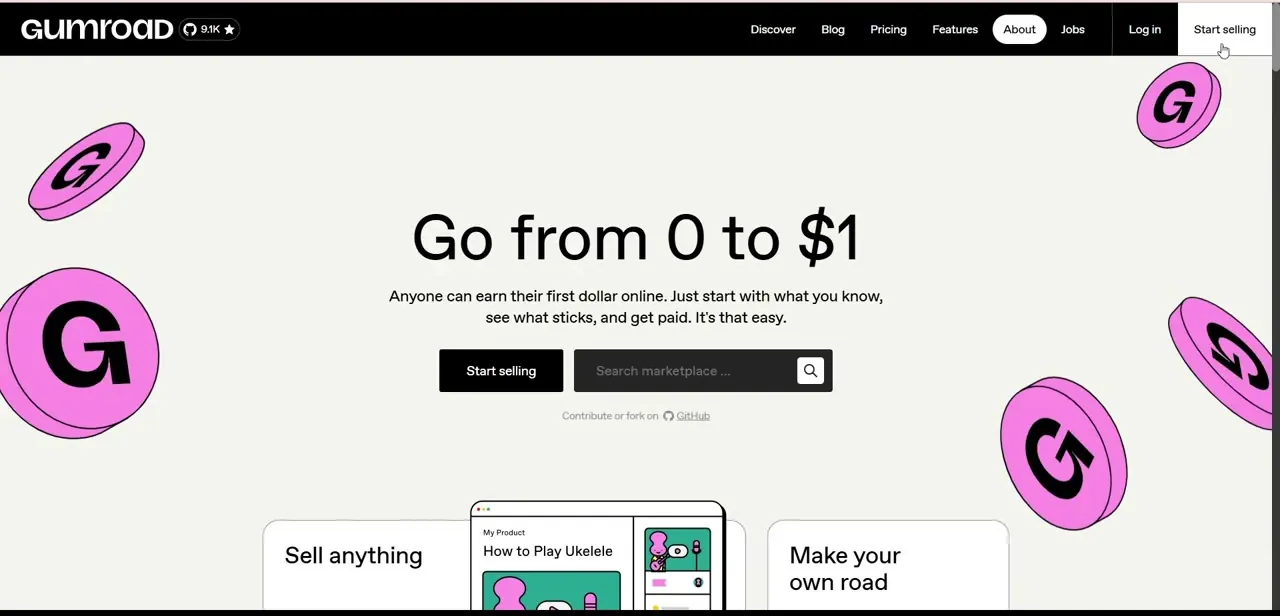
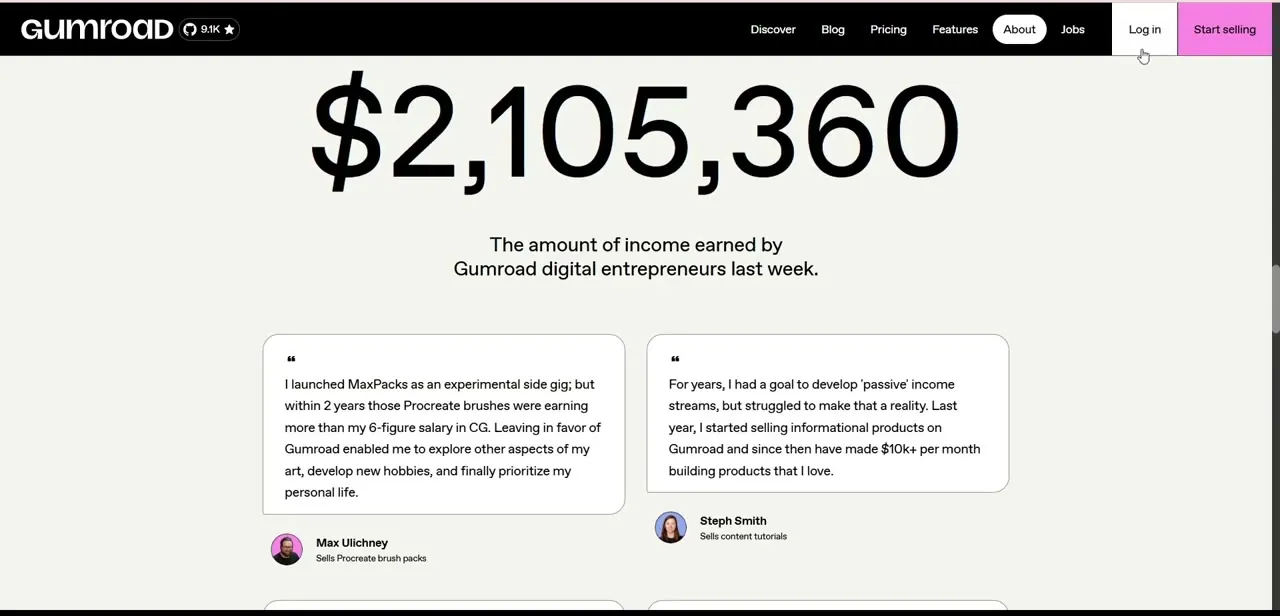
Gumroad's public homepage leads with a running total of what creators earned in the last week, next to quotes from people selling brush packs, templates, and course content. It's a reminder that Gumroad is built around individual creators selling directly to an audience, which is why the platform bakes in subscriber and follower tools instead of treating email capture as an afterthought. Building a list here means building it on a platform whose whole model depends on you having repeat customers to sell to.
02Get oriented in your dashboard
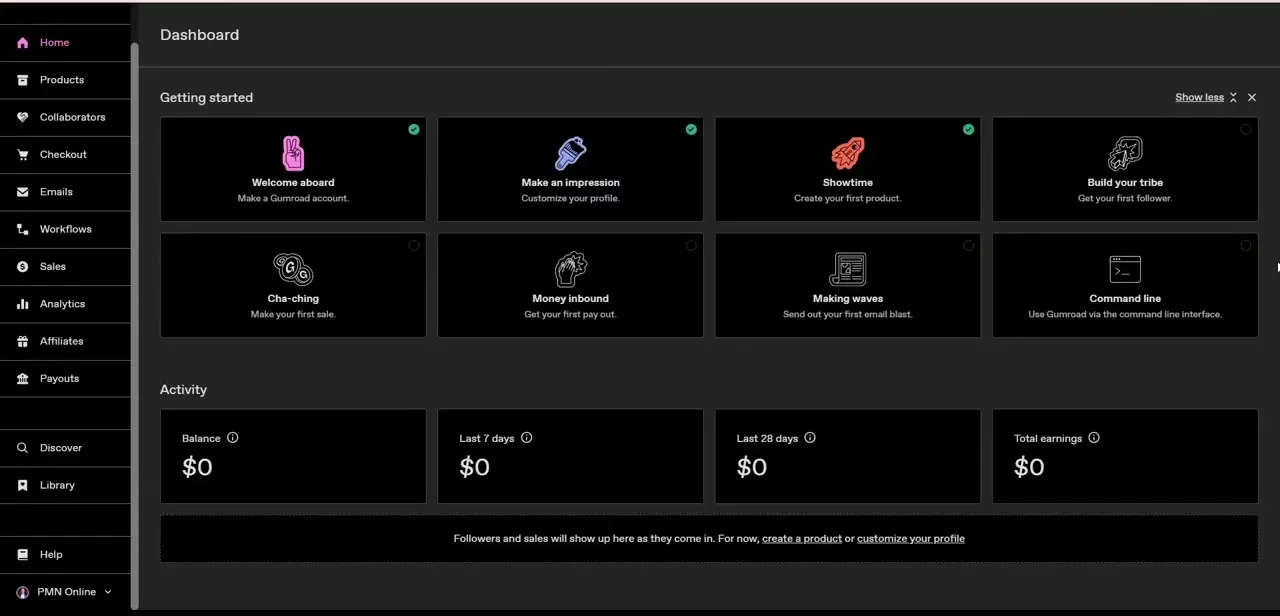
Once you're logged in, the left-hand menu is where everything lives: Products, Emails, Workflows, Sales, and Affiliates each sit in their own section. The "Getting started" checklist at the top is worth reading closely.
One of its cards is labeled "Build your tribe: Get your first follower," which tells you Gumroad treats follower growth as a core milestone, not a side feature. The Activity panel below tracks balance and earnings, but for list-building the two menu items you'll rely on are Emails and Workflows.
03Create a free product as your lead magnet
Before any automation matters, you need a reason for someone to give you their email. Go to Products and create a new one priced at $0: a short guide, a template, or a small tool related to what you eventually plan to sell.
Keep the description honest about what's inside. A lead magnet that overpromises just produces subscribers who unsubscribe the moment they see your next email. Once it's published, anyone who claims it becomes both a customer on your Sales list and a subscriber you can message going forward.
04Build a Workflow triggered by new subscribers
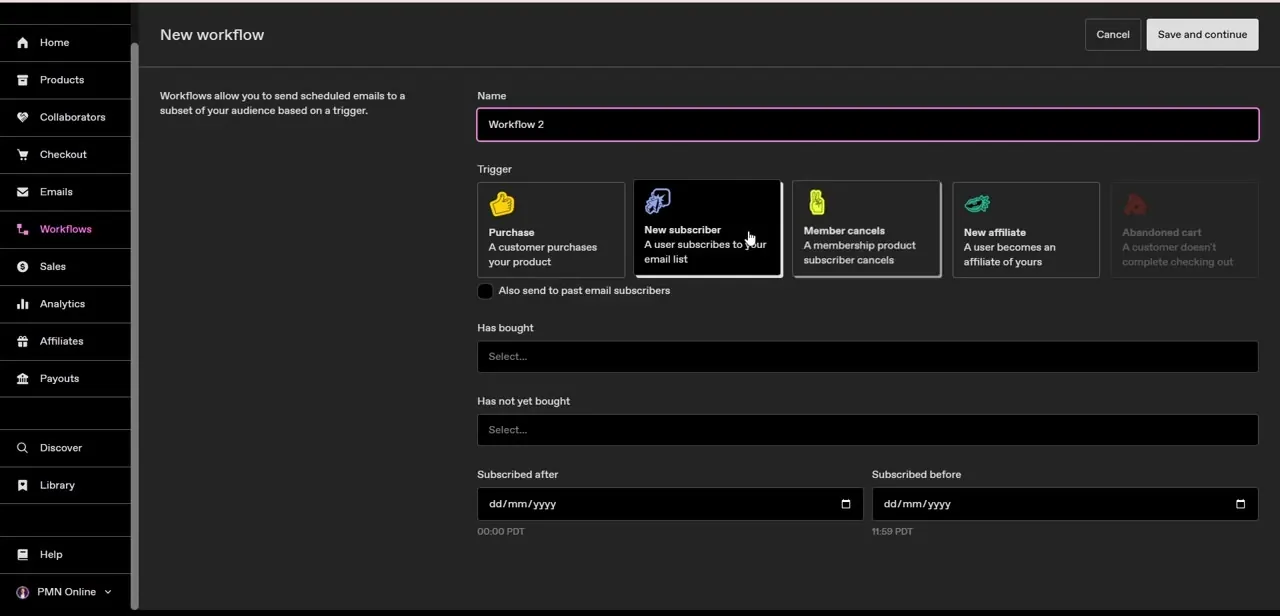
This is where Gumroad's automation happens. Under Workflows, start a new one and give it a name.
Gumroad defaults to something generic like "Workflow 2," so rename it to something you'll recognize later. The Trigger section is the key decision: options include Purchase, New subscriber, Member cancels, and New affiliate.
Choosing "New subscriber" fires the workflow the moment someone joins your list, whether they came through your free lead magnet or followed you directly. You can narrow it further with "Has bought," "Has not yet bought," or a subscribed-date range if you only want it to apply to a specific segment. Pick these settings carefully: once you publish the workflow, Gumroad locks everything about it except its name.
05Write the welcome email inside the Workflow
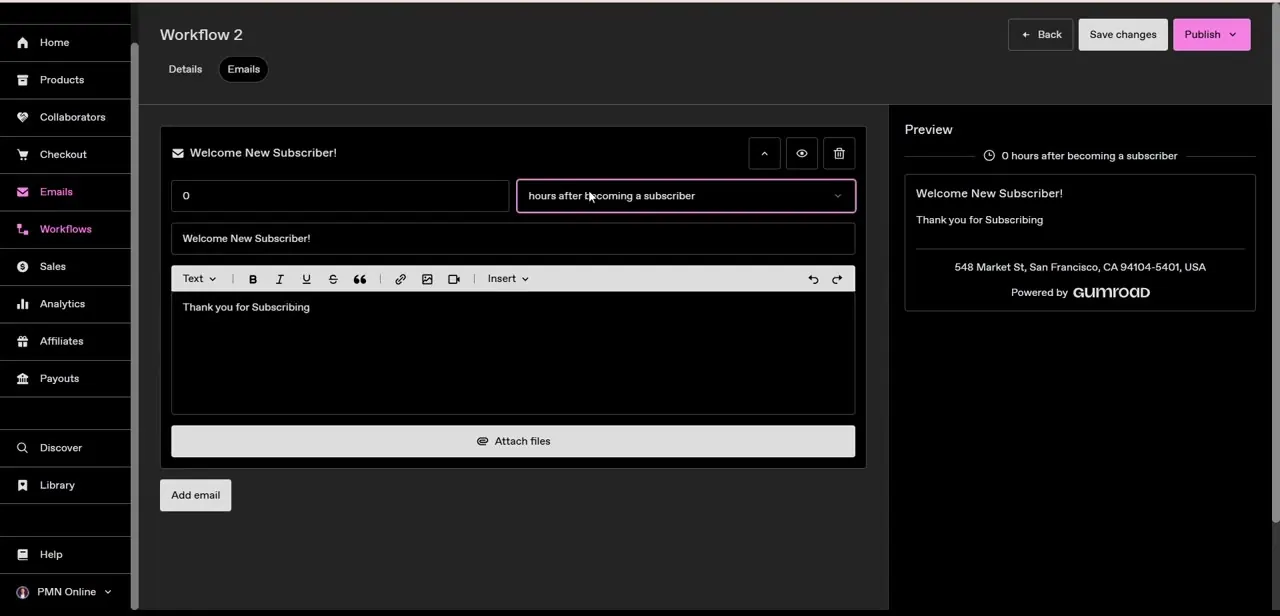
Switch to the Emails tab inside your new workflow and you'll find a single email queued up, timed to send some number of hours after the trigger fires. Set it to 0 if you want it to go out immediately.
Give it a subject line, then write the body in the built-in editor, which supports basic formatting, links, images, and file attachments. The Preview panel on the right shows exactly what the subscriber will receive, footer included, so you can catch anything that reads oddly before it goes live. Click "Add email" if you want to queue a second message later in the sequence instead of sending just one.
06Publish the workflow and keep growing the list
Nothing sends until you hit Publish in the top right, so double-check the trigger, filters, and email content one more time before you flip it on. Once you do, every new subscriber is queued for your welcome message with zero manual work on your end.
There is one gate on top of all of it: Gumroad won't deliver Workflow emails from a new account until it has earned $100 after fees and received a payout. It's an anti-spam measure, not a setting you can toggle, so treat it as a milestone instead of a bug if your first few subscribers don't get an email right away.
From here, growth is mostly about visibility. Link your free product from social bios, mention it at the end of paid product descriptions, and check the Sales and Emails sections periodically to see who's engaging. A list that never gets emailed again is barely different from no list at all.
When it doesn't work
The workflow is published but no welcome emails are going out
Why: Gumroad doesn't allow Workflow emails to send until the account has earned $100 after fees and received a payout. It's an anti-spam gate on the account, not a fault in the workflow.
Fix: Check your balance and payout history in account settings. Emails begin sending on their own once the threshold is met; there's nothing to rebuild in the workflow itself.
Changing a workflow's trigger or filters after publishing has no effect
Why: Gumroad locks every setting on a workflow except its name once it has been published for the first time.
Fix: Unpublish it first if that option is available in your workflow, or build a new workflow with the settings you want and retire the old one.
A subscriber who claimed the free product never got the workflow email
Why: The optional filters on the trigger ("Has bought," "Has not yet bought," or a subscribed-date range) can silently exclude someone who doesn't match the segment you picked when you built the workflow.
Fix: Open the workflow's Trigger section and check the filters before assuming the send failed. A mismatched filter is more common than an actual delivery problem.
Frequently asked questions
Do I need a paid product to collect emails on Gumroad?
No. A free product works as a lead magnet. Anyone who claims it becomes a subscriber you can message through a Workflow, the same as a paying customer.
How does Gumroad send emails automatically to new subscribers?
Through the Workflows feature. Create a workflow with a "New subscriber" trigger, write the email in its Emails tab, and publish it. Gumroad handles sending from there, subject to the account's earnings gate below.
Is there an earnings threshold before Workflow emails will send?
Yes. Gumroad won't send Workflow emails from an account until it has earned $100 after fees and received a payout. It applies regardless of how many subscribers are already queued up.
Can I edit a workflow's trigger or settings after publishing it?
Only its name. Every other setting, including the trigger, filters, delay, and email content, locks once a workflow has been published for the first time, so get them right beforehand.
Can I send more than one email in a sequence?
Yes. Inside a workflow's Emails tab you can click "Add email" to queue additional messages, each with its own delay after the trigger.
What makes a good lead magnet for Gumroad?
Something quick and genuinely useful related to your paid products, like a short guide, checklist, or template, tends to convert well without overpromising.
Sources and last check
Click path and screens come from a walkthrough recorded in July 2025. The $100-earned-and-paid-out requirement to send Workflow emails, and the rule that only a workflow's name can be changed after publishing, were checked against Gumroad's official Help Center article on Workflows in September 2026. Neither was mentioned in this guide before.
About the author

Impran M N
I've been hooked on technology for as long as I can remember — especially the new tools and AI apps that seem to land every other week. Easy Tech Tuts is where I write up whatever I've just worked out: I do the task in the real product, record the screen, and turn it into the guide I wish I'd found first.