Easy Tech Tuts
How to Create a Landing Page on Gumroad Easily 2026
By Impran M NLast checked against official docs
On Gumroad, your product listing is your landing page. There's no separate page builder to learn, so the details on this one page carry the whole sales pitch.
The dashboard where you manage products doubles as your sales record, and your creator profile shapes what buyers see alongside every listing you publish. This guide walks through the real dashboard you'll be working in: where products live, how a fresh listing starts out, and the two image slots and buy-button setting people usually get wrong.
Before you start
- A Gumroad account (free to create)
- Cover artwork sized for a 1280×720 canvas before you get to the upload step
01Open your Products dashboard
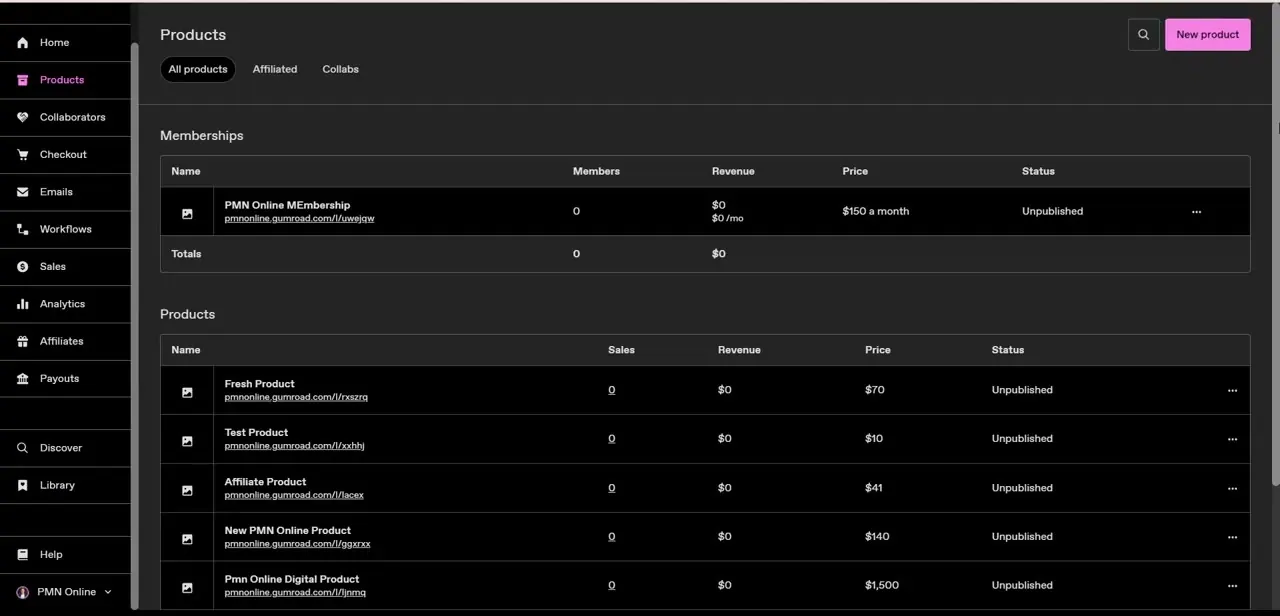
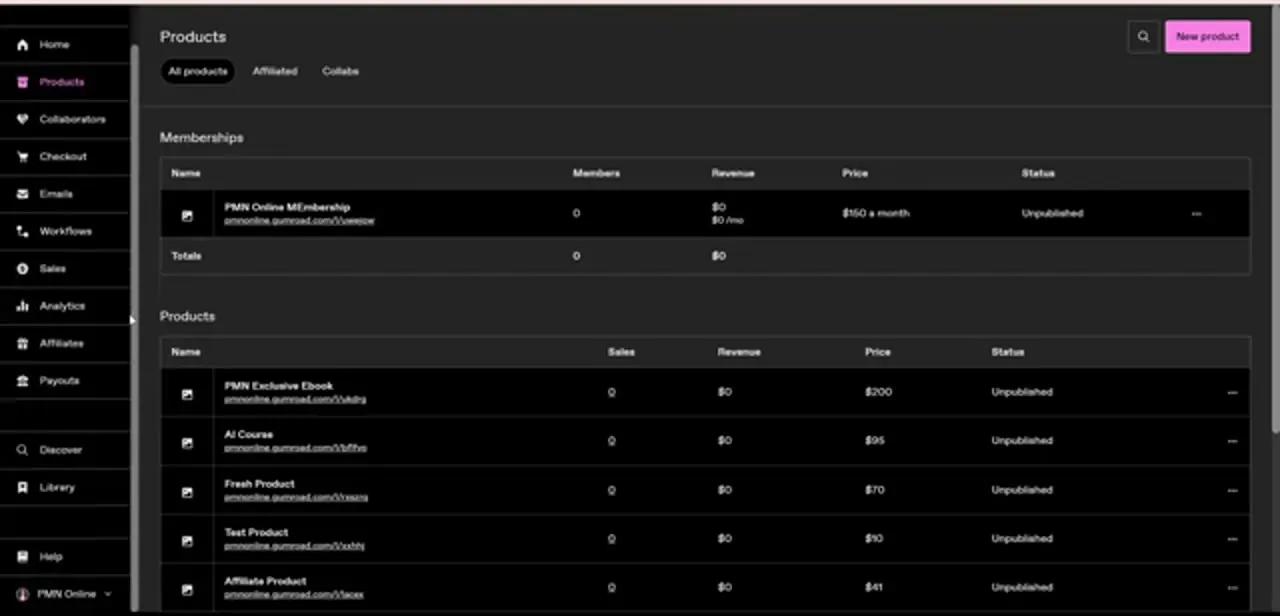
Log in to Gumroad and click Products in the left-hand sidebar. This page is the control center for everything you sell: memberships at the top, one-off products below, each row showing its name, direct link, sales count, revenue, price and status.
A brand-new listing starts life as "Unpublished," your cue that the page exists but isn't visible to buyers yet. The New product button sits top right, and that's where a landing page begins.
02Set your title and price first
Every new product opens with two fields that matter more than they look: the product name, which becomes your page's headline, and the price, which anchors the whole offer. Keep the name specific about what the buyer gets instead of generic.
"How to Play Ukulele" tells a browser exactly what they're clicking into. Set a real price now even if you plan to adjust it later, since Gumroad uses it in the live preview pane, so seeing the number next to your copy helps you judge whether the page reads as worth it.
03Write the sales copy in the rich-text editor
The product description field is a full rich-text editor. You can add headers, bold key phrases, and build bulleted feature or benefit lists the same way you would in a document editor, and you can embed images within the body text itself, not only in the cover and thumbnail slots.
Structure this the way a landing page should read: a short opening line stating the outcome, a bulleted list of what's included, and a closing line that removes hesitation. Buyers scan before they read, so headers and bullets do more work here than a wall of paragraphs.
04Upload a cover image, and a thumbnail if you want a different one
Drag a cover banner into the media section near the top of the editor. Gumroad's guidance is a 1280×720 canvas; that image is the first visual a visitor sees, so make it represent the product instead of a purely decorative graphic.
A thumbnail is optional. Skip it and Gumroad generates one automatically by cropping the center of your cover down to a square.
Upload one deliberately instead and it appears in search, in your profile grid, and in a buyer's library, at a minimum size of 600×600. If your cover's most important detail sits off-center, upload a separate thumbnail instead of trusting the automatic crop.
05Choose your call-to-action label
The purchase button's text isn't freely editable. Gumroad gives you a choice of three preset labels: "I want this!", "Buy this", and "Pay." Pick the one closest to your offer's tone; don't assume you can type your own. A course and a template pack read differently against the same three options, and it's the last thing a buyer's eye lands on before converting.
06Check your creator profile and logo
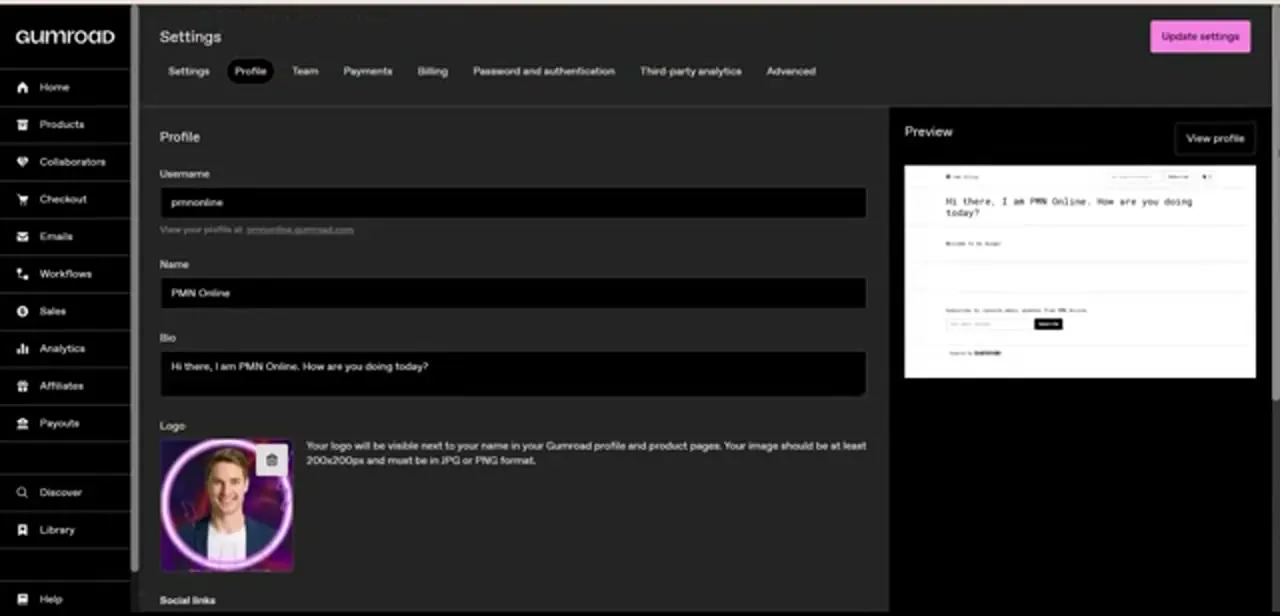
Your product page doesn't exist in isolation. It's framed by your Gumroad profile, managed under Settings then Profile.
Username, bio, and a profile image all appear alongside your listings, and the panel includes a live preview so you can see the resulting profile page before saving. A clear headshot or brand mark here, paired with a bio that states plainly what you sell, gives a first-time visitor context the product page alone can't provide.
07Preview on mobile and desktop, then publish
Before you publish, use Gumroad's preview toggle to check how the finished page renders at phone width and at full desktop width; long bullet lists and wide images can behave differently at each size. Once it reads cleanly on both, hit Publish. The listing flips from "Unpublished" to live on your Products dashboard, ready to share as its own link.
| Image | Minimum size | Required? | Where it shows |
|---|---|---|---|
| Cover | 1280×720 | Yes | Top of the product page |
| Thumbnail | 600×600 | No, auto-generated from the cover if skipped | Search, profile grid, buyer's library |
Skipping the thumbnail means Gumroad center-crops the cover into a square. Upload one separately if the cover's key detail isn't centered.
Frequently asked questions
Can I fully customize the text on a Gumroad product page?
The description itself, yes: the rich-text editor supports headers, bulleted lists, and embedded images, so it can carry the full structure of a real landing page. The buy button is the exception; its label is chosen from three presets, not freely typed.
Can I change the buy button text to anything I want?
No. Gumroad offers three preset labels for the purchase button: "I want this!", "Buy this", and "Pay." You pick among them; custom wording isn't currently supported.
Does my Gumroad landing page work on mobile?
Gumroad product pages are responsive by default, and the editor includes a preview toggle so you can check the mobile layout before publishing.
Does my profile show up on my product page?
Yes. Your Gumroad profile, set under Settings then Profile, appears alongside every product you publish. Fill it out before driving traffic to a listing.
Do I need to upload a separate thumbnail?
No. If you skip it, Gumroad automatically generates one by cropping the center of your cover image into a square. Upload your own only if that automatic crop would cut off something important.
How much does Gumroad take from a sale?
10% plus $0.50 on a direct sale, or 30% if the sale comes through Gumroad's own Discover marketplace, both on top of standard card processing costs. Listing the product itself is free.
Sources and last check
Dashboard screens and click path come from a walkthrough recorded in July 2025. The claims were re-checked against Gumroad's Help Center in September 2026, which corrected two things this article got wrong: the buy button label is chosen from three fixed presets, not freely written custom copy, and the thumbnail is optional, not a required second upload, since Gumroad auto-generates one from the cover when it's skipped.
About the author

Impran M N
I've been hooked on technology for as long as I can remember — especially the new tools and AI apps that seem to land every other week. Easy Tech Tuts is where I write up whatever I've just worked out: I do the task in the real product, record the screen, and turn it into the guide I wish I'd found first.