Easy Tech Tuts
How to Sell Your Online Course on Gumroad Easily 2026
By Impran M NLast checked against official docs
Gumroad handles checkout, delivery, and payment for a course, so the setup is mostly about content, not infrastructure. Creating one happens inside a single product flow: pick a product type, name it, set a price, then fill in the description and cover image students see before buying. This guide walks through that flow using the actual screens, including where existing products already sit on a live account, and what Gumroad keeps from each sale.
Before you start
- Your course files (video, PDF, or other formats) ready to upload. Gumroad hosts what you provide directly; it doesn't record or edit content for you.
01See where your course will live
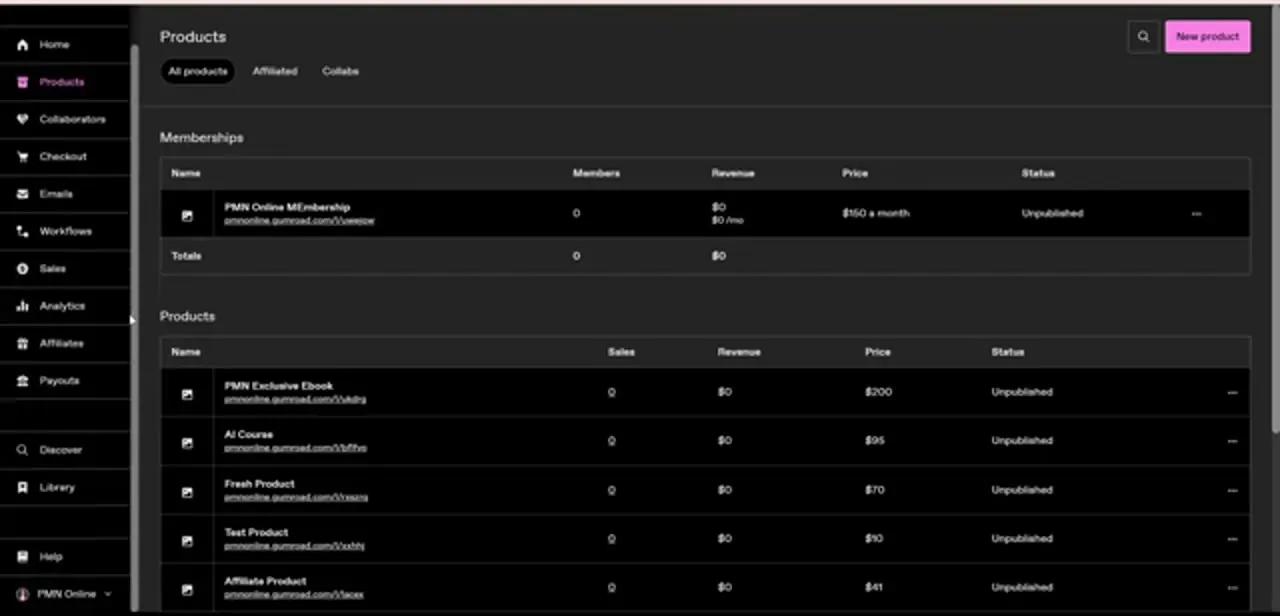
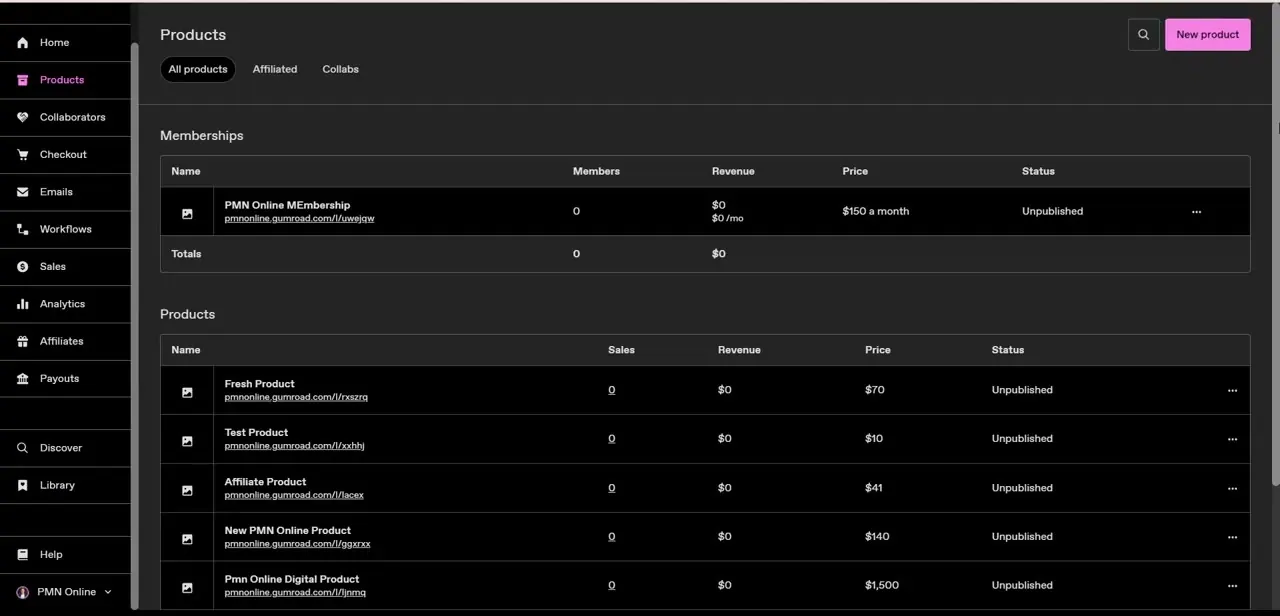
Before creating anything, open Products in the left menu. It's the table where every listing ends up: memberships in one section, one-time products in another, each row showing sales, revenue, price, and status.
A fresh account, or one still testing, will show several products marked "Unpublished" with zero sales. That's normal; nothing goes live to buyers until you publish it. This table is also where you'll check how the course performs once it's live, so take a moment to learn the layout before building anything.
02Choose the Course or tutorial product type
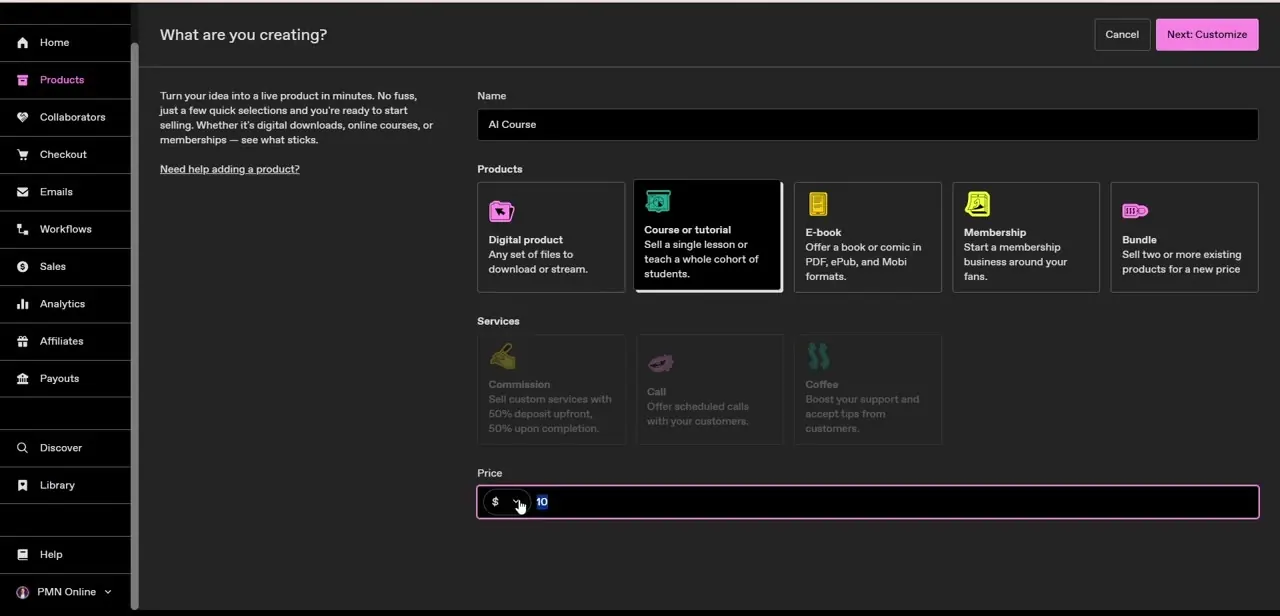
Click New product to land on "What are you creating?" Course or tutorial sits among the product type tiles, described as the option to sell a single lesson or teach a whole cohort of students. Pick it over a plain Digital product if you want Gumroad's course-specific structure instead of one flat file download. Name the product, set a price in the field below (it defaults to a small starting amount you'll want to change), and continue to customize the rest.
03Write the description and add cover art
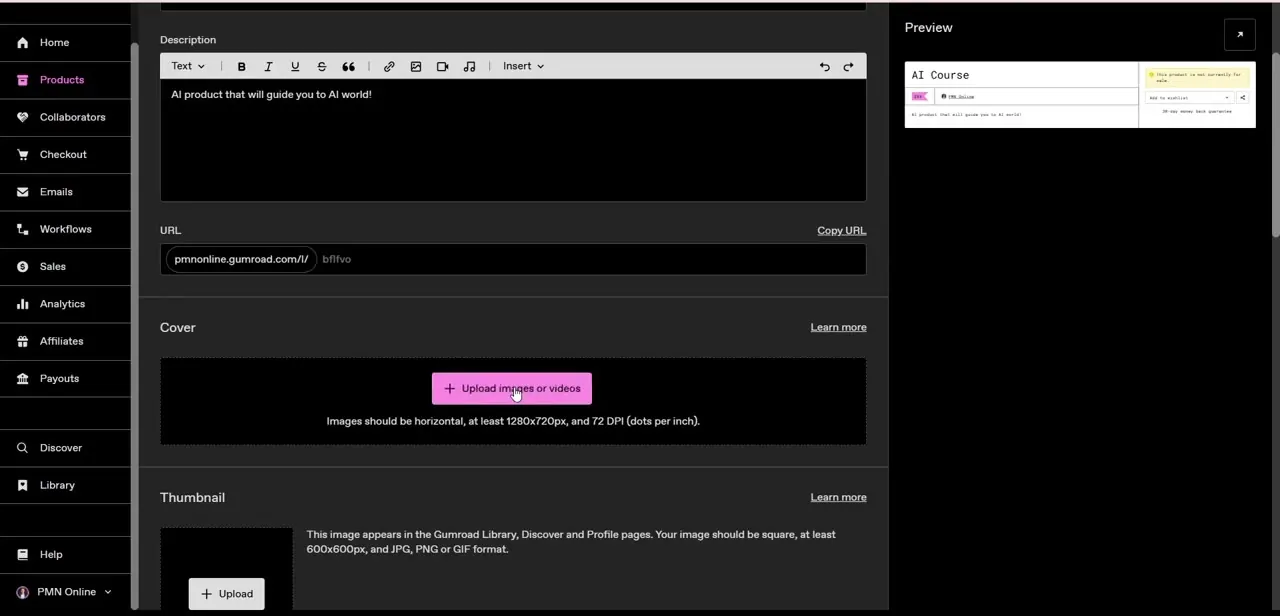
The next screen is where the sales page takes shape. The Description field is a full rich-text editor: bold, italic, headers, links, images, and embedded audio or video, so you can lay out a real course description instead of a plain paragraph.
Keep the opening lines specific about what a student will be able to do after finishing. That's what convinces someone to buy over a competing listing.
Below it, the Cover section accepts images or video at a minimum 1280x720px, and the Thumbnail, a separate square image shown across the Gumroad Library, Discover, and your profile, needs to be at least 600x600px. A live Preview panel on the right updates as you type, showing how the listing will look to a buyer before you publish.
04Upload your course content
With the sales page built, scroll to the content section to add the files students receive after paying: video lessons, PDFs, worksheets, or any mix of formats the course needs. Organize a multi-lesson course into a clear order instead of one long unsorted list. A student's first impression of a paid course often comes down to how navigable the content feels once they're inside it.
05Set pricing that matches the format
Revisit the price now that the whole course is laid out. A single short lesson justifies a lower price than a structured multi-week curriculum.
Gumroad supports one-time pricing here; for recurring monthly access, use the Membership product type instead. Compare your price against similar listings on Discover before finalizing it, since pricing a first course too low is a more common mistake than pricing it too high: it's easy to raise a price later and harder to convince early buyers a jump was fair.
Whatever price you land on, Gumroad takes 10% + $0.50 per sale made through your own profile or a direct link; a sale that comes from a buyer finding you through Gumroad's own Discover marketplace is charged 30% instead. There's no monthly fee either way.
06Publish and start promoting
Once the description, cover, content, and price all look right in the preview, publish the listing to flip its status from Unpublished to live. The product then shows real sales and revenue numbers in the Products table instead of zeros, and you can start linking it from social profiles, email, or anywhere your audience already looks for you. A course sitting unpublished, or unpromoted, in that table won't sell itself.
When it doesn't work
A sale nets a lot less than expected.
Why: Sales that come from a buyer discovering the product through Gumroad's Discover marketplace are charged 30%, not the standard 10% + $0.50 rate that applies to direct links and profile sales.
Fix: Share your own product link when the fee matters. Discover traffic still counts as a sale, just at a lower margin than a direct one.
There's no option for monthly billing under Course or tutorial.
Why: Recurring billing is a separate product type in Gumroad, not a pricing toggle inside Course or tutorial.
Fix: Create the offering as a Membership product instead if you want to charge monthly for ongoing access.
Frequently asked questions
What product type should I pick to sell a course on Gumroad?
Course or tutorial, not plain Digital product. It's built for a single lesson or a full cohort-style course, not one flat file download.
Can I upload multiple lesson files for one course on Gumroad?
Yes. You can add multiple videos, PDFs, and other materials to a single course product after setting its name, price, and description.
How much does Gumroad take from a course sale?
10% + $0.50 on sales through your own profile or a direct link, or 30% when the buyer finds the product through Gumroad's Discover marketplace. There's no separate monthly fee.
Can I charge monthly instead of a one-time price?
Not under Course or tutorial. Use the Membership product type instead, which is built for recurring billing.
Do students get instant access after purchase?
Yes. Once payment completes, students get immediate access to whatever content is uploaded to the course product.
Sources and last check
Screens and click path come from a recorded walkthrough. The fee structure (10% + $0.50 on direct sales, 30% through Discover, no monthly charge) was checked directly against Gumroad's official pricing page in September 2026 and added to this guide, since the article previously said nothing about what a sale costs. Gumroad's own product-creation help article was checked to confirm the flow still matches, though it renders as a script-loaded page that didn't yield extractable text for a direct quote.
About the author

Impran M N
I've been hooked on technology for as long as I can remember — especially the new tools and AI apps that seem to land every other week. Easy Tech Tuts is where I write up whatever I've just worked out: I do the task in the real product, record the screen, and turn it into the guide I wish I'd found first.