Easy Tech Tuts
How to Link Google Sheets to Squarespace, Embed Easily 2026
By Impran M NLast checked against official docs
Embedding a Google Sheet in Squarespace is an easy way to put data that changes often, a price list, a class schedule, stock levels, a fixture table, on a website without editing the website every time. Once it's wired up, you update the spreadsheet and the page follows, so anyone on your team can maintain the content without touching Squarespace at all.
The job splits into two halves: publishing the sheet from Google so it's readable without a login, then dropping the code it gives you into a Squarespace block. There's one plan restriction on the Squarespace side worth knowing before you start, and this guide flags it at the point where you'll hit it.
01Tidy the sheet, then publish it to the web
Whatever the sheet looks like now is close to what visitors will see, so spend two minutes on it first. Delete working columns you don't want public, put your headers in row one, and keep the data tight against the top-left corner; an embed of a sparsely used sheet shows a lot of empty grid.
A dedicated tab holding just the public view, fed by formulas from your working tab, keeps messy calculations out of sight while leaving one source of truth. Once it's tidy, go to File, then Share, then Publish to the web.
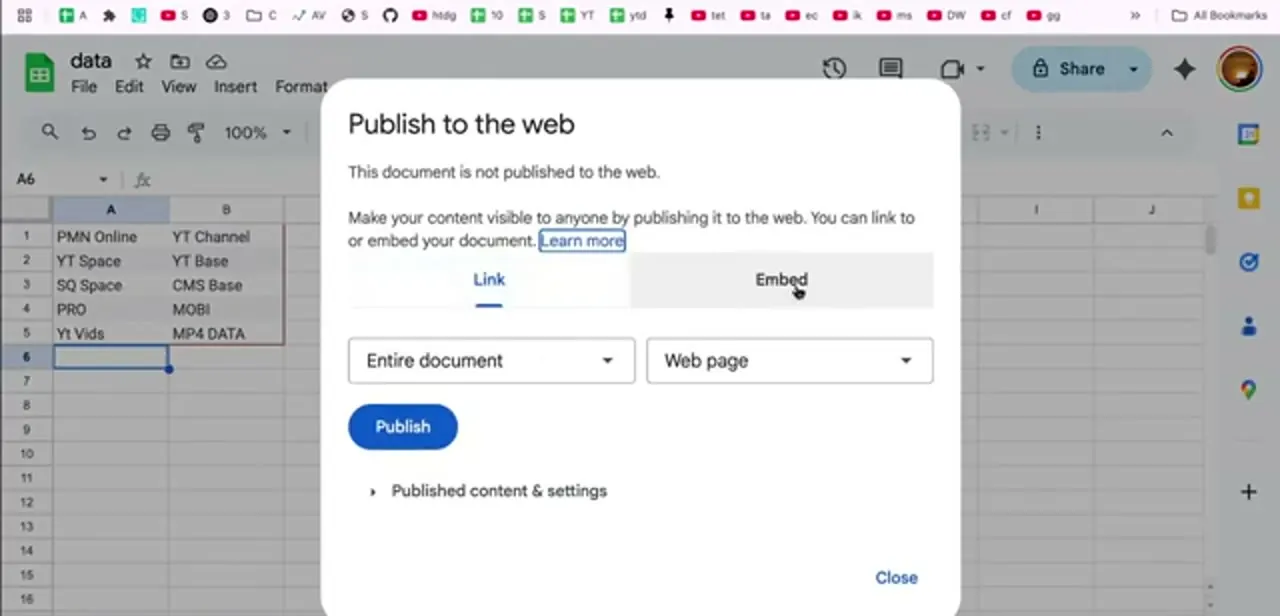
The dialog opens with a note that the document isn't published yet, two tabs across the top (Link and Embed), and dropdowns for what to publish and in what format. Leave the format as Web page, and choose either Entire document or a single sheet using the left dropdown; picking one sheet is usually right, since publishing the whole document exposes every tab. This produces a genuinely public URL, not a share-with-anyone-who-has-the-link permission, so treat anything you publish as visible to search engines and anyone who finds it.
02Copy the embed code, not the share link
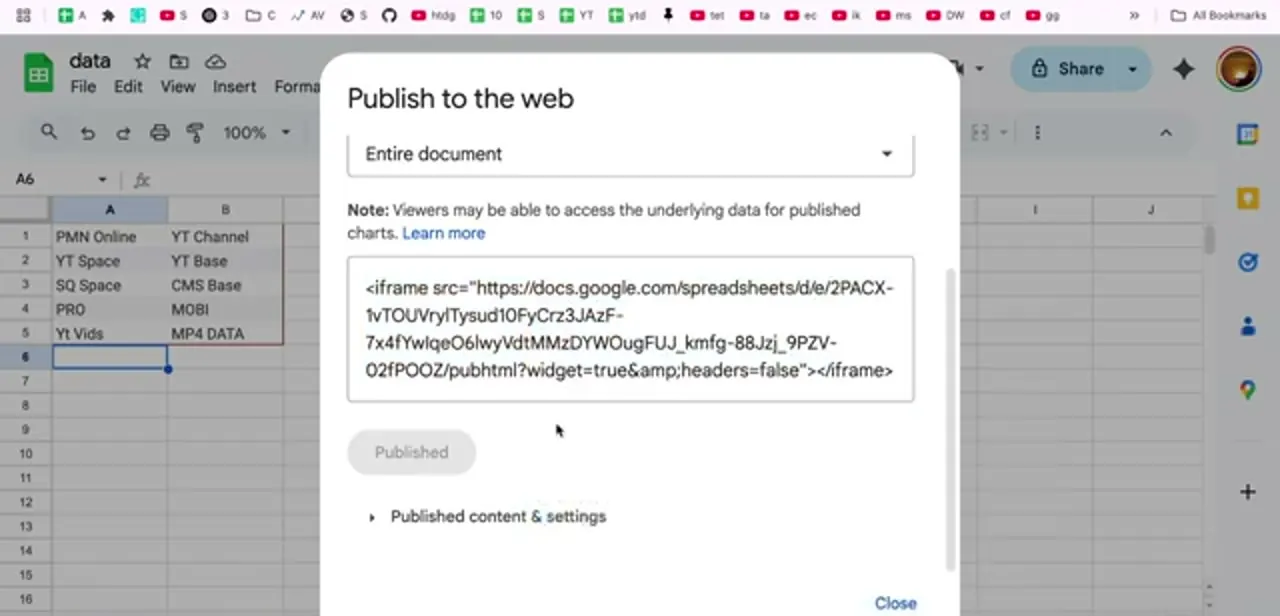
Switch to the Embed tab and press Publish. Google replaces the dropdowns with a ready-made iframe snippet pointing at a docs.google.com/spreadsheets/d/e/... address ending in /pubhtml.
That trailing part carries two parameters, widget=true and headers=false, which strip Google's own chrome and row numbers so the embed reads like a table instead of a spreadsheet. Copy the whole tag, including the closing angle bracket; a half-copied iframe is the single most common reason an embed shows up blank. Google shows a warning here too: viewers may be able to reach the underlying data behind a published chart, so don't publish a sheet with anything confidential sitting on another tab.
03Paste it into a Squarespace Code Block
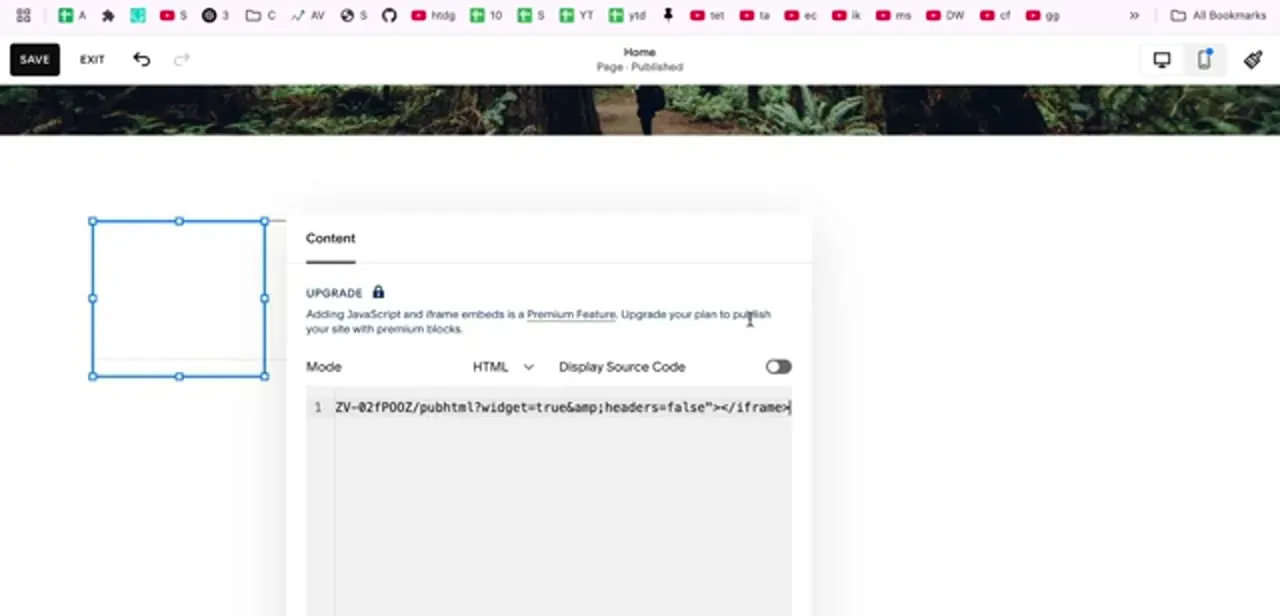
In Squarespace, open the page, click Edit, add a block, and choose Code. Set Mode to HTML, leave Display Source Code off, and paste the iframe into the editor.
One thing worth knowing before building a whole page around this: Squarespace's own Code blocks documentation lists JavaScript and iframe support on its Core, Plus and Advanced plans (plus the older Business and Commerce plan names still held by some existing sites), and leaves out its entry-level Basic plan, formerly called Personal. On Basic, the block shows an upgrade notice and the embed won't publish. It still renders fine while you're editing, which fools a lot of people into thinking it worked; always check the live site, not just the editor.
04Size and position the block on the page
Straight out of Google, the iframe carries no width or height, so it renders in a small default box. Add width="100%" and a height in pixels to the tag before pasting, or edit it in place afterwards.
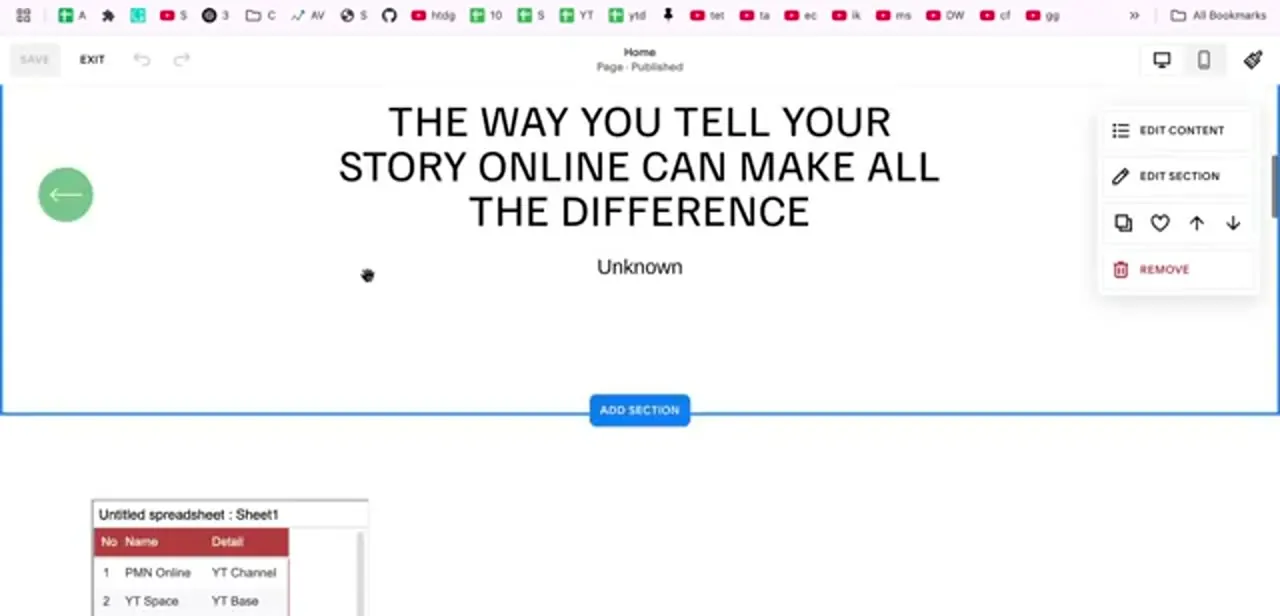
Height is the one that matters: too little clips your rows, too much leaves dead space below the table. Drag the block's handles in the Squarespace editor to place it in the section you want, and use Add Section if the sheet deserves a band of its own. Check the mobile preview with the device toggle at the top right, since a wide table that looks fine on desktop often needs horizontal scrolling on a phone.
05Or just link to the sheet instead
Embedding isn't always the right answer. If your sheet is wide, long, or full of formatting, a link often reads better than a squeezed-in iframe, and it works on every Squarespace plan with no premium block involved.
Add a Button block or a Text block, highlight the text, and paste the Link tab's URL from the same Publish to the web dialog. Set it to open in a new tab so visitors don't lose your site. This is also the practical fallback if you're on the Basic plan and don't want to upgrade just for one table.
06Confirm updates flow through, then leave it alone
The point of all this is that the connection stays live: change a cell in Google Sheets, wait a moment, and the published page reflects it without you republishing anything in Squarespace. Test that once, properly.
Edit a value, hard-refresh the live page, and confirm it changed, so you trust the setup before handing it to a colleague. Google's own help documentation notes the automatic update can take a few minutes, so an instant refresh may still show the old value; that's normal, not a broken embed. From then on, the spreadsheet is your CMS for that block.
When it doesn't work
The embed shows a blank box where the table should be
Why: The iframe tag was copied without its closing bracket or closing tag, which is easy to do when copying out of Google's embed box.
Fix: Go back to the Embed tab in Publish to the web and copy the entire snippet again, checking it ends in </iframe>.
The block saves and previews fine, but nothing shows on the live site
Why: The site is on Squarespace's Basic plan, which doesn't support JavaScript or iframe code blocks; the editor still previews it, which hides the problem until you check the published page.
Fix: Upgrade to Core or above to keep the embed, or switch to linking the sheet instead, which works on every plan.
A cell was changed in Google Sheets but the live page still shows the old value
Why: Google's published copy updates automatically, but caches for a few minutes before it does.
Fix: Wait a few minutes and hard-refresh the live page before assuming the embed is broken.
Frequently asked questions
Will edits in my Google Sheet update automatically on Squarespace?
Yes. The embed points at Google's published copy, so changing a cell updates the page. Google's own help documentation says the automatic update can take a few minutes, so allow a short delay before assuming it hasn't worked.
Do I need a paid Squarespace plan to embed a sheet?
For an iframe embed, yes. Squarespace's Code blocks documentation lists JavaScript and iframe support on Core, Plus, Advanced and a few legacy plan names; the entry-level Basic plan (formerly Personal) is left out and blocks the embed from publishing. Linking to the sheet instead works on any plan.
Does publishing to the web make my whole spreadsheet public?
It makes whatever you selected public, and choosing Entire document exposes every tab. Publish a single sheet, and keep confidential working data in a separate document instead of another tab.
My embed shows up blank. What went wrong?
Usually an incomplete paste; the iframe tag must include its closing bracket and closing tag. After that, check you're viewing the live site, not just the editor, and that your plan allows iframe embeds.
How do I make the embedded sheet fill the page width?
Add width="100%" and an explicit pixel height to the iframe tag before pasting it into the Code Block, then resize the block itself in the editor and check the result in mobile preview.
Sources and last check
Click path and screenshots come from a walkthrough recorded in July 2025. The plan restriction and the publish-to-web mechanics were re-checked against Squarespace's Code blocks help article and Google's Publish to the web help article in September 2026. That check named the specific plan the iframe restriction sits on (Basic, formerly called Personal) instead of the vaguer "entry-level plan" this guide used before, and confirmed Google's own wording on the caching delay and the data-visibility warning for published charts.
About the author

Impran M N
I've been hooked on technology for as long as I can remember — especially the new tools and AI apps that seem to land every other week. Easy Tech Tuts is where I write up whatever I've just worked out: I do the task in the real product, record the screen, and turn it into the guide I wish I'd found first.