Easy Tech Tuts
How to Create a CRM With Google Sheets and Gemini AI Easily 2026
By Impran M NLast checked against official docs
Not every business needs a dedicated CRM platform. A well-structured Google Sheet, built with help from the Gemini Build panel now sitting inside Sheets itself, can track clients and deals without separate software.
Instead of manually laying out columns and formulas, this approach starts from a plain-language request to Gemini and lets it propose a working structure, which you review and approve before anything is generated. This guide covers checking whether your account can use Build at all, describing the CRM you want, and reviewing what it builds before you rely on it day to day.
Before you start
- A clear idea of the fields you want to track (deal stage, last contact date, follow-up reminders) before you write the prompt
01Check whether your account can use Build at all
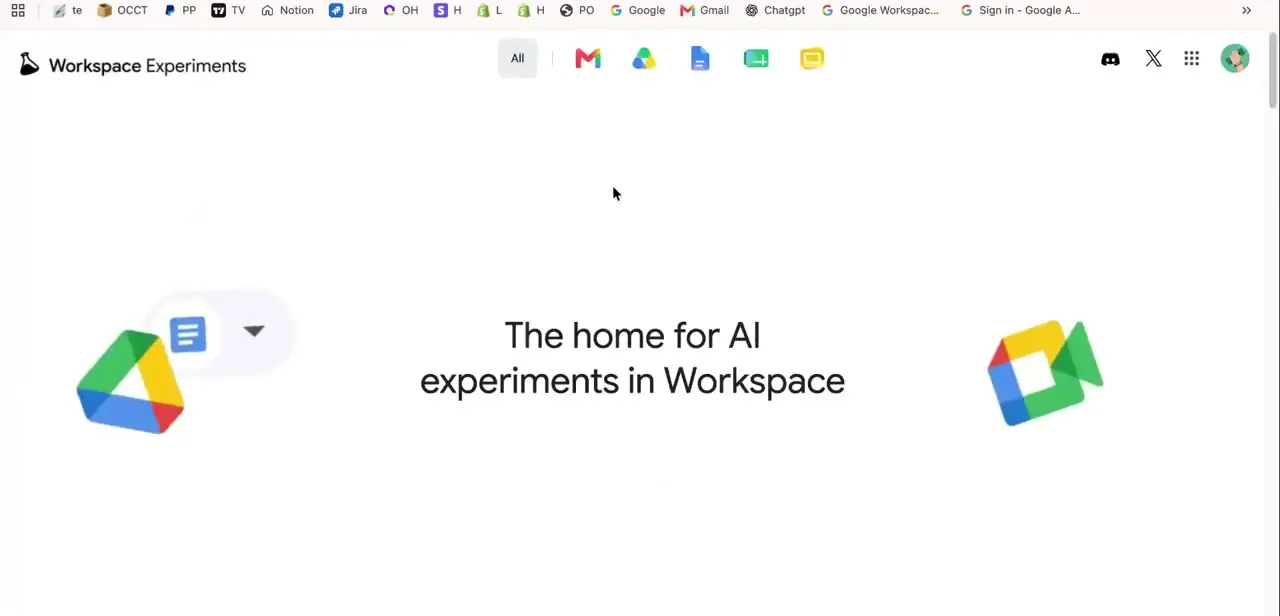
Google keeps a public "Workspace Experiments" hub, described as "The home for AI experiments in Workspace," linking out to AI-assisted features across Gmail, Docs, Sheets, and more. It's a reasonable starting point if you're not sure which product's AI panel handles a task like this, but it's also a useful reminder that access isn't universal: Build sits behind an eligible Workspace or Google AI plan, so a listing here doesn't guarantee the feature is live on your specific account.
02Open a blank sheet and launch the Gemini panel
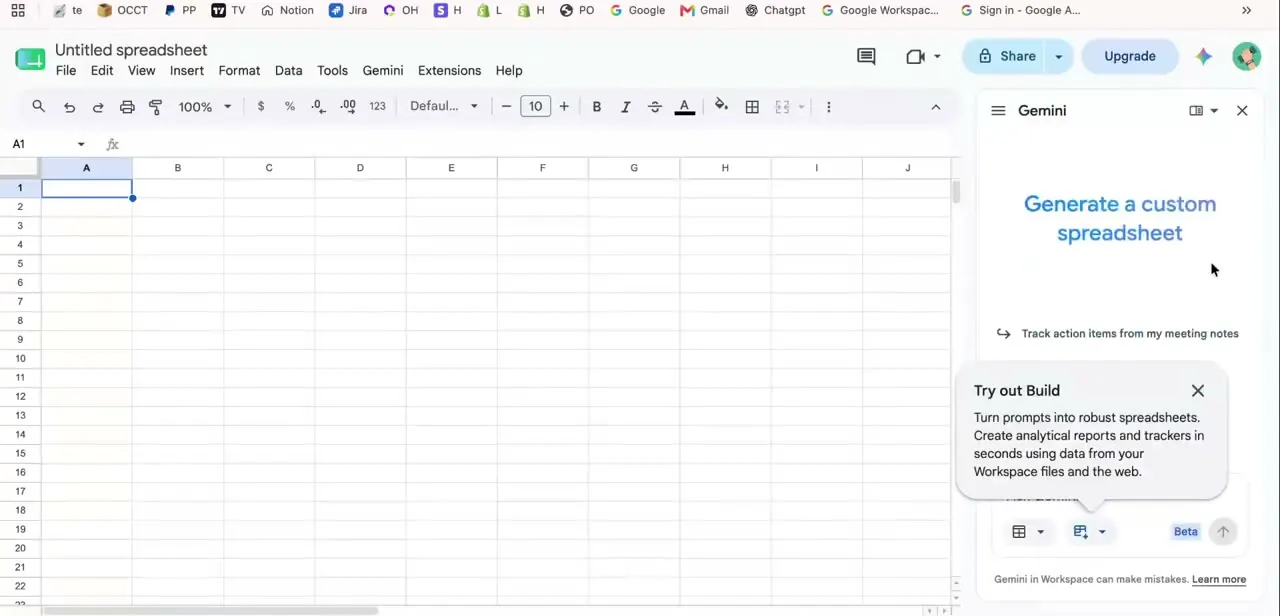
In a new, untitled spreadsheet, open the Gemini panel from the icon in the top toolbar. It docks as a full side panel instead of a chat box floating over your data, with a headline prompt, "Generate a custom spreadsheet," plus example starting points like "Track action items from my meeting notes." A "Try out Build" callout explains what's happening underneath: it turns plain-language prompts into full spreadsheets, generating reports and trackers using data from your Workspace files and the web.
03Describe the CRM you want, in plain language
Type a request describing your actual needs, something like "Build a CRM to track my clients, deal stage, last contact date, and follow-up reminders." Naming the specific fields you care about gives Gemini something concrete to build from, instead of a generic contact list you'll need to restructure afterward.
04Review the proposed build plan before approving it
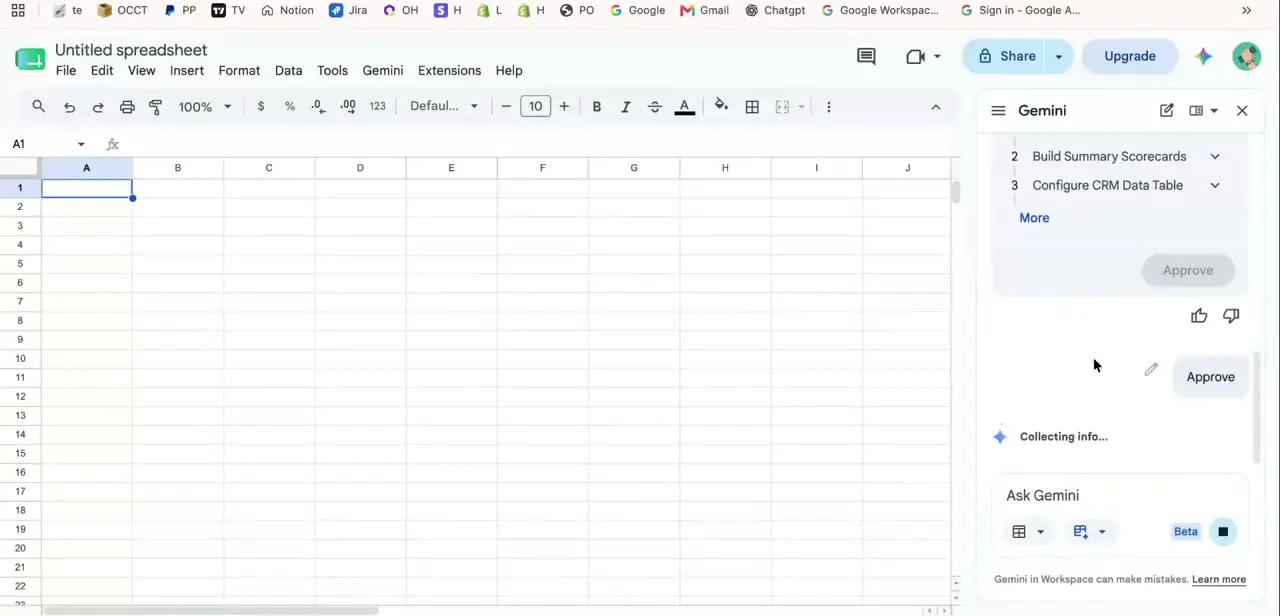
Gemini responds with a numbered plan instead of jumping straight to a finished sheet, in this example steps like "Build Summary Scorecards" and "Configure CRM Data Table," with a "More" link for the rest. An Approve button sits below it, along with thumbs-up and thumbs-down feedback icons and a status line reading "Collecting info…" while it works. This staged step matters: it lets you catch a plan headed in the wrong direction, say, scorecards you don't need, before it generates a sheet full of extra tabs and formulas you'd have to clean up.
05Approve it, then check the result against your real workflow
Clicking Approve lets Gemini generate the actual tabs and tables, typically a main CRM data table with columns for contact info, deal stage, and dates, plus any summary or scorecard views it proposed. Because this runs inside your own Sheet instead of a separate app, everything it creates is standard spreadsheet content you can edit or delete freely afterward.
Before relying on it day to day, walk through the columns it created and confirm they match how you track deals. Treat the first pass as a strong draft, not a finished CRM tailored to your process; rename fields, reorder columns, or add ones it missed, like a referral source column, the same way you would in any sheet you built by hand. The panel stays available afterward too, so you can come back and ask it to summarize stale deals or flag rows missing a follow-up date, not just at the initial build.
When it doesn't work
The Gemini panel or Build option doesn't appear in Sheets at all
Why: Build requires an eligible Google Workspace or Google AI plan, per Google's own help documentation; not every account or tenant has it turned on.
Fix: Check your plan in Google Workspace admin settings, or your personal Google AI subscription, and ask a workspace admin whether Gemini access is enabled if you're on a managed account.
The build plan includes scorecards, tabs, or fields you don't want
Why: Gemini expands a short prompt into a fuller structure by default, which can include extras you didn't ask for.
Fix: Use thumbs-down or refine the prompt with the specific fields you need before clicking Approve; that's easier than cleaning up an already-generated sheet.
The generated CRM's columns don't match your actual sales process
Why: A vague prompt gives Gemini little to work from beyond a generic contact list.
Fix: Re-prompt with the exact fields you track, or edit the finished sheet directly since it's an ordinary spreadsheet once created.
Frequently asked questions
Is a Google Sheets CRM a good fit for larger businesses?
It works best for small businesses or solo professionals tracking a manageable number of contacts. Larger teams with complex pipelines will likely outgrow it and need dedicated CRM software.
Do I need coding experience to build this CRM?
No. The Gemini panel builds the structure from a plain-language prompt, so no formulas or scripting are required to get started.
Does this cost anything beyond a regular Google account?
It can. Google's documentation states Build requires an eligible Google Workspace or Google AI plan, so it isn't guaranteed to be available on every free account.
Can I edit what Gemini builds afterward?
Yes. Everything it generates is a standard Google Sheet, so you can rename columns, add fields, or restructure tabs exactly as you would with a sheet you built manually.
Can Gemini help maintain the CRM after it's built, not just create it?
Yes. The same panel stays available inside the sheet, so you can ask it to summarize stale deals or flag missing follow-up dates as an ongoing check.
Sources and last check
The click path and panel text come from a recorded walkthrough. Re-checked against Google's own Docs Editors Help page for the Build feature in September 2026, which added a real correction: the original version implied this was free with any Google account, but Google's own documentation states Build "requires an eligible Google Workspace or Google AI plan." That gate is now reflected in the costNote, a troubleshooting entry, and the FAQ instead of being left out.
About the author

Impran M N
I've been hooked on technology for as long as I can remember — especially the new tools and AI apps that seem to land every other week. Easy Tech Tuts is where I write up whatever I've just worked out: I do the task in the real product, record the screen, and turn it into the guide I wish I'd found first.