Easy Tech Tuts
How to Copy and Paste From Claude AI Without Formatting Issues Easily 2026
By Impran M NLast checked against official docs
Pasting an AI-generated reply into a report or email can scramble headings, bullet points and bold text the moment it lands, which is a problem when the document needs to look finished. The fix is not a special export button.
It is knowing which paste command your word processor offers and picking the right one for what you're dropping in. This guide covers what Claude puts on your clipboard when you copy a response, the paste options Google Docs gives you for handling that content, and a setting most people never find because it ships turned off. It also covers what to check right after pasting, so a formatting mismatch gets caught in seconds instead of after you've already built more content on top of it.
01Know what's on your clipboard when you copy from Claude
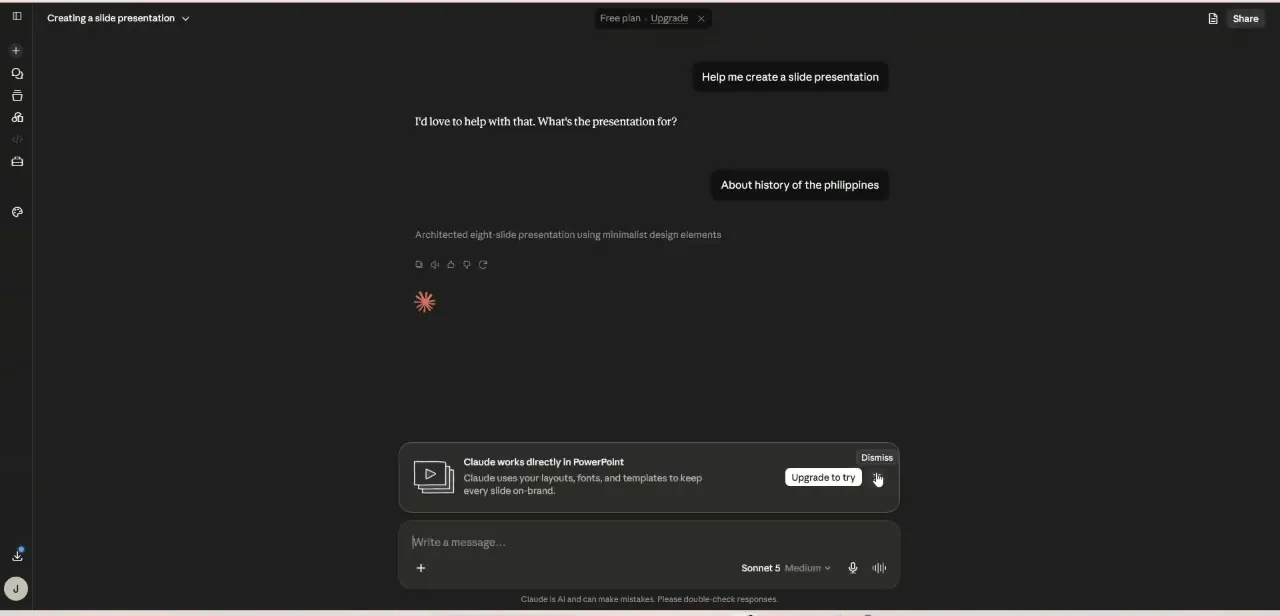
Claude renders its replies with real structure: headings, bullet lists, bold and italic text, not plain text styled to look that way. Selecting and copying a response carries that structure onto your clipboard along with the words.
Pasting it into a document then depends on how the destination app chooses to interpret that structure, and its rules don't always match how Claude displayed it. A short reply has little to misinterpret. A longer answer with several headings and nested lists gives the destination app far more room to get it wrong.
02Pick the right paste command in Google Docs
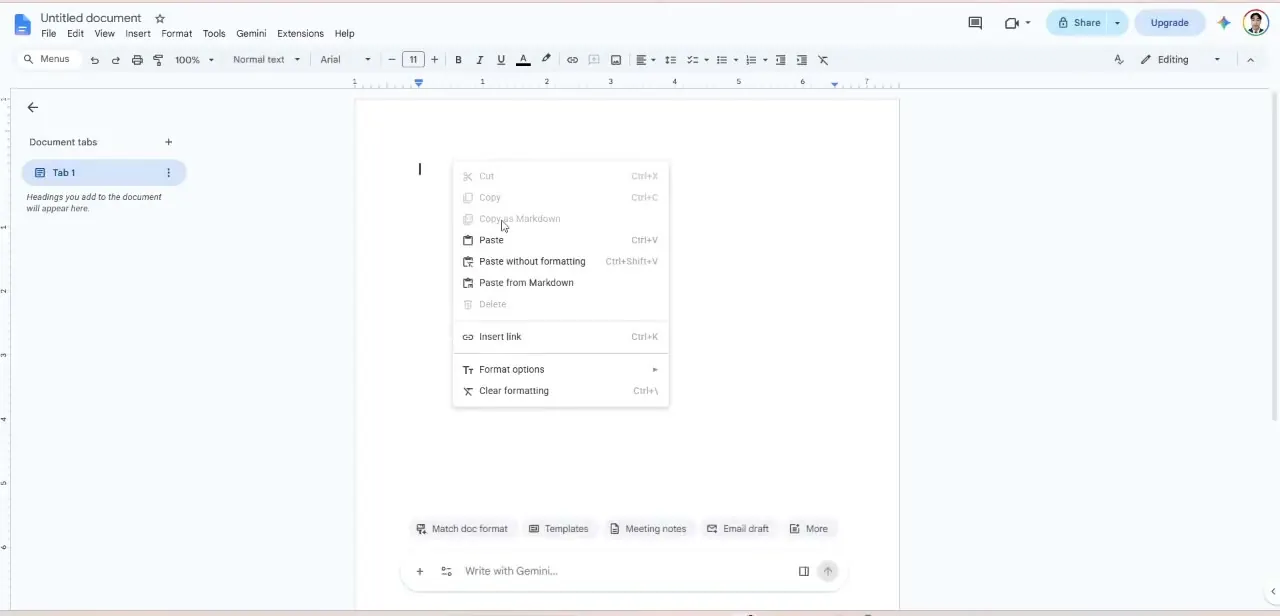
Right-click where you want to paste and Google Docs offers more than one option, not a single generic Paste. Paste (Ctrl+V on Windows, Cmd+V on Mac) keeps Claude's headings, bold text and lists intact.
It works well when the document is empty or when Claude's structure already matches what you want. Paste without formatting (Ctrl+Shift+V) strips that styling and lets the text inherit your document's own formatting instead.
For dropping a short passage into an existing paragraph, this is the safer default, and it's the single most reliable fix for the scrambled-formatting problem most people run into. A third command, Paste from Markdown, converts literal markdown syntax (asterisks for bold, pound signs for headings) into real formatting instead of showing the raw characters.
It won't appear in your right-click menu until you turn it on: open Tools > Preferences and check Enable Markdown. Google Docs ships with this off, so if you've never seen Paste from Markdown before, that's why.
03Check the result before you keep working
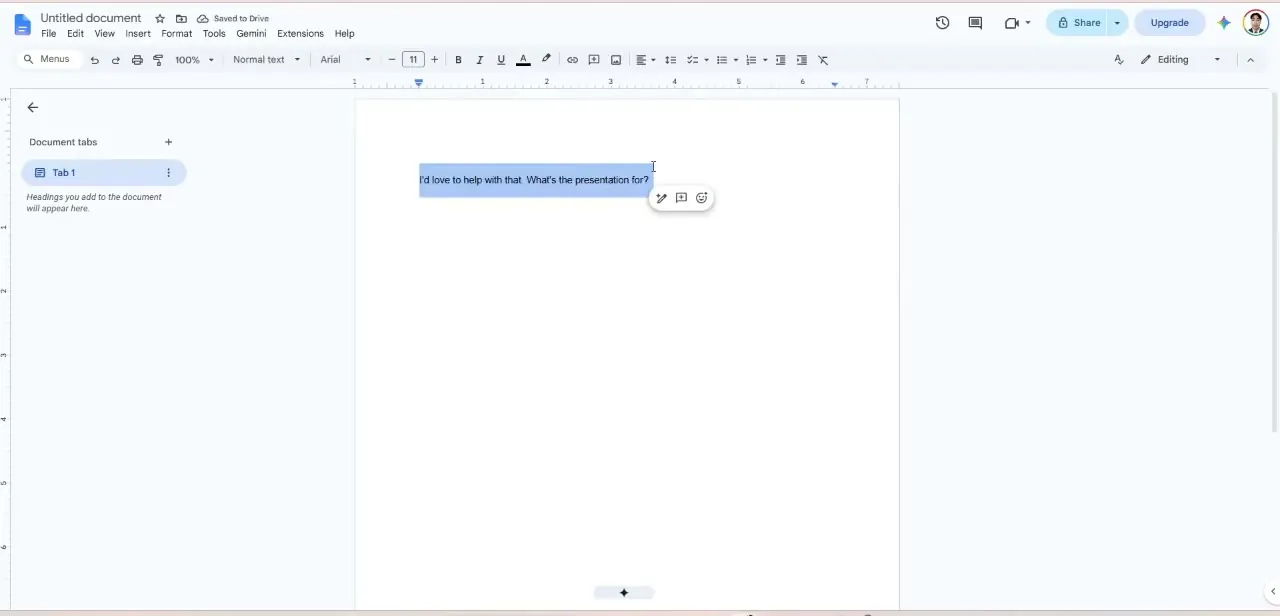
After pasting, select the inserted text and glance at the toolbar. Font, size and alignment should match the rest of the document unless you specifically wanted Claude's formatting preserved.
This is the moment stray formatting reveals itself: an unexpected font size, leftover bullet indentation, or a heading style that doesn't match your document's other headings. Catching it here takes seconds. Catching it after another page of typing means redoing formatting across everything you've already built on top of it.
04Carry the habit to slides and email
Ctrl+Shift+V behaves the same way in most word processors, but not every app treats inherited formatting identically. Check the first time you paste into a spreadsheet, an email client or a CMS, since each one handles it a little differently.
For slide decks, paste into a text box instead of directly onto the canvas; text boxes handle inherited formatting more predictably than the canvas itself. For email, default to Paste without formatting, since different email clients render inherited styling inconsistently across recipients' inboxes.
| Command | What it does | When to use it |
|---|---|---|
| Paste (Ctrl+V / Cmd+V) | Keeps Claude's headings, bold text and lists | Empty document, or Claude's structure already matches what you want |
| Paste without formatting (Ctrl+Shift+V) | Strips Claude's styling; text inherits the document's own formatting | Dropping a line or two into an existing paragraph |
| Paste from Markdown | Converts literal markdown symbols into real formatting | Only after Enable Markdown is turned on in Tools > Preferences, and Claude's reply shows raw asterisks or pound signs |
Paste from Markdown is off by default; it won't appear in the right-click menu until Enable Markdown is checked.
When it doesn't work
Paste from Markdown doesn't show up in the right-click menu
Why: Google Docs ships with Markdown support turned off by default.
Fix: Open Tools > Preferences, check Enable Markdown, then right-click again. The option appears immediately; no reload needed.
Text still looks inconsistent after using Paste without formatting
Why: Paste without formatting strips character-level styling like bold, color and font, but paragraph spacing and list structure can still carry over from Claude's original layout.
Fix: Select the pasted block and reset it with Format > Paragraph styles > Normal text if bullets or spacing still look off.
Frequently asked questions
Why does formatting break when copying from Claude?
Claude's replies carry real structure (headings, bold text, lists) when copied. The app you paste into has to reinterpret that structure using its own formatting rules, and those rules don't always match what you saw in the chat.
What's the fastest fix for formatting issues?
Use Paste without formatting (Ctrl+Shift+V on Windows, Cmd+Shift+V on Mac) instead of a standard paste. It strips Claude's styling and lets the pasted text inherit your document's existing formatting.
Why can't I find Paste from Markdown in my right-click menu?
It's off by default. Go to Tools > Preferences in Google Docs and check Enable Markdown. Once that's on, both Paste from Markdown and Copy as Markdown appear in the right-click menu.
What's the difference between Paste and Paste from Markdown?
Standard Paste keeps Claude's already-rendered formatting intact. Paste from Markdown is for cases where the response contains literal markdown characters, like asterisks or pound signs, that you want converted into real formatting instead of shown as raw text.
Does the same approach work in Slides or email?
The keyboard shortcut works the same way in most apps, but each one handles inherited formatting a little differently. In Slides, paste into a text box instead of onto the canvas, and default to plain text for email, since inboxes render inherited styling inconsistently.
Sources and last check
Click path and screenshots come from a recorded Google Docs paste session. The claim that Paste from Markdown sits in the right-click menu by default was re-checked against Google's own Markdown documentation in September 2026: it doesn't. Markdown support has to be switched on first, in Tools > Preferences > Enable Markdown, which this guide previously left out entirely.
About the author

Impran M N
I've been hooked on technology for as long as I can remember — especially the new tools and AI apps that seem to land every other week. Easy Tech Tuts is where I write up whatever I've just worked out: I do the task in the real product, record the screen, and turn it into the guide I wish I'd found first.