Easy Tech Tuts
How to Add Claude AI to Slack | Team Workflow Setup | Easily 2026
By Impran M NLast checked against official docs
Putting Claude in Slack instead of asking people to open another tab used to be a simple app install: search, click, done. As of 2026, Anthropic runs that setup through something called Claude Tag, and it works differently in ways worth knowing before you start.
Claude Tag needs a Claude Team or Enterprise plan, an Owner in that organization, and a short pairing step run from inside Slack. It is not available on Free, Pro, or Max plans. This guide covers that current setup path, how channel use differs from direct messages once it's live, and the earlier standalone app some workspaces still have, since a few readers will land on those exact install screens instead.
Before you start
- A Claude Team or Enterprise organization; Claude Tag isn't offered on Free, Pro, or Max individual plans
- Owner permissions in that Claude organization, and a Slack workspace admin available to run the pairing step (often the same person)
01Check whether your organization is eligible
Claude Tag requires a Team or Enterprise plan on claude.ai. Anthropic's setup documentation also excludes organizations with Zero Data Retention or customer-managed encryption policies, since Claude Tag stores channel memory and session transcripts that those settings don't permit. You'll also need the Routines capability turned on in your Claude organization; until it is, Claude answers every mention with a message that it's unavailable.
02Have an Owner start setup and install the Slack app
An Owner in the Claude organization goes to the Claude Tag setup page in Claude's admin settings and clicks Start setup. The first step links to the Claude listing in Slack's Marketplace; clicking Add to Slack there and approving the requested permissions installs the app into the workspace. If the app is already installed, adding it again reinstalls over the existing one and keeps current settings.
03Pair the workspace from inside Slack
In Slack, invite the app to any channel with /invite @Claude, then post "@Claude connect" as its own message. Claude replies with a one-time pairing code visible only to the person who sent it. Paste that code into the setup page to finish pairing; codes expire 15 minutes after Claude posts them, so it helps to have the Slack admin and the Claude org Owner online at the same time.
04Connect tools, set a spend limit, and launch
The setup page asks which tools Claude should reach, such as an issue tracker or a document store, and lets you connect a GitHub organization separately. Both can be skipped and finished later.
Before Claude Tag goes live, an Owner sets the monthly spend limit that caps channel usage against the organization's balance, then clicks Launch. Mentions of Claude get "Claude is disabled in this channel" until this step completes.
05Use it: channels need no login, direct messages do
Once launched, anyone in a paired channel can mention @Claude and get a reply with no personal sign-in and no per-seat cost; that usage counts against the shared organization balance. A direct message works differently: it runs on the sender's own claude.ai account instead, so it needs a seat that includes Claude Code, and it bills to that person instead of the shared balance.
06If your workspace still has the earlier Claude app
Some Slack workspaces installed Claude before Claude Tag existed, through the same Apps directory used for tools like Google Drive or Zoom. That earlier app keeps working after installing it once, according to Anthropic, so this is what you'd see searching for it there today instead of the admin-driven flow above. Whoever runs it should have permission to install apps, since some Slack plans restrict that to admins.
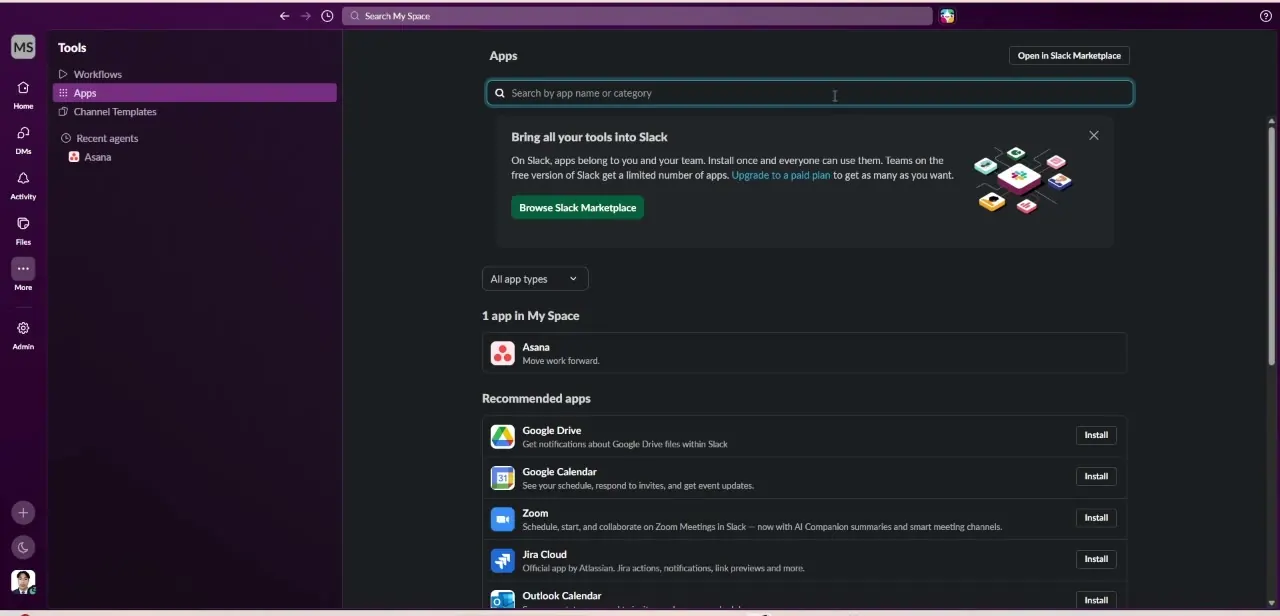
07Finish the earlier app's install
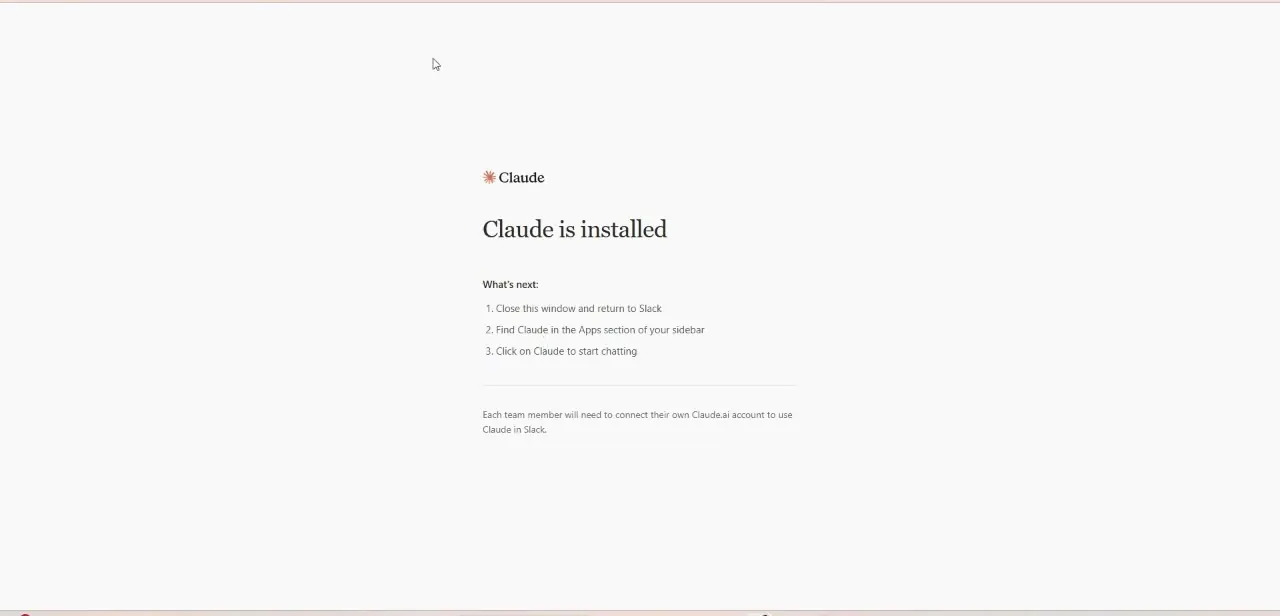
After approving permissions, the earlier app lands on a confirmation page: close the window, find Claude in the Apps section of the Slack sidebar, and click it to start chatting. The page also states plainly that installing the app doesn't give the whole team access; each person still connects their own Claude.ai account the first time they open it. Anthropic's current documentation focuses on Claude Tag and doesn't describe this older flow in detail, so treat this step as based on what the recording shows, not a page fetched during this pass.
When it doesn't work
Tagging @Claude in a channel gets no reply
Why: Claude Tag hasn't been launched yet, or the channel falls outside wherever the workspace was paired. Anthropic's setup guide notes a mention before launch returns "Claude is disabled in this channel."
Fix: Confirm an Owner completed the Launch step in Claude's admin settings, and check whether pairing covers the whole workspace or a specific channel list.
The pairing code from @Claude connect doesn't work
Why: Pairing codes expire 15 minutes after Claude posts them in Slack.
Fix: Send @Claude connect again for a fresh code and paste it right away.
The Claude Tag setup page won't move past Start setup
Why: The signed-in account isn't an Owner in the Claude organization, or the organization has Zero Data Retention or customer-managed encryption enabled, neither of which Claude Tag supports.
Fix: Have an Owner run setup, and check with an admin about ZDR or CMEK policy before assuming it's a bug.
Frequently asked questions
Is Claude in Slack the same thing as Claude Tag?
Not exactly. Claude Tag is Anthropic's current path for bringing Claude into Slack channels, available on Team and Enterprise plans. An earlier, simpler Claude app also exists, and Anthropic's documentation says workspaces that already installed it keep it running.
Can I add Claude to Slack on a free or Pro plan?
Not through Claude Tag; Anthropic's documentation limits it to Team and Enterprise organizations. The earlier standalone app, where a workspace already has it, is the closer fit outside a Team plan.
Does every teammate need to sign in separately?
Under Claude Tag, no: anyone in a paired channel can tag @Claude without signing in, and only direct messages need the sender's own claude.ai account. Under the earlier app shown in this guide's screenshots, each person connects their own account before chatting, regardless of channel or DM.
Who is allowed to set Claude Tag up?
An Owner in the Claude organization runs setup on Claude's side, and pairing the workspace from Slack needs a Slack workspace admin. Anthropic's guide suggests having both available at once, since pairing codes expire in 15 minutes.
Does adding Claude to Slack cost extra per person?
Not for channel work. Claude Tag draws from a shared organization usage balance under a monthly spend limit; only direct messages bill against an individual's own Claude seat.
Sources and last check
The two screenshots come from a recording of the earlier standalone Claude Slack app, made in July 2026. Re-checked in September 2026 against Anthropic's official Claude Tag documentation, which is the setup path Anthropic now documents for Team and Enterprise organizations. That check corrected this article's original premise, that any user on a free plan could search Slack's Apps directory and install Claude in a couple of clicks; Claude Tag is Owner-run, plan-gated, and involves a Slack-side pairing step instead. Anthropic's own docs say existing installs of the earlier app keep working, so that flow is presented here as the legacy path, not the current recommendation.
About the author

Impran M N
I've been hooked on technology for as long as I can remember — especially the new tools and AI apps that seem to land every other week. Easy Tech Tuts is where I write up whatever I've just worked out: I do the task in the real product, record the screen, and turn it into the guide I wish I'd found first.