Easy Tech Tuts
How to Remove Yahoo Search From Google Chrome (Stop Browser Hijacking) Easily 2026
By Impran M NLast checked against official docs
If your Chrome address bar is suddenly handing every search over to Yahoo instead of Google, something on your machine changed that setting without asking you first. That's browser hijacking.
It usually rides in on a bundled installer or a shady extension, and it doesn't just swap your search engine; it can track queries, change your homepage, and push extra ads into your results. None of this requires reinstalling Chrome or wiping your profile. The fix takes a few minutes once you know where Chrome hides its search engine list, in what order to make the changes, and how to tell the difference between disabling an unwanted engine and removing it for good.
01Recognize what changed, and why
Before touching any settings, understand what happened. An extension, a bundled download, or adware quietly overwrote your default search engine, and possibly your homepage and new-tab page too.
This isn't a bug in Chrome; it's a deliberate change made by something you installed, often without a clear prompt buried inside an installer you clicked through too fast. Symptoms include searches routing through Yahoo, extra toolbars you don't remember adding, an unfamiliar new-tab page, and sometimes more pop-up ads than usual, even on sites that don't normally show them. Knowing it's a settings change, not malware embedded in Chrome itself, means you can fix nearly all of these cases from the browser's own menus.
02Open Chrome's search engine settings
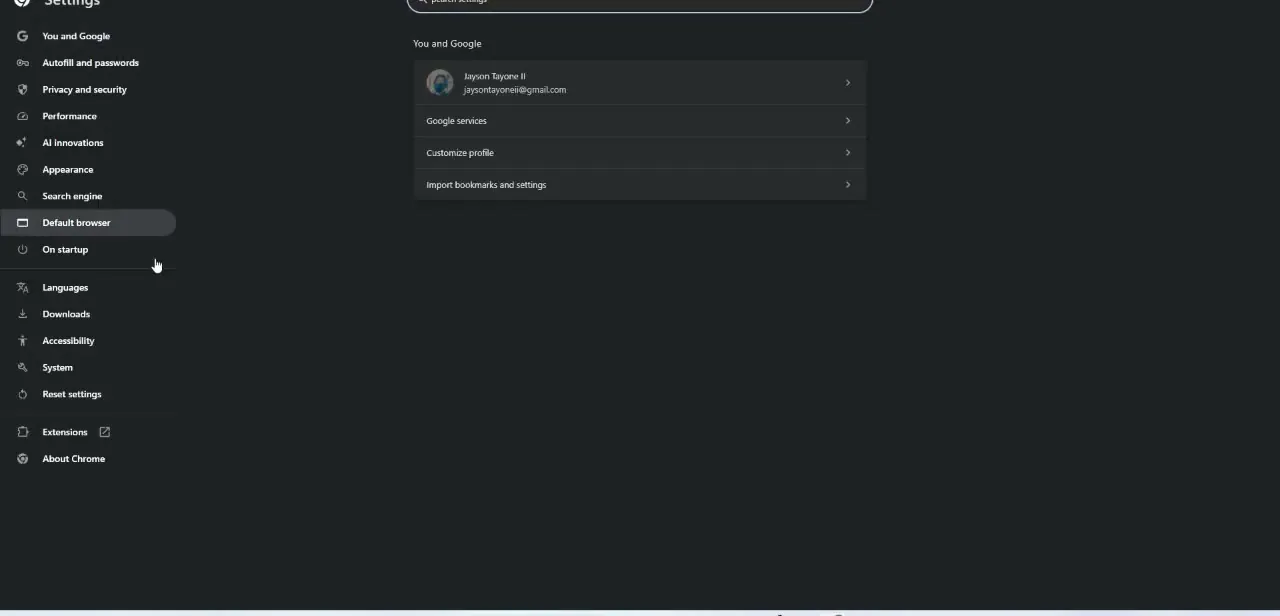
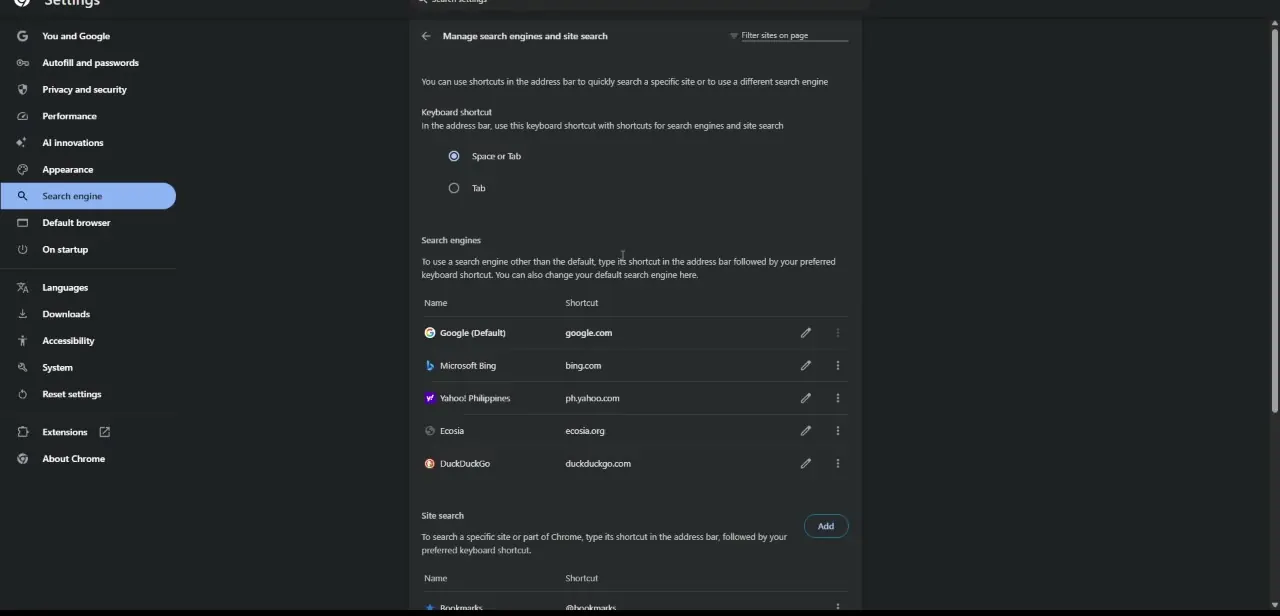
Go to Chrome's three-dot menu, choose Settings, then Search engine, and click into Manage search engines and site search. This page controls every search provider Chrome knows about, and it's the one place you can permanently remove Yahoo instead of just switching away from it for one session.
The list shows each engine's name and shortcut domain; Yahoo's entry often appears with a regional domain like ph.yahoo.com, sitting alongside Google, Bing, Ecosia and DuckDuckGo, plus whatever else got added along the way. Scan the whole list once, since a single hijack sometimes drops more than one unwanted entry.
03Set Google as default, then delete the Yahoo entry
Do this in that order. Chrome won't let you remove a search engine while it's still set as the active default, so if a hijack left Yahoo marked default, deleting it straight away will fail or simply deselect it.
Click the three dots next to Google first and choose Make default. Then click the three dots next to Yahoo and remove it from the list entirely. Deleting the entry closes the door the hijacker used, instead of just papering over the symptom, since a merely deselected engine can sometimes get reset back to active.
04Run Safety Check, then look through your extensions
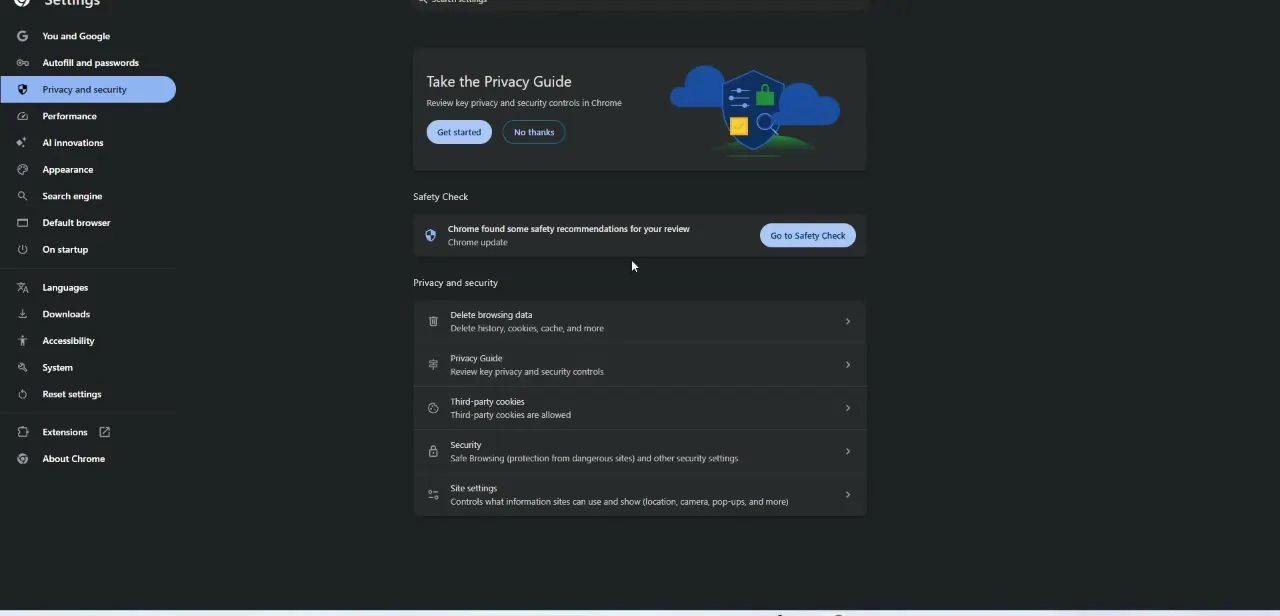
Chrome has a built-in scanner for exactly this: go to Settings, then Privacy and security, and run Safety Check. It flags harmful or unwanted extensions automatically and offers to remove them, which is faster than reading through the extension list by eye.
If it turns up nothing, or you want to double-check, open chrome://extensions directly and scan for anything you don't recognize, especially items installed around when the problem started. Toolbars promising PDF tools, coupon finders, weather widgets and "search enhancers" are common offenders, often with generic names designed to blend in. Remove anything suspicious instead of only disabling it, since a disabled extension can still hold its settings and reactivate itself after a Chrome update.
05Confirm the fix, and reset Chrome if Yahoo keeps coming back
Open a new tab and run a search to confirm Google now handles it. The new-tab page shows your active default search engine right in the search box before you type anything, so it's a quick check.
Repeat it after closing and reopening Chrome once, since some hijacking software is built to reassert itself specifically on browser restart. If Yahoo still reappears after removing the extension and the search engine entry, go to Settings, then Reset settings, and choose Restore settings to their original defaults. This clears your homepage, new-tab page, pinned tabs and search engine back to Chrome's factory state without touching saved passwords or bookmarks, and it's a stronger move against hijackers that change settings the regular UI doesn't show clearly.

06Prevent the same thing from happening again
Most hijackers arrive bundled with free software installers, so choose the custom or advanced install option and uncheck anything you don't recognize instead of clicking through the default install path. Stick to extensions from Chrome's official Web Store, read the permissions an extension asks for before adding it (an extension that wants to read and change all your data on websites you visit, for a simple PDF tool, is a red flag), and revisit your search engine settings every so often to catch a change early. A habit of checking that one page every couple of months is a lot less work than untangling a hijack afterward.
When it doesn't work
The Yahoo entry won't delete, or it reappears the moment you close Settings
Why: The extension or software making the change is still installed and reapplies its override on launch or after a Chrome restart. Deleting the list entry alone doesn't remove the thing making the change.
Fix: Run Safety Check or remove the offending extension first, then set Google as default and delete the Yahoo entry.
Chrome won't let you remove Yahoo at all, or greys out the option
Why: You're trying to delete the search engine that's currently set as default. Chrome requires a different engine to be active first.
Fix: Set Google (or any other engine) as default, then go back and delete the Yahoo entry.
Safety Check finds nothing, but Yahoo still shows up
Why: Not every hijack ships as a Chrome extension. Some arrive as a separate application, a modified shortcut, or a proxy setting outside Chrome entirely.
Fix: Right-click your Chrome shortcut and check its target field for anything appended after chrome.exe, and check your operating system's installed-programs list for anything unfamiliar from around when the problem started.
Settings shows "This setting is enforced by your administrator" next to the search engine
Why: The device is managed by a work, school, or family policy that locks the default search engine at the account or device level, not by malware.
Fix: This isn't a hijack. Contact whoever manages the device's policies instead of trying to force a change through Chrome's own settings.
Frequently asked questions
Why did my Chrome search engine change to Yahoo on its own?
Usually a browser extension or bundled software installed itself and silently changed your default search settings, often during a free program install where you clicked through the default options.
Is removing Yahoo Search from Chrome permanent?
Yes, once you delete the entry from Manage search engines and remove the extension or software that added it. It sticks unless the same source gets reinstalled.
Why can't I delete Yahoo from the search engine list?
Chrome only lets you delete a search engine that isn't currently set as the default. Set a different engine as default first, then delete the one you want gone.
Does Chrome have a built-in tool to find the extension causing this?
Yes. Settings > Privacy and security > Safety Check scans for harmful or unwanted extensions and offers to remove them, alongside checking for a compromised password and an outdated Chrome version.
Does resetting Chrome delete my bookmarks?
No. A standard Chrome settings reset restores defaults like the homepage and search engine but leaves saved bookmarks untouched.
How can I stop browser hijacking from happening again?
Avoid downloading software from untrusted sources, always use the custom install option to decline bundled add-ons, and check your search engine settings occasionally so you catch an unwanted change early.
Sources and last check
Click path and screens come from the original walkthrough. The search engine settings path and site-search behaviour were re-checked against Google's official Chrome support page in September 2026. That check added the Safety Check step, which is Chrome's own built-in scanner for this exact problem and wasn't mentioned before, and corrected the step order: Chrome requires a different engine to be set as default before it will let you delete the one currently active, so this version sets Google as default before deleting Yahoo, not after.
About the author

Impran M N
I've been hooked on technology for as long as I can remember — especially the new tools and AI apps that seem to land every other week. Easy Tech Tuts is where I write up whatever I've just worked out: I do the task in the real product, record the screen, and turn it into the guide I wish I'd found first.