Easy Tech Tuts
How to Fix Access Denied Website Error in Chrome (Common Causes Solved) Easily 2026
By Impran M NLast checked against official docs
An Access Denied error in Chrome can stop you from reaching a website you need, and the message alone doesn't tell you who's actually blocking the request. Sometimes it's the site itself rejecting your IP or region; other times it's a stale Chrome site permission or cached cookie getting in the way, or a network-level block on a work connection filtering traffic before it reaches the browser at all.
Because the causes are so different from each other, a fix that works for one person often does nothing for the next. This guide breaks down the most common causes, works through the browser-side settings that resolve the majority of cases, and covers what to check if the problem is coming from your network instead.
01Identify whether the block is server-side or browser-side
Access Denied errors fall into two broad categories, and working out which one you're dealing with saves time before changing settings that won't help. If the error page mentions a reference number or an IP address, or looks like an Apache or Nginx error page rather than Chrome's own error screen, the site itself is refusing the request: geographic restrictions, rate limiting, or a firewall rule on their end, none of which you can fix from your side. If instead the page looks like a generic Chrome error, or the site loads fine for others on the same network but not for you, the problem is more likely local to your browser or your profile.
02Reset the site's permissions in Chrome
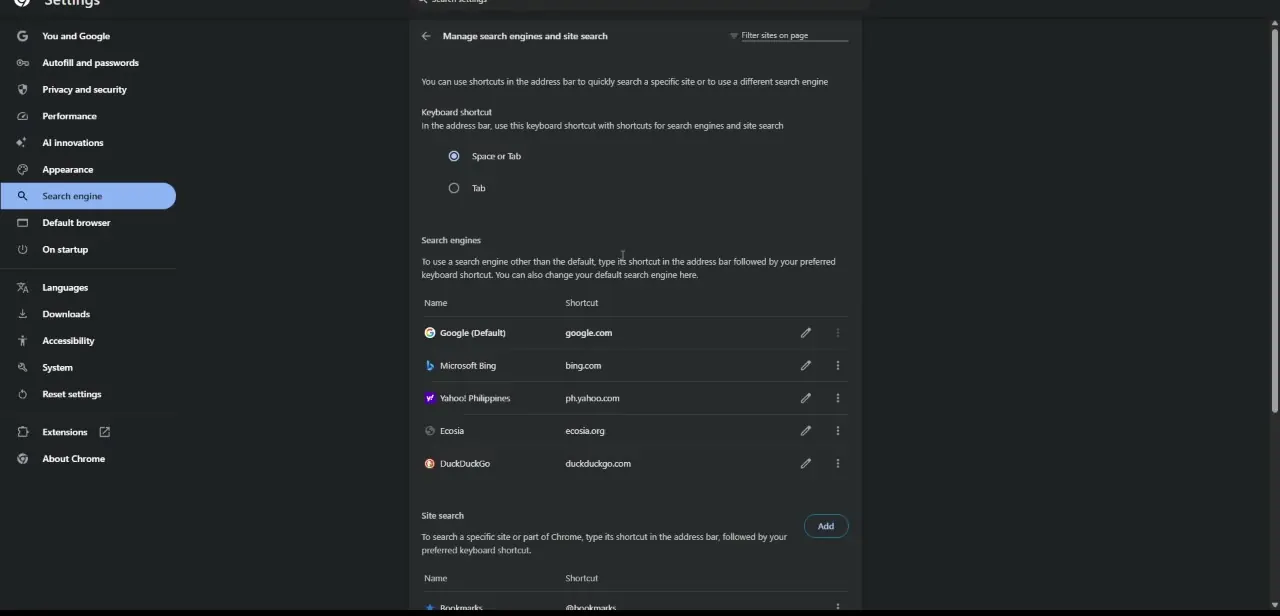
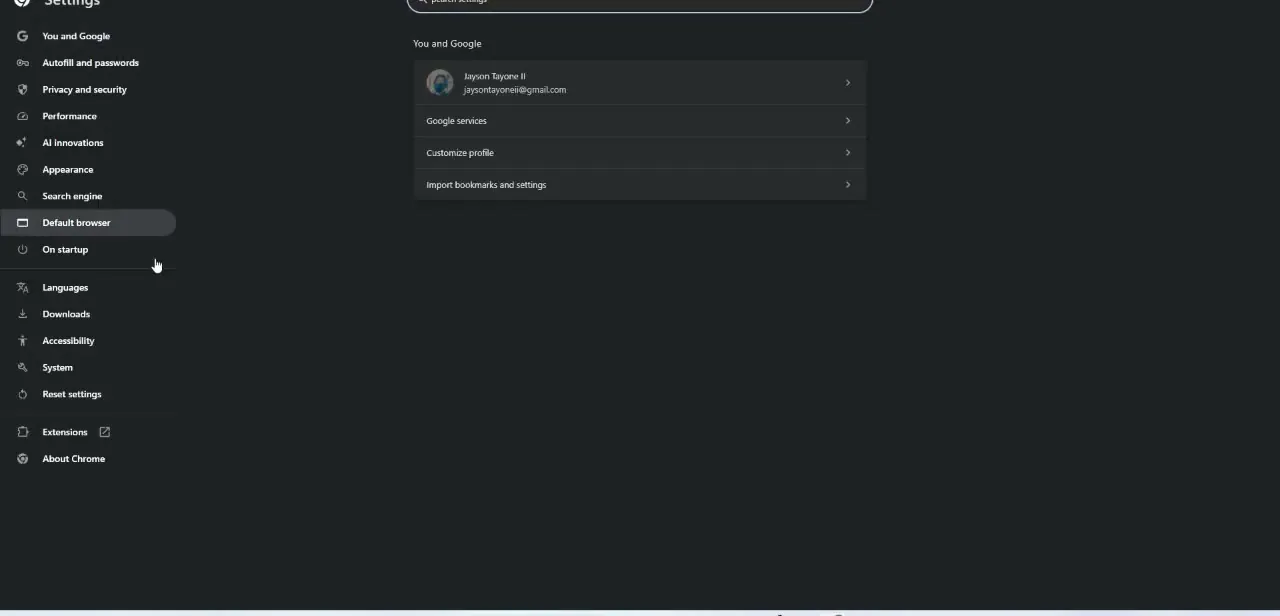
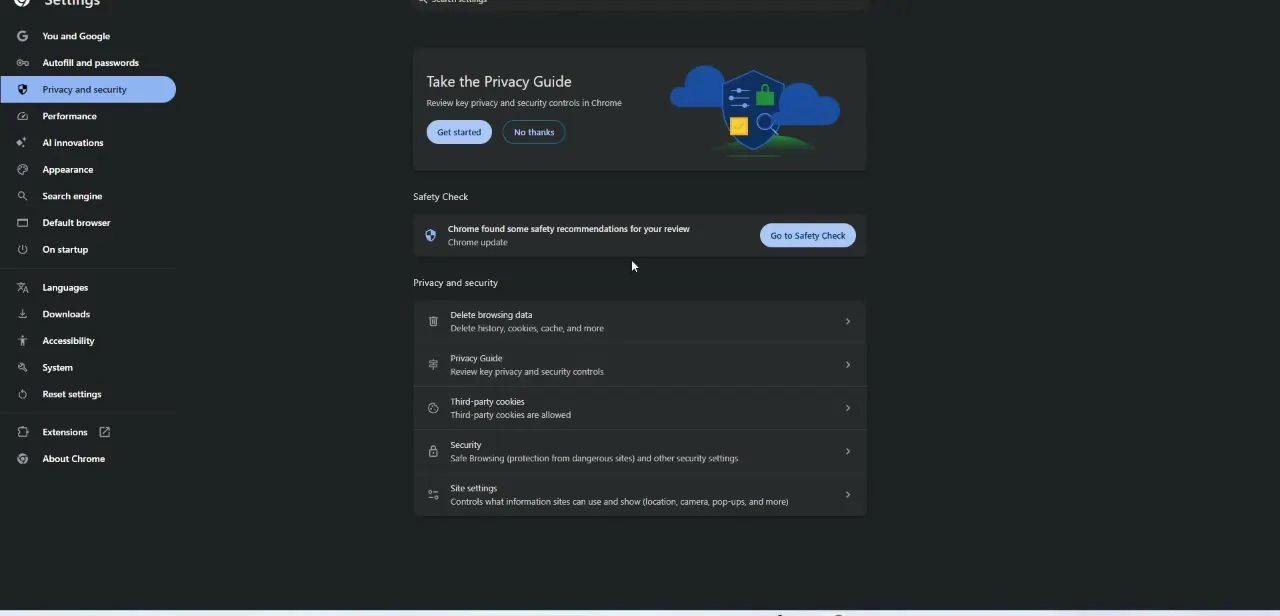
Open Chrome's Settings, go to Privacy and security, then Site settings. Search for the domain giving you trouble, or click the padlock icon in the address bar while on the problem page for a shortcut to that site's permissions.
Chrome remembers individual decisions per site (cookies, JavaScript, redirects, pop-ups), and a stale or accidentally denied permission here can produce exactly this error with no obvious explanation anywhere else. Open the site's entry, reset its permissions to default, then reload the page. This one step resolves a surprising share of Access Denied cases that have nothing to do with the website itself, especially on sites you've visited many times where an old decision has simply gone stale.
03Clear cached data for the affected site
Cached cookies and site data can go stale, especially after a site changes its login system or rotates its SSL certificate. Clear browsing data scoped to just that site rather than wiping everything, or use the padlock icon to view and clear the site's stored cookies directly, then hard-refresh (Ctrl+Shift+R, or Cmd+Shift+R on a Mac) to force Chrome past whatever it had cached.
04Rule out network-level blocks
If the settings and cache fixes don't help, the block is likely happening before the request reaches Chrome, which is why changing anything inside the browser hasn't moved the needle. On a work or school network, corporate firewalls and content filters commonly return Access Denied for specific categories of sites, and there's little to fix on your end beyond contacting IT with the exact error and URL. On a home network, try a different DNS provider or briefly disable a VPN or proxy extension, since either can make a site see your connection as coming from a blocked region or a flagged IP range shared by many other users.
05Try an Incognito window to isolate the cause
Open the same URL in an Incognito window, which loads without your regular extensions active and without existing cookies for the site. If the page loads there, the problem lives in your normal profile, most likely an extension or a stored cookie, rather than in Chrome's core settings or your network connection.
06Keep Chrome updated
Outdated browser versions occasionally mishandle newer TLS requirements that some sites now enforce, which can surface as an access error even when nothing about your settings is wrong. Check chrome://settings/help to confirm you're on the latest version; it's a five-second check that rules out a whole category of errors tied to expired security handshakes rather than permission problems.
When it doesn't work
The error page shows a reference number, an IP address, or an Apache/Nginx-style layout
Why: The site's own server is refusing the request, commonly for geographic restrictions, rate limiting, or a firewall rule.
Fix: There's nothing to change in Chrome for this. Contact the site if you believe the block is a mistake.
The page works fine in Incognito but fails in your normal window
Why: Something specific to your regular profile, usually an extension or a stored cookie for that site, is triggering the block.
Fix: Reset the site's permissions under Site settings, clear its cookies, or disable extensions one at a time to find the culprit.
The site works for others on the same network but not for you
Why: A network-level filter (corporate firewall, DNS provider, or a VPN putting you on a flagged IP range) rather than anything in Chrome itself.
Fix: On a managed network, contact IT with the exact URL and error. On a home network, try disabling a VPN or switching DNS provider, then reload.
Frequently asked questions
What does Access Denied mean in Chrome?
It usually means the website or your network has blocked the request, whether that's an IP restriction, a permission setting, or a firewall rule. The exact cause depends on whether the block is coming from the site's server or from your own browser or network.
Is the Access Denied error caused by my computer or the website?
It can be either. An error page with a reference number or server details usually means the site itself is blocking you; a generic-looking error that only affects you on an otherwise-working network points to a browser-side setting.
Can a business network cause this error?
Yes. Corporate firewalls and content filters frequently trigger Access Denied errors for certain external sites, and that's a network policy, not something fixable from Chrome's settings.
Will clearing my browser data help fix this error?
Often, yes. Stale cookies or cached site data can interfere with how a page authenticates, so clearing data scoped to just the affected site is worth trying before a full browser reset.
Does a VPN cause Access Denied errors in Chrome?
It can. Some sites block traffic from VPN or proxy IP ranges outright, so if the error only appears with a VPN active, disabling it and reloading the page is a quick way to confirm that's the cause.
Sources and last check
Click path and screens come from a walkthrough recorded in July 2025. Google doesn't publish a dedicated page for "Access Denied" specifically, since it's typically a server-generated message rather than a Chrome error type, so this pass checked the browser-side steps against Chrome's official connection-troubleshooting and site-permissions help pages in September 2026. That check removed an unverified claim in the earlier draft about Safe Browsing interfering with a site's login handshake; the more defensible, documented causes are stale site permissions, cached cookies, extensions, and network-level filtering, which is what the steps and troubleshooting entries now focus on.
About the author

Impran M N
I've been hooked on technology for as long as I can remember — especially the new tools and AI apps that seem to land every other week. Easy Tech Tuts is where I write up whatever I've just worked out: I do the task in the real product, record the screen, and turn it into the guide I wish I'd found first.