Easy Tech Tuts
How to Send a Test Email in Brevo Easily 2026
By Impran M NLast checked against official docs
Sending an unproven campaign draft straight to your full list is how broken images, dead links and mangled merge tags end up in front of real customers. Brevo builds two separate check-before-you-send tools into the campaign screen: a Preview tab that shows the email exactly as a chosen real contact would see it, and a Send test email tool that fires an actual copy to a short list of addresses you control. This guide covers where both live, how the underlying test list works, and what to check once a test lands in your inbox.
01Start from your Brevo dashboard
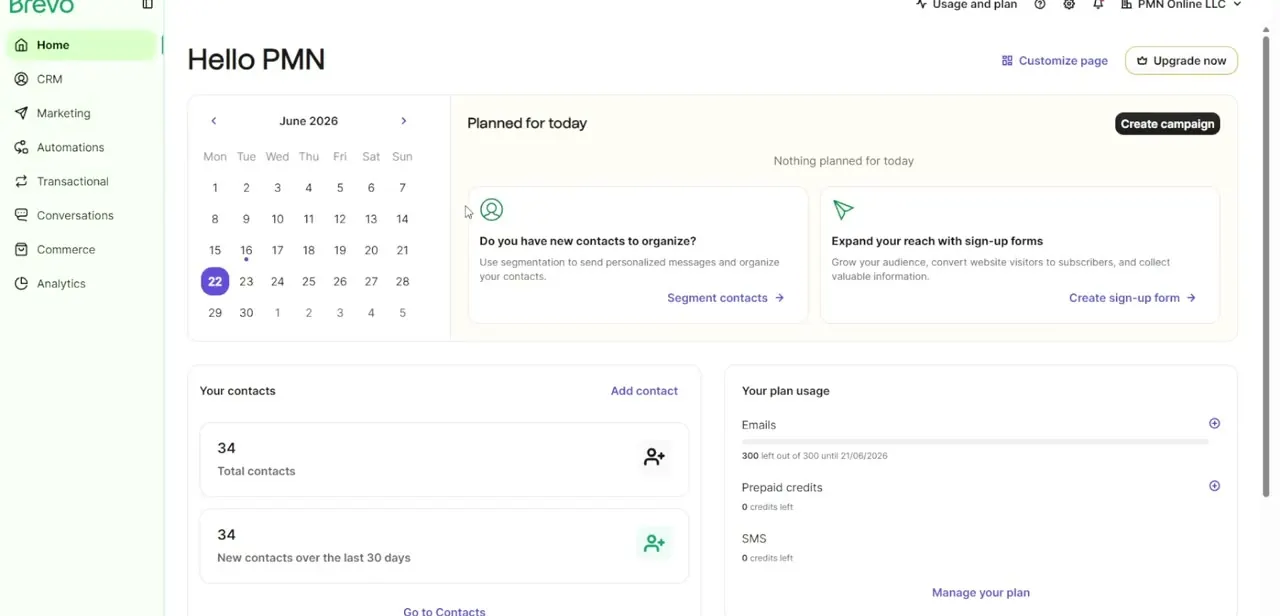
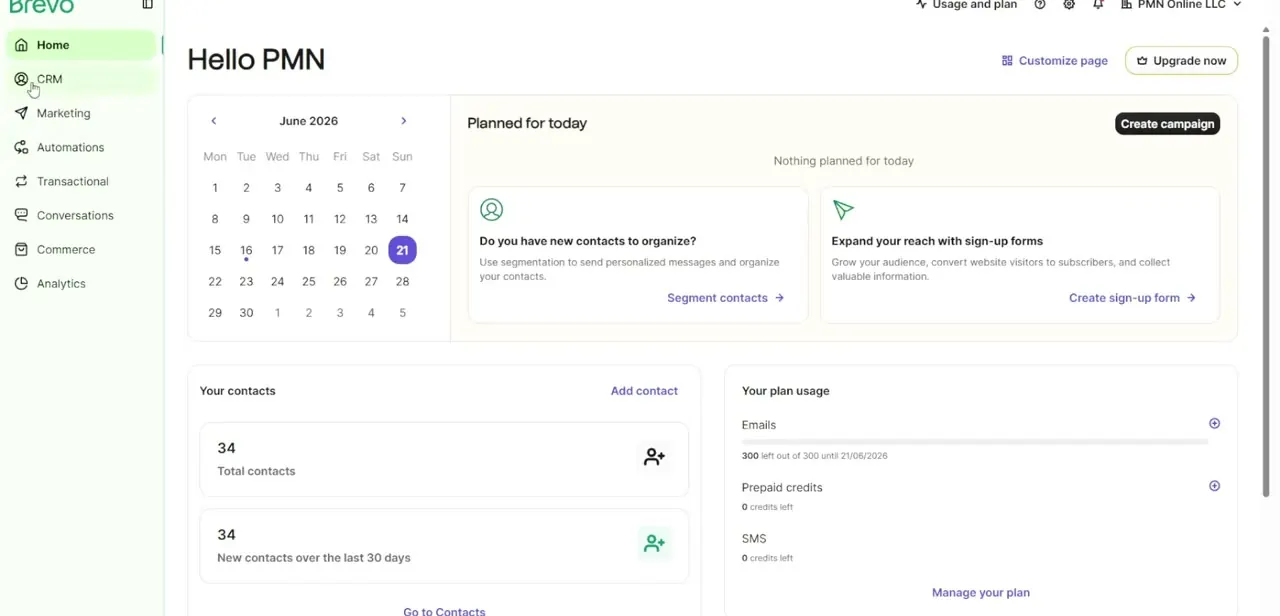
Log in and you land on the Home screen, which shows a snapshot of your account: contacts, anything planned for today, and how much of your plan's email, credit and SMS allowance is left for the billing period. From here, open Campaigns in the left sidebar under Marketing to reach the email you want to test.
02Open the campaign you're testing
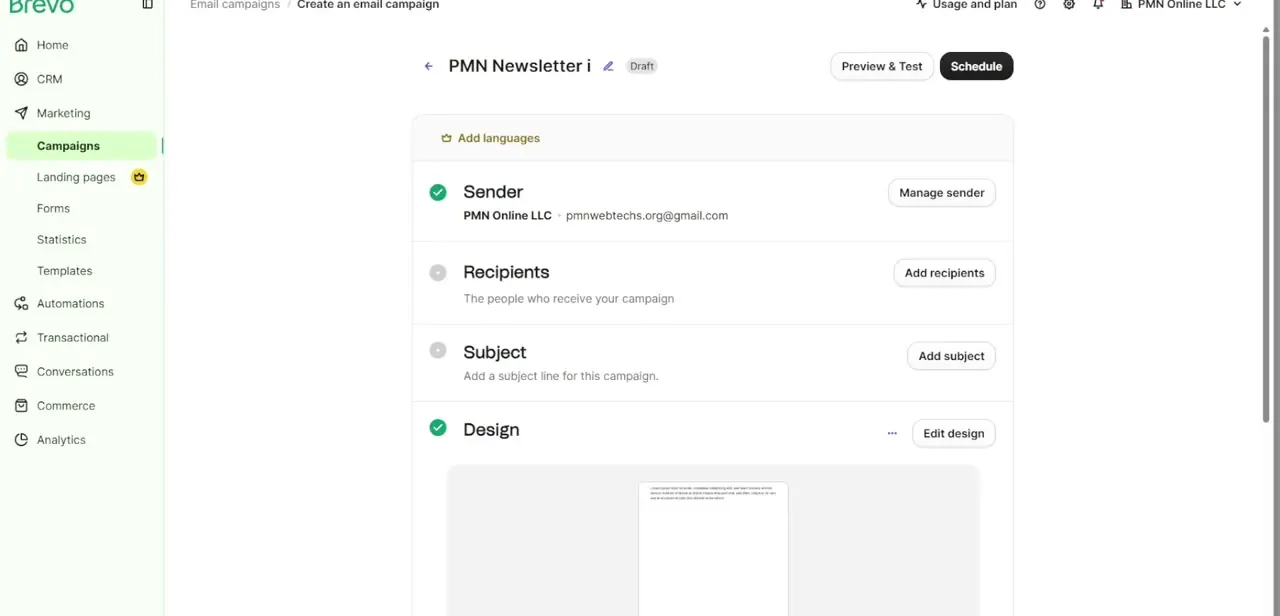
Inside Campaigns, open the draft. The builder lays the setup out as a checklist: Sender, Recipients, Subject and Design, each getting a green checkmark once it's filled in. You don't need every section complete to run a test, but Design needs a working layout, or there's nothing worth previewing yet.
03Click Preview & Test
At the top of the campaign screen, next to the black Schedule button, sits Preview & Test. Opening it splits into two tools: a Preview tab for checking the design against a real contact, and a Send test email tab for firing an actual copy to addresses you control. Neither touches your live recipient list or counts as a real send.
04Preview the email as a real contact
On the Preview tab, start typing a recipient's address into the Select a contact field and click it. The design reloads showing exactly what that person would receive, with personalization variables replaced by their real attributes. Use the desktop and mobile icons in the header to switch views, and check the separate View in inbox tab if you want to see how the layout renders across clients like Gmail or Outlook, not just Brevo's own preview pane.
05Send a real test email to your test list
The Send test email tab sends an actual copy of the draft, but only to addresses already on your Brevo test list, managed separately under Settings, then Campaigns, then Test List. That list holds up to 20 addresses.
If the person you want isn't on it yet, click Manage test list, add them, refresh the page, then select them in the Recipients field. There's a daily cap of 50 test sends across your account, and on a Free plan, links inside a test email expire roughly 30 minutes after it arrives, so click through them soon after the test lands, not the next morning.
06Check links, and expect blank merge tags in the test copy
Click every link in the test to confirm it lands on the right page. Merge tags behave differently depending on which tool sent the email: the Preview tab pulls real attribute data because you picked an actual contact, but a Send test email copy goes to test-list addresses that usually aren't real customers, so names and custom fields show blank or fall back to whatever default text you configured. That's expected, not a sign the tags are broken for the real send.
When it doesn't work
The test email link doesn't work anymore
Why: On Brevo's Free plan, links inside a test email expire about 30 minutes after delivery.
Fix: Send a fresh test and click through the links promptly, or test from a paid plan if the links need to stay live longer.
I can't add a coworker's address to the test send
Why: Send test email only accepts addresses already on your account's test list, which is capped at 20.
Fix: Open Settings, then Campaigns, then Test List, add the address there, refresh the campaign page, then select it in Recipients.
The test email never arrives
Why: Brevo's own troubleshooting points to a few common causes: an improperly authenticated sending domain, a firewall or spam filter blocking it, or the message queued at the recipient's mail provider.
Fix: Check your domain authentication in Brevo's sender settings first, then check spam and promotions folders before assuming the send failed.
Frequently asked questions
Does sending a test email count against my sending limit?
No. Both the Preview tab and Send test email tool are separate from a live campaign send and don't touch your real contact list. There's a daily cap of 50 test sends per account, separate from your live sending limit.
How many addresses can I send a test to?
Up to 20 addresses can sit on your Brevo test list at once (Settings, then Campaigns, then Test List), and you can select as many of them as you need for a given test send.
Why do my merge tags show up empty in the test email?
Test-list addresses usually aren't part of your real contact list, so they carry no custom attribute data for merge tags to pull from. That's expected in a Send test email copy; the Preview tab, which uses a real contact, shows the actual data instead.
Where is the test option in the Brevo campaign builder?
At the top of the campaign creation screen, next to Schedule, labeled Preview & Test.
Should I check the test on mobile as well as desktop?
Yes. Use the desktop and mobile icons on the Preview tab, or the View in inbox tab to compare rendering across real email clients like Gmail and Outlook, since spacing and image scaling often shift once an actual client renders them.
Sources and last check
Screens and click path come from a walkthrough recorded in July 2025. Re-checked against Brevo's official help center in September 2026, which corrected two things this guide previously simplified: test recipients must already sit on a separate, 20-address test list instead of being typed in freely, and Free-plan test emails have links that expire after about 30 minutes.
About the author

Impran M N
I've been hooked on technology for as long as I can remember — especially the new tools and AI apps that seem to land every other week. Easy Tech Tuts is where I write up whatever I've just worked out: I do the task in the real product, record the screen, and turn it into the guide I wish I'd found first.