Easy Tech Tuts
How to Create an Account With Brevo, Brevo Free Signup Easily 2026
By Impran M NLast checked against official docs
Brevo's homepage sells itself as one platform for email, SMS, WhatsApp, and CRM, and the free tier starts without a card. That matters if you just want to look around the dashboard before committing to anything. This guide walks through the signup screens: creating your login, confirming the email address that owns the account, and what to expect once you're through verification.
Before you start
- An inbox you can check right after signing up, since Brevo blocks the rest of setup until you click its verification link
- A phone number that can receive an SMS or voice code, required to finish the profile step
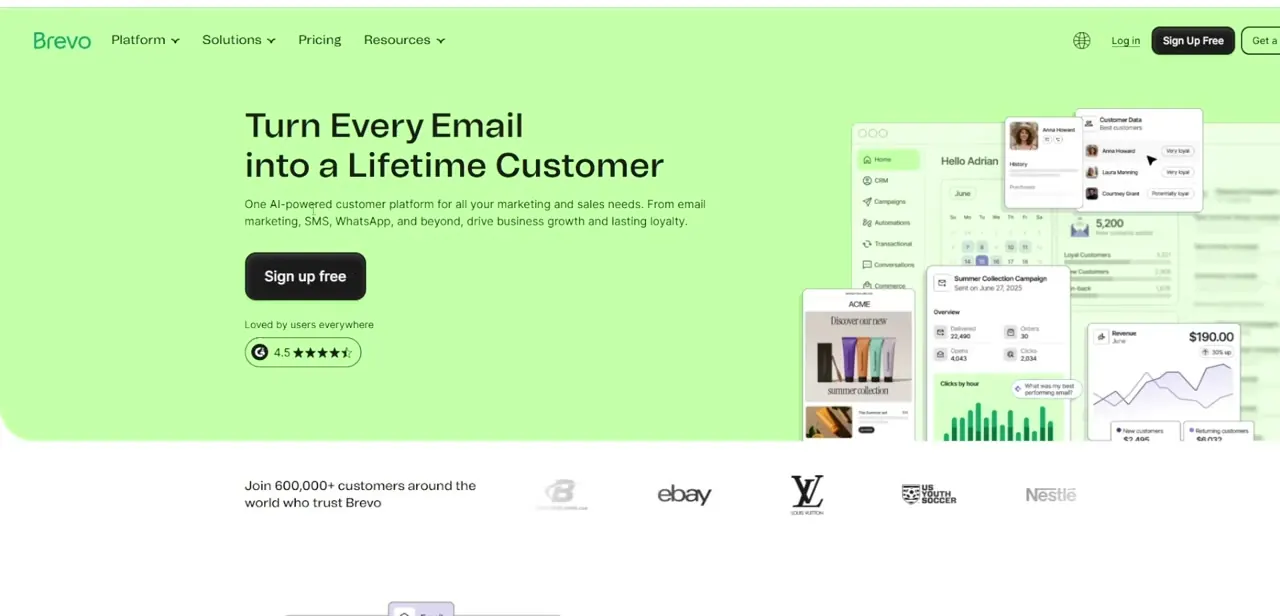
01Start from the Brevo homepage
Go to brevo.com and use either the Sign Up Free button in the top navigation or the matching button in the hero section. The homepage lays out what's bundled into the platform (email marketing, SMS, WhatsApp, and a shared customer data view) before you commit to anything, which is useful context since the plan you land on by default is scoped around those channels.
02Create your login
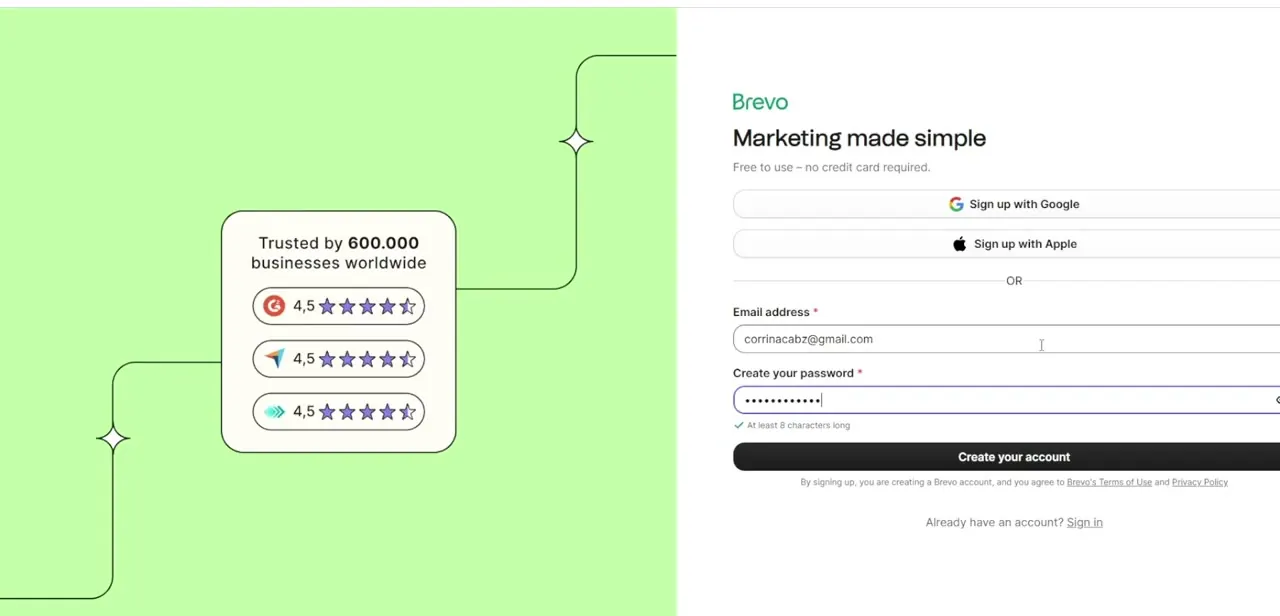
The signup screen gives you three paths in: sign up with Google, sign up with Apple, or enter an email address and password directly. The header states it plainly: free to use, no credit card required.
If a screen ever asks for billing details during this stage, you've landed in a paid-plan flow by mistake. Entering credentials manually, Brevo enforces a minimum password length of 8 characters, shown as a live checklist item under the field as you type.
03Click Create your account
Once your email and password pass validation, click Create your account at the bottom of the form. Doing so also serves as your agreement to Brevo's Terms of Use and Privacy Policy, both linked directly under the button, worth a skim if you haven't used Brevo before.
04Verify the email address you signed up with
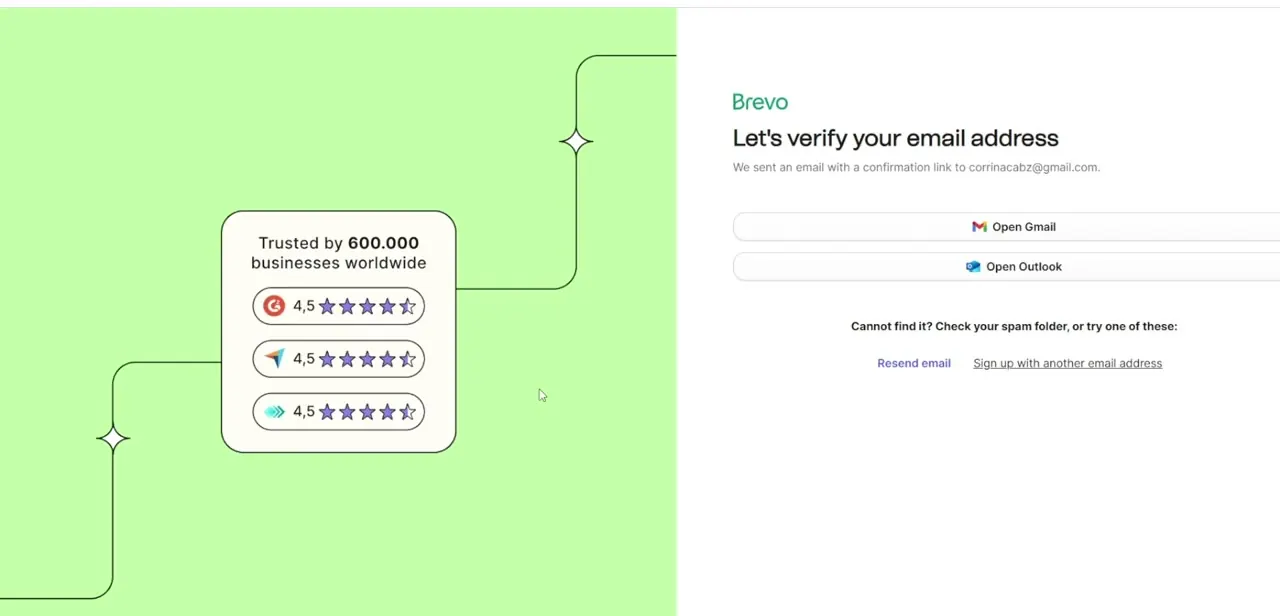
Immediately after account creation, Brevo sends a confirmation link to the address you entered and shows a "Let's verify your email address" screen with shortcuts to open Gmail or Outlook directly. If the message doesn't show up right away, check your spam folder first, which is what Brevo's own screen suggests, followed by options to resend the email or restart signup with a different address entirely.
05Complete your profile details
After clicking the confirmation link in your inbox, you're returned to Brevo to fill in the remaining account details: your name, company name, website, physical address, and a phone number confirmed by an SMS code. None of this is optional. Brevo uses it to configure your sender identity correctly and to stay compliant with regional email regulations, since a real business address is required on outbound marketing email under laws like CAN-SPAM.
06Land in your new dashboard
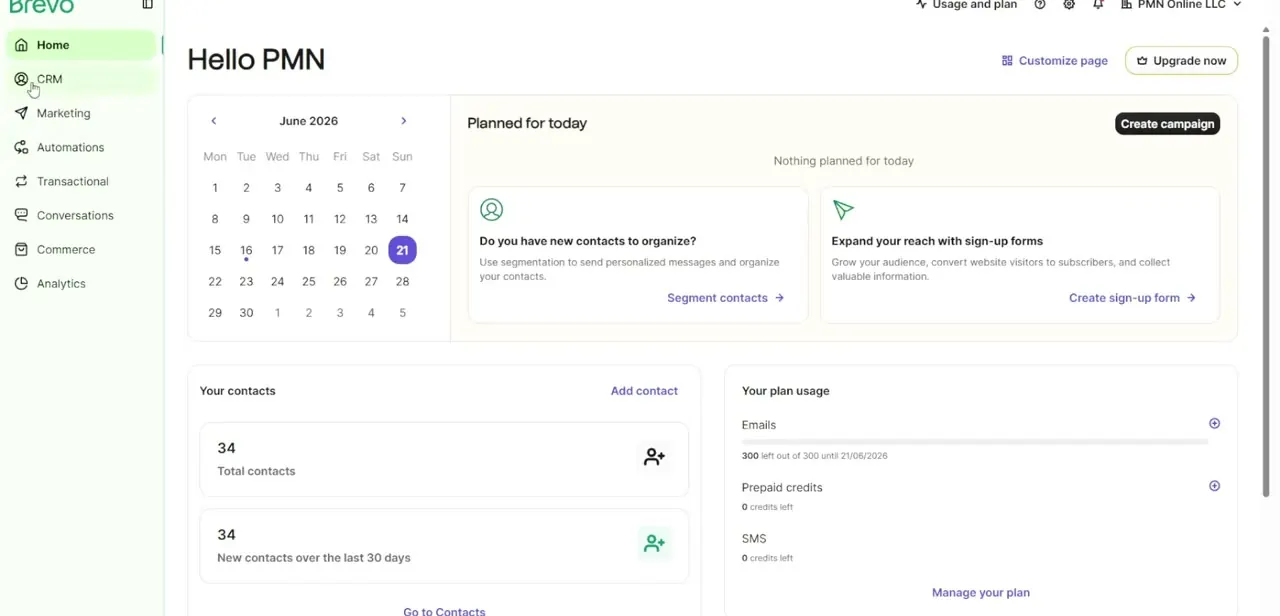
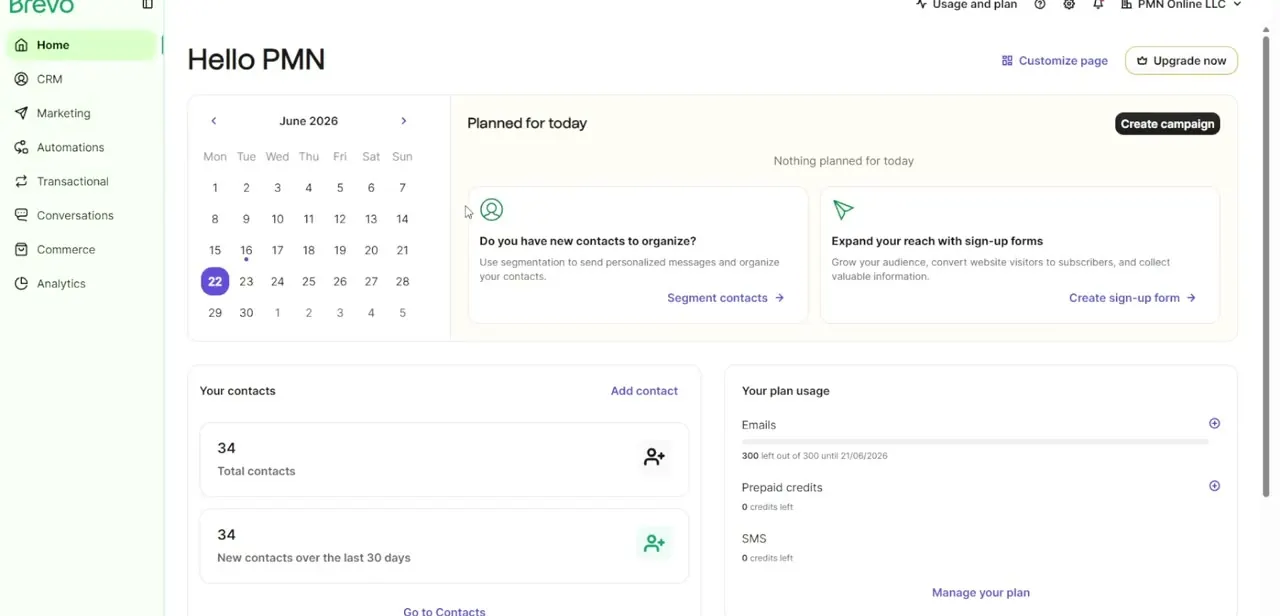
Once your profile is complete, Brevo spins up your workspace and drops you into the main dashboard, where you build contact lists, design your first campaign, and check your sending limits. See the cost note above on what the free plan caps before you build out a big send.
Frequently asked questions
Do I need a credit card to sign up for Brevo's free plan?
No. The signup screen states plainly that it's free to use with no credit card required, and none of the account-creation or verification steps ask for billing details.
Can I sign up using Google or Apple instead of a password?
Yes. The signup screen offers Sign up with Google and Sign up with Apple as one-click alternatives to creating a password manually.
What happens if I don't verify my email?
Your account setup stalls at the verification screen. Brevo sends a confirmation link and won't let you complete your profile or reach the dashboard until you click it.
What information does Brevo ask for after email verification?
Your name, company name, website, physical business address, and a phone number confirmed by SMS. This is used to configure your sender profile and meet regional email compliance requirements.
How many emails can I send on the free plan?
Third-party pricing trackers put it at 300 emails a day, about 9,000 a month, with a Brevo logo on outgoing mail and no rollover for unused sends. Brevo's own pricing page didn't load with checkable figures during this review, so treat that number as approximate and confirm the current cap in your account settings.
Sources and last check
Click path and screens come from a walkthrough recorded in 2025. Brevo's own pricing and help-center pages returned no readable content when checked directly in September 2026 (JS-rendered pages, and the pricing-plan help article was blocked to automated fetches), so the free-plan sending figures in the cost note come from cross-referencing several independent third-party pricing trackers instead of Brevo's own documentation. Everything else here reflects the recorded screens; treat the sending-limit figure as approximate and confirm it in your own account settings.
About the author

Impran M N
I've been hooked on technology for as long as I can remember — especially the new tools and AI apps that seem to land every other week. Easy Tech Tuts is where I write up whatever I've just worked out: I do the task in the real product, record the screen, and turn it into the guide I wish I'd found first.