Easy Tech Tuts
How to Add Video to Brevo Emails Easily 2026
By Impran M NLast checked against official docs
Most email clients won't play a video file inline, so every "video in email" trick is really a clickable thumbnail that opens the video somewhere else. Brevo's drag-and-drop editor has a dedicated Video block for exactly this: paste a link and get a working thumbnail and play button, no HTML required.
The block only recognizes a handful of hosting platforms, though, and one of them doesn't get an automatic thumbnail at all. This guide covers where the block lives, what it needs from your video's source platform, and where people get the thumbnail wrong.
Before you start
- A video already uploaded to YouTube, Dailymotion, Vimeo, Google Drive, Instagram, or TikTok, with its visibility set to Public
- A Brevo email campaign already open in the drag-and-drop editor
01Get to your campaign's design editor
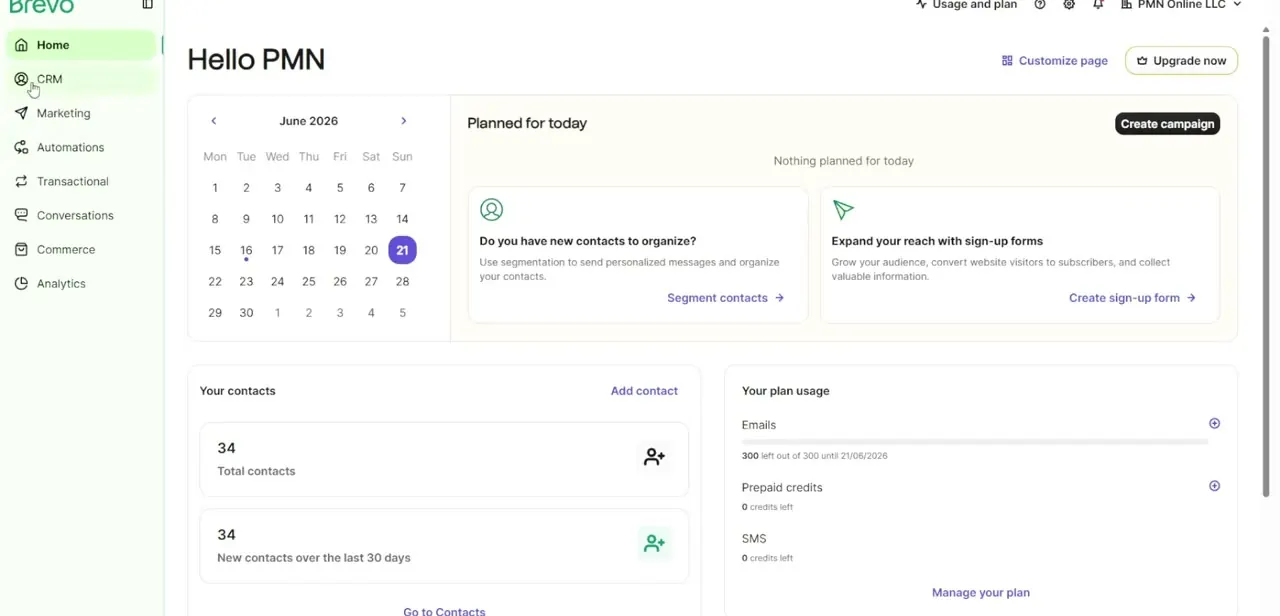
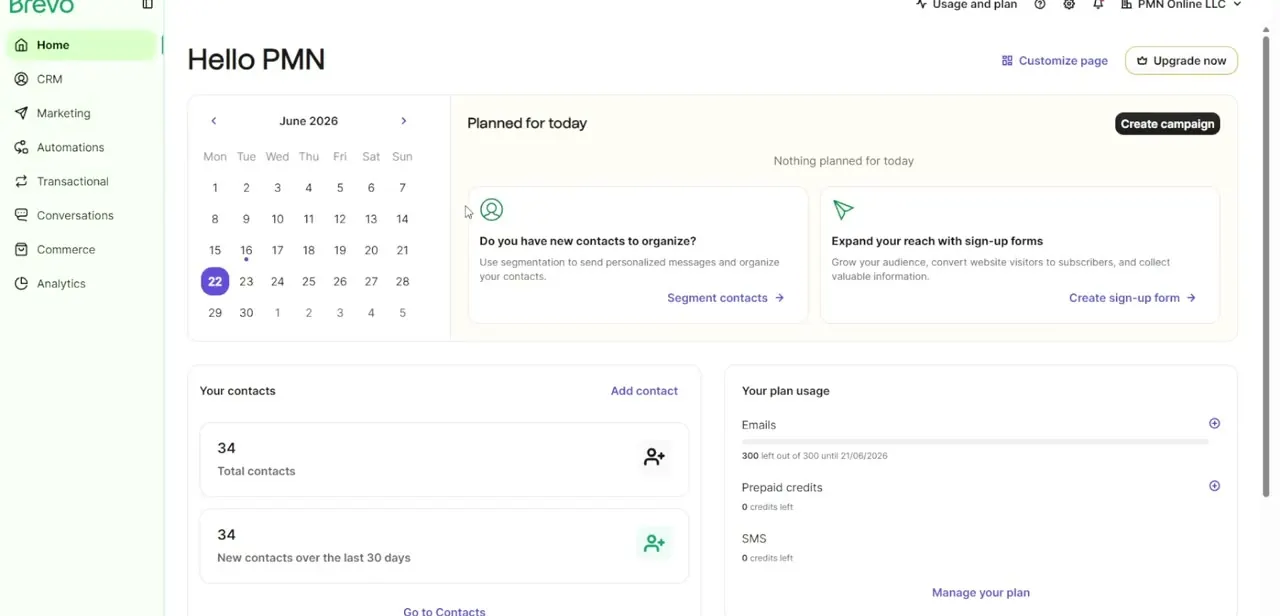
From the Brevo Home screen, open Campaigns under Marketing in the left sidebar, select the email you want to edit, then click Edit design to enter the builder. The left-hand panel lists every content block you can drop into the email: text, image, button, and further down, Video.
02Drag the Video block into the email
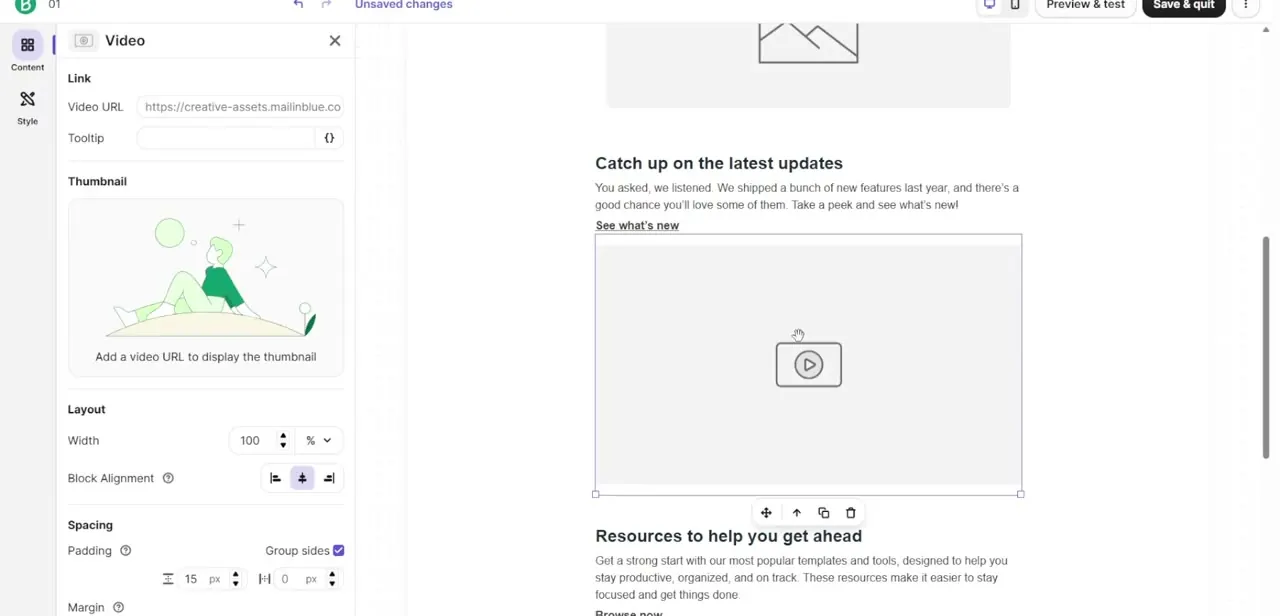
Drag the Video block out of the left panel and drop it into the body wherever you want the video to sit. Click it to open its settings on the left: a Video URL field, a Tooltip field for hover text, and a Thumbnail section that stays empty until a URL is added.
03Paste a link from a platform Brevo recognizes
Brevo's Video block only generates a working preview for six platforms: YouTube, Dailymotion, Vimeo, Google Drive, Instagram, and TikTok. Paste a normal share link from one of those, not a generic web page.
The video also has to be set to Public on the source platform; Private or Unlisted videos will open to an error page for recipients even though the thumbnail looked fine inside Brevo. If your host isn't on that list, Brevo's own workaround is to screenshot the video, drop it in as an Image block, and link that image out to the video's real URL.
04Check the thumbnail, especially on Google Drive
Once a valid link is in the URL field, Brevo pulls a preview image automatically from the platform, for every supported host except Google Drive. If your video is on Drive, the thumbnail area stays blank and you need to upload a static image yourself from your content library. For every other platform, you can still replace the auto-generated thumbnail with your own if you want more control over what recipients see before they click.
05Style the block, then send yourself a test
Below the thumbnail settings, Layout controls the block's width and alignment, and Spacing controls padding and margin, with a Group sides toggle to link all four values together. Once it looks right, use Preview & test at the top of the editor, then send a real test email to yourself. Since clicking the thumbnail always sends recipients out to the hosting platform instead of playing inline, open that test email and click through to confirm the destination link works before the campaign goes out.
When it doesn't work
No thumbnail appears after pasting a valid video URL
Why: The video is hosted on Google Drive, which Brevo doesn't auto-generate a thumbnail for, or the video's visibility isn't set to Public.
Fix: Upload a custom thumbnail manually for Google Drive links, and confirm the video's privacy setting is Public on every other platform.
The Video block won't generate any preview at all
Why: The link isn't from one of the six platforms Brevo recognizes: YouTube, Dailymotion, Vimeo, Google Drive, Instagram, or TikTok.
Fix: Move the video to a supported host, or use Brevo's screenshot-plus-Image-block workaround for anything else.
A test recipient clicks the thumbnail and lands on a private or unavailable video page
Why: The video's visibility was set to Private or Unlisted, either from the start or changed after the campaign was built.
Fix: Check the privacy setting directly on the hosting platform, not just inside Brevo, before every send.
Frequently asked questions
Does the video play inside the email itself?
No. Clicking the thumbnail opens the video externally on its hosting platform. This is a limitation of email clients generally, not something specific to Brevo.
Which platforms does the Video block support?
Six: YouTube, Dailymotion, Vimeo, Google Drive, Instagram, and TikTok. Links from anywhere else won't generate a working block.
Why is there no thumbnail after I added the URL?
Either the video is on Google Drive, which doesn't get an automatic thumbnail, or its visibility isn't set to Public. Both are easy to miss since the block still looks fine while you're building it.
Can I use a custom thumbnail instead of the automatic one?
Yes, for any supported platform. Upload your own static image from the Thumbnail section instead of relying on the one Brevo pulls in.
Will adding video hurt my email deliverability?
A linked thumbnail avoids the size and format issues that trigger spam filters, since the email itself only contains an image and a link, not embedded video data.
Sources and last check
Click path and screenshots come from a walkthrough recorded in 2025. Re-checked against Brevo's official help article on inserting video blocks in September 2026: corrected the video-URL guidance (this guide previously suggested a raw hosting link works better than a platform link, when Brevo recognizes six specific platforms by their normal share URLs instead) and added the Google Drive thumbnail exception, which isn't obvious from the editor alone.
About the author

Impran M N
I've been hooked on technology for as long as I can remember — especially the new tools and AI apps that seem to land every other week. Easy Tech Tuts is where I write up whatever I've just worked out: I do the task in the real product, record the screen, and turn it into the guide I wish I'd found first.