Easy Tech Tuts
How to Integrate Airtable with SharePoint Easily 2026
By Impran M NLast checked against official docs
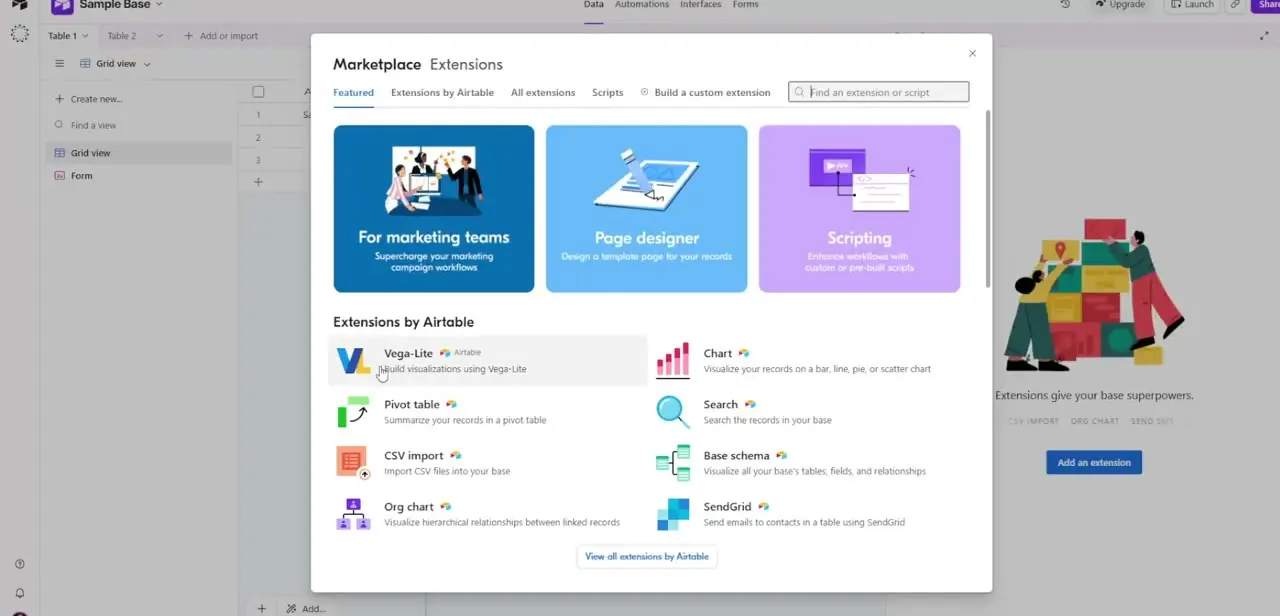
Airtable's own Automations panel is useful for triggering actions inside Airtable or pinging apps like Slack, Gmail and Jira, but Microsoft SharePoint isn't one of its native action steps. In practice, "integrate Airtable with SharePoint" means routing the connection through a third-party automation platform such as Make or Zapier. This guide covers what that setup looks like, what triggers and actions are available for this pairing, and where the two accounts need to be connected before anything moves between them.
Before you start
- An Airtable base with the field you'll trigger on (most triggers need a Created Time or Last Modified Time field)
- A Microsoft 365 account with write access to the target SharePoint site, list or document library
- An account on the automation platform you choose (Make, Zapier or similar)
01Confirm Airtable's Automations panel really can't reach SharePoint
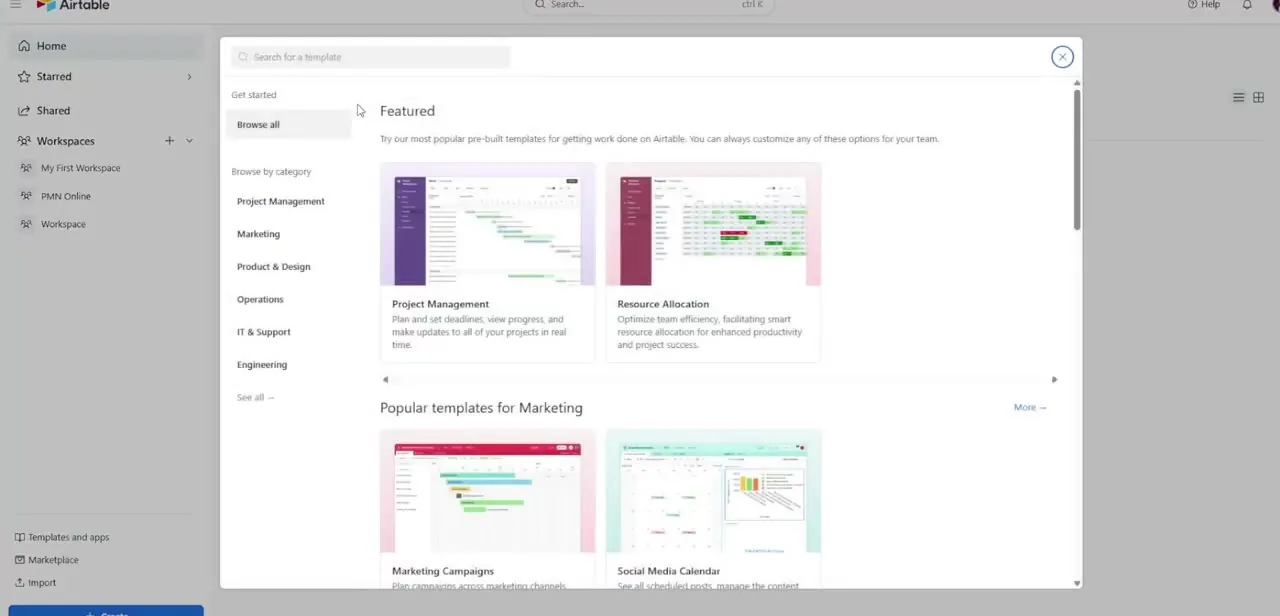
Airtable's own support documentation lists the native triggers and actions available inside Automations: record-based triggers, scheduled runs, form submissions and webhooks on the trigger side; record updates, emails, Slack messages, and integrations with apps like Google Workspace, Microsoft Outlook, Jira, Salesforce, GitHub and Twilio on the action side. SharePoint doesn't appear anywhere in that list, which is why a native, in-Airtable path to SharePoint doesn't exist.
02Use a connector platform that maintains both integrations
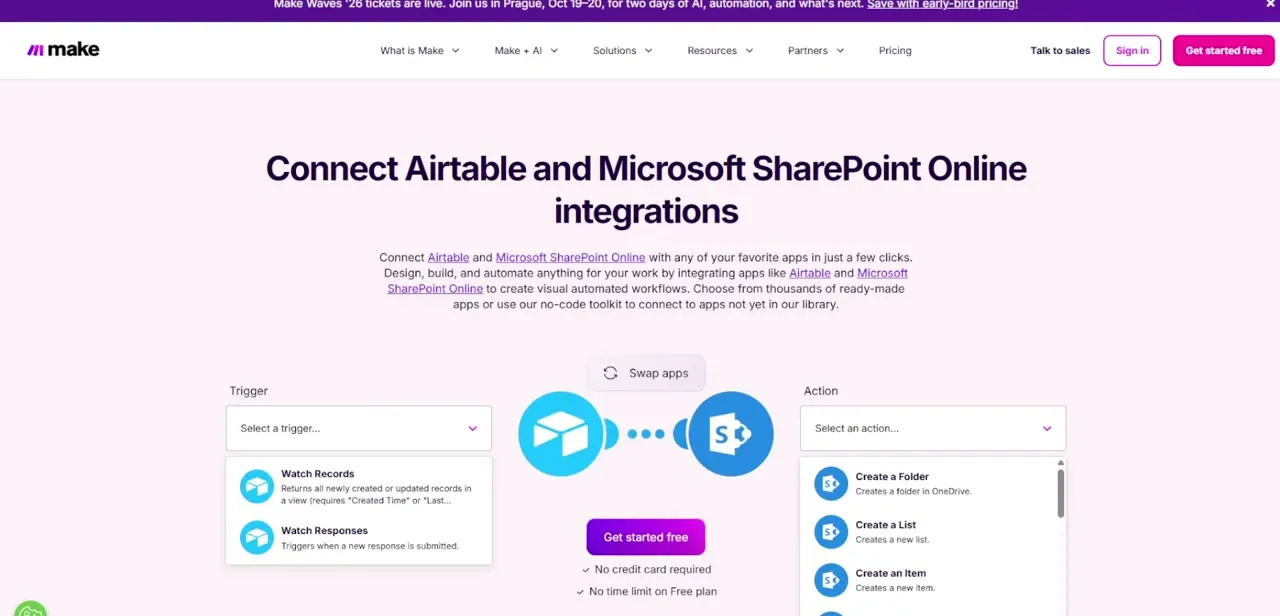
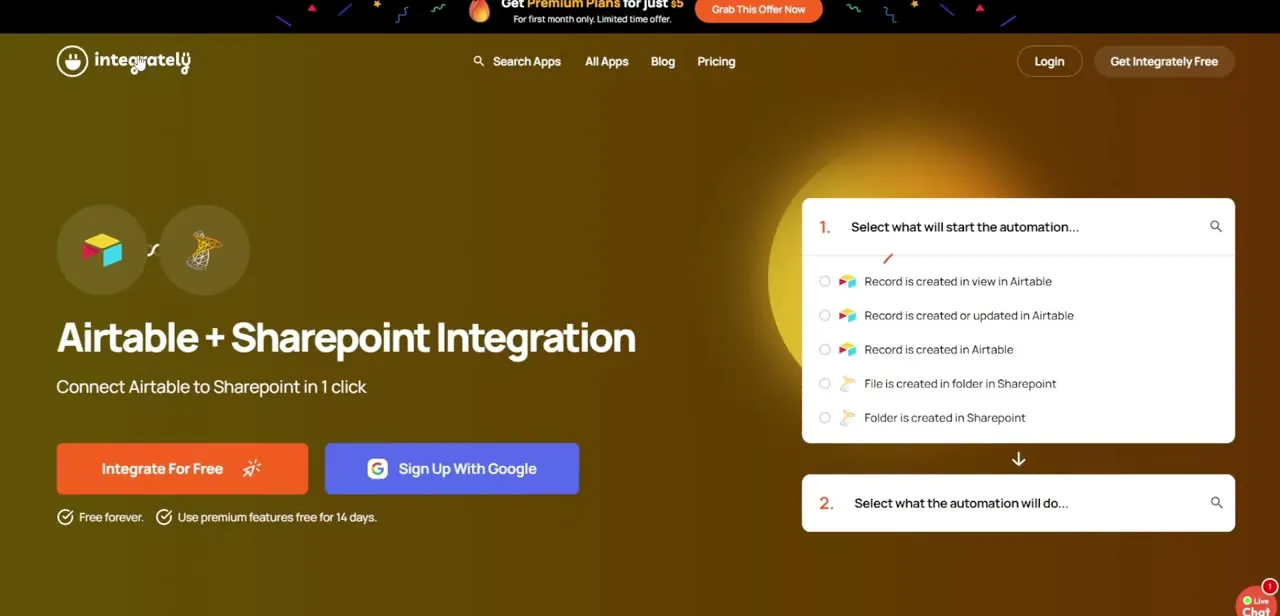
Make, Zapier and Integrately all publish dedicated Airtable-to-SharePoint connectors. These platforms sit between the two services: Airtable triggers the workflow, and the platform authenticates with Microsoft and carries out the resulting action in SharePoint. Make's own integration page lists two Airtable triggers, Watch Records and Watch Responses, alongside a long list of SharePoint actions covering folders, files, lists, list items and pages.
03Pick your Airtable trigger
Watch Records, the most common trigger across these platforms, returns newly created or updated records in a view, but it needs a Created Time or Last Modified Time field on your table so the connector can tell what's changed since it last checked. Add one of those fields first if your base doesn't already have it, or the trigger has nothing to key off.
04Choose the SharePoint action
On the SharePoint side, the available actions run wider than a single create step: creating a folder, creating a list, creating a list item, and (on Make specifically) updating or deleting an existing item, uploading or downloading a file, and listing items in a library. Pick based on what you're keeping in sync: a folder-per-record structure suits document-heavy workflows, a list item suits anything closer to a database row.
05Authenticate both accounts and map the fields
Connect an Airtable account, typically via a personal access token or OAuth, and a Microsoft account with permission to write to the target SharePoint site, both inside the automation platform, not inside Airtable itself. Grant only the scopes the connector needs, and double-check which site and list or library you're pointing at before saving. Then match each Airtable column to its SharePoint field, text to text, date to date, and pay attention to anything that doesn't translate cleanly, like linked records or multi-select tags, which usually need to be flattened to plain text or a single value first.
06Test on one record before trusting it
Run the automation against a single test record and check the result directly in SharePoint instead of trusting a green checkmark in the automation platform. A run reporting success and a correctly formatted result in SharePoint aren't always the same thing, especially the first time a field type gets mapped.
When it doesn't work
The automation reports success but the SharePoint item looks wrong or empty
Why: A field type that doesn't map cleanly, most often an Airtable linked record or multi-select, was sent as-is and SharePoint accepted an empty or malformed value instead of rejecting it outright.
Fix: Add a formula or lookup field in Airtable that flattens the problem field to plain text before the automation reads it, then re-test on the same record.
New items are landing in the wrong SharePoint site or list
Why: Automation platforms don't stop you from pointing an action at the wrong site or list; it's a straightforward configuration choice.
Fix: Reopen the action step and confirm the exact site URL and list name before rerunning. It's worth relabeling ambiguous list names in SharePoint itself if this keeps happening.
Frequently asked questions
Does Airtable have a native SharePoint action in Automations?
No. Airtable's own documentation lists Slack, Gmail, Microsoft Outlook, Jira and several others among its native automation integrations, but Microsoft SharePoint isn't among them, so connecting the two requires a third-party automation platform such as Make, Zapier or Integrately.
Do I need a Microsoft 365 account to connect SharePoint?
Yes. You need an active Microsoft account with write access to the target SharePoint site to authenticate the connection inside whichever automation platform you use.
Can the automation update existing SharePoint items, not just create new ones?
On Make, yes: its SharePoint actions include updating and deleting existing items alongside creating new folders, lists and list items. Support for updates varies by platform, so check the specific connector's action list before committing to one.
Is this integration one-way or two-way?
As set up here, it's one-way, from Airtable to SharePoint, since the automation triggers on Airtable record changes. Syncing changes back from SharePoint into Airtable would need a second, separate automation with its own trigger.
Which platform is easiest for a first Airtable-to-SharePoint connection?
Zapier and Make are the most established options, with the largest support communities if something doesn't map the way you expect. Integrately markets itself on one-click templates for common pairings like this one. Try the free tier of whichever one your team already uses elsewhere before committing to a paid plan.
Sources and last check
The claim that Airtable Automations has no native SharePoint action was re-checked against Airtable's own automations documentation in September 2026, and confirmed. The specific trigger and action names for the connector route were checked against Make's own Airtable-SharePoint integration page the same day; the update and delete actions for existing SharePoint items were added to this guide based on that check.
About the author

Impran M N
I've been hooked on technology for as long as I can remember — especially the new tools and AI apps that seem to land every other week. Easy Tech Tuts is where I write up whatever I've just worked out: I do the task in the real product, record the screen, and turn it into the guide I wish I'd found first.