Easy Tech Tuts
How to Add a Column in Airtable Easily 2026
By Impran M NLast checked against official docs
Airtable calls a column a field, and the name reflects a real difference. Every field has a type, so a column can hold attachments, a status picked from a fixed list, a link to a record in another table, or a formula that calculates itself.
Choosing the type is the only decision that takes any thought. This guide covers the two places you can add a field from, how to pick and configure the type, and what happens to your data if you change that type later.
Adding the field takes seconds. Getting the type right first time saves reformatting every row afterwards.
01Open the base and table
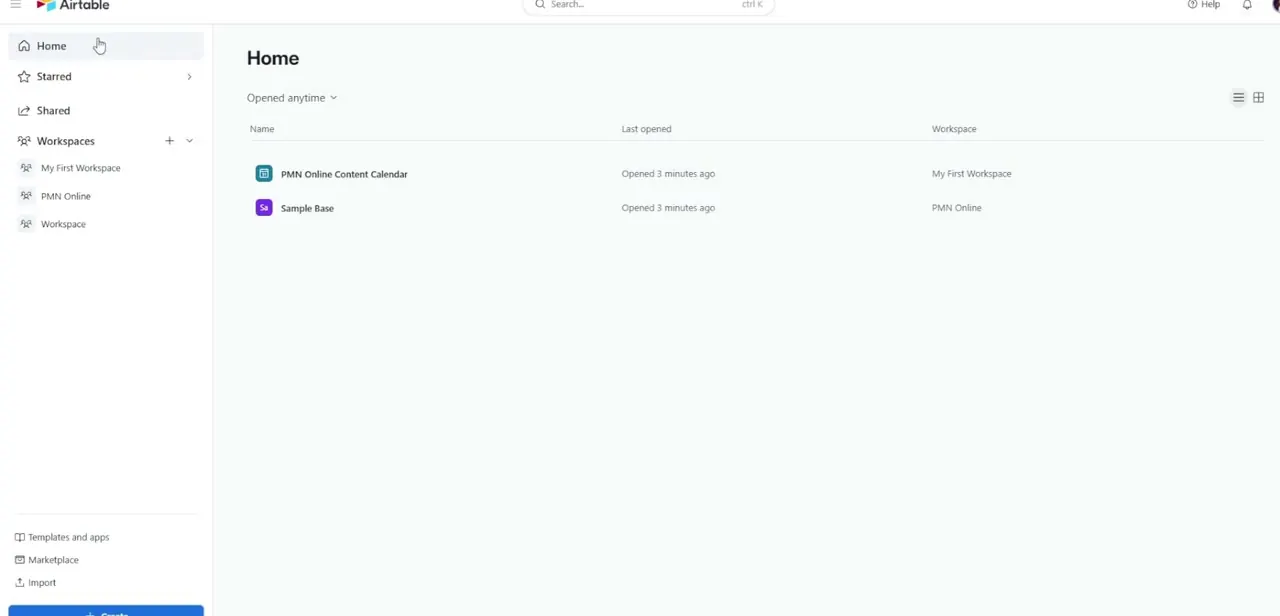
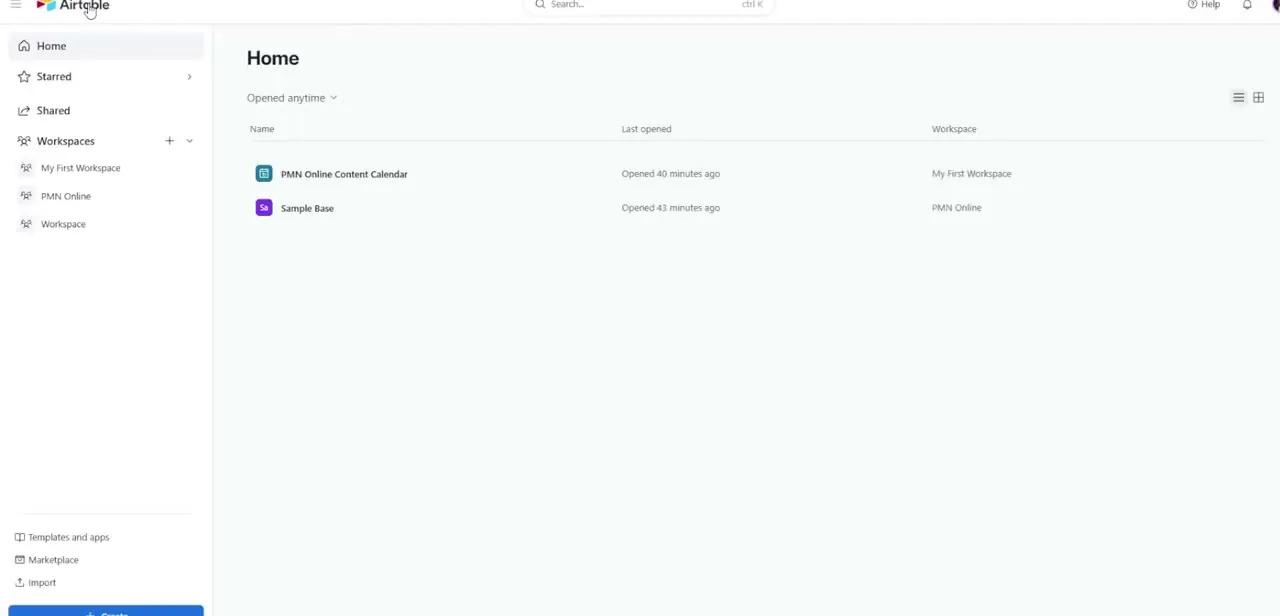
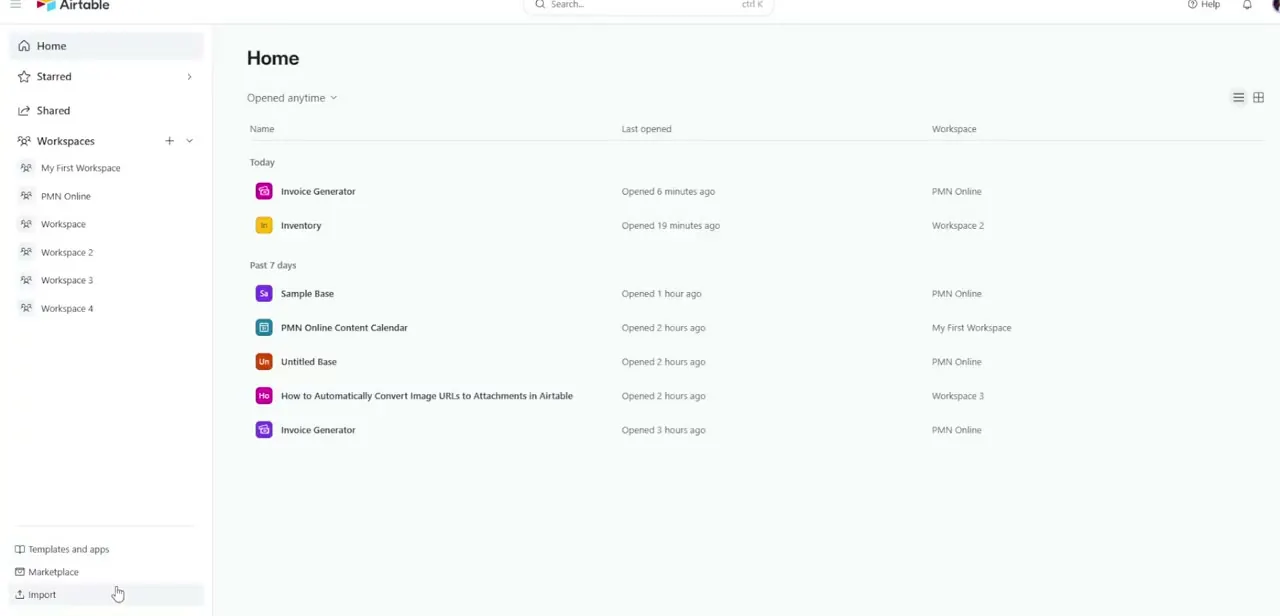
Airtable's Home screen lists the bases you've opened recently, along with when each was last touched and, on team accounts, which workspace it belongs to. Check that Workspace column if you have similarly named bases in different workspaces.
Open the base, pick the table along the top, and make sure you're in a Grid view. You need creator or owner permission on the base to add fields. Collaborators with commenter or read-only access don't get the option at all.
02Click + at the end of the headers, or insert beside an existing field
The quickest route is the + icon to the far right of the field headers, just after your last column. On a wide table it's off-screen until you scroll right.
If you want the new column in a particular spot, click the header of a neighbouring field and choose Insert left or Insert right. The new field then lands exactly where you want it and you skip dragging it across afterwards.
03Name the field and choose its type
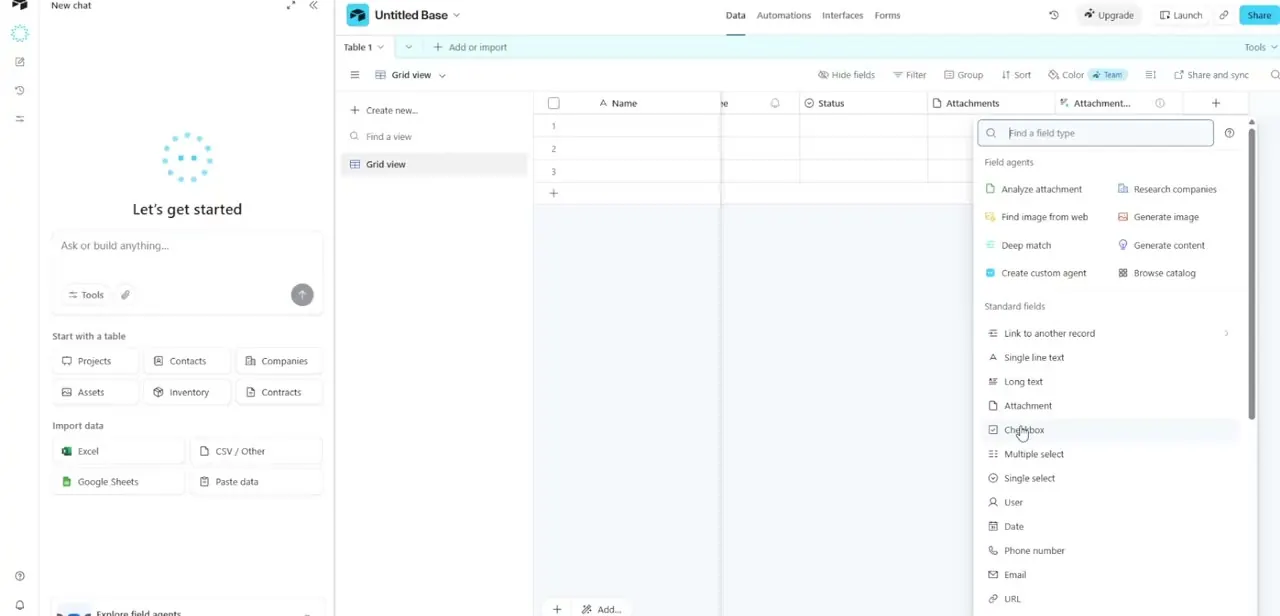
The panel that opens has a name box and a search box labelled Find a field type. Name the field first, or you'll end up with a column called Field 6.
Then pick the type that matches the data: Single select for a fixed list like status or priority, Multiple select when several tags can apply, Attachment for files and images, Long text for anything that won't fit on one line, Link to another record to connect tables. Above the standard list sits a Field agents section.
These are AI-powered fields, built on Airtable's Omni, that can research a company or generate an image for each record. They draw on your monthly AI credit allowance. Every plan includes some, but they aren't unlimited, so leave them alone if you just need a plain column.
04Configure the type's options and click Create field
Most types add settings once selected. For Single and Multiple select, define the options and their colours now so people pick from a list and don't type near-duplicates.
Date fields let you set the display format and whether to include a time. Some types also take a default value; that applies only to records created afterwards, and primary fields can't have one.
Click Create field. The column appears straight away for everyone looking at the base.
05Move or hide it in each view
To reposition the field, click and hold its header, drag it to the new spot and release. Field order is stored per view, so rearranging one grid view leaves your other views untouched.
The same goes for hiding: Hide fields in the view toolbar (or right-click a header and choose Hide field) removes the column from that view only, and the data stays in the table. The one field you can't hide is the primary field, the first column of every table.
When it doesn't work
There's no + icon at the end of the field headers
Why: Your permission level on the base is commenter or read-only. Only creators and owners can add fields.
Fix: Ask a base owner to raise your permission level, or to add the field for you.
Existing values disappeared after changing a field's type
Why: Airtable converts values where it can, but some conversions have no sensible result. Changing a text field to Attachment, for example, clears the text.
Fix: Before converting a field full of data, add a new field of the target type and move the data across, keeping the old field until you've checked the result.
Airtable won't let you add another field
Why: Tables are capped at 500 fields. The cap is the same on every plan, so upgrading doesn't raise it.
Fix: Move groups of related fields into a separate table and connect the two with a Link to another record field.
Frequently asked questions
Is a column the same as a field in Airtable?
Yes. Airtable uses "field" for what a spreadsheet calls a column, and "record" for a row.
How many fields can one table have?
500. Airtable applies the same per-table limit on Free, Team, Business and Enterprise plans. Record limits do vary by plan, but field limits don't.
Can I change a field's type after creating it?
Yes. Click the dropdown arrow on the field header and choose Edit field. Airtable tries to convert the existing values, but some conversions clear them, so test on a copy if the column holds data you care about.
How do I hide a column without deleting it?
Use Hide fields in the view toolbar, or right-click the header and choose Hide field. The field is hidden only in that view, and nothing is deleted.
Do field agents cost extra?
They use AI credits. All Airtable plans include a monthly allowance, which is larger on higher tiers, and field agents draw it down as they run.
Sources and last check
Screens come from a walkthrough recording. The + and Insert left/right routes, the Create field button, permission requirements, per-view field order, type-conversion behaviour and the 500-field limit were re-checked against Airtable's Help Center in September 2026. That check replaced this guide's earlier claim that the field limit depends on your plan; it is 500 per table on all plans.
About the author

Impran M N
I've been hooked on technology for as long as I can remember — especially the new tools and AI apps that seem to land every other week. Easy Tech Tuts is where I write up whatever I've just worked out: I do the task in the real product, record the screen, and turn it into the guide I wish I'd found first.