Easy Tech Tuts
How to Create a New Airtable Base Easily 2026
By Impran M N
Every Airtable project starts with a base, and setting one up right from the beginning — with clear field types and a plan for how tables will relate — saves you from restructuring later. This guide covers starting a blank base, customizing it, and laying out your first table and fields.
01Open the main dashboard
Navigate to your primary Airtable home dashboard where existing bases and workspaces are listed.
02Create a new base
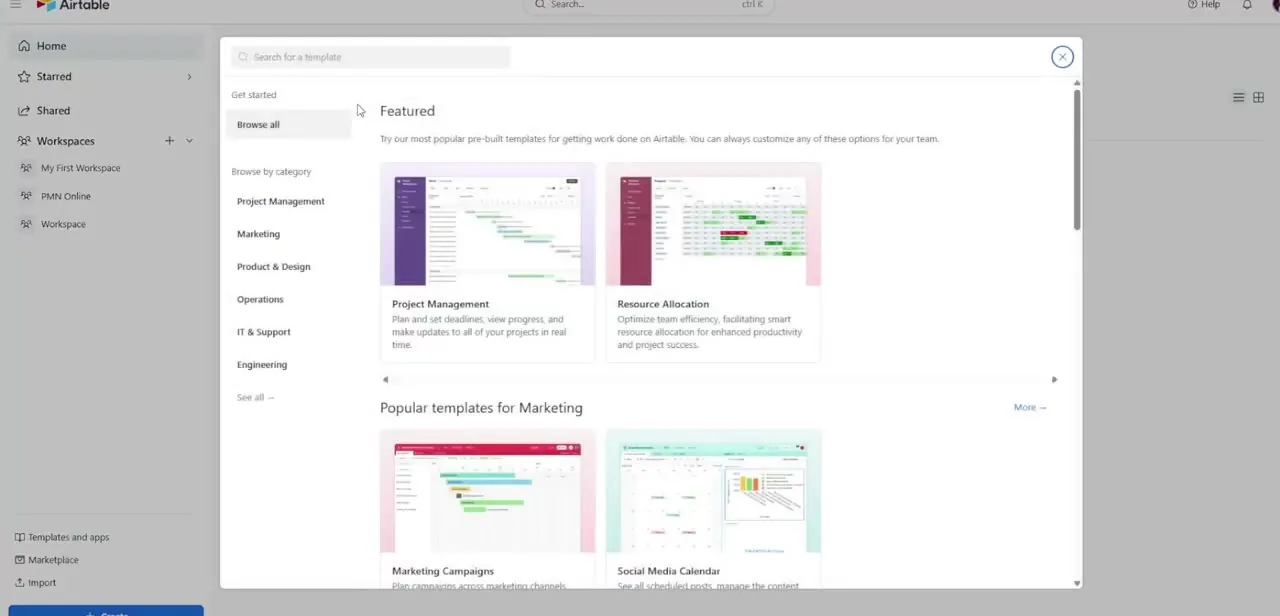
Click Create and choose the blank base option, or start from a CSV import or pre-built template instead.
03Customize the base details
Set your base title, icon, and color theme to make it easy to identify among your other bases.
04Structure your first table
Rename the default column fields to match the data you actually want to track.
05Add specialized field types
Add fields like Single Select or Attachments as needed beyond basic text fields.
06Prepare for relational structure
Create a second table if your project needs connected data, setting the stage for linked records between tables.
Frequently asked questions
Should I start from a blank base or a template?
A template can save time if your use case matches an existing one closely; a blank base gives you full control if your structure is unique.
Can I import a CSV directly into a new base?
Yes, when creating a base you can choose to import a CSV file, which automatically creates a table with matching fields.
How many tables can one base have?
You can add multiple tables within a single base, which is how you build relational structures using linked records.
Can I change the base's color and icon later?
Yes, the base title, icon, and color theme can be edited at any time from the base settings.
Watch the full walkthrough
The same steps, demonstrated on screen from start to finish.