Easy Tech Tuts
How to Switch From Wix Studio to Wix Classic Editor Easily 2026
By Impran M N
If you're used to Wix's traditional drag-and-drop workflow, you may prefer the Classic Editor over the newer Studio environment. This guide covers navigating your account preferences and the site creation flow so a new project routes into the Classic Editor rather than defaulting to Studio.
01Open your Wix Studio dashboard
Access your central account and profile preferences from the Studio workspace.
02Check workspace preferences
Review default site generation environment settings to see how new projects are routed.
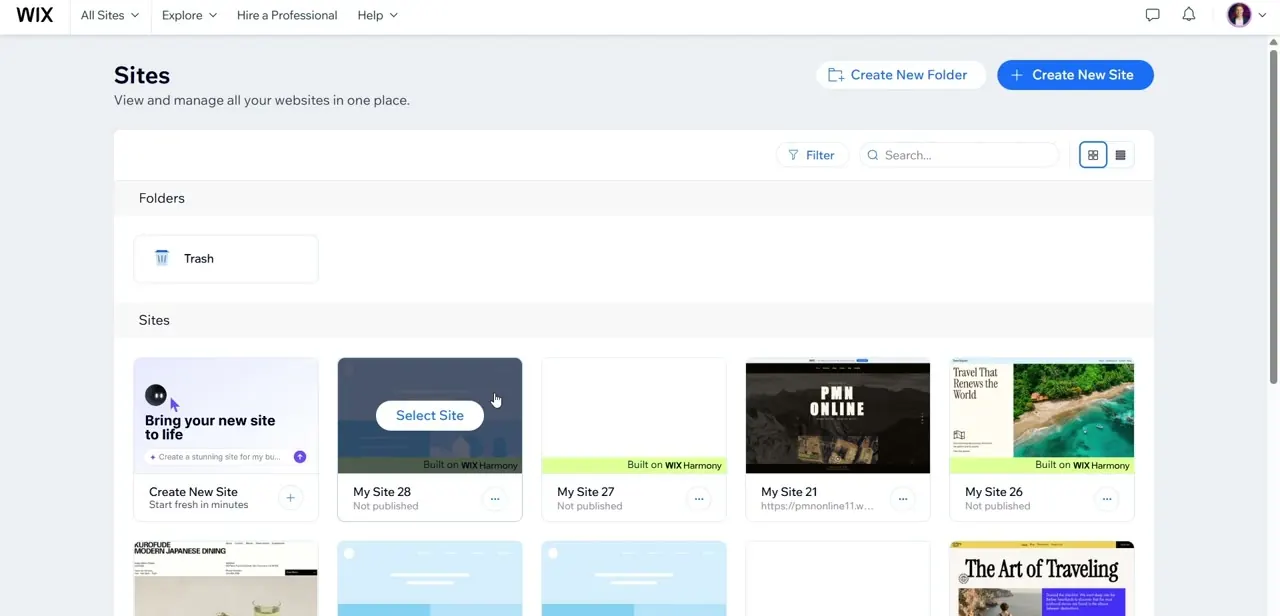
03Go to your Sites directory
Navigate to your main Sites panel and click Create New Site.
04Bypass the Studio setup screens
Select the option to route your new project to the Classic Editor pathway instead of Studio.
05Choose a template or blank canvas
Browse Classic Editor templates or start from a blank canvas once you're routed there.
06Verify the interface
Confirm the standard grid interface and toolbar appear correctly, checking both desktop and mobile views before building.
Frequently asked questions
Can I switch an existing Studio site to Classic Editor?
This process is about routing a new site creation into Classic Editor rather than converting an existing Studio site, since the two use different underlying systems.
Why would I prefer Classic Editor over Studio?
Some users prefer Classic Editor's more straightforward drag-and-drop workflow over Studio's more advanced, design-agency-oriented environment.
Can I manage sites in both editors from the same account?
Yes, your account can hold multiple site assets built in different editor versions simultaneously.
Will my account default to Studio for future sites?
Depending on your workspace preferences, new sites may default to Studio unless you specifically choose the Classic pathway each time.
Watch the full walkthrough
The same steps, demonstrated on screen from start to finish.