Easy Tech Tuts
How to Export Webflow Website Code Easily 2026
By Impran M N
Sometimes you need complete ownership of your site's source files, whether for archival purposes or moving to a fully self-hosted setup. This guide covers using Webflow's Code Export panel to generate a clean zip of your HTML, CSS, JavaScript, and image assets. It's for developers and agencies who want a full local copy of a project's front-end code.
01Open the Code Export panel
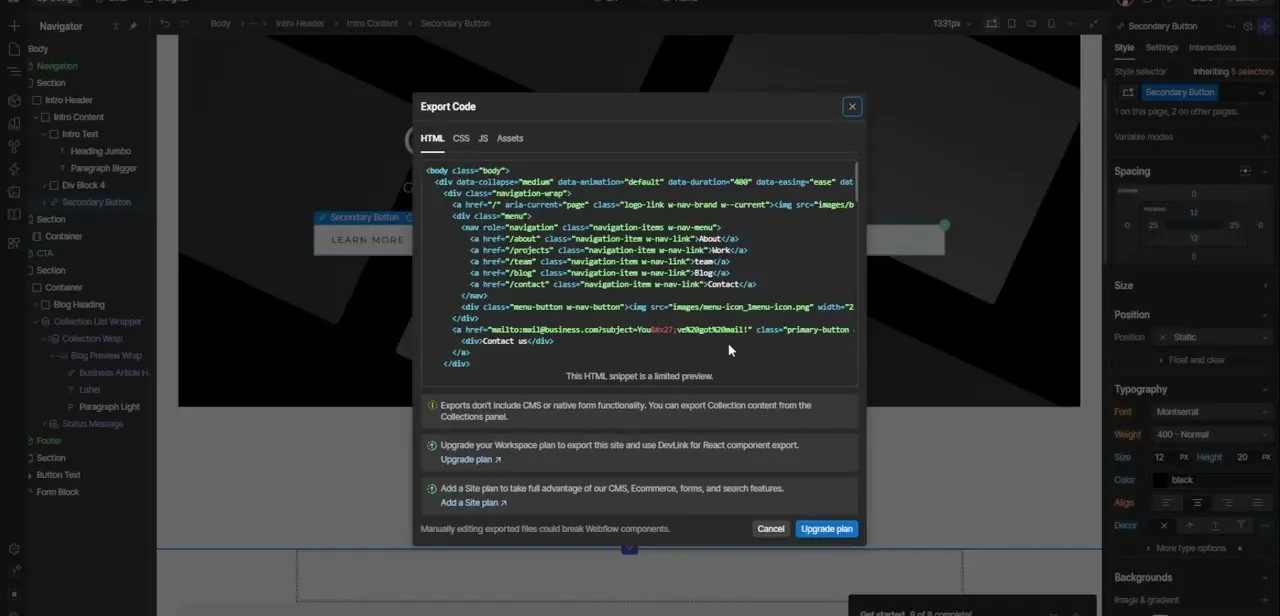
In the Webflow Designer, find the Export Code shortcut in the top toolbar to open the extraction console.
02Generate the code package
Trigger the export process to compile your HTML, CSS, and JavaScript into a downloadable static build.
03Review the folder structure
Check the exported directory to confirm your pages, media assets, and script files all mapped over cleanly.
04Download the zip file
Save the complete static website package locally, then extract it to inspect the raw HTML and stylesheet files.
05Fix broken paths and forms
Check for broken image links after extraction, and set up an external form handling endpoint since native Webflow forms won't work outside the platform.
Frequently asked questions
Is code export available on all Webflow plans?
No, exporting code typically requires a paid site plan, so verify your plan's features before relying on this workflow.
What happens to my forms after exporting?
Native Webflow form handling doesn't carry over, so you'll need to connect an external service to process form submissions on your new host.
Can I re-edit the exported code visually in Webflow later?
No, the export is a static snapshot; any further visual editing needs to happen back in the original Webflow project and be re-exported.
Will exported code work offline?
Mostly yes, though any features relying on live Webflow services like forms and CMS data will need external replacements.
Watch the full walkthrough
The same steps, demonstrated on screen from start to finish.