Easy Tech Tuts
How to Embed Typeform in Wordpress Easily 2026
By Impran M NLast checked against official docs
Sending WordPress visitors away to a separate form page loses some of them before they answer a single question, so embedding the Typeform directly into the page tends to convert better. The embed code comes from Typeform's Share panel, not from anything in WordPress, which is where beginners usually go looking first. This guide covers generating that code with the right size and display settings, dropping it into a WordPress page, and one thing Typeform's own documentation contradicts that a lot of guides get wrong: editing the embed later does not mean regenerating and re-pasting it everywhere.
Before you start
- The Typeform must be published, not just saved as a draft
- The WordPress site must be served over HTTPS; Typeform's own documentation states that embedding on a plain HTTP site isn't supported
01Open Share and choose Embed in a web page
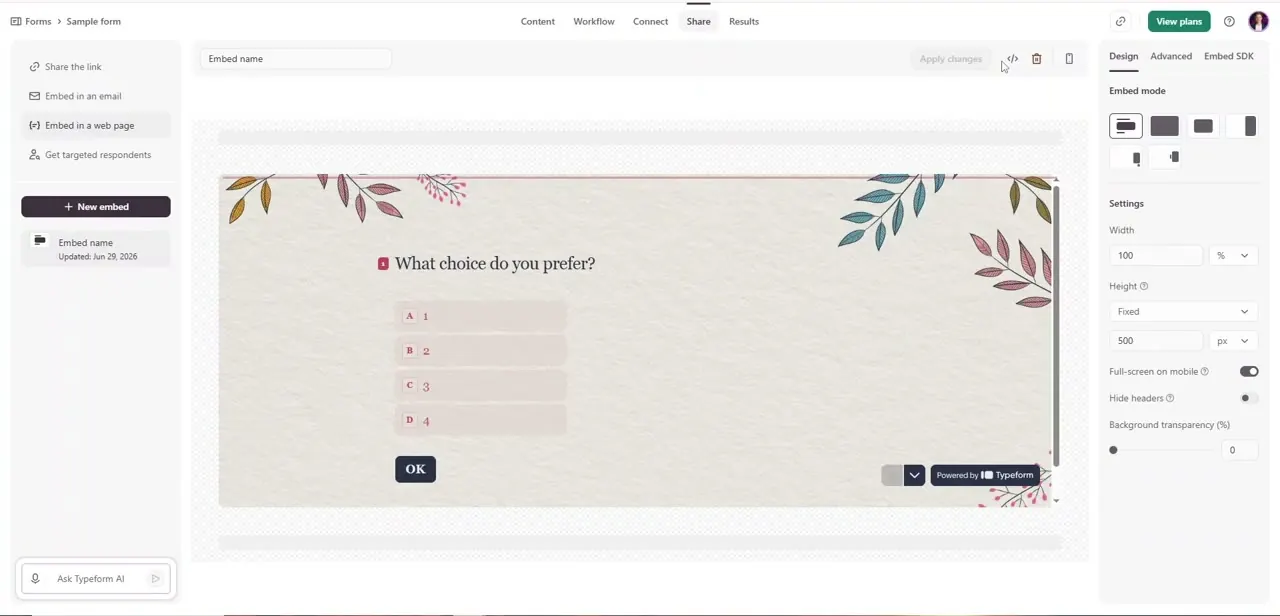
Inside the form, click Share, then choose "Embed in a web page" from the sidebar, alongside Share the link, Embed in an email, and Get targeted respondents. Click New embed to start a fresh configuration; each one gets its own name and settings, so a distinct embed for the homepage can be kept separate from one used in a blog post if their sizing needs differ. A live preview of the form renders on the right, updating as settings change on the left.
02Set the embed mode, width, and height
Typeform offers six embed modes: Standard, Full page, Popup, Slider, Popover, and Side tab. Standard fills a space on the page; Full page takes the whole viewport; Popup and Slider both open as an overlay, with Slider adding a slide-in animation; Popover and Side tab attach the form to a small button or tab that opens it on click.
Pick whichever matches how much space the form should take. For Standard embeds, set a fixed pixel Height unless the goal is Auto, which Typeform recommends for inline mobile embeds so the form isn't cut off partway through a question.
One setting worth correcting here: the toggle labeled Hide type header doesn't remove Typeform's own branding bar. It hides the header that appears above a Question Group or a long, scrollable question, and it has nothing to do with the "Powered by Typeform" badge.
03Generate the embed code, and skip worrying about re-copying it later
Once the mode and dimensions look right in the preview, click Start embedding to generate the HTML/JavaScript snippet, then Copy it. Here's something the setup panel doesn't spell out: editing this embed's settings later, even after the code is already live on a page, does not require regenerating or re-pasting anything.
Typeform's own documentation confirms that clicking Apply changes on an existing embed applies the update automatically to every page carrying that snippet. Re-copying is only needed the first time an embed is created, or when building an entirely separate embed configuration.
04Paste it into WordPress with a Custom HTML block
In the WordPress block editor, type /custom html wherever the form should appear, and select Custom HTML from the menu that opens. Paste the copied snippet in.
This works without installing anything, since WordPress's core editor supports raw HTML blocks by default. A dedicated Typeform plugin exists for WordPress too, and page builders like Elementor and Divi have their own Typeform instructions if either is already in use instead of the block editor.
05Preview the live embed on the page
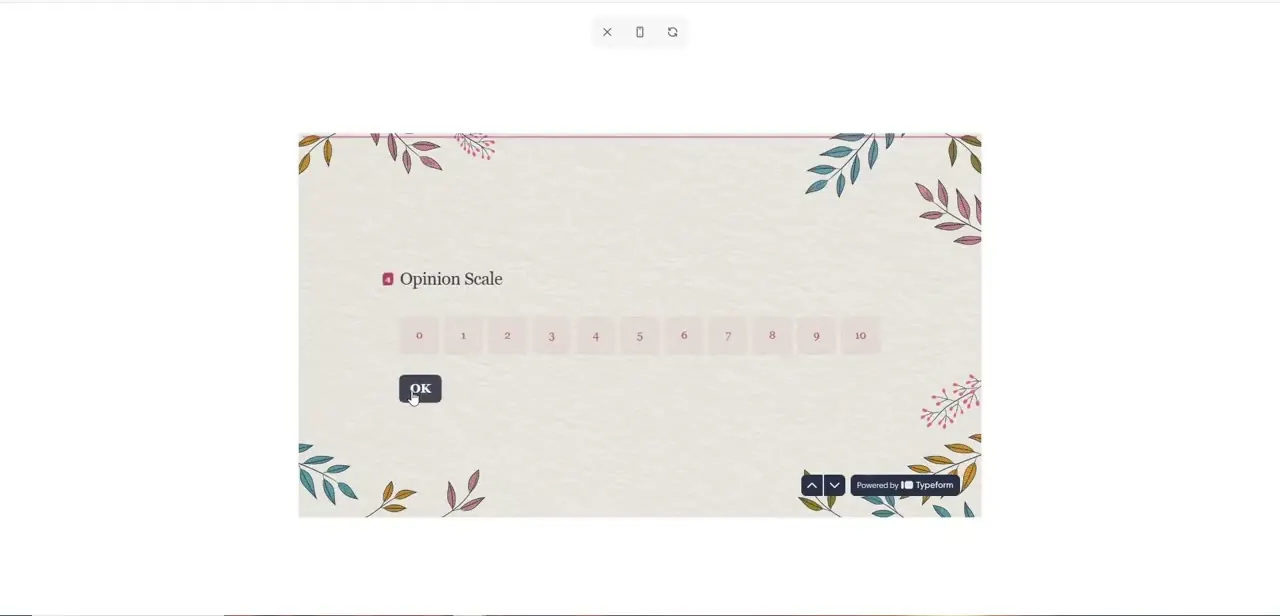
Publish or preview the WordPress page and confirm the form behaves like Typeform's own preview did: a question such as an Opinion Scale should show its full range, an OK button to advance, and the small "Powered by Typeform" badge in the corner unless the account is on a plan that removes it. Click through a question or two on the actual live page instead of trusting the editor preview, since embed rendering can behave slightly differently once it sits inside a site's real theme and CSS.
06Match the form's design to the site before going live
Before publishing broadly, revisit the form's own Design settings in Typeform: background, colors, font. A form sharing roughly the same palette as the page around it reads as a native part of the site instead of an obviously external widget, and that match matters more for conversion than its size would suggest.
When it doesn't work
The embed still shows old settings after changing something in Typeform
Why: The WordPress page is probably showing a cached version, since the live embed script pulls the latest settings automatically once Apply changes is clicked.
Fix: Confirm Apply changes was clicked in Typeform, then clear any WordPress or browser cache before assuming the code needs to be regenerated.
The form looks cut off partway through a question on WordPress
Why: The embed's Height is set to a fixed pixel value that's too short for that question, common on Standard embeds viewed on mobile.
Fix: Switch Height to Auto, which Typeform recommends for inline mobile embeds, or enable Full-screen on mobile under the Design tab.
Toggling Hide type header didn't remove the Powered by Typeform badge
Why: Hide type header only hides the header shown above Question Groups and long, scrollable questions; it isn't connected to Typeform's branding badge.
Fix: Removing the badge needs a paid Typeform plan with white-labeling; the toggle itself won't do it.
The embedded form doesn't load at all on the live page
Why: Typeform's own documentation states that embedding on an HTTP, non-HTTPS, site isn't supported.
Fix: Confirm the WordPress site has a valid SSL certificate and loads over HTTPS before troubleshooting anything else.
Frequently asked questions
Do I need a plugin to embed Typeform in WordPress?
No. WordPress's block editor supports a Custom HTML block that can hold the embed code directly, so no plugin is required, though a dedicated Typeform plugin and page-builder integrations for Elementor and Divi exist if a more managed option is preferred.
Can I show the form as a popup instead of inline on the page?
Yes. Typeform's Embed panel offers six modes: Standard, Full page, Popup, Slider, Popover, and Side tab. Pick the mode before generating the code, since each produces a different snippet.
If I change the embed's size or mode after publishing, do I need to re-copy the code?
No. Typeform's own help documentation states that clicking Apply changes on an existing embed updates it automatically everywhere it's already pasted. Re-copying is only necessary when creating a brand-new embed.
Will the embedded form match my WordPress site's branding?
Not automatically. Adjust the form's colors, background, and font in Typeform's Design settings before embedding so it visually matches the site instead of standing out as an obviously separate widget.
What does the Hide type header toggle do?
It hides the header shown above a Question Group or a long, scrollable question. It doesn't remove Typeform's own branding bar or the "Powered by Typeform" badge.
Can I embed the same Typeform on multiple pages?
Yes, the same embed code can be pasted into multiple WordPress pages or posts, though creating a separate named embed per placement makes it easier to give each one different sizing if needed.
Sources and last check
Click path and screens come from a walkthrough recorded in July 2025. Embed mode names, the Hide type header behavior, the HTTPS requirement, and the claim about needing to re-copy the code after a settings change were re-checked against Typeform's official Help Center in September 2026. That check reversed the original guide's incorrect claim that edited settings require a new embed code, and corrected what the Hide type header toggle hides.
About the author

Impran M N
I've been hooked on technology for as long as I can remember — especially the new tools and AI apps that seem to land every other week. Easy Tech Tuts is where I write up whatever I've just worked out: I do the task in the real product, record the screen, and turn it into the guide I wish I'd found first.