Easy Tech Tuts
How to Edit a Typeform Easily 2026
By Impran M NLast checked against official docs
Forms rarely stay right the first time: a question gets worded badly, a client asks for one more field, or the branding changes six months in. Typeform is built for this kind of ongoing edit, and the whole process happens without ever taking the live form down.
This guide walks through finding the form you already built, opening the element picker to change questions, and using preview mode to confirm the edits before anyone else sees them. It also flags the one feature covered here, Logic, that isn't available on Typeform's free plan.
01Find the form in your workspace
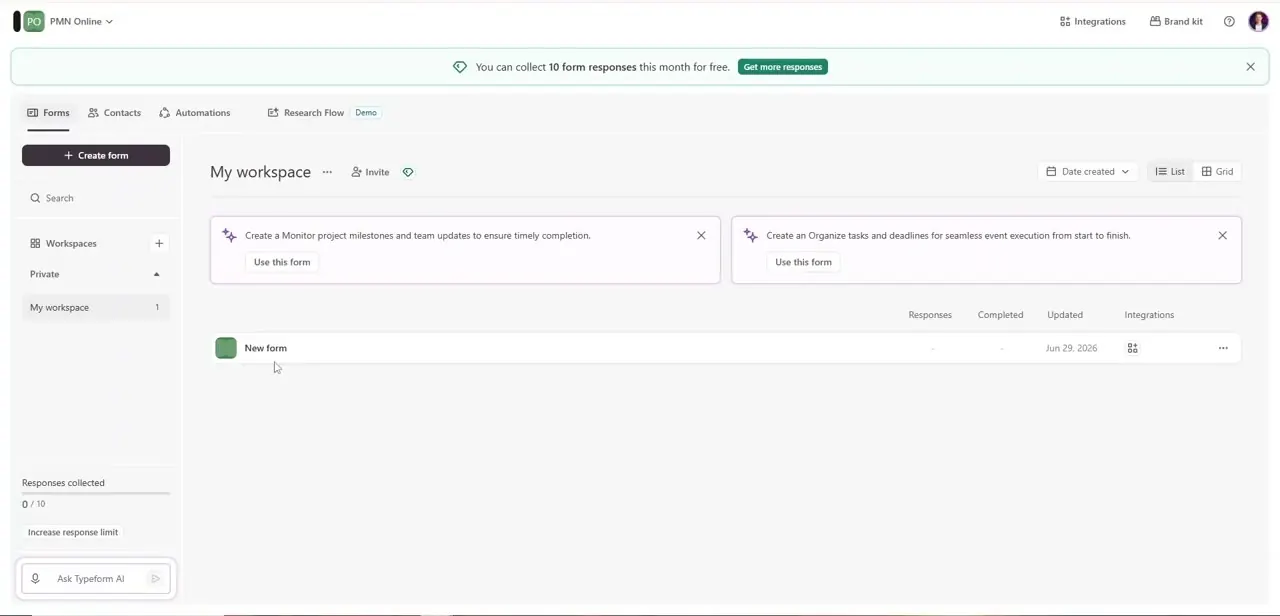
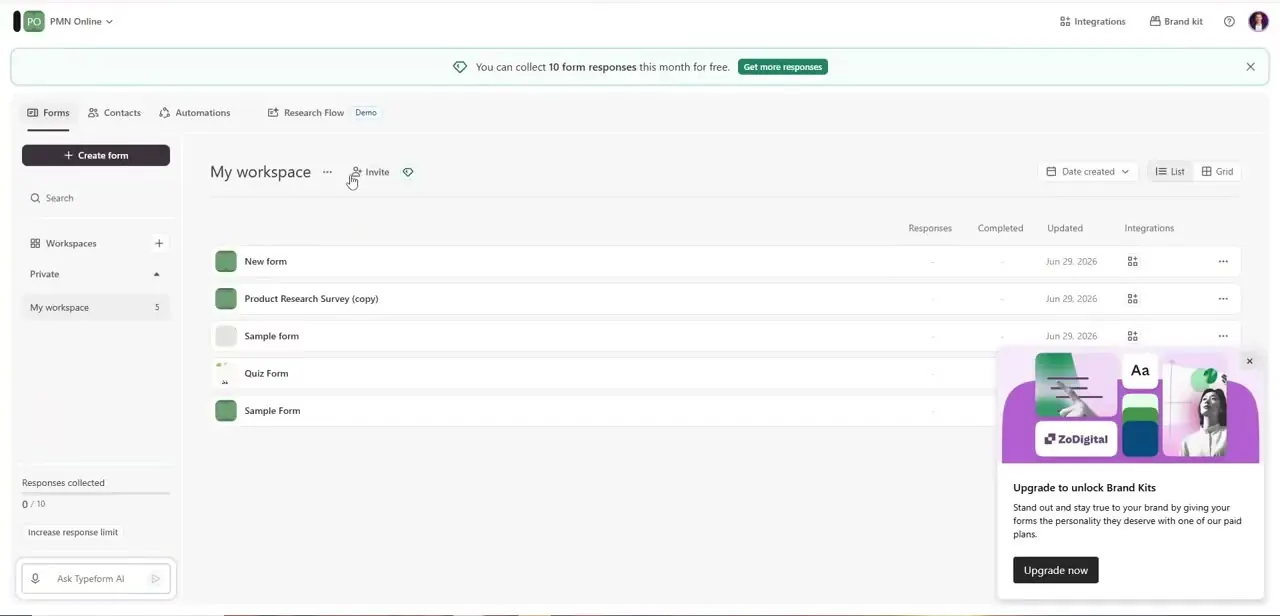
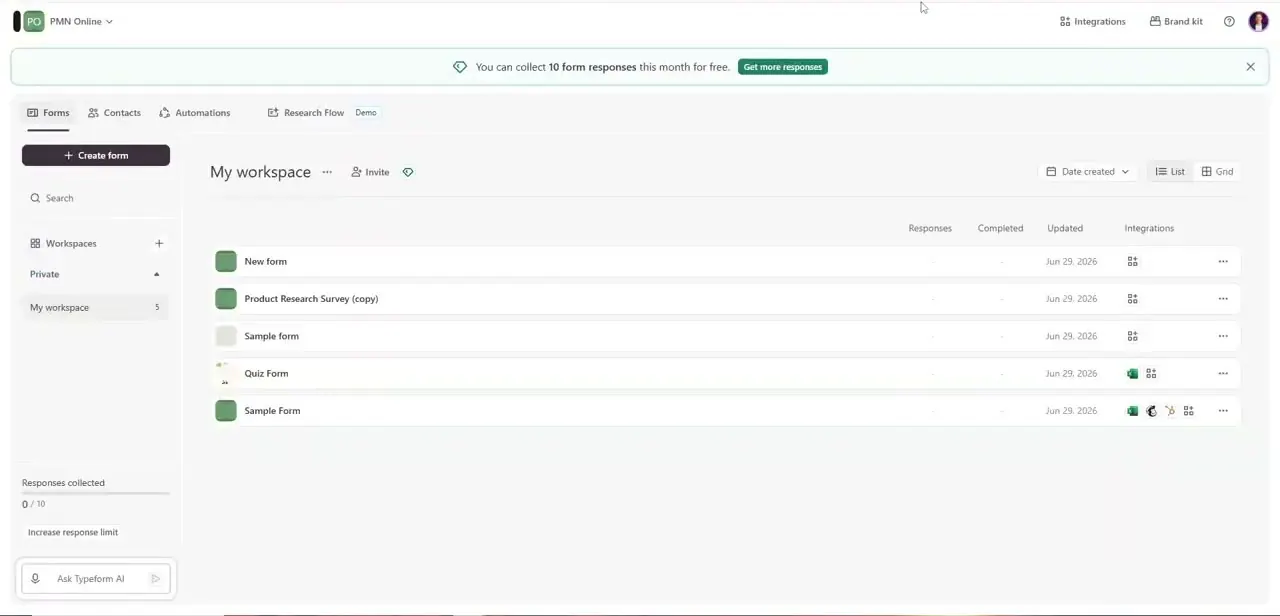
Every form you've built lives in My workspace, listed with its response count, completion rate, and last-updated date, plus a status color swatch next to each name. This is also where you'd notice a form still says "New form" or reads like a placeholder, a good moment to rename it before opening the editor, since the workspace list is the only place that title is visible at a glance. Click into the form you want to change; Typeform opens straight into its Content editor instead of a separate settings screen.
02Open the element picker to change or add questions
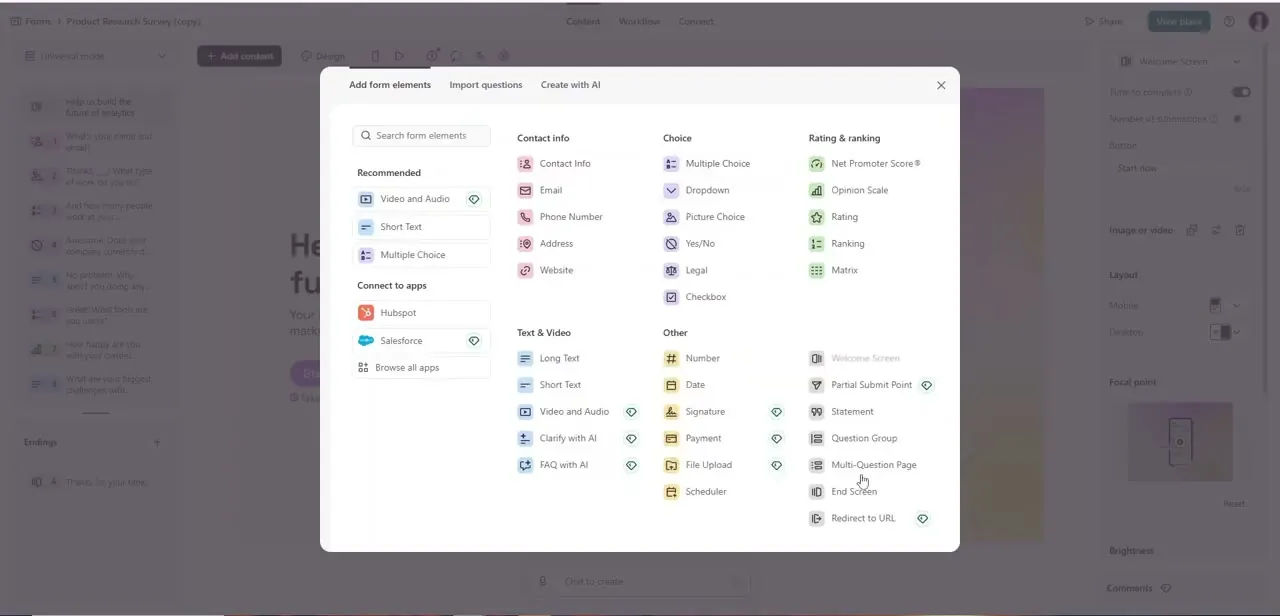
Inside the editor, the "Add content" button opens a panel of every question type Typeform supports, grouped by purpose: Contact Info fields like Email and Phone Number, Choice types like Multiple Choice and Dropdown, Rating & ranking types like NPS and Opinion Scale, and Text & Video types down to Long Text and Signature. To edit an existing question, click it directly in the left-hand list and its settings open inline; you're not limited to changing wording, you can swap its type entirely, for instance turning a Short Text field into a Yes/No choice. To add something new without disturbing what's already there, use this same panel and drop the new element wherever it belongs in the sequence.
03Update answer choices without breaking existing logic
For choice-based questions, editing an answer option is as simple as clicking the text and retyping it. If that question feeds into a Logic Jump, a skip rule based on which answer someone picked, check the Workflow tab afterward.
Typeform renamed the old Logic tab to Workflow, so older guides and forum posts still refer to Logic. Renaming an option usually preserves its jump, but deleting one and adding a fresh option in its place does not: the new option starts with no rule attached, and respondents who pick it can fall through to the default path. Logic and branching are a paid feature, so this step only applies once the form is on Typeform's Basic plan or higher.
04Adjust theme, branding, and layout
The Design tab controls the visual layer separately from content: background colors and images, font, button styling, and whether Typeform's own branding shows at the bottom of the form. None of these changes touch your questions or logic, so it's safe to refresh the look on a form that's been live for months without resetting anything else. If you manage several forms under one brand, apply a saved Brand Kit here instead of resetting colors and fonts on each form individually.
05Preview the form exactly as a respondent will see it
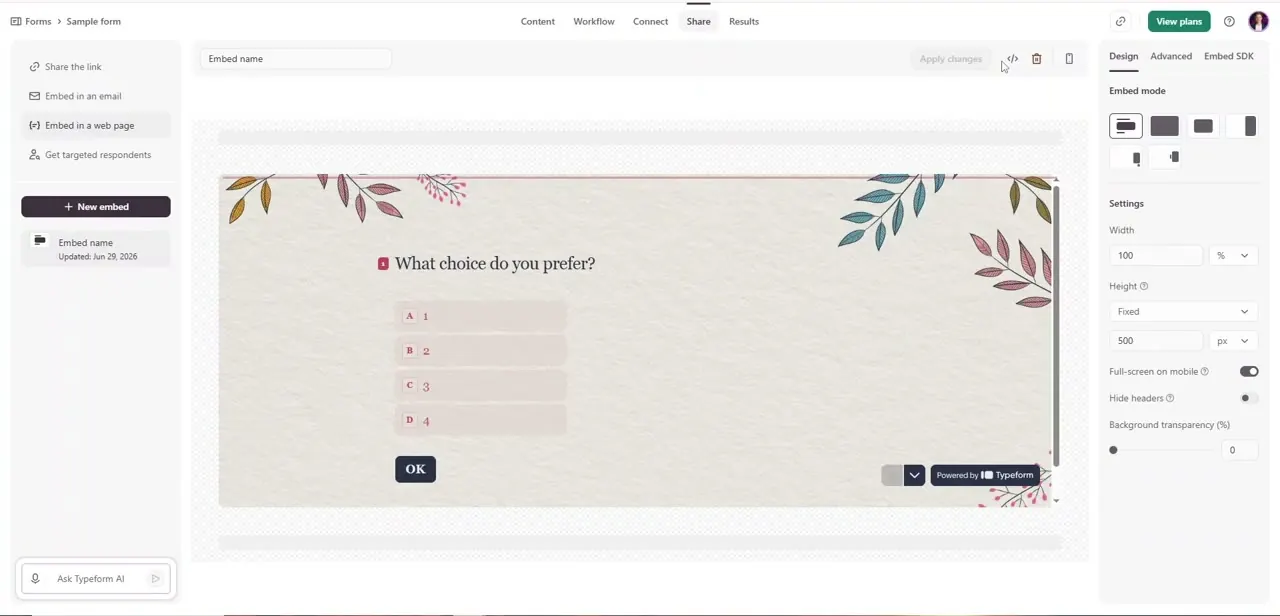
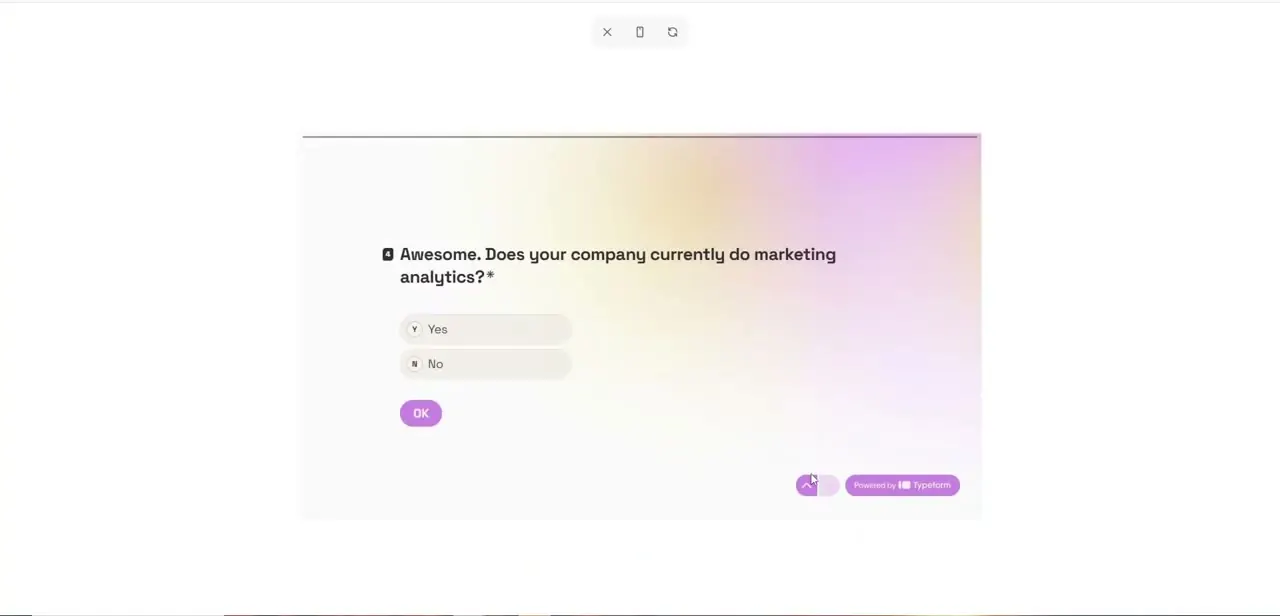
Before publishing, open Preview to click through the live rendering: the same conversational, one-question-at-a-time interface respondents get, complete with the animated background and the OK button that advances each question. Answer it as a respondent would, including any branching questions, to confirm a Yes response and a No response both land where they should.
Catching a broken jump here costs nothing. Catching it after respondents start submitting means cleaning up incomplete or misrouted data later.
06Publish the update
Once preview checks out, publish from the same editor. There's no separate staging step, so the moment you confirm, the live form reflects every change.
The form's URL and embed code stay exactly the same, so updates propagate automatically anywhere it's already shared: a website embed, an email link, or a QR code printed on something you can't easily reprint. If you're mid-campaign, publish right after preview instead of leaving edits unsaved; an interrupted session can leave the live form on the old version longer than intended.
When it doesn't work
A Logic Jump doesn't fire the way you expect after an edit
Why: Jumps evaluate in the order they're listed, and on a question where more than one option can be picked, a jump written for a single answer may not cover every combination.
Fix: Open the Workflow tab, check the rule order, and add a fallback rule that covers combined answers.
The Workflow tab won't let you add branching
Why: Logic and branching are gated behind Typeform's Basic plan and above; the free plan doesn't include them.
Fix: Upgrade the account, or keep the form as a single linear sequence with no jumps.
Frequently asked questions
Will editing questions affect responses I've already collected?
Changing or removing a question after responses are collected can make historical data harder to interpret alongside new responses, so review existing logic and reports carefully before making structural changes.
Can I preview edits before making them live?
Yes. Typeform's Preview mode renders the form exactly as a respondent would see it, including any logic jumps, so you can click through it before publishing.
Does editing an answer choice break the logic tied to it?
Renaming an existing option usually keeps its logic connection intact, but deleting an option and adding a new one in its place does not carry the rule over automatically; check the Workflow tab after any choice edit.
Do I need a paid plan to edit Logic Jumps?
Yes. Content, Design, and Publish are available on every plan, but Logic and branching require Typeform's Basic plan or higher.
Can I edit a Typeform that's already been shared?
Yes. You can edit a live form at any time, and because its URL and embed code don't change, published edits apply automatically wherever the form is already linked or embedded.
Do design changes affect my form's questions or logic?
No. The Design tab (colors, fonts, branding) is separate from Content and Workflow, so restyling a form doesn't touch its questions or branching rules.
Sources and last check
Click path and screens come from the original recording. The Logic tab's rename to Workflow, and the fact that Logic and branching require Typeform's Basic plan or higher, were checked against Typeform's official pricing page and its own community announcement of the Workflow builder in September 2026; the plan requirement wasn't in the earlier version of this guide.
About the author

Impran M N
I've been hooked on technology for as long as I can remember — especially the new tools and AI apps that seem to land every other week. Easy Tech Tuts is where I write up whatever I've just worked out: I do the task in the real product, record the screen, and turn it into the guide I wish I'd found first.