Easy Tech Tuts
How to Download and Install Trello on PC Easily 2026
By Impran M N
Running Trello as a dedicated desktop app instead of a browser tab can cut down on distractions and keep you from missing notifications. This guide covers downloading Trello for Windows through the Microsoft Store and getting it configured.
01Open the Microsoft Store
Launch the Microsoft Store on your Windows PC and search for the official Trello app.
02Verify the listing
Confirm you're installing the verified, free release published by Atlassian.
03Install the app
Click Install and let the automatic background installation complete.
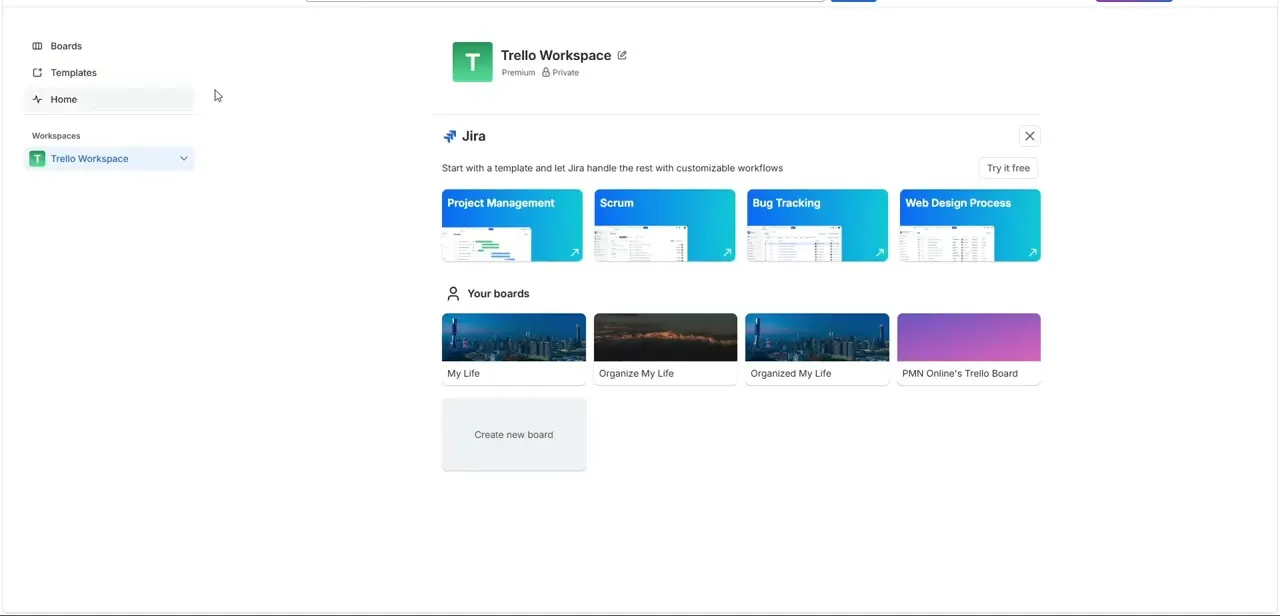
04Sign in with your Atlassian account
Open the app and log in using your existing Atlassian single sign-on credentials.
05Enable desktop notifications
Turn on native operating system alert badges so you can monitor card updates and mentions without manually refreshing.
06Set up custom shortcuts
Explore custom global desktop shortcuts to quickly spawn new task cards from anywhere on your PC.
Frequently asked questions
Is the Trello desktop app free to download?
Yes, the Windows app is available for free through the Microsoft Store.
Do I need a separate account for the desktop app?
No, you can sign in with your existing Atlassian account credentials through single sign-on.
What's the benefit of using the desktop app over the browser?
It runs independently of your browser tabs and supports native OS notifications and custom keyboard shortcuts.
Will I still get notified about card mentions?
Yes, once you activate native alert badges, you'll see updates without needing to manually refresh a browser tab.
Watch the full walkthrough
The same steps, demonstrated on screen from start to finish.