Easy Tech Tuts
How to Use Alerts & Reminders in Smartsheet Easily 2026
By Impran M N
Missed deadlines are usually a communication problem, not a planning one. Smartsheet's Automation menu lets you set up alerts that fire automatically before, on, or after a due date. This guide covers building a reminder workflow, customizing the message, and limiting who gets notified.
01Open the Automation menu
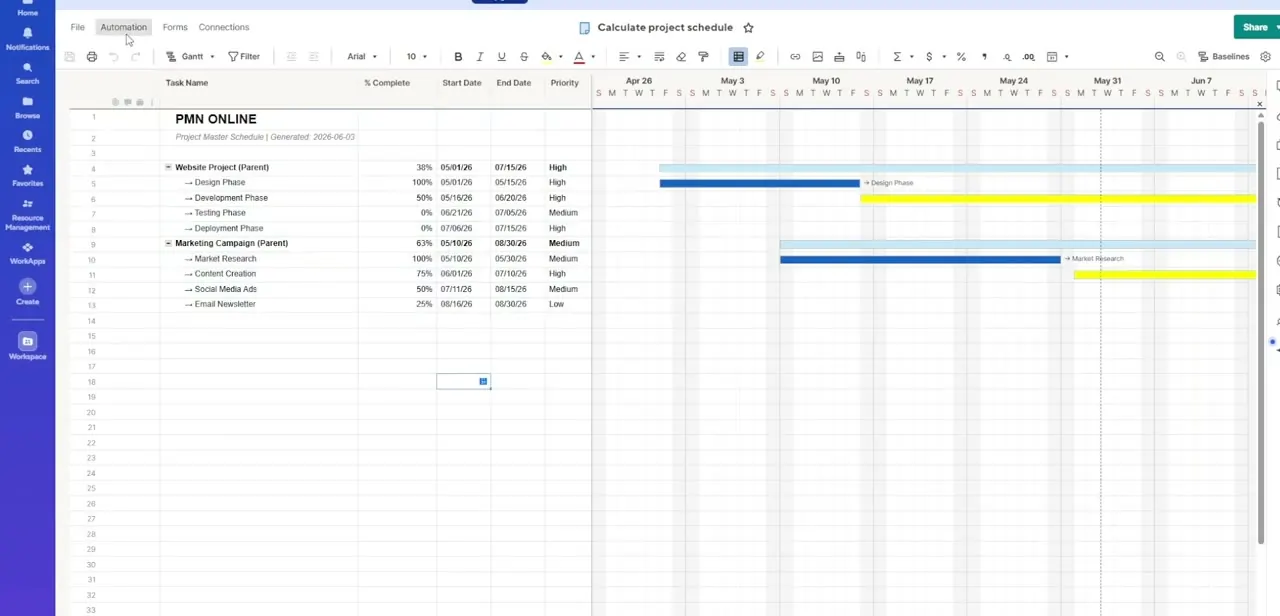
From your active sheet, open the Automation menu to access the workflow builder dashboard.
02Build the alert's basic structure
Choose Triggers, Conditions, and Actions to define how and when the alert fires.
03Set reminder timing
Configure the reminder to send a specific number of days before a milestone, on the due date, or when a task is overdue.
04Choose your recipients
Send alerts to specific assigned contacts, entire team groups, or external emails as needed.
05Personalize and filter
Pull row information like Task Name and Status into the message, and add conditional rules so reminders only trigger for incomplete tasks.
Frequently asked questions
Can I remind someone a few days before a task is due?
Yes, reminder timing can be set to a specific number of days before a milestone, or on the exact due date.
Can alerts go to external people outside my team?
Yes, delivery options let you send alerts to assigned contacts, team groups, or external email addresses.
Will completed tasks still trigger reminders?
No, conditional rules let you restrict alerts so they only fire when a task status is still Not Started or In Progress.
Can I personalize the reminder message?
Yes, you can dynamically pull row data like Task Name and Status into the email subject or body.
Watch the full walkthrough
The same steps, demonstrated on screen from start to finish.