Easy Tech Tuts
How to Export Smartsheet to Excel Easily 2026
By Impran M N
Sharing data with offline stakeholders or building a local pivot table means getting your Smartsheet data into Excel cleanly. This guide covers using the native export tool, understanding how column types like dropdowns and dates convert, and what happens to hierarchies and comments in the process.
01Open the file menu
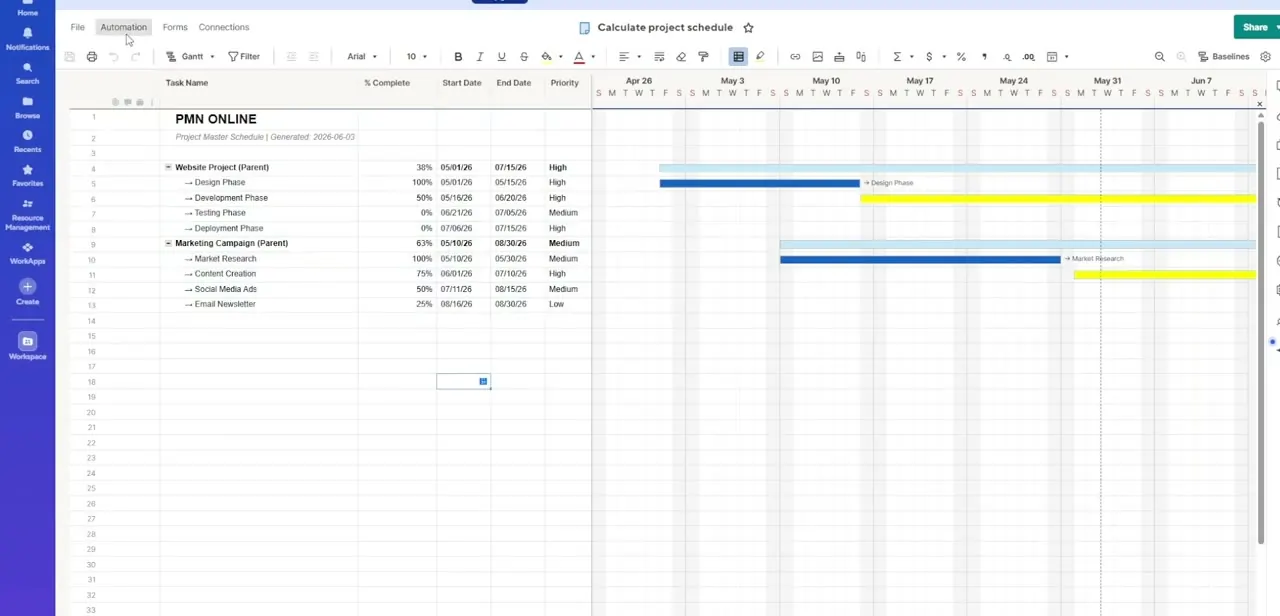
Go to the top-left menu on your sheet dashboard to find the Export utility panel.
02Select Export to Microsoft Excel
Run the native export function to compile your sheet rows into a .xlsx file.
03Understand column type conversion
Know what happens to Dropdowns, Contact Lists, and Dates during the conversion into standard Excel columns.
04Check hierarchy and grouping
Review how indented parent-child task hierarchies and row grouping translate into the Excel file.
05Export additional elements
Include row comments, discussions, and attached documentation as needed when exporting.
Frequently asked questions
Will my dropdown columns still work after exporting to Excel?
Dropdown, Contact List, and Date columns convert into standard Excel formats, so the interactive functionality doesn't carry over as-is.
Do parent-child hierarchies survive the export?
Indented task hierarchies and row grouping generally translate, though it's worth reviewing the file after export to confirm.
Can I export row comments along with the data?
Yes, you can include individual row comments, discussions, and attached documentation in the export.
Will formulas transfer over correctly?
Formula translations can shift during export, so it's a good idea to double-check calculated values after opening the file in Excel.
Watch the full walkthrough
The same steps, demonstrated on screen from start to finish.