Easy Tech Tuts
How to Duplicate a Sheet in Smartsheet Easily 2026
By Impran M N
Rebuilding a proven project setup from scratch wastes time you don't have. Smartsheet's Save as New feature lets you clone an entire sheet, including its formatting rules, forms, and automations, so you can launch new projects from a working template instantly.
01Open the file options panel
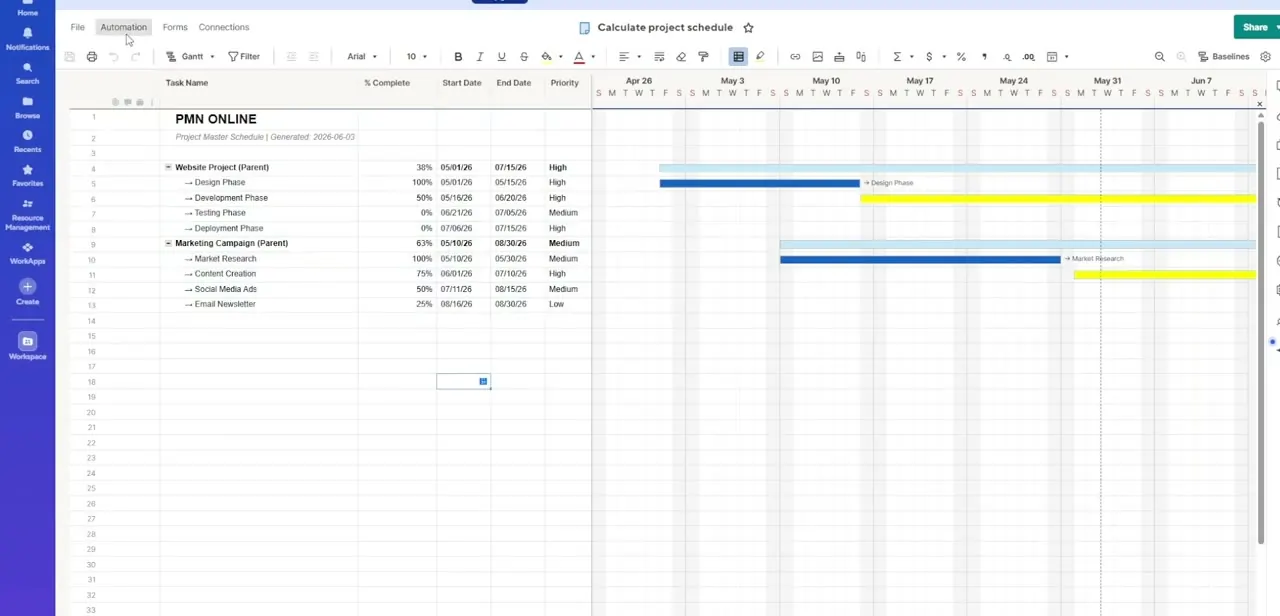
Access the spreadsheet properties or file menu from your active workspace to start the duplication process.
02Launch Save as New
Use the native Save as New feature to cleanly copy the sheet architecture into your chosen destination.
03Decide on data retention
Choose whether to preserve the underlying row cell data or start with a blank slate.
04Confirm assets carry over
Check that attachments, comments, sheet summaries, and shared web forms replicated correctly.
05Verify formatting and automations
Confirm your conditional formatting color scales and automation workflows migrated into the new sheet, then rename it and reset sharing permissions.
Frequently asked questions
Does duplicating a sheet copy the automation workflows too?
Yes, Save as New is designed to migrate your conditional formatting rules and backend automation workflows into the new sheet.
Can I duplicate a sheet without copying the data?
Yes, Save as New lets you choose whether to preserve the underlying row data or wipe it for a blank template.
Will comments and attachments transfer over?
Yes, the duplication process replicates embedded attachments, row-level comments, and sheet summaries along with the structure.
Should I reset sharing permissions on the new sheet?
Yes, it's good practice to rename the duplicated sheet and reset sharing permissions to avoid unintended access.
Watch the full walkthrough
The same steps, demonstrated on screen from start to finish.