Easy Tech Tuts
How To Color Code Dropdown List Options In Smartsheet Easily 2026
By Impran M N
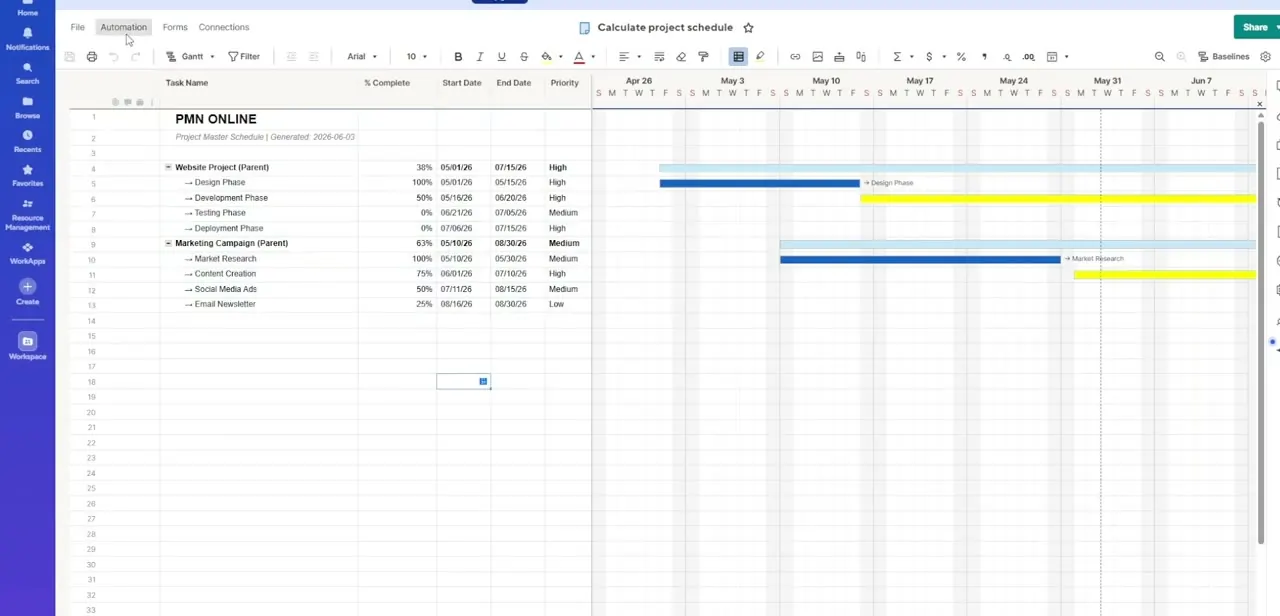
A dropdown column full of plain text is easy to overlook. Smartsheet's Conditional Formatting engine lets you map specific colors to specific dropdown values, so status shifts become instantly scannable. This guide covers building those rules and stacking them cleanly.
01Find your dropdown column
Open your tracking sheet and locate the dropdown column you want to style.
02Open Conditional Formatting
Access the Conditional Formatting rules panel from the main toolbar menu.
03Define your criteria
Set precise logical rules targeting specific single-select or multi-select dropdown values.
04Customize the visual style
Assign row-level color bars, font styles, or background fills for each rule you create.
05Stack multiple rules carefully
Build a full color scale like red, yellow, green for priority or risk, making sure the rules don't conflict with existing formatting.
Frequently asked questions
Can Smartsheet automatically color a row based on a dropdown value?
Yes, Conditional Formatting rules can apply row-level colors, font changes, or fills based on the dropdown selection.
Does color coding work in Gantt and Card views too?
Yes, once set up, the color coding renders natively across Grid, Gantt, and Card views.
How many formatting rules can I stack?
You can add multiple rules sequentially, though it's worth managing them carefully to avoid conflicting with existing task formatting.
What's a good color scheme for status tracking?
A standard Red, Yellow, Green scale is a common, easy-to-scan choice for risk or priority tracking.
Watch the full walkthrough
The same steps, demonstrated on screen from start to finish.