Easy Tech Tuts
How to Collapse Rows in Smartsheet Easily 2026
By Impran M N
Once your sheet has dozens of subtasks under each phase, scrolling gets exhausting. Smartsheet's collapse and expand controls let you hide granular detail and focus on high-level milestones. This guide covers setting up hierarchies, using the toggles, and understanding how collapsed rows interact with your data rollups.
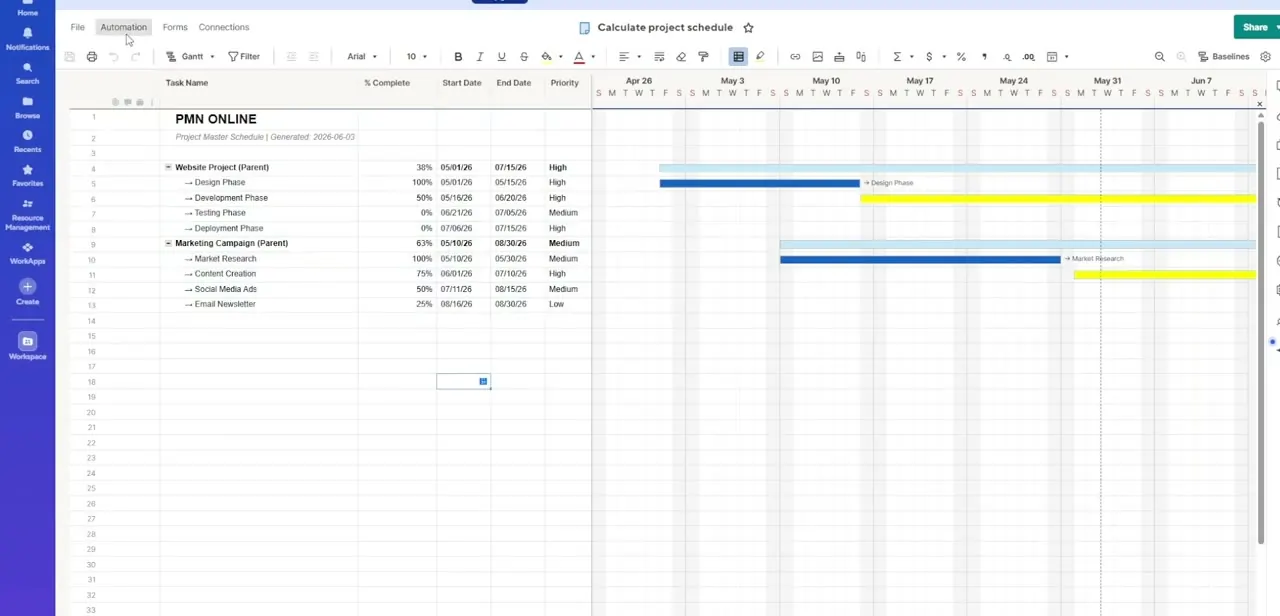
01Build a parent-child hierarchy
Indent rows directly under master milestones to establish a proper task hierarchy.
02Use the expand/collapse toggles
Locate the small +/- or arrow toggles in the primary task column to hide granular subtasks instantly.
03Collapse or expand everything at once
Use the right-click row menu or toolbar to run bulk Collapse All or Expand All operations.
04Check other views
Confirm your row groupings stay intact when switching between Grid View, Card View, and Gantt Chart layouts.
05Understand rollup behavior
Know that collapsing rows doesn't affect summary formulas or child-row data rollups, which continue calculating in the background.
Frequently asked questions
Does collapsing rows hide data from formulas too?
No, collapsed rows still contribute to summary formulas and child-row data rollups; collapsing only affects the visual display.
Can I collapse all rows on my sheet at once?
Yes, the right-click row menu and toolbar both offer Collapse All and Expand All commands for bulk management.
Will collapsed rows stay collapsed in Gantt view?
Indented row groupings generally carry over across Grid, Card, and Gantt views, though it's worth double-checking after switching.
How do I quickly find hidden collapsed sections?
Reviewing the expander icons in the primary task column helps you identify which sections are currently collapsed.
Watch the full walkthrough
The same steps, demonstrated on screen from start to finish.