Easy Tech Tuts
How to Get Current Date in n8n Easily 2026
By Impran M NLast checked against official docs
Almost every automation eventually needs to know what day it is: a timestamp on a logged row, a comparison against a due date, an expiry check on a token. n8n gives you two ways to get there. Inline expressions such as $now and $today work straight inside any parameter, no extra node required.
The Date & Time node earns its place once you need real formatting, a specific timezone, or date math as its own step. This guide covers both, plus the ISO-timestamp habit that keeps your data consistent once it starts flowing into other systems.
01Open your n8n workspace
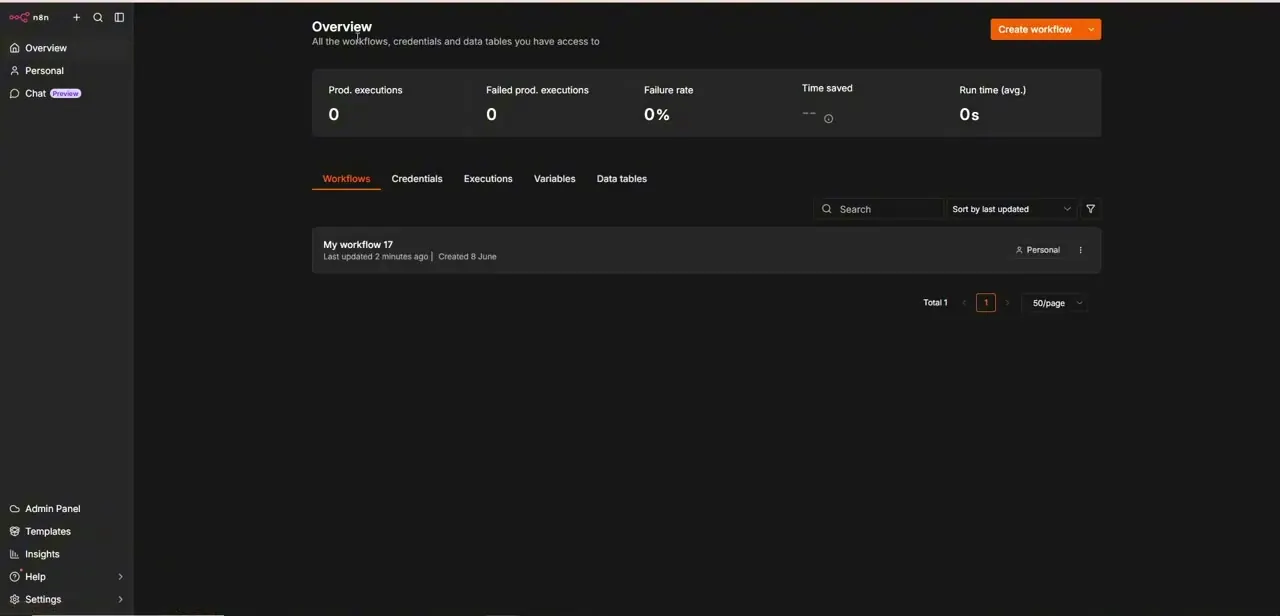
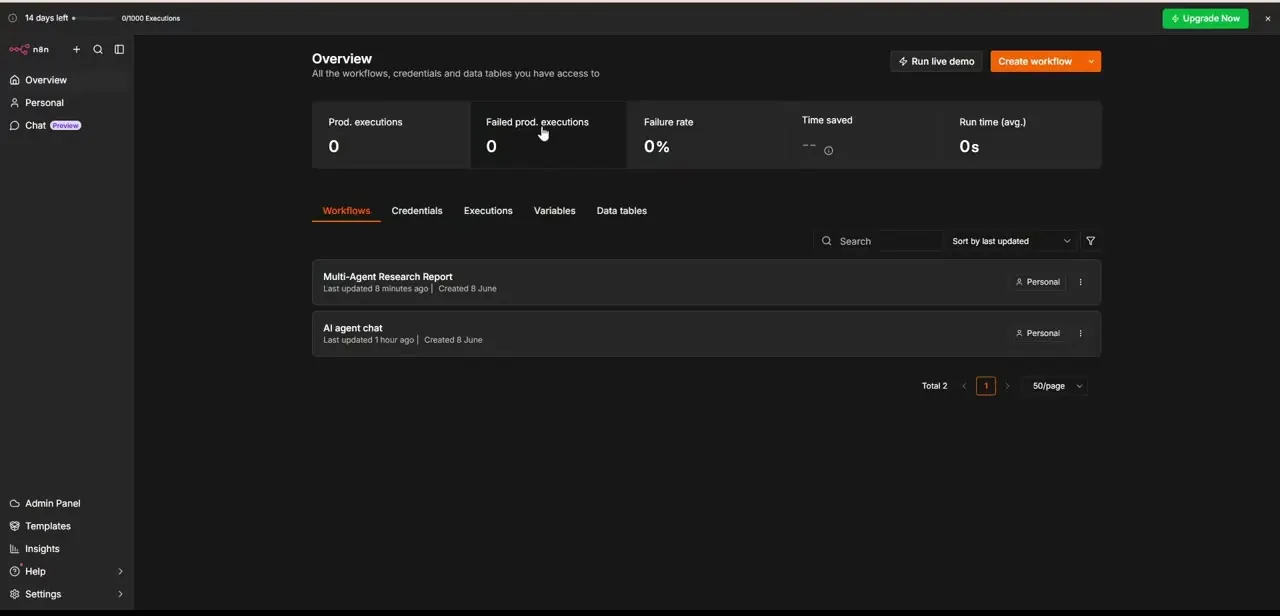
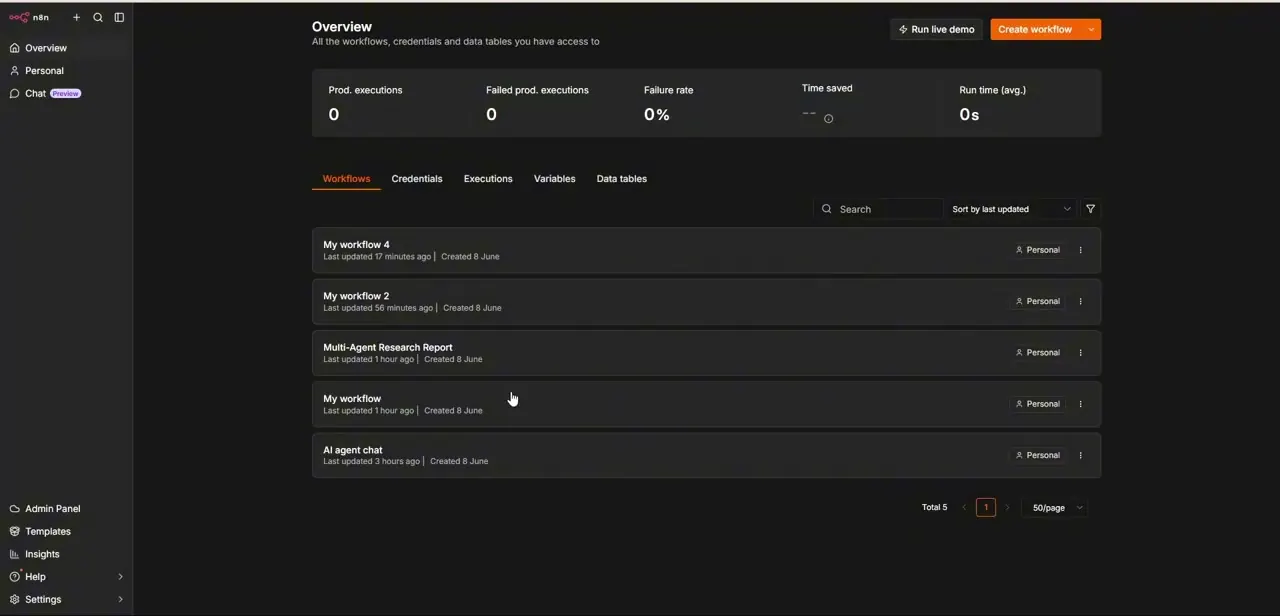
Start from the Overview screen of your n8n instance. It lists every workflow, credential, and data table you can access, whether you're on n8n Cloud or self-hosted.
Open an existing workflow here, or click Create workflow for a blank canvas to test date expressions on. The stats across the top (production executions, failure rate, run time) are worth a glance before you build on top of anything: a spike in failures is easier to catch now than after five more nodes depend on it.
02Reference the current date with an inline expression
The fastest route skips adding a node entirely. Click into any parameter field, switch it to expression mode, and reference n8n's built-in date variables directly. $now returns the full current timestamp as a Luxon object; $today returns that same moment rounded down to midnight.
Both work well for a quick stamp on a note field or a same-day filter. They return Luxon objects, not plain strings, so sending one straight to an API or a spreadsheet column can produce a value that system doesn't expect. That's exactly what the Date & Time node exists to fix.
03Add a Date & Time node for anything more deliberate
Drop a Date & Time node onto the canvas when a value needs real formatting, a specific timezone, or date math as its own step. Search for it in the node panel like any other node, and connect it after the trigger or step where the timestamp gets generated.
The node currently splits every action into its own operation, chosen from the Operation dropdown at the top: Get Current Date, Format a Date, Add to a Date, Subtract From a Date, Extract Part of a Date, Round a Date, and Get Time Between Dates. Older tutorials that describe one combined screen with a single offset field are describing a previous version of this node.
04Format the date
Set the operation to Format a Date, then pick the output layout — day-month-year, year-month-day, or a custom pattern using Luxon's formatting tokens — along with the correct timezone. Getting the timezone right matters more than it looks. n8n defaults self-hosted instances to America/New_York unless GENERIC_TIMEZONE is set, or you override it in the workflow's own settings, and a workflow that looks correct in testing can quietly log the wrong day once it runs at midnight somewhere else.
05Add or subtract time on a separate operation
Need yesterday, seven days from now, or a thirty-day expiry threshold? Switch to the Add to a Date or Subtract From a Date operation instead of looking for an offset toggle inside formatting; n8n moved that behavior into its own screen.
Pick a unit (years, months, weeks, days, hours, minutes, or seconds), enter the amount, and name the output field. This is what you'll reach for on anything involving trial expirations, follow-up reminders, or rolling date-range filters.
06Check the output and standardize on ISO
Before wiring the date into the rest of the workflow, open the data preview pane and confirm the value looks right: correct format, correct timezone, correct offset. If it's heading to an external API or a CRM, format it as a standardized ISO timestamp instead of a locale-specific string.
ISO keeps the structure consistent no matter which system reads it next, and it saves you from parsing errors later. Once it checks out, drag a connection from the node into whatever step consumes the date.
| Operation | What it does |
|---|---|
| Get Current Date | Returns today's date, with a toggle to include the time and a timezone selector |
| Format a Date | Converts a date into a preset layout or a custom Luxon-token pattern |
| Add to a Date | Adds a chosen unit and amount (days, hours, and so on) to a date |
| Subtract From a Date | Subtracts a chosen unit and amount from a date |
| Extract Part of a Date | Pulls a single component, like the year or the day, out of a date |
| Round a Date | Rounds a date up or down to the nearest unit boundary |
| Get Time Between Dates | Calculates the difference between two dates, optionally as an ISO 8601 duration |
Each row is its own selectable operation on the current Date & Time node, not a single combined settings screen.
When it doesn't work
The date logged is one calendar day off from what was expected.
Why: n8n defaults self-hosted instances to the America/New_York timezone unless GENERIC_TIMEZONE is set or the workflow's own timezone is overridden, so a run near midnight in another timezone can land on the wrong day.
Fix: Set the correct timezone in the workflow's settings, or pass an explicit zone into the expression with setZone().
An API or CRM rejects the date field.
Why: $now and $today return Luxon date objects, and sending one through unformatted produces a value the receiving system doesn't recognize.
Fix: Format it first, either with toISO()/toFormat() in the expression or with the node's Format a Date operation.
There's no offset field on the Date & Time node.
Why: Older versions of the node combined date math into one screen with an offset setting; the current version splits that into separate Add to a Date and Subtract From a Date operations.
Fix: Choose one of those two operations from the node's Operation dropdown instead of looking for a single offset field.
Frequently asked questions
What's the fastest way to get today's date in n8n?
Type $now or $today into any parameter field in expression mode. No extra node is needed for a quick reference.
What's the difference between $now and $today?
$now is the full current timestamp, down to the millisecond. $today is that same moment rounded down to midnight.
How do I calculate a date in the past or future?
Add a Date & Time node and choose the Add to a Date or Subtract From a Date operation, then set a unit and an amount. These replaced the single offset field from older versions of the node.
Why did a scheduled workflow log the wrong day?
Usually a timezone mismatch. n8n defaults self-hosted instances to America/New_York unless you set GENERIC_TIMEZONE or override the timezone in the workflow's own settings.
Why convert dates to ISO before sending them elsewhere?
ISO timestamps keep the format consistent regardless of which system reads them next, which avoids the parsing errors that locale-specific date strings tend to cause.
Sources and last check
Click path and screens come from a recorded walkthrough. The expression variable names ($now, $today), the node's operation list, and the offset behavior were re-checked against n8n's official Date & Time node docs and its dates-and-times guide in September 2026 — that check is what corrected the article's description of a single 'offset' field into the node's current seven separate operations.
About the author

Impran M N
I've been hooked on technology for as long as I can remember — especially the new tools and AI apps that seem to land every other week. Easy Tech Tuts is where I write up whatever I've just worked out: I do the task in the real product, record the screen, and turn it into the guide I wish I'd found first.