Easy Tech Tuts
How to Restore a Deleted Microsoft Loop Page Easily 2026
By Impran M NLast checked against official docs
A page deleted inside a Loop workspace goes to that workspace's Recycle bin, and restoring it takes three clicks. The harder cases are the ones the Loop app doesn't cover: a Loop component that lived in a Teams chat or an Outlook email, or an entire workspace that someone deleted.
Where a piece of Loop content is stored depends on where it was created, and that decides which recycle bin it lands in. This guide starts with the workspace bin, then shows where to look for everything else, including the admin route for deleted workspaces that Microsoft's end-user help says can't be restored.
01Open the workspace the page was in
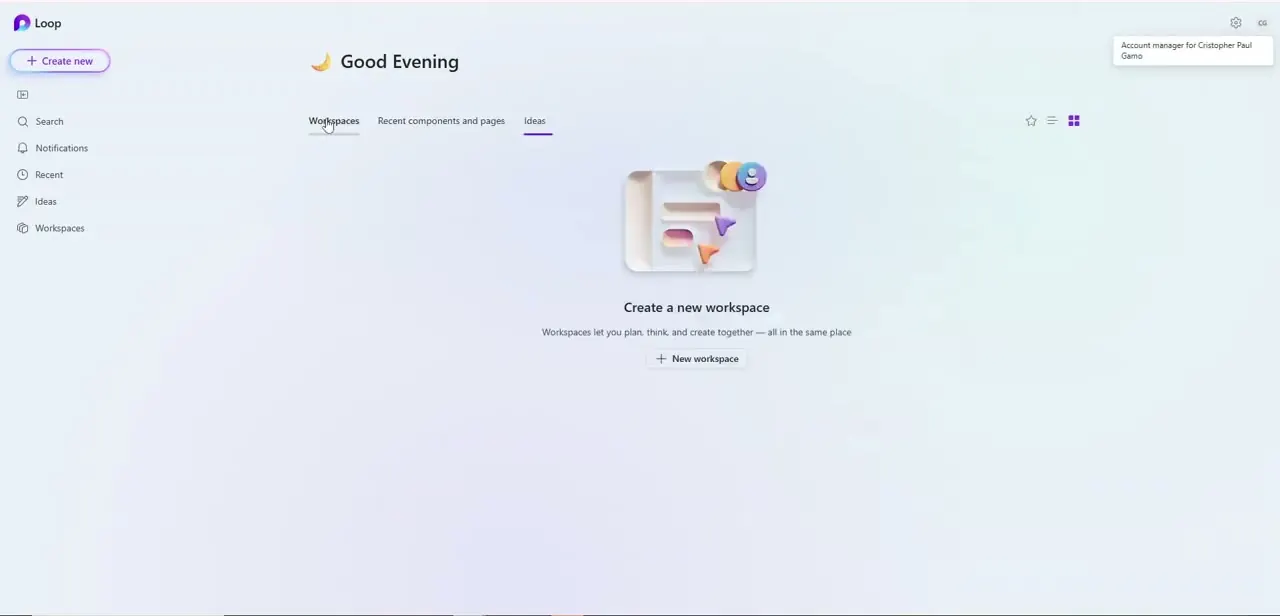
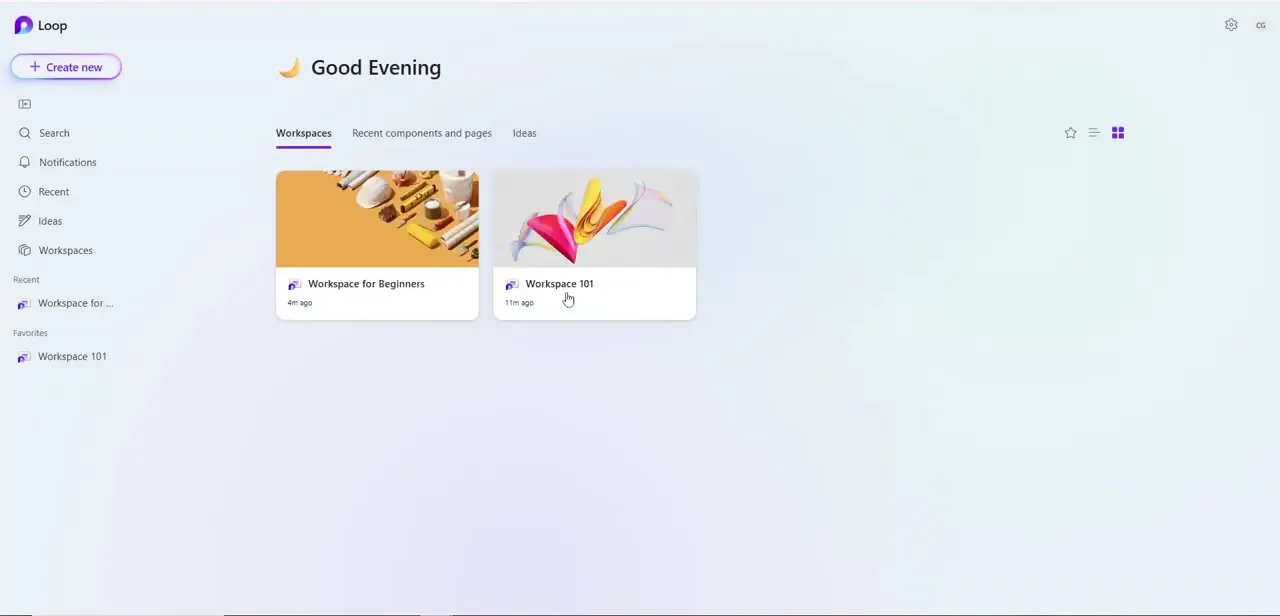
Go to loop.cloud.microsoft and sign in. The home screen lists your workspaces as cards, each showing when it was last opened. Open the one that held the deleted page.
02Open Recycle bin at the bottom of the sidebar
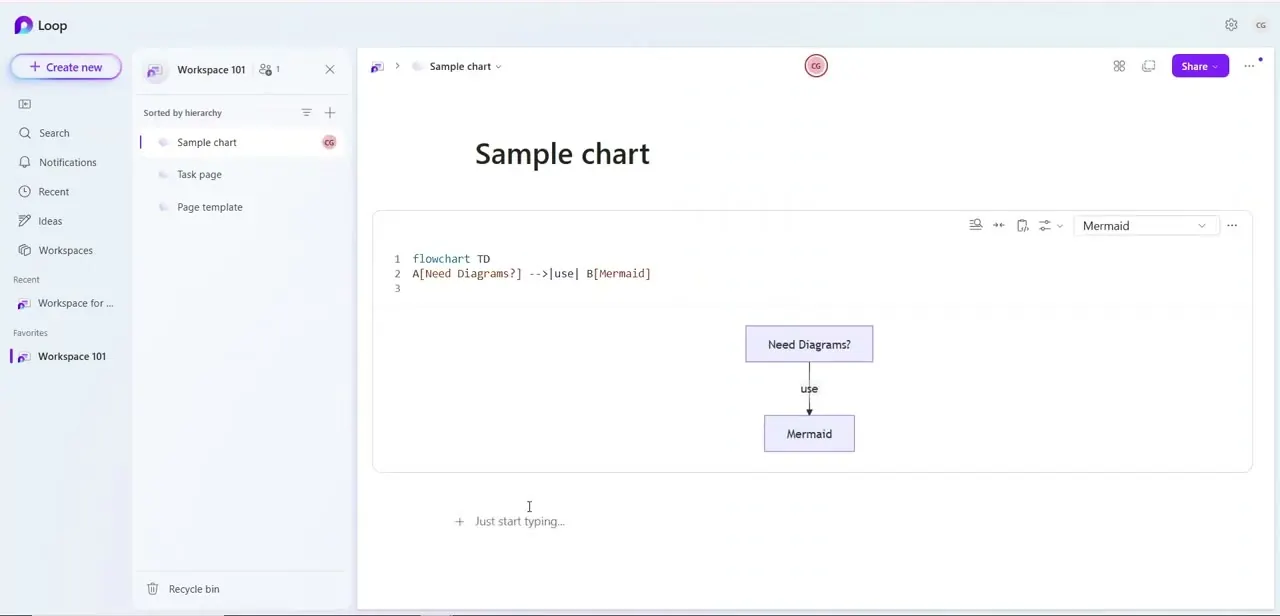
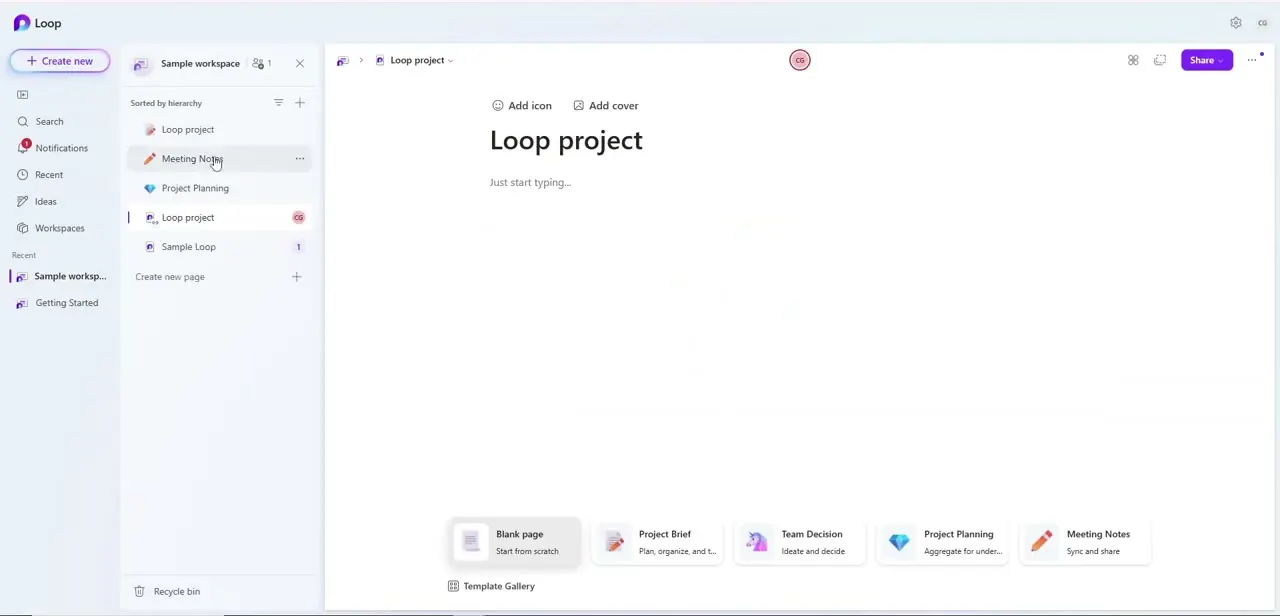
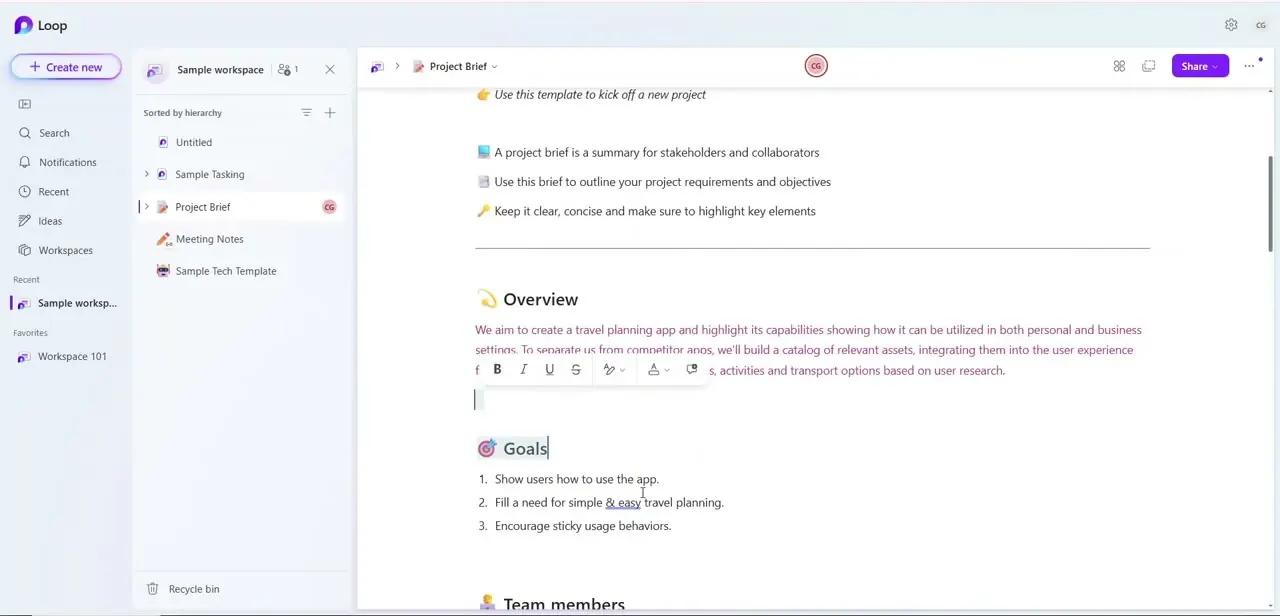
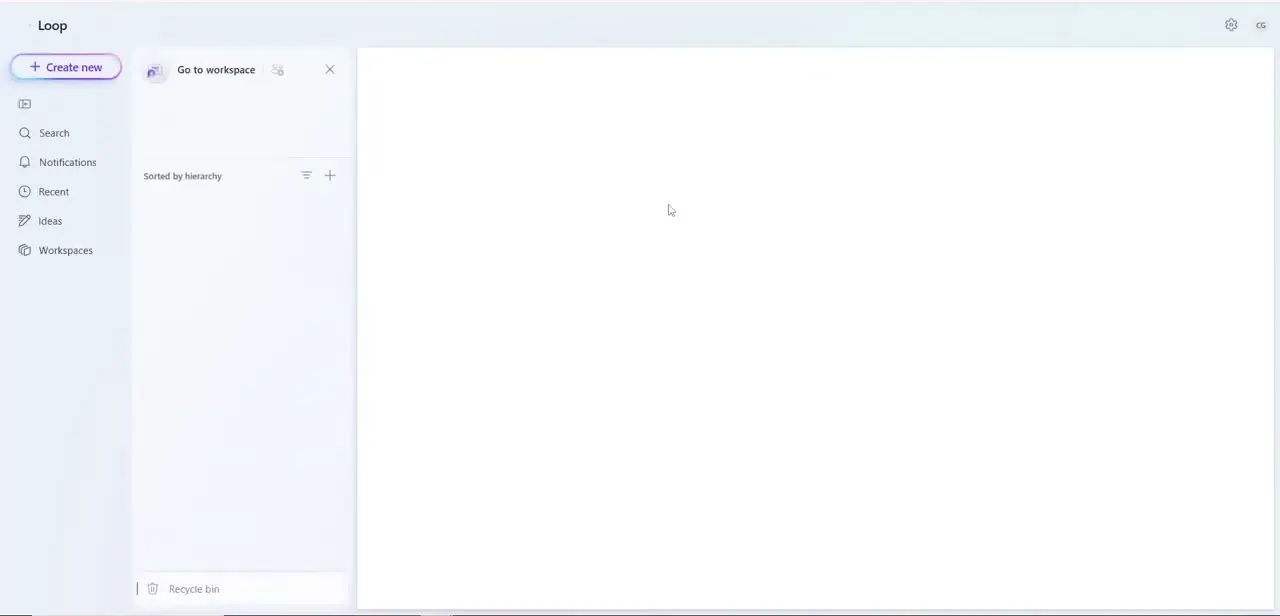
The left sidebar lists the workspace's pages under "Sorted by hierarchy". Scroll past the last page and Recycle bin sits on its own at the very bottom. You can open it from any page in the workspace.
03Restore the page
Find the page in the Recycle bin, select More (the three dots) and choose Restore. It goes back into the workspace's page list.
Stay away from Empty all at the top of the Recycle bin page. It clears everything in the bin, and Microsoft's help doesn't offer a way back for items removed that way.
04Not in the workspace bin? Check where it was created
If the "page" was a Loop component shared in Teams or Outlook, it never lived in a Loop workspace, so it won't be in that bin. Use the table above to find its home.
Components from a Teams private chat, private meeting, Outlook email, OneNote or Whiteboard are files in the creator's OneDrive. Open onedrive.com with your work account, select Recycle bin, pick the file and click Restore.
Work and school OneDrive keeps deleted files for 93 days unless your administrator changed that setting. If someone else created the component, it's in their OneDrive, not yours, and Microsoft notes that items shared with you can't be restored from your own recycle bin.
Ask the creator to restore it. Components from a Teams channel or channel meeting are stored on the team's SharePoint site, so check that site's recycle bin.
05If the whole workspace was deleted, ask an admin
Microsoft's Loop help is blunt about this: once deleted, workspaces can't be restored from the Loop app. An administrator may still be able to recover it.
Loop workspaces are SharePoint Embedded containers, and an admin with the SharePoint Embedded Administrator or Global Administrator role can open the SharePoint admin center, expand SharePoint Embedded, choose Deleted containers, select the workspace and click Restore. It reappears under Active containers when the background job finishes.
Timing matters. Deleted containers are purged permanently after 93 days unless a retention policy says otherwise, and an admin can also permanently delete one sooner.
| Created in | Stored in | Where to look after deletion |
|---|---|---|
| Loop app workspace (shared or My workspace) | SharePoint Embedded container | The workspace's own Recycle bin in Loop |
| Teams private chat or private meeting | Creator's OneDrive | The creator's OneDrive recycle bin |
| Teams channel or channel meeting | The team's SharePoint site | That SharePoint site's recycle bin |
| Outlook email, OneNote, Whiteboard | Creator's OneDrive | The creator's OneDrive recycle bin |
Storage locations from Microsoft's "Overview of Loop storage" admin article, checked September 2026. Teams chat notes and Teams channel workspaces are stored in SharePoint Embedded containers, like Loop app workspaces.
Frequently asked questions
Can I restore a deleted Loop workspace myself?
No. Microsoft's Loop help says deleted workspaces can't be restored from the app. An admin can restore the underlying container from the SharePoint admin center within 93 days.
Is there one Recycle bin for all of Loop?
Not in the app. The Recycle bin link sits in each workspace's sidebar, so open it inside the workspace the page was deleted from.
How long do I have to restore a Loop component from Teams chat?
Components from a private chat are OneDrive files, and work or school OneDrive keeps deleted files for 93 days unless your admin changed the setting.
What does Empty all do?
It clears every item from that workspace's Recycle bin. Restore anything you need first.
Sources and last check
The Loop home screen and workspace sidebar come from the original screen recording. The restore steps, storage locations, workspace deletion rules and admin container restore were re-checked against Microsoft Support and Microsoft Learn in September 2026. That check corrected the earlier claim that deleted workspaces are restored through the Microsoft 365 admin dashboard (it's the SharePoint admin center's Deleted containers page) and replaced a vague storage explanation with Microsoft's own mapping.
- Microsoft Support: Get started with Microsoft Loop, including deleting and restoring (official)
- Microsoft Learn: Overview of Loop storage (official)
- Microsoft Learn: Manage SharePoint Embedded containers in SharePoint admin center (official)
- Microsoft Support: Restore deleted files or folders in OneDrive (official)
About the author

Impran M N
I've been hooked on technology for as long as I can remember — especially the new tools and AI apps that seem to land every other week. Easy Tech Tuts is where I write up whatever I've just worked out: I do the task in the real product, record the screen, and turn it into the guide I wish I'd found first.