Easy Tech Tuts
How to Format Text in Microsoft Loop Easily 2026
By Impran M NLast checked against official docs
Loop pages get read by people skimming for the one line that matters to them, so formatting does real work here. Loop gives you three ways to apply it: a toolbar that appears over selected text, keyboard shortcuts, and Markdown you type as you write.
This guide covers all three. The shortcut table near the end comes from Microsoft's own list, and that list has a few gaps. There's no keyboard shortcut for strikethrough or for text colour, and only three heading levels.
01Select text to bring up the formatting toolbar
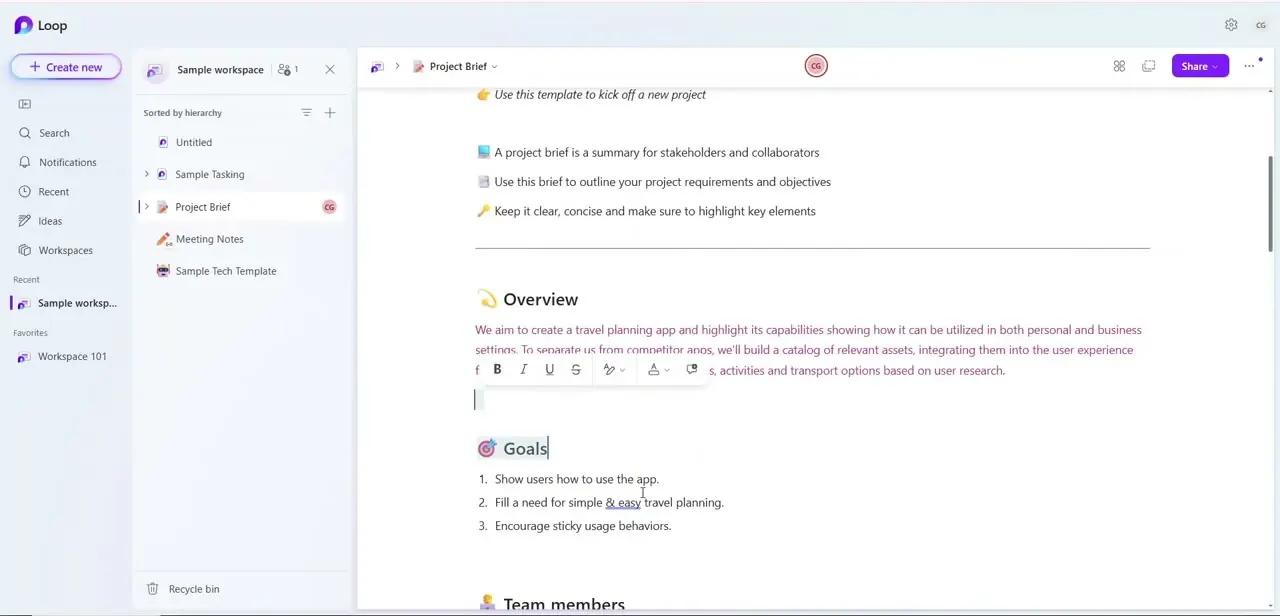
Click into any text on a Loop page and highlight the words you want to style. A small toolbar appears just above the selection with Bold, Italic, Underline and Strikethrough buttons, followed by a text-colour button (the A with a small arrow) and a few more controls.
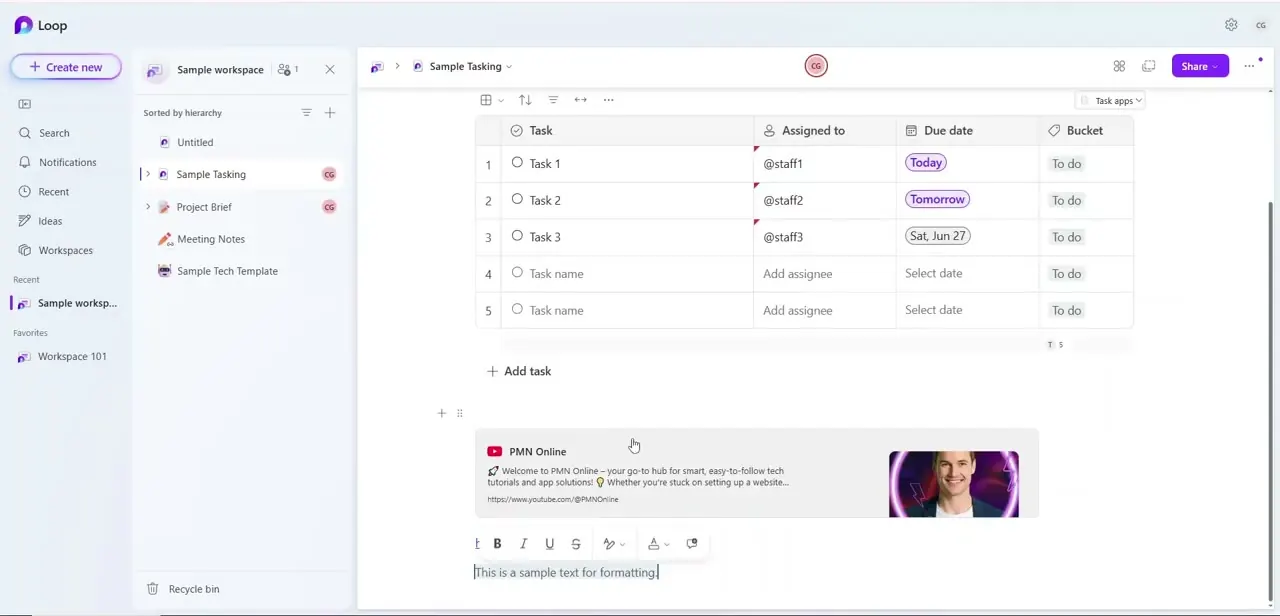
The toolbar works the same way anywhere text lives on the page: a paragraph under a heading, a line typed beneath a task table, a note after an embedded link. Select, click, done.
02Pick a text colour or a background highlight
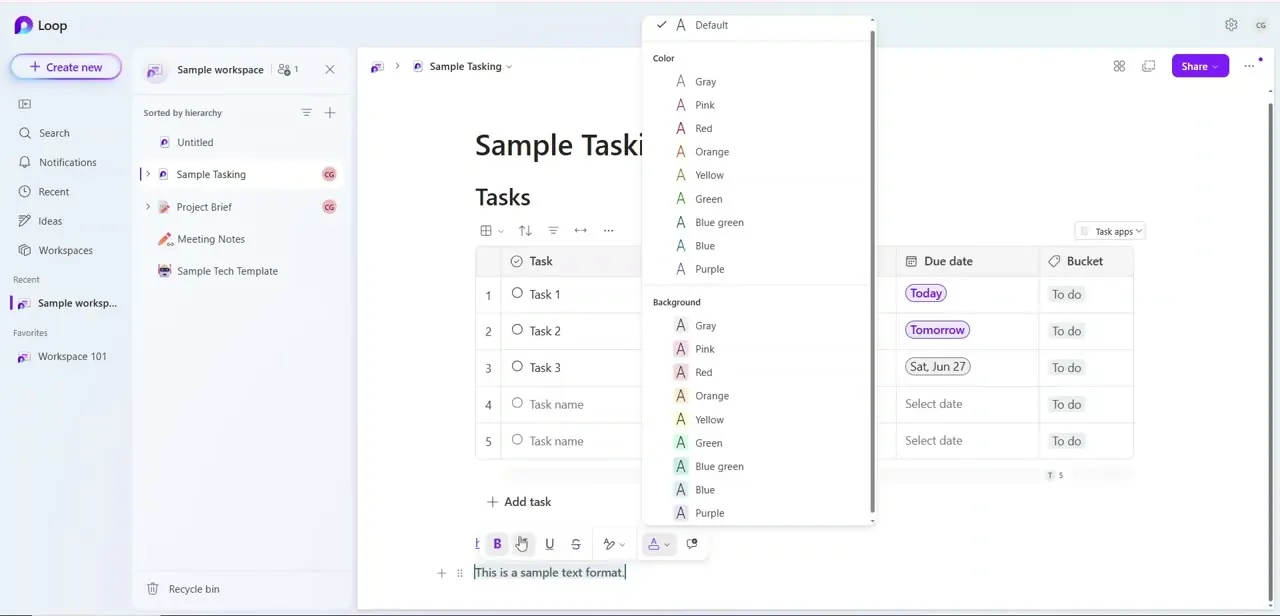
Click the arrow beside the A. The menu opens with Default at the top, which strips any colour back off, and then two sections.
Color changes the letters themselves. Background puts a highlight behind them.
Both offer the same nine options: Gray, Pink, Red, Orange, Yellow, Green, Blue green, Blue and Purple. You can set one of each on the same text, say red letters on a yellow background.
Use colour sparingly. A page where every other line is tinted stops signalling anything, so keep it for the few items that need to stand out, like a risk or a decision.
03Use keyboard shortcuts for the common styles
With text selected, Ctrl+B, Ctrl+I and Ctrl+U apply bold, italic and underline on Windows, and ⌘+B, ⌘+I and ⌘+U do the same on a Mac. Ctrl+K (⌘+K) adds a link.
Headings have their own shortcuts: Ctrl+Alt+1, 2 or 3 on Windows and Option+⌘+1, 2 or 3 on a Mac. Loop has three heading levels, not six. Strikethrough and text colour have no keyboard shortcut in Microsoft's list, so use the toolbar for those, or Markdown for strikethrough.
04Type Markdown as you write
Loop converts Markdown as you type, which saves reaching for the toolbar mid-sentence. At the start of a line, # plus a space gives Heading 1, ## gives Heading 2 and ### gives Heading 3.
A > and a space starts a quote, --- and a space adds a divider, and [ ] and a space starts a checklist item ([x] for one already ticked). Inside a line, wrap text in **double asterisks** for bold, *single asterisks* for italic, ~~double tildes~~ for strikethrough, or backticks for inline code. Three backticks and a space open a code block.
05Structure the page with lists, indents and the / menu
Ctrl+. (⌘+. on a Mac) turns the current line into a bulleted list, and Ctrl+1 (⌘+1) makes it a checklist. Tab indents a line one level and Shift+Tab brings it back, which is how you build nested bullets.
For anything else, type / to open what Microsoft calls the Discover menu of components and block types. Once the page is styled, scroll back through and check heading levels line up, with sections of equal weight all on the same level.
| Format | Windows | Mac | Markdown |
|---|---|---|---|
| Bold | Ctrl+B | ⌘+B | **text** |
| Italic | Ctrl+I | ⌘+I | *text* |
| Underline | Ctrl+U | ⌘+U | None |
| Strikethrough | None | None | ~~text~~ |
| Link | Ctrl+K | ⌘+K | None |
| Inline code | None | None | `text` |
| Heading 1 / 2 / 3 | Ctrl+Alt+1 / 2 / 3 | Option+⌘+1 / 2 / 3 | # / ## / ### + Space |
| Bulleted list | Ctrl+. | ⌘+. | None |
| Checklist | Ctrl+1 | ⌘+1 | [ ] + Space |
| Indent / outdent | Tab / Shift+Tab | Tab / Shift+Tab | None |
From Microsoft's Keyboard shortcuts for Microsoft Loop page, checked September 2026. "None" means Microsoft lists no shortcut for that method.
Frequently asked questions
Is there a keyboard shortcut for strikethrough in Loop?
Not in Microsoft's published list. Use the S button on the toolbar, or wrap the text in double tildes: ~~like this~~.
Can I highlight text with a shortcut?
No. Text colour and background highlight are only in the toolbar's colour menu, under Color and Background.
How many heading levels does Loop have?
Three. Use #, ## or ### plus a space, or Ctrl+Alt+1 to 3 on Windows (Option+⌘+1 to 3 on a Mac).
How do I remove a colour I've applied?
Select the text, open the colour menu from the A button, and choose Default at the top.
Sources and last check
The toolbar and colour menu come from a walkthrough recording in the Loop web app. Every shortcut and Markdown pattern here was re-checked against Microsoft's Keyboard shortcuts for Microsoft Loop page in September 2026. That check limited headings to the three levels Microsoft documents, replaced an undocumented hyphen-or-number list trick with the documented Ctrl+. bullet shortcut, and added the heading, link and checklist shortcuts the earlier version left out.
About the author

Impran M N
I've been hooked on technology for as long as I can remember — especially the new tools and AI apps that seem to land every other week. Easy Tech Tuts is where I write up whatever I've just worked out: I do the task in the real product, record the screen, and turn it into the guide I wish I'd found first.