Easy Tech Tuts
How to Embed Jotform in Elementor Easily 2026
By Impran M N
If you've built a custom form in Jotform and want it to appear directly on your WordPress site, Elementor makes the process straightforward once you know where to look. This guide walks through grabbing the right embed code from Jotform and placing it inside Elementor so your form displays cleanly and stays responsive on every screen size.
01Open your form's publish panel in Jotform
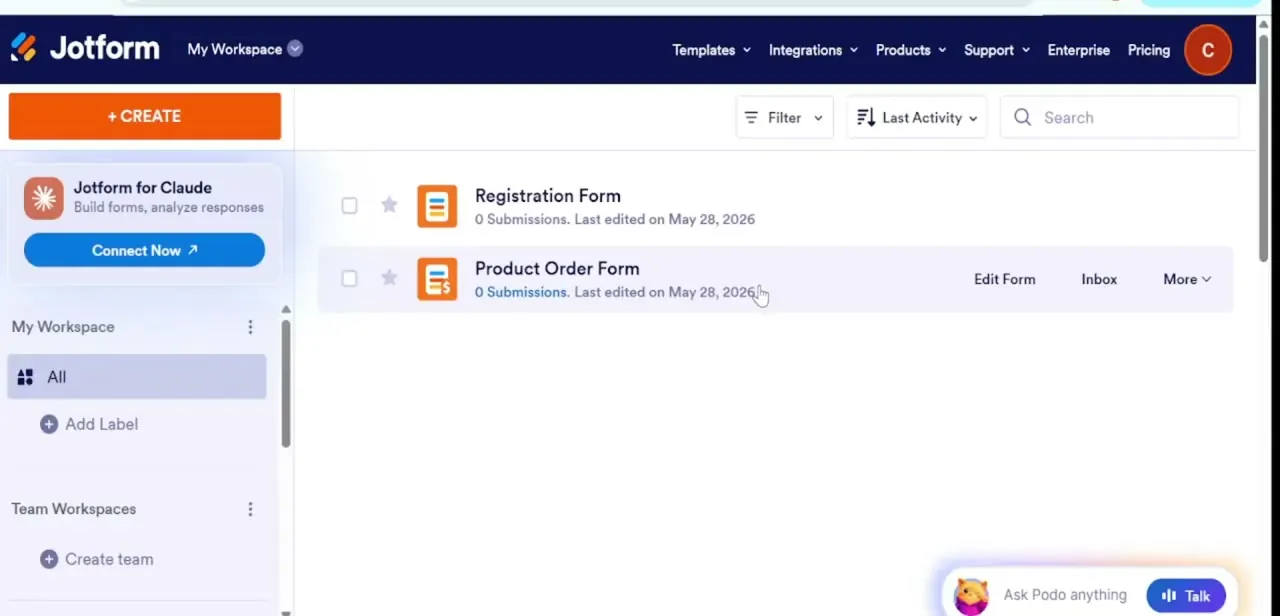
Log into your Jotform account, open the form you want to embed, and head to the Publish tab where the embed options live.
02Copy the responsive embed code
Select the embed option that generates a clean, responsive iFrame or script snippet, then copy it to your clipboard.
03Edit your target page in Elementor
Open the WordPress page where the form should appear and launch it in the Elementor editor.
04Drop in an HTML or Shortcode widget
Drag an HTML widget (or Shortcode widget, depending on your setup) into the section where you want the form, then paste the Jotform code inside it.
05Adjust spacing and test responsiveness
Tweak the widget's padding and width so the form sits well within your layout, then check how it looks on both desktop and mobile.
06Publish and test a live submission
Update the page, then submit a test entry through the live form to confirm everything is working end to end.
Frequently asked questions
Do I need Elementor Pro to embed a Jotform form?
No — the HTML widget used for embedding is available in the free version of Elementor, though Shortcode widgets are also commonly used depending on your site setup.
Will the embedded form be mobile-responsive?
Yes, as long as you use Jotform's responsive iFrame embed code, the form will automatically adjust to fit different screen sizes.
Can I style the form to match my site's theme?
Basic layout adjustments like width and padding can be made in Elementor, but deeper styling of the form fields themselves is typically done inside Jotform's own form builder.
Why isn't my form showing up after I paste the code?
Double-check that you pasted the code into an HTML or Shortcode widget rather than a text widget, and make sure the page has been updated or published after the change.
Watch the full walkthrough
The same steps, demonstrated on screen from start to finish.