Easy Tech Tuts
How to Edit Jotform Submission Easily 2026
By Impran M N
Correcting a respondent's typo or updating a shipping address shouldn't require a whole new submission, and Jotform offers two ways to edit existing entries. This guide covers editing data directly inside Jotform Tables and generating a secure edit link that reopens the original form pre-filled with the respondent's data.
01Open Jotform Tables
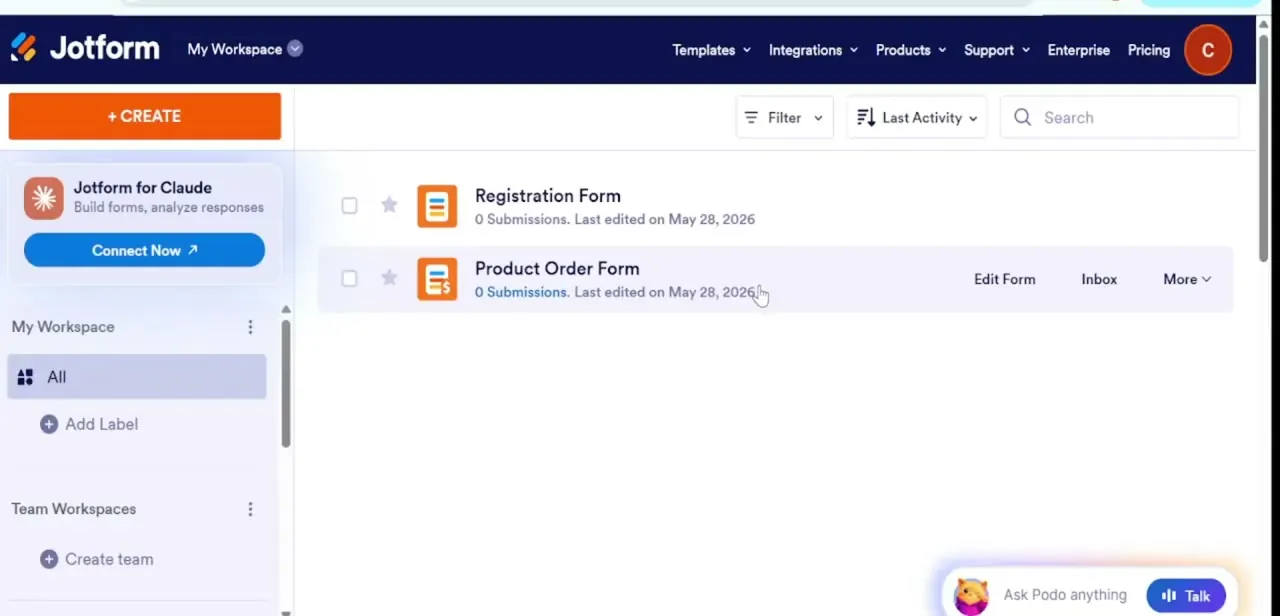
Go to your active forms dashboard and load the central Jotform Tables workspace for the form you need to edit.
02Edit data inline
Select a target submission cell and edit text, dropdown values, or field selections directly inside the database grid.
03Open the row expand view
Use the row expand option to inspect an individual record's full details in one panel.
04Generate a submission edit link
Click the More Actions menu and select Edit Entry to open a pre-filled version of the live form for that submission.
05Save and verify changes
Modify the pre-filled fields, submit to save, then check updated status tags and the activity history for that record.
Frequently asked questions
Can I edit a submission without opening the original form?
Yes, editing directly inside the Jotform Tables grid lets you update text and field values without reopening the full form.
Can respondents edit their own submissions?
Yes, sharing a generated Submission Edit Link with the original respondent lets them update their own entry through a pre-filled version of the form.
Is there a record of changes made to a submission?
Yes, you can review historical update timelines and cell revision logs to see what changed and when.
Can I get notified whenever a submission is edited?
Yes, you can set up automated edit form notifications through the Settings tab dashboard.
Watch the full walkthrough
The same steps, demonstrated on screen from start to finish.