Easy Tech Tuts
How to Create Jotform Survey Easily 2026
By Impran M N
Collecting structured feedback requires more than a basic contact form, and Jotform includes purpose-built survey fields like Likert scales and Net Promoter Score inputs. This guide covers starting a survey project, adding specialized feedback fields, and publishing it with a shareable link or QR code.
01Start a new survey project
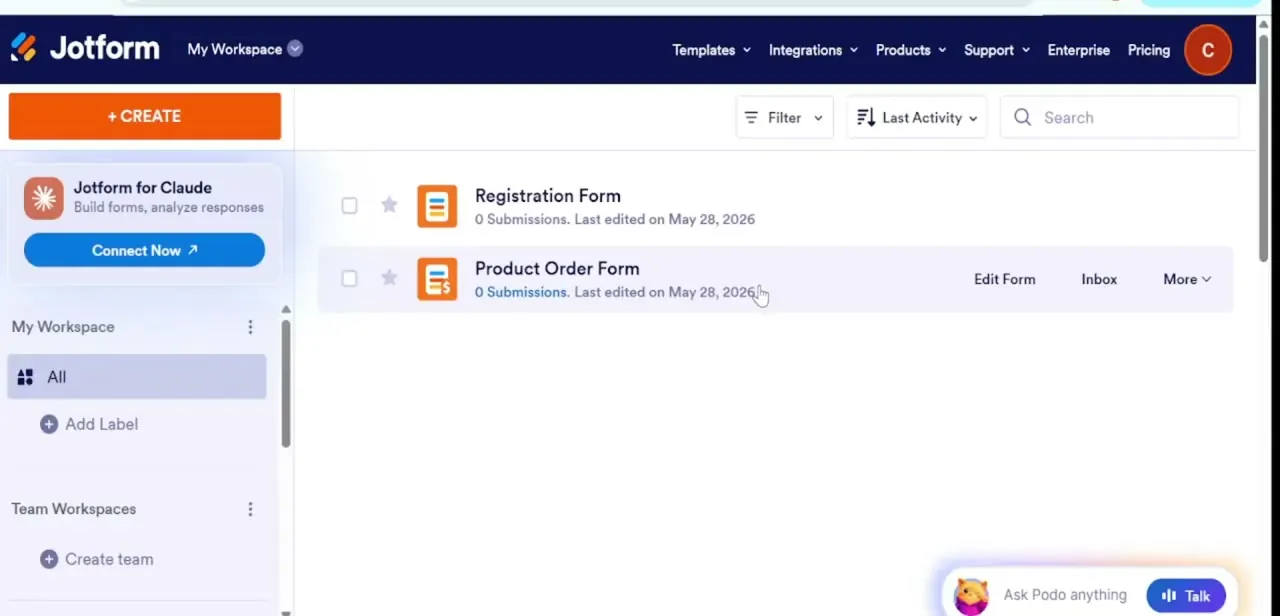
Open your account workspace, click Create Form, and choose between starting from scratch or using a survey template layout.
02Add core survey fields
Use the sidebar to drag and drop standard survey fields onto your canvas.
03Add advanced feedback blocks
Include Input Tables, Net Promoter Score fields, or Likert scale options for more structured feedback collection.
04Match your branding
Use the Form Designer panel to adjust colors and fonts so the survey matches your brand identity.
05Configure and publish
Set up custom thank-you page logic in Settings, then use the Publish tab to copy a sharing link or generate a QR code, and review feedback live in Jotform Tables.
Frequently asked questions
Does Jotform support Net Promoter Score questions?
Yes, NPS fields are available as one of the specialized survey blocks you can add to your form.
Can I generate a QR code for my survey?
Yes, the Publish tab lets you generate a QR code in addition to a direct sharing link.
Where do I see survey responses after people fill it out?
Responses appear live inside Jotform Tables, where you can review collected feedback metrics.
Can I start from a survey template instead of building from scratch?
Yes, Jotform offers survey template layouts you can choose from when creating a new form.
Watch the full walkthrough
The same steps, demonstrated on screen from start to finish.