Easy Tech Tuts
How to Create a Form With Jotform Easily 2026
By Impran M N
Building a data collection form without writing any code is exactly what Jotform's Form Builder is designed for, whether you're starting completely from scratch or working from a template. This guide covers dragging in core fields, customizing the design theme, and publishing your finished form's sharable link.
01Start a new form project
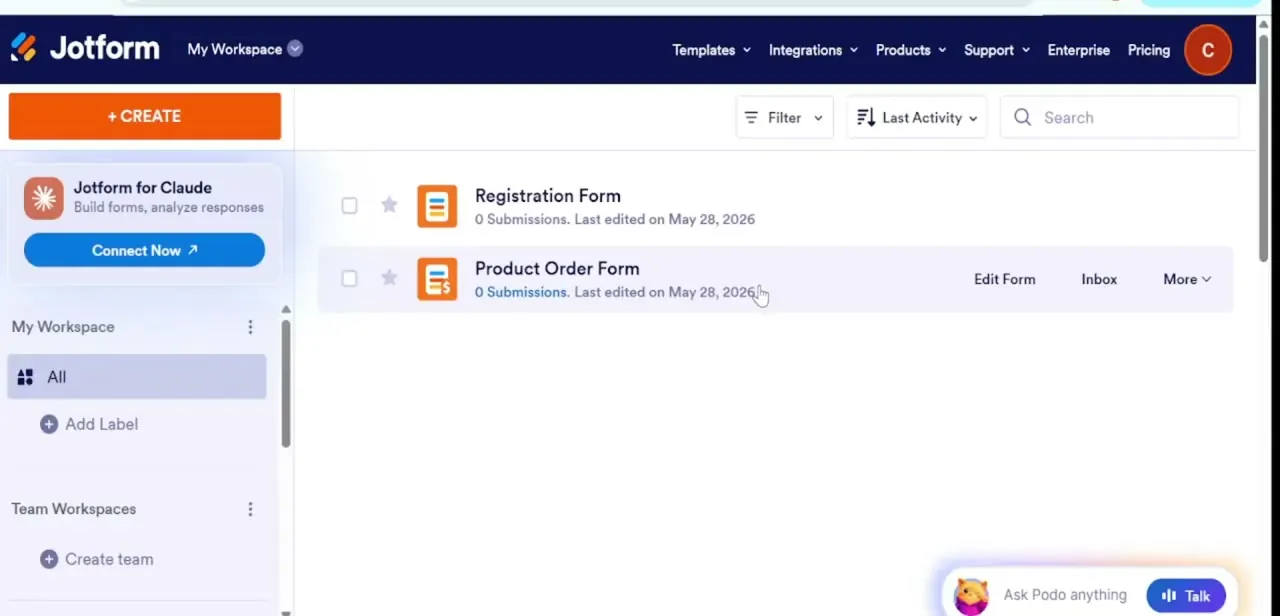
Open your Jotform dashboard, click Create Form, and choose to start from scratch.
02Add core input fields
Use the Form Elements sidebar to drag and drop basic text, email, and phone fields onto your canvas.
03Customize the design
Launch the Form Designer to adjust colors, themes, and fonts so the form matches your brand.
04Configure notifications and thank-you pages
Set up email notifications and alerts in Settings, then adjust the success action and thank-you page text.
05Publish your form
Open the Publish panel to copy your direct public sharing link or grab an embed code for your website.
Frequently asked questions
Do I need coding skills to build a form in Jotform?
No, the Form Builder is entirely drag-and-drop, letting you add and configure fields without writing code.
Can I customize the form's colors and fonts?
Yes, the Form Designer tool lets you adjust the color palette, theme, and fonts to match your branding.
How do I get notified when someone submits my form?
Configure email notifications inside the form's Settings tab so you receive an alert for each new submission.
Can I share my finished form without embedding it on a website?
Yes, the Publish panel gives you a direct public link you can share anywhere, in addition to the embed code option.
Watch the full walkthrough
The same steps, demonstrated on screen from start to finish.