Easy Tech Tuts
How to Add Jotform to Wordpress Easily 2026
By Impran M N
Embedding a Jotform form into a self-hosted WordPress site doesn't require a plugin if you're comfortable with a quick code snippet and the Gutenberg editor. This guide covers copying the right embed code from Jotform's publish panel and pasting it into a Custom HTML block so the form renders responsively on your page.
01Open the Publish panel in Jotform
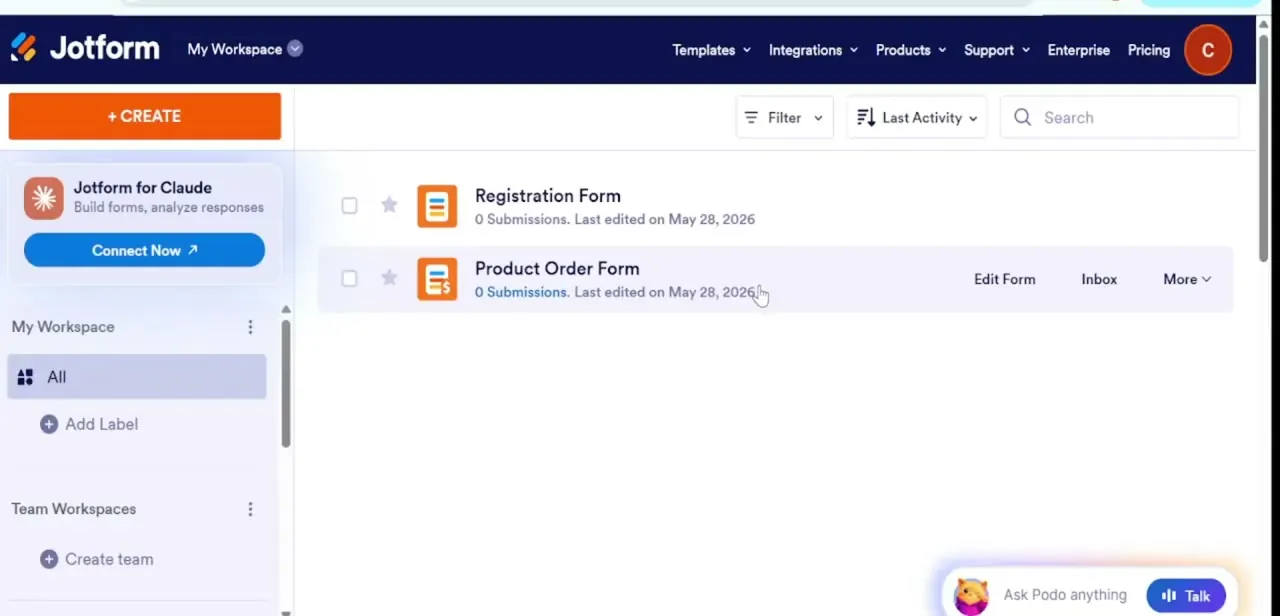
Go to your form workspace and navigate to the Publish panel.
02Copy the embed code
Select the Embed Options tab and copy the source code, choosing between standard JavaScript, a responsive iFrame, or a plug-in key.
03Open your WordPress page
Log into your WordPress admin panel and open the target page or post in the block editor.
04Add a Custom HTML block
Click the plus icon to add a new Gutenberg block, then search for and select the Custom HTML or Shortcode block tool.
05Paste, adjust, and publish
Paste your Jotform embed code into the block, adjust alignment settings to match your theme's margins, then click Update to publish and verify the live front-end view.
Frequently asked questions
Do I need a WordPress plugin to embed a Jotform form?
No, pasting the embed code into a Custom HTML block in the Gutenberg editor works without installing a dedicated plugin.
Which embed code option should I choose, JavaScript or iFrame?
A responsive iFrame is generally a safer default for compatibility with WordPress themes, while the JavaScript embed can offer tighter visual integration.
Will the embedded form resize correctly on mobile devices?
Yes, choosing the responsive iFrame option and verifying the live front-end view helps ensure the form displays properly across devices.
Can I embed the same form on multiple WordPress pages?
Yes, you can paste the same embed code into a Custom HTML block on as many pages as you need.
Watch the full walkthrough
The same steps, demonstrated on screen from start to finish.