Easy Tech Tuts
How to Turn Off Grammarly on Google Docs Easily 2026
By Impran M NLast checked against official docs
Grammarly's real-time suggestions are helpful, but sometimes you just want an uninterrupted writing session, or you're troubleshooting why it won't stop flagging text you've already decided to keep. This guide covers pausing it from inside the document you're in, checking the connected-apps settings in your Grammarly account, and disabling the browser extension outright if you want it gone until you turn it back on.
One thing worth knowing before you start: the quick pause toggle inside a Google Doc doesn't scope to that one document the way it looks like it should. More on that in step two.
01Find the widget in your document
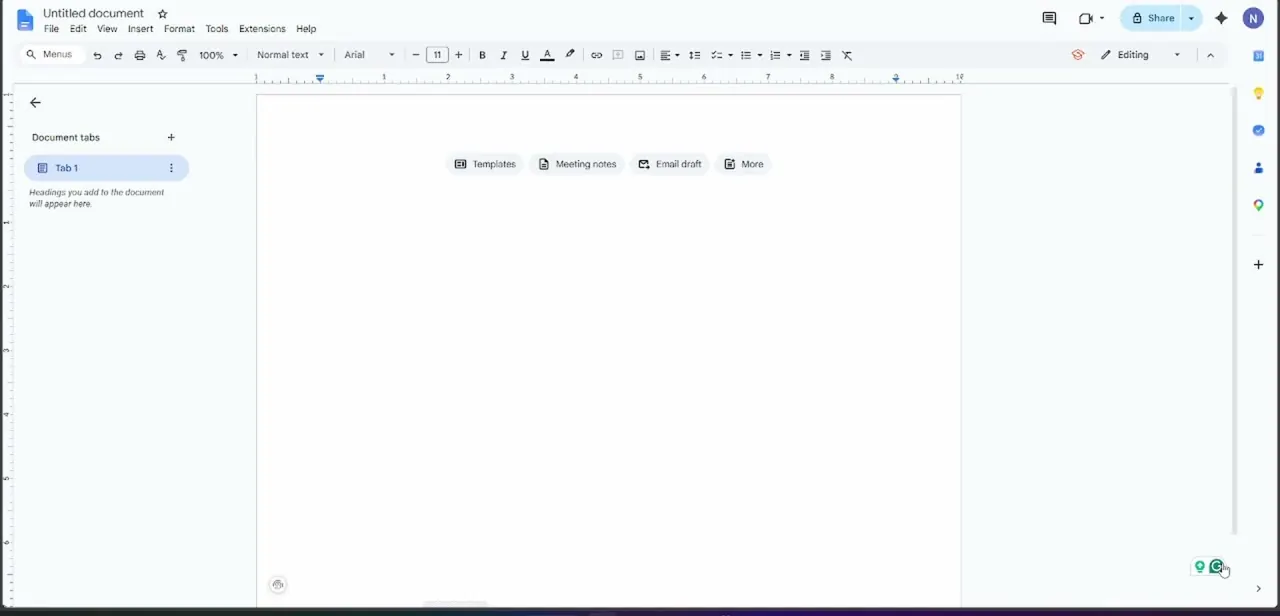
Open the Google Doc you're working in and look at the bottom-right corner of the page. Grammarly's floating icon sits there, usually a circular logo with a small suggestion count beside it. Click the icon itself, not the number, to open its quick settings for the page you're on.
02Pause suggestions, but know what you're pausing
The pop-up includes a toggle labeled something like "Allow extension to check text on…", and it's easy to assume this only affects the document open in front of you. It doesn't.
Google Docs runs as one continuous site at docs.google.com, so turning this off silences Grammarly across every document you have open or open next, not just the one you were trying to quiet. That's fine if you want a distraction-free stretch of writing in general. It's worth knowing before you flip it expecting a pause scoped to a single file.
03Check your account's connected apps
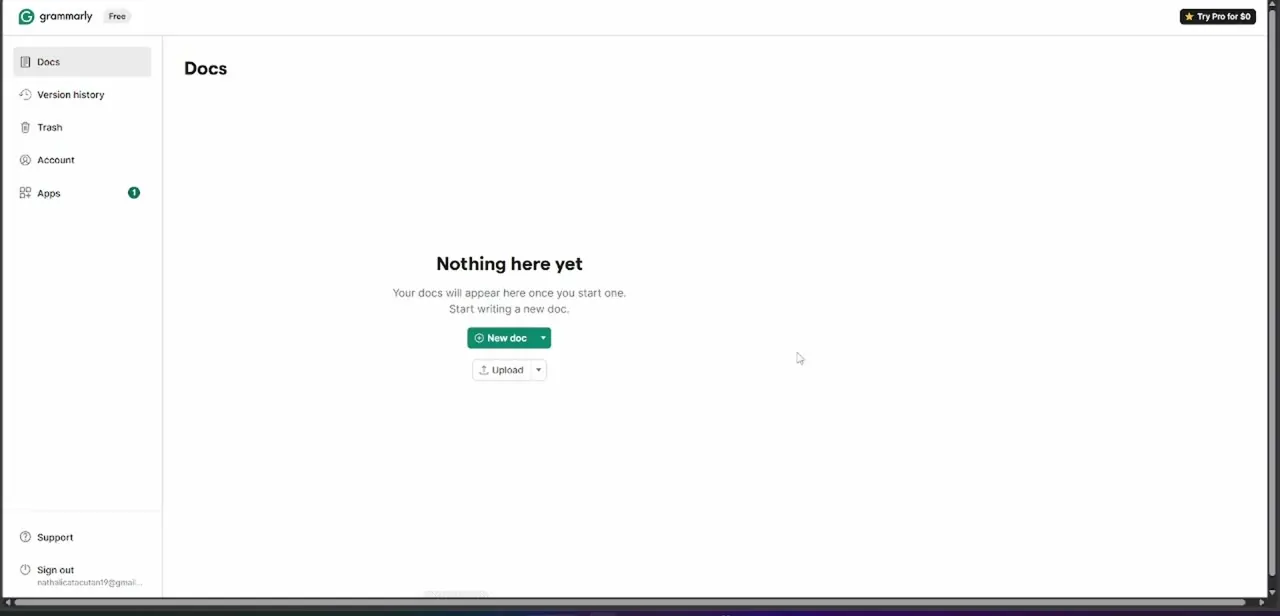
Log into your Grammarly account through a browser and you'll land on the Docs section of your dashboard, with Account and Apps listed in the left-hand navigation alongside Version history and Trash. Apps is where Grammarly tracks which integrations and platforms it's connected to, including your browser extension, and shows a badge count when something needs attention. It's worth a look if suggestions are behaving unexpectedly everywhere, not just in one document.
04Turn the extension off completely
For a full stop, you have two options. From Grammarly's own toolbar icon, turn off "Check text with browser extension" to disable it on every site at once; that's the broader sibling of the per-site toggle from step two.
Or open the browser's own extension manager, chrome://extensions in Chrome, about:addons in Firefox, Safari's Extensions preferences on Mac, and switch Grammarly off directly there. Grammarly's own support documentation describes this as having the same effect as uninstalling it: no suggestions anywhere until you switch it back on.
05Check the desktop app if you use one
If you also run the standalone Grammarly desktop application for typing assistance outside the browser, its settings have a separate pause toggle. Turning off the browser extension doesn't touch the desktop app, so check both if the goal is to go fully quiet across your whole system.
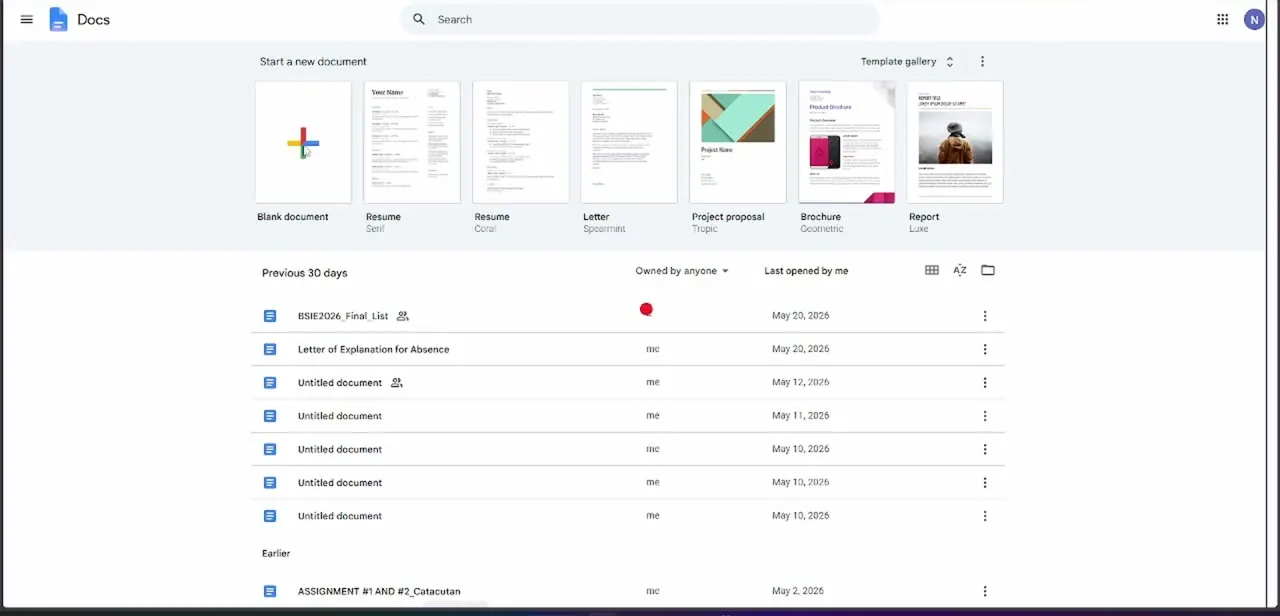
06Re-enable before your final pass
Whichever toggle you used, flip it back before you consider a document finished. A last Grammarly pass right before sharing or submitting usually catches the most, so treat turning it off as temporary, not a permanent setting.
When it doesn't work
Pausing suggestions in one Google Doc silenced Grammarly in every other Google Doc too
Why: The in-document toggle turns Grammarly off for the whole docs.google.com site, not just the individual document you were viewing.
Fix: Expect this behavior. Flip the same toggle back on when you're done, or use the browser's own per-site extension controls if you need finer control than Grammarly's widget offers.
The browser extension is off, but Grammarly still marks up your writing
Why: A separate Grammarly desktop application is installed and running independently of the browser extension.
Fix: Open the desktop app's own settings and pause or quit it there. Disabling the browser extension doesn't touch it.
Suggestions came back after you thought Grammarly was off
Why: The per-site toggle from step two stays off only until someone (or some update) flips it, and it's easy to forget it was ever changed.
Fix: Check the same pop-up again, or use the browser's extension manager for a setting that doesn't get bumped by a stray click.
Frequently asked questions
Can I turn off Grammarly for just one Google Doc?
Not precisely. The floating widget's toggle turns Grammarly off for all of docs.google.com, since Google Docs runs as a single site, not a separate one per document. If you only want it quiet in one tab while it keeps working in another, closing that tab or using a private window gets closer to what you're picturing.
Does disabling the extension delete my Grammarly account?
No. Disabling or uninstalling the extension only stops it from running in your browser; your account, saved settings, and writing history stay intact.
Why is Grammarly still active after I closed the widget?
Closing the pop-up hides the panel, it doesn't disable checking. Use the toggle inside it, or the browser's own extension controls, for an actual pause.
Do I need to restart my browser after disabling Grammarly?
Usually not, though refreshing the current document tab helps the change take effect immediately.
Will turning off the browser extension also turn off Grammarly in Word or the desktop app?
No. The browser extension, the Google Docs integration, and the standalone desktop app are controlled separately. Check each one if the goal is to go quiet everywhere at once.
Sources and last check
Click path and the dashboard and desktop-app screens come from a walkthrough recorded in July 2025. The scope of the in-document pause toggle was re-checked against Grammarly's official support articles in September 2026, which describe it as a per-site control, not a per-document one, since Google Docs counts as a single site. That correction replaces this guide's earlier claim that pausing affected only the open document.
About the author

Impran M N
I've been hooked on technology for as long as I can remember — especially the new tools and AI apps that seem to land every other week. Easy Tech Tuts is where I write up whatever I've just worked out: I do the task in the real product, record the screen, and turn it into the guide I wish I'd found first.