Easy Tech Tuts
How to Integrate Figma Designs Into Squarespace Easily 2026
By Impran M NLast checked against official docs
There is no import button that turns a Figma frame into a Squarespace page. The workflow that works is manual: read the measurements and colours off your Figma frame, export each asset in a format Squarespace will take, then rebuild the layout with Squarespace's sections and blocks.
The format part trips people up. Figma's natural export for icons and logos is SVG, and Squarespace's image uploader doesn't accept SVG at all. This guide covers that, plus fonts, using an example project (an academic tracker app design called AntiTres) to show each stage.
Before you start
- A Squarespace site you can edit (the font upload steps here are for version 7.1)
- A Figma file you can open, where the owner hasn't restricted copying and exporting
01Open the finished project file
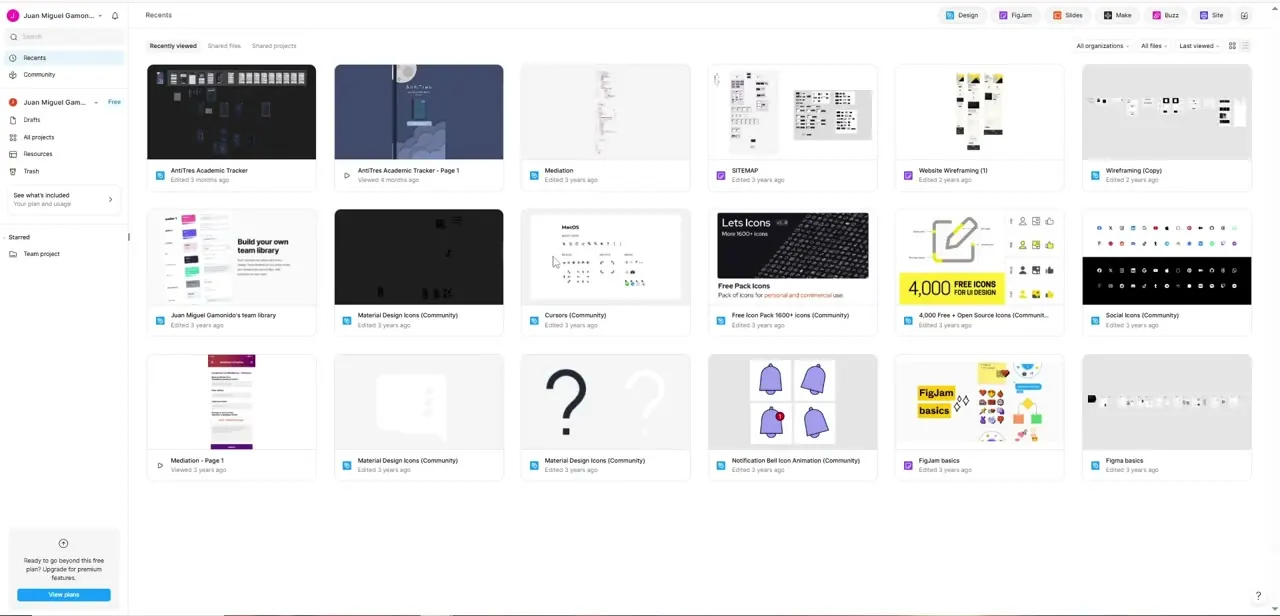
Figma's home screen lists Recents, Shared files and Shared projects, with file thumbnails underneath. In this account that means the full "AntiTres Academic Tracker" project sits next to wireframes, icon packs and community resources such as "4,000 Free + Open Source Icons".
Open the project file itself, not a wireframe or scratch copy. Those tend to hold outdated frames that no longer match the design you're building. You don't need a paid Figma plan for anything that follows: exporting works on every plan.
02Write down the frame's measurements and colours
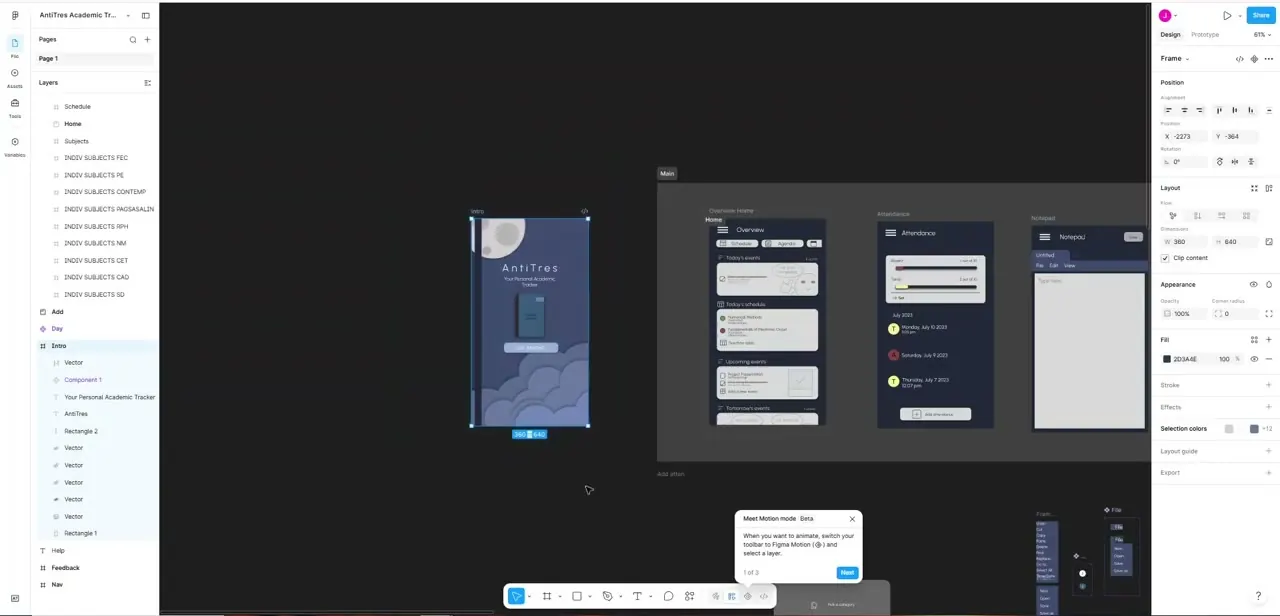
Select a frame. The Layers panel on the left lists every element in it (Schedule, Home, Subjects and a long run of subject components in this example).
The Design panel on the right shows Position, Layout, Dimensions and Fill down to the pixel, such as a 360 by 640 frame with a specific hex fill. Squarespace won't read any of this for you, so note the hex colours, font names and sizes, and the rough spacing for each area you plan to rebuild. Five minutes here saves a lot of eyeballing later.
03Export each asset in a format Squarespace accepts
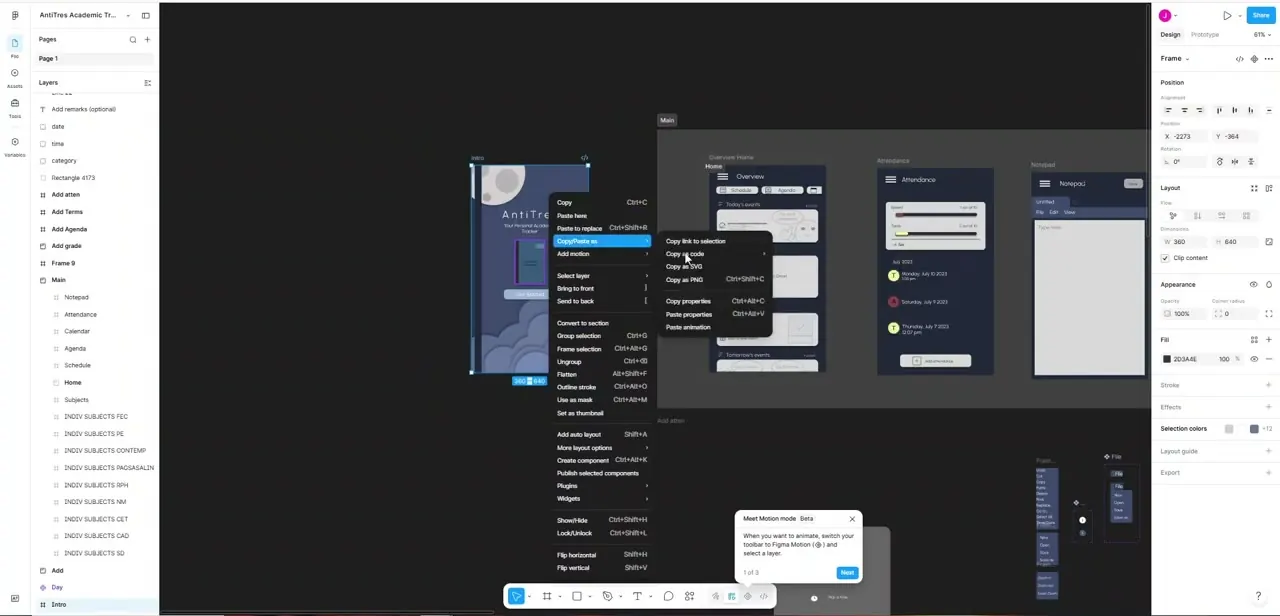
Right-click a layer and hover over Copy/Paste as to see Copy as code, Copy as SVG and Copy as PNG (Ctrl+Shift+C on Windows, Shift+Command+C on Mac). Copy as PNG puts a 2x image on your clipboard.
For files you can upload, use the Export section at the bottom of the right sidebar instead: click +, choose a format and scale, then Export. Squarespace's image uploader takes only JPG, PNG, GIF and WebP, up to 20 MB.
SVG isn't on that list, so an SVG logo exported from Figma will be refused by an Image block. Export logos and icons as PNG at 2x or 3x instead.
If you need true vector sharpness, paste the SVG code into a Code block set to HTML, which Squarespace allows on every plan. Squarespace suggests around 2500 pixels wide for most images and warns that anything under 1500 pixels may look blurry, so a full-width image cut from a 360-pixel mobile frame needs a much larger scale (typing 2500w in the scale field sets the width directly).
Copy as code gives you CSS, iOS or Android snippets. The CSS is handy for exact colours, shadows and corner radii. Its fixed pixel positions won't suit a responsive page, so don't paste it wholesale.
04Rebuild the layout section by section
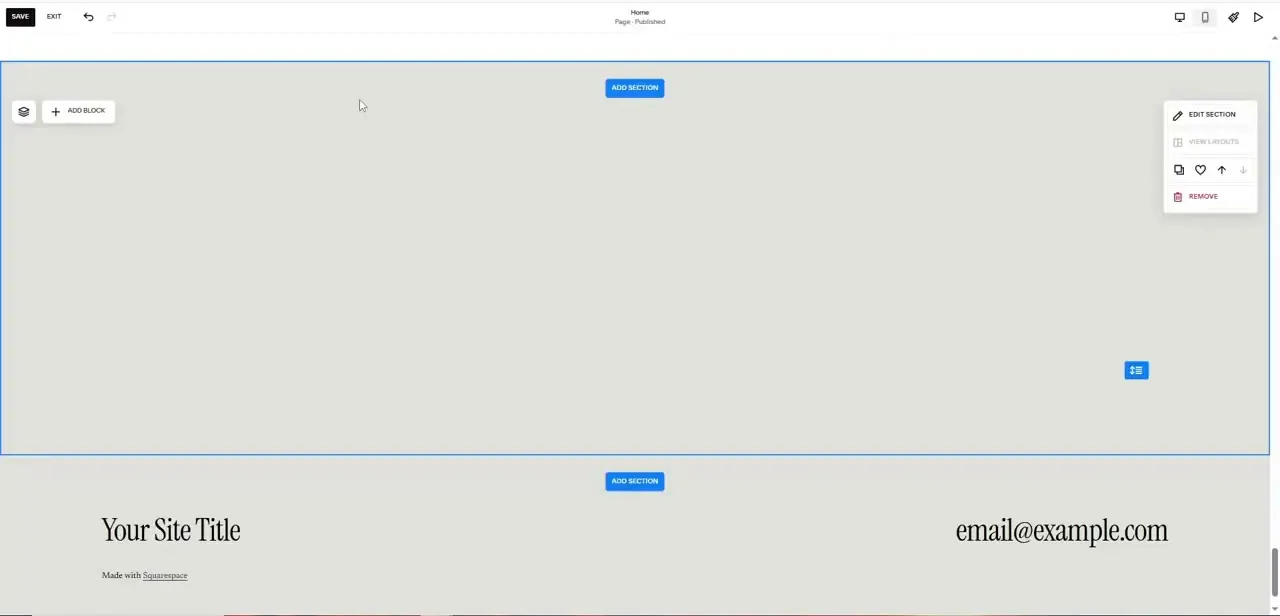
In Squarespace's page editor, a blank section shows ADD SECTION and ADD BLOCK, and each section has a menu with Edit Section, View Layouts, Copy and Remove. Work through your Figma frame top to bottom: add a section for each major area, then add Image blocks for your exported PNGs and JPGs, Text blocks for copy, and Code blocks for any inline SVG.
Check spacing against the numbers you wrote down as you go. Code blocks have a 400 KB limit, which is plenty for icons but rules out pasting a large illustration as raw SVG.
05Match fonts and colours, then check mobile
If your design uses a font Squarespace doesn't offer, upload it. In version 7.1, open Site styles, click the arrow next to Fonts, pick a format such as Headings or Paragraph, open the font dropdown and click the upload icon.
Squarespace accepts .otf, .ttf, .woff and .woff2. Variable fonts with several weights work, but a file holding several styles (regular and italic together, say) doesn't, so upload each style separately.
Make sure your font licence covers web use. A free download doesn't always include it.
Enter the hex values from Figma's Design panel into Squarespace's colour settings so colours match exactly, even where spacing has to be approximated. Then preview on mobile.
Figma frames have fixed dimensions, and Squarespace reflows every section for smaller screens, so a layout that matches on desktop can stack differently on a phone. Squarespace converts uploaded images to WebP automatically, but it still recommends keeping each upload around 500 KB or less for load speed.
| Asset | Export from Figma as | Where it goes in Squarespace |
|---|---|---|
| Photos, screenshots, mockups | JPG or PNG at 2x | Image block (JPG, PNG, GIF or WebP, 20 MB max) |
| Logos and icons with transparency | PNG at 2x or 3x | Image block, or the site logo setting |
| Icons you want perfectly sharp | SVG (Figma exports SVG at 1x only) | Paste the SVG markup into a Code block set to HTML; the image uploader rejects .svg |
| Typefaces | Not exported; get the font files from the foundry | Site styles font upload (.otf, .ttf, .woff, .woff2) |
| Colours and spacing | Read from the Design panel, or Copy as code > CSS | Squarespace style settings, or Custom CSS |
Formats and limits from Figma's and Squarespace's help centers, checked September 2026.
When it doesn't work
Squarespace won't upload the logo exported from Figma
Why: It's an SVG. Squarespace image uploads accept only .jpg, .gif, .png and .webp.
Fix: Re-export from Figma as PNG at 2x or 3x, or paste the SVG markup into a Code block set to HTML.
Images look soft or blurry on desktop
Why: They were exported at 1x from a narrow mobile frame. Squarespace notes images under 1500 pixels wide may appear blurry.
Fix: Re-export at a higher scale, or type a width such as 2500w into Figma's export scale field.
The uploaded font only shows one style
Why: Squarespace doesn't support single font files that contain multiple styles.
Fix: Upload each style (regular, italic, bold) as a separate file.
Frequently asked questions
Can I import a Figma file directly into Squarespace?
No. You export assets from Figma, then rebuild the layout with Squarespace's sections and blocks.
Does Squarespace accept SVG files?
Not through its image uploader, which takes JPG, PNG, GIF and WebP only. You can paste SVG code into a Code block set to HTML instead, or export the graphic as a high-resolution PNG.
Can I use my Figma font on Squarespace?
Yes, if you have the font file and a licence that covers web use. Upload it in Site styles as .otf, .ttf, .woff or .woff2 and it appears under Uploaded in every font dropdown.
What does Figma's Copy as code give me?
CSS, iOS or Android code for the selected layer. The CSS is useful for exact colours, radii and shadows, but its absolute sizes and positions don't suit a responsive Squarespace page.
Sources and last check
Screens and click path come from a walkthrough recorded in July 2026. Export formats and scales were re-checked against Figma's help center, and image, font and Code block rules against Squarespace's help center, in September 2026. That check corrected the earlier advice to drop SVG exports into Image blocks (Squarespace does not accept .svg uploads) and reassigned Ctrl+Shift+C to Copy as PNG, where both the docs and the recorded menu place it.
- Figma Learn: Export static designs from Figma (official)
- Figma Learn: Export formats and settings (official)
- Figma Learn: Copy and paste objects (official)
- Squarespace Help: Formatting images for display on the web (official)
- Squarespace Help: Uploading custom fonts (official)
- Squarespace Help: Code blocks (official)
About the author

Impran M N
I've been hooked on technology for as long as I can remember — especially the new tools and AI apps that seem to land every other week. Easy Tech Tuts is where I write up whatever I've just worked out: I do the task in the real product, record the screen, and turn it into the guide I wish I'd found first.