Easy Tech Tuts
How to Connect Binance to TradingView and Trade, Buy, Sell Directly 2026 Easily
By Impran M NLast checked against official docs
Trading directly from a chart saves the constant tab-switching between an exchange and your charting tool, and TradingView's Binance integration makes that possible for live crypto trades. This guide covers finding the Trading Panel, choosing Binance from TradingView's list of connected brokers, authorizing the connection, and understanding what you're agreeing to before placing an order. It's built for active traders who want their entries and exits to happen from the same screen as their analysis, without opening Binance separately.
Before you start
- A live account on the global Binance.com exchange. Binance.US doesn't appear on TradingView's broker list as a separate option, so a Binance.US account isn't the connection this guide covers
- Funds already on that Binance account, since orders placed through this panel execute live, unlike TradingView's separate Paper Trading simulator
01Start from your live chart
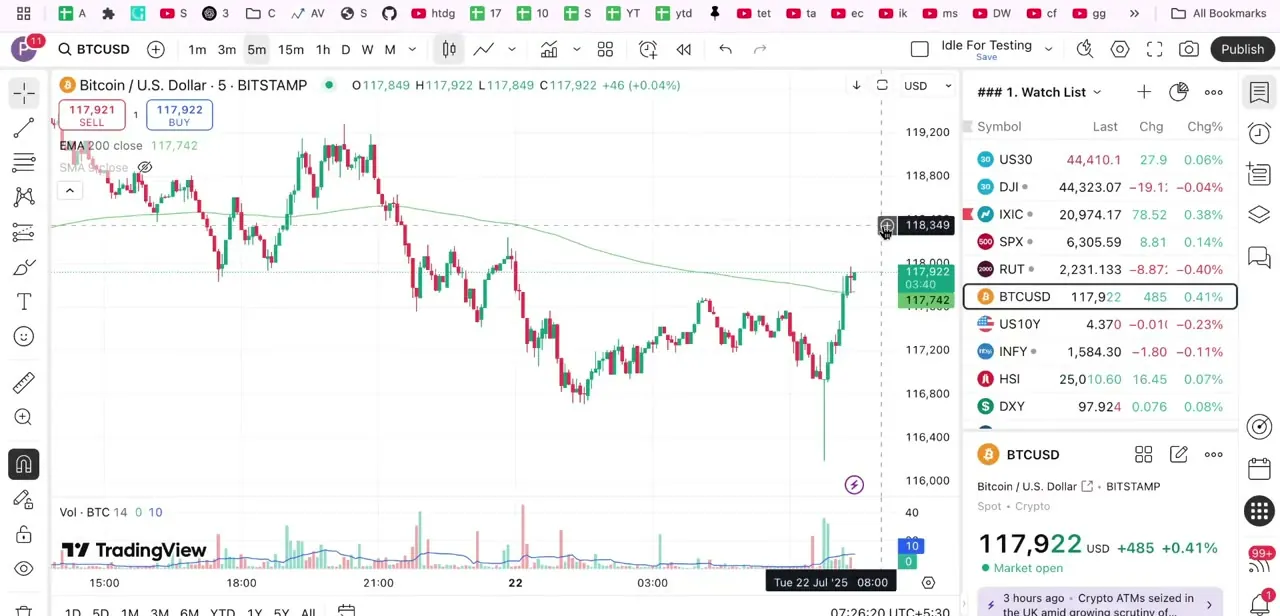
Everything begins on a normal TradingView chart. In this example it's a BTC/USD chart on the Bitstamp feed, with a watchlist of indices and BTCUSD pinned on the right.
Nothing about the chart changes when you connect a broker: the integration adds a panel underneath it, without touching how you read candles, moving averages, or volume. Get comfortable on your usual chart layout first, since that's the view you'll be trading from once Binance is linked.
02Open the Trading Panel
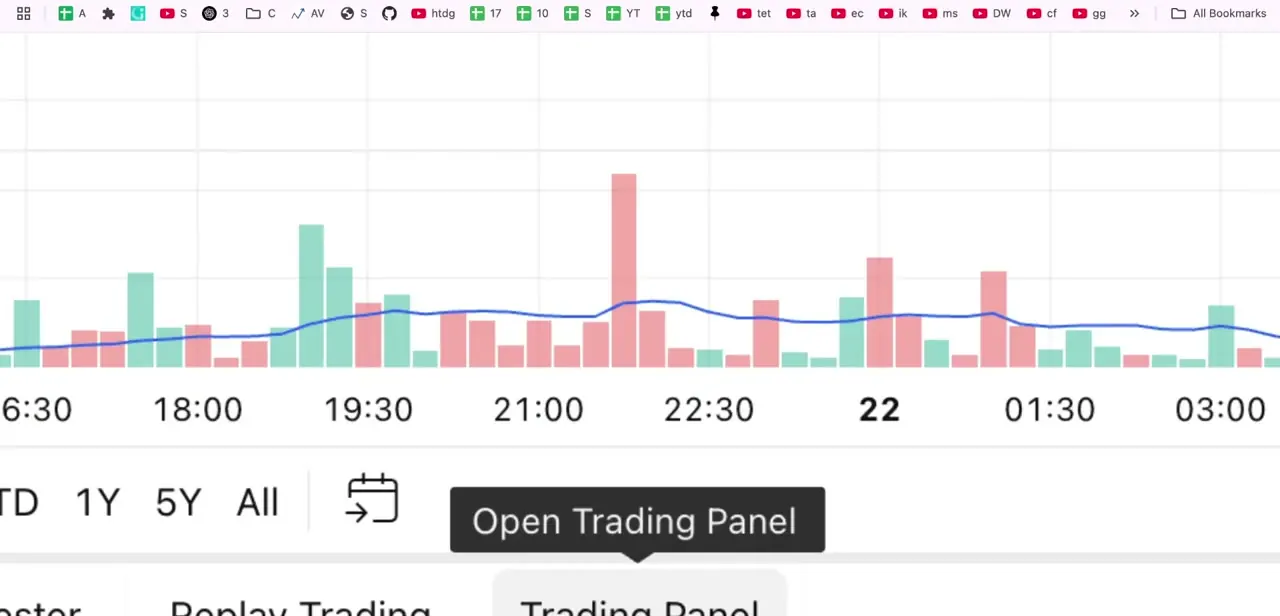
Below the chart, TradingView shows an "Open Trading Panel" prompt that expands a dedicated broker section, separate from Pine Editor, Strategy Tester, and Replay Trading in the same row of tabs. The panel is the hub for every connected broker, not only Binance, so the same tabs apply if you connect a different exchange later.
03Choose Binance from the list of brokers
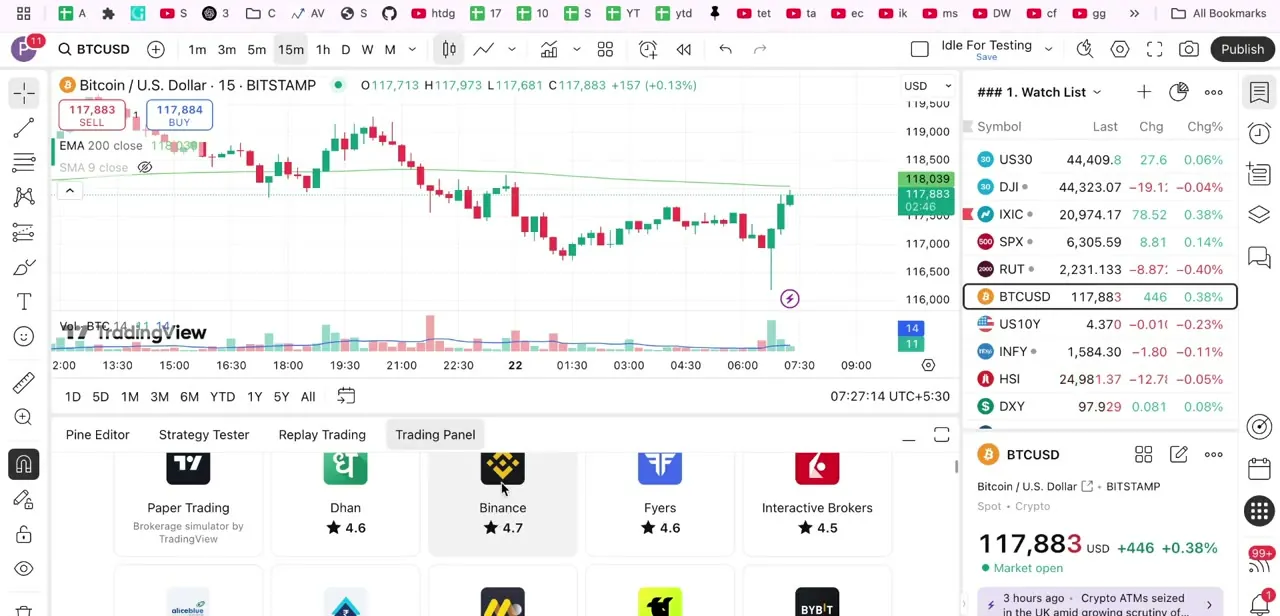
Once the Trading Panel is open, it shows a grid of supported brokers: Paper Trading, Dhan, Binance, Fyers, Interactive Brokers, and others, each with its own rating and logo. Binance sits among the real-money options, apart from Paper Trading, which is TradingView's own risk-free simulator.
Clicking the Binance tile starts the authorization flow. Nothing connects automatically just from having the panel open.
04Authorize the connection
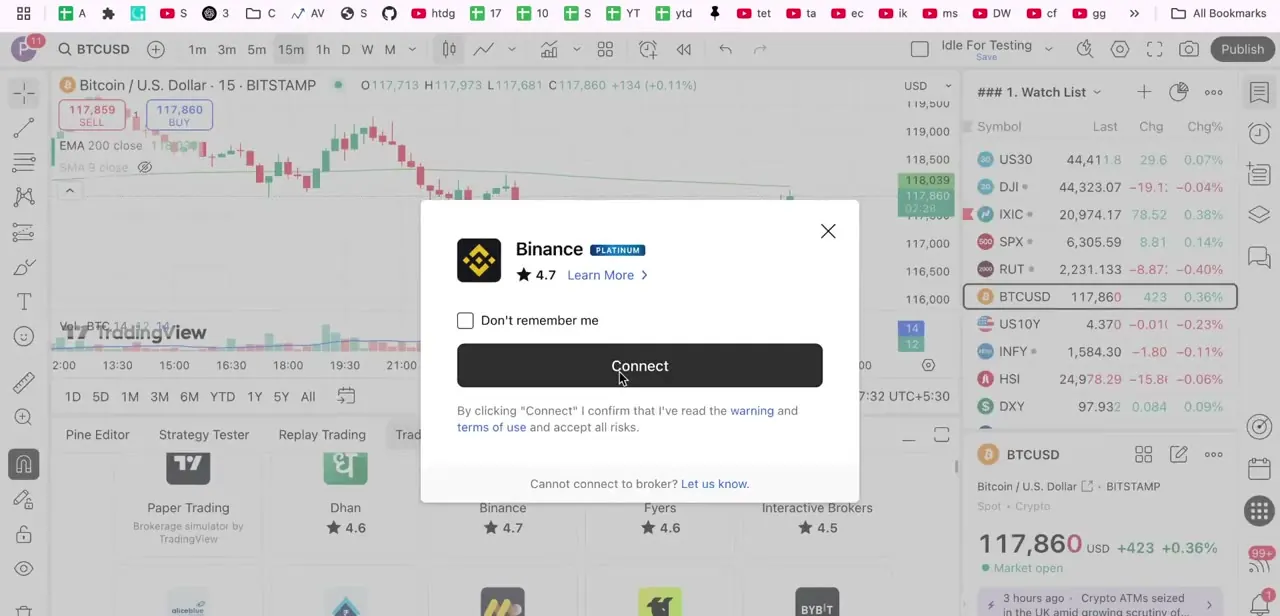
Selecting Binance opens a confirmation dialog with the Binance logo, its rating, a single Connect button, and a "Don't remember me" checkbox for shared or public computers. Clicking Connect confirms you've read TradingView's warning and terms of use and accept the risks of linking a live trading account.
It's the actual authorization step: per Binance's own support documentation, it redirects to Binance's login page, where you sign in and click "Authorize - Continue" to grant access. TradingView never asks for your Binance password itself.
05Place trades directly from the chart
Once authorized, the same panel lets you submit Market, Limit, and Stop-Limit orders against your live Binance balance without leaving TradingView, plus an "Instant orders placement" mode for one-click orders at default quantities. Order tickets pull from the chart's current price by default, so a limit or stop order can be set against the price you're already looking at instead of re-checking it on Binance separately.
Some traders reviewing the integration on TradingView's own Binance broker page report that order types available in Binance's native app, such as trailing stops or bracket (OCO) orders, aren't part of this panel. Confirm an order type is supported here before relying on it.
06Monitor positions, balances, and disconnect when needed
With Binance connected, open positions and account balance appear inside the same panel, so you can track exposure without tabbing away from the chart. To stop the integration, for a shared device, a change in strategy, or just tidying up connected apps, the panel's broker settings include a disconnect option that revokes TradingView's access without requiring a Binance password change.
When it doesn't work
An order type from Binance's own app, like a trailing stop or OCO order, isn't available in the panel
Why: TradingView's Binance integration doesn't mirror every order type in Binance's native interface, per trader feedback on TradingView's Binance broker page.
Fix: Place that specific order directly on Binance until the panel supports it, and check the order ticket's available types before you build a strategy around one that isn't there.
Binance doesn't show up as connectable, or the connection won't complete
Why: The account being used isn't on the global Binance.com exchange, or the authorization step got interrupted before Binance's own "Authorize - Continue" confirmation.
Fix: Confirm you're logging in with a Binance.com account, not Binance.US, then reopen the Trading Panel, click Binance again, and complete the redirect to Binance's login through to the final Authorize step.
The Binance connection doesn't appear on the TradingView mobile app
Why: TradingView's own help center notes that broker support reaches mobile apps and mobile web some time after desktop, and not every broker is available there yet.
Fix: Use the desktop or web version of TradingView for Binance trading and check TradingView's mobile broker list periodically for updates.
Frequently asked questions
Is connecting Binance to TradingView free?
The integration itself doesn't add a TradingView fee, though your trades are still subject to Binance's standard trading fees.
Can I trade on mobile after connecting Binance to TradingView?
Not necessarily. TradingView's help center says broker support rolls out to mobile apps and mobile web some time after desktop, and not every broker is guaranteed to be there. Check TradingView's mobile broker list rather than assuming Binance works the same way on your phone.
Is it safe to connect my Binance account to TradingView?
The connection uses Binance's own login and an "Authorize - Continue" confirmation rather than sharing your Binance password inside TradingView, but review the warning and terms of use before granting access to any trading integration.
What do I do if TradingView won't connect to my Binance account?
Confirm you're using a Binance.com account rather than Binance.US, then retry the authorization through the Connect prompt. Disconnecting and reconnecting Binance from the Trading Panel's broker list resolves most stuck links.
Does this work with Binance.US?
The integration connects to the global Binance.com exchange. Binance.US doesn't appear on TradingView's broker list as its own option, so a Binance.US account isn't the same connection covered here.
What order types can I place from the panel?
Market, Limit, and Stop-Limit, plus an Instant orders placement mode for one-click trades at default quantities, per Binance's own support documentation. Some order types in Binance's native app, like trailing stops, aren't part of this panel.
Sources and last check
Click path and screens come from a walkthrough recorded in July 2026. The authorization flow, order types, and the mobile-availability claim were re-checked against Binance's own TradingView support articles and TradingView's help center in September 2026. That check corrected an overclaim this guide made: TradingView's help center says broker support reaches mobile apps after desktop and isn't guaranteed for every broker, so mobile Binance trading shouldn't be assumed. It also named the Stop-Limit order type and the Instant orders placement mode as documented by Binance, and flagged, from trader reviews on TradingView's own Binance broker page, that some order types in Binance's native app aren't available through this panel.
- Binance Support: How to Use the TradingView Interface to Trade Crypto on Binance Spot (official)
- Binance Support: How to Use the TradingView Interface to Trade Crypto on Binance Futures (official)
- TradingView Help Center: I can't choose my broker in the app (official)
- TradingView: Binance broker page, ratings and reviews (official)
About the author

Impran M N
I've been hooked on technology for as long as I can remember — especially the new tools and AI apps that seem to land every other week. Easy Tech Tuts is where I write up whatever I've just worked out: I do the task in the real product, record the screen, and turn it into the guide I wish I'd found first.