 Easy Tech Tuts
How to Copy From Google Slides to Google Docs Easily 2026
By Impran M NLast checked against official docs
Pulling content from a presentation into a written report doesn't have to mean retyping everything. This guide covers opening your source presentation and selecting the text or slide you need, then walks through the paste options Google gives you in Docs, including a live link back to the original slide that updates on demand when the presentation changes later. It's the difference between a one-time copy and a document that stays in sync with your deck.
01Open your source presentation
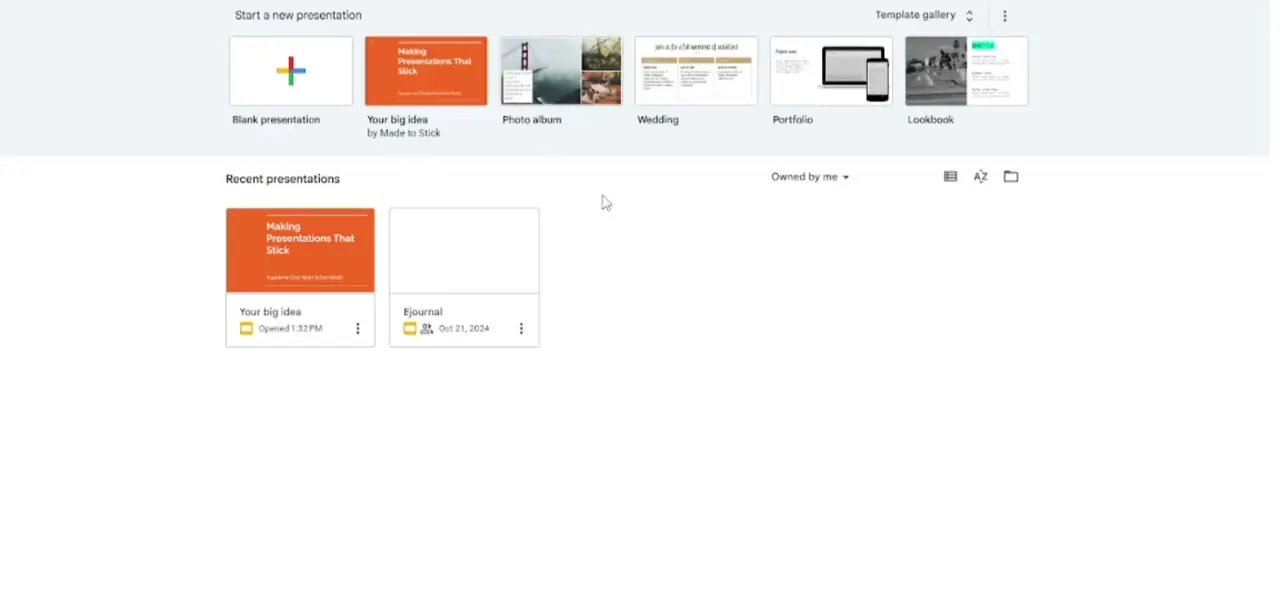
Start from Google Slides' home screen, where recent presentations show as thumbnails next to the option to start a blank one. Open the deck with the content you need. A template-based deck, such as a pitch built off one of Google's starter templates, carries its layout and styling into the paste differently than plain text does, so check what lands in the doc after pasting instead of assuming it will match.
02Select the text or shape you want to move
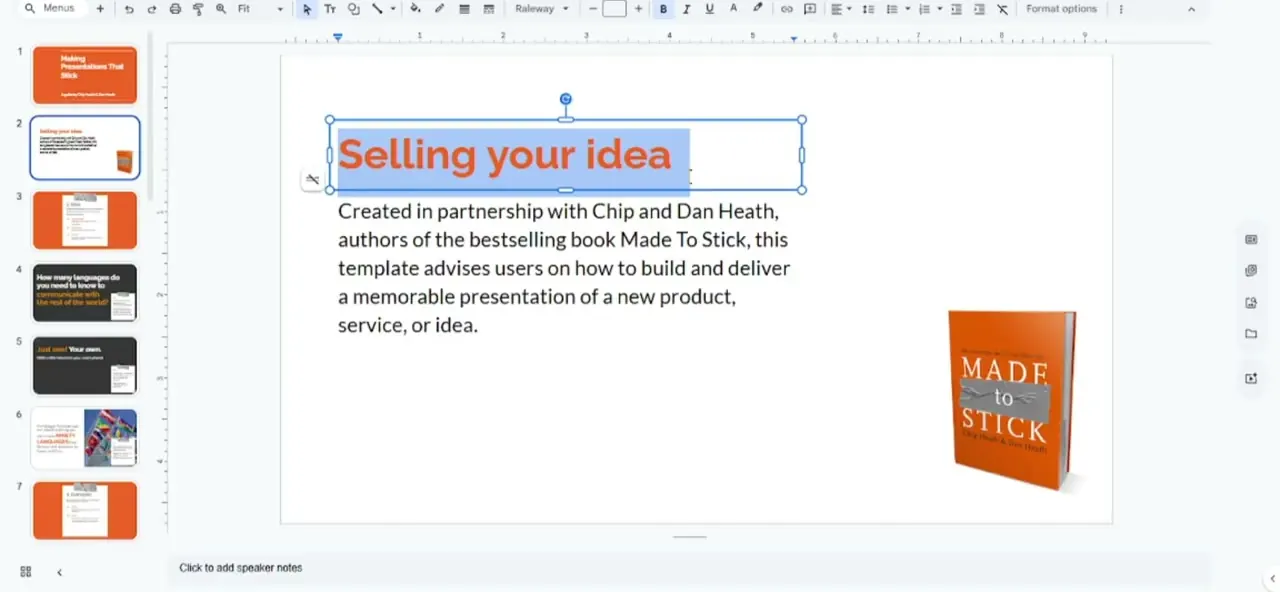
Inside the presentation, click into a text box to select specific text, or click once on a shape or image to select the whole element. In the example here, a slide's headline text is highlighted with its selection handles visible. You can grab a single text box, several elements on one slide, or a whole slide from the filmstrip on the left, depending on how much you want to bring over.
03Copy and switch to your document
With your selection copied, switch to the Google Doc where you want it to appear. Click to place your cursor at the exact spot in the text before pasting. Pasted slide content drops in as a block and pushes everything below it down.
04Choose how to paste it
Google Docs behaves differently depending on what you copied. Plain text from inside a text box pastes straight in as editable text, with no dialog at all. Copy a shape, an image, or a whole slide instead, and a small prompt appears with two choices: Link to presentation, which keeps the pasted content tied back to its source slide, or Paste unlinked, which drops in a static copy with no connection to Slides.
05Keep it updated, or disconnect once you're done
Choosing Link to presentation means an Update button appears next to the pasted image whenever you edit the source slide again, and one click pulls in the latest version. With several linked slides in one long document, refreshing each individually gets tedious — Tools > Linked objects > Update all refreshes every linked object on the page in a single pass.
Once the document is finished and you don't want more surprise updates, open the image's options menu and choose Unlink to make it a permanent, independent graphic. Use the image's formatting options for text wrap and margins either way, so it sits inside your paragraphs instead of overlapping them.
When it doesn't work
No Update button shows up after editing the source slide
Why: The content was pasted as plain text, or Paste unlinked was chosen instead of Link to presentation.
Fix: Undo the paste, copy the whole object instead of just a run of text, and choose Link to presentation this time.
Refreshing several linked slides in a long document, one at a time, is slow
Why: The Update button next to a linked object only refreshes that one object.
Fix: Use Tools > Linked objects > Update all to refresh every linked item in the document at once.
Frequently asked questions
What happens if I edit the slide after pasting it into Docs?
An Update button appears next to the pasted content. Click it to pull in the latest version, or use Tools > Linked objects > Update all if you have several linked slides to refresh at once.
Can I paste just plain text instead of a full slide image?
Yes. Copying text from inside a text box pastes as editable text with no dialog and no link involved at all — the Link to presentation prompt only appears when you copy a shape, image, or whole slide.
How do I stop my Google Doc from updating automatically?
Open the linked image's options menu inside the document and choose Unlink to freeze it as a static, independent element.
Will formatting stay consistent when I paste slide content into a document?
Mostly, though you may need to adjust text wrapping and margins afterward so the imported content fits your document's layout.
What's the exact difference between the two paste options?
Link to presentation keeps a live connection back to the source slide, with an Update button to pull in later edits. Paste unlinked drops in a static copy immediately, with no connection and nothing to refresh.
Sources and last check
Click path and screens come from a walkthrough recorded in July 2025. The exact paste-dialog wording (Link to presentation vs. Paste unlinked) was re-checked against Google's own Docs Editors Help in September 2026 and matched the original draft. The Tools > Linked objects > Update all shortcut was added during this check; it wasn't mentioned before.
About the author

Impran M N
I've been hooked on technology for as long as I can remember — especially the new tools and AI apps that seem to land every other week. Easy Tech Tuts is where I write up whatever I've just worked out: I do the task in the real product, record the screen, and turn it into the guide I wish I'd found first.