 Easy Tech Tuts
How to Connect Google Chat With Trello Easily 2026
By Impran M NLast checked against official docs
Switching between Google Chat and Trello to catch every board update wastes time your team could spend on actual work. Trello's own setup guide has the connection starting from the Google Chat side, not from Trello's Power-Ups menu: you mention the @Trello bot in the room you want alerts sent to, authorize it, and pick a board, then finish picking alert types back on that board. This guide walks through both halves, plus what the Power-Up itself does before you commit to it.
Before you start
- Permission to add Power-Ups on the Trello board you want connected
- A Google Chat account on a work or school Google Workspace; personal Gmail accounts can't install Chat apps
01Log into Trello
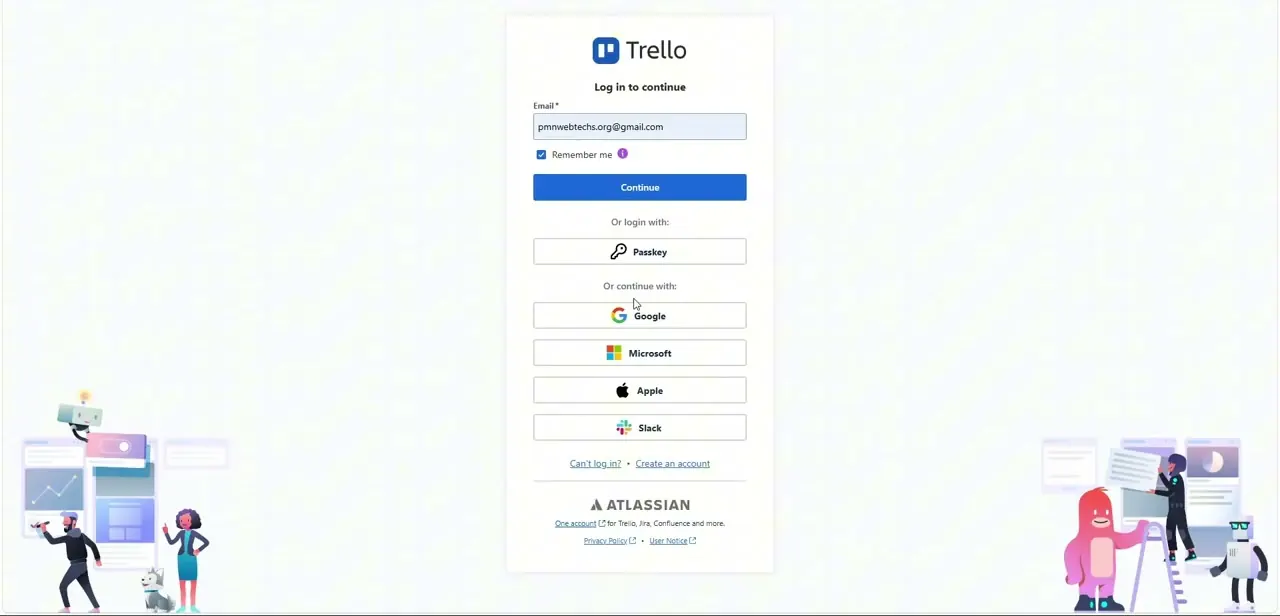
Head to Trello's login screen and sign in with your email, or use one of the faster options underneath: Google, Microsoft, Apple, or Slack, plus a Passkey option if you've set one up. If your organization uses Atlassian for other tools like Jira or Confluence, this is the same account, so check whether you already have credentials before creating a new one.
02Open the board you want to connect
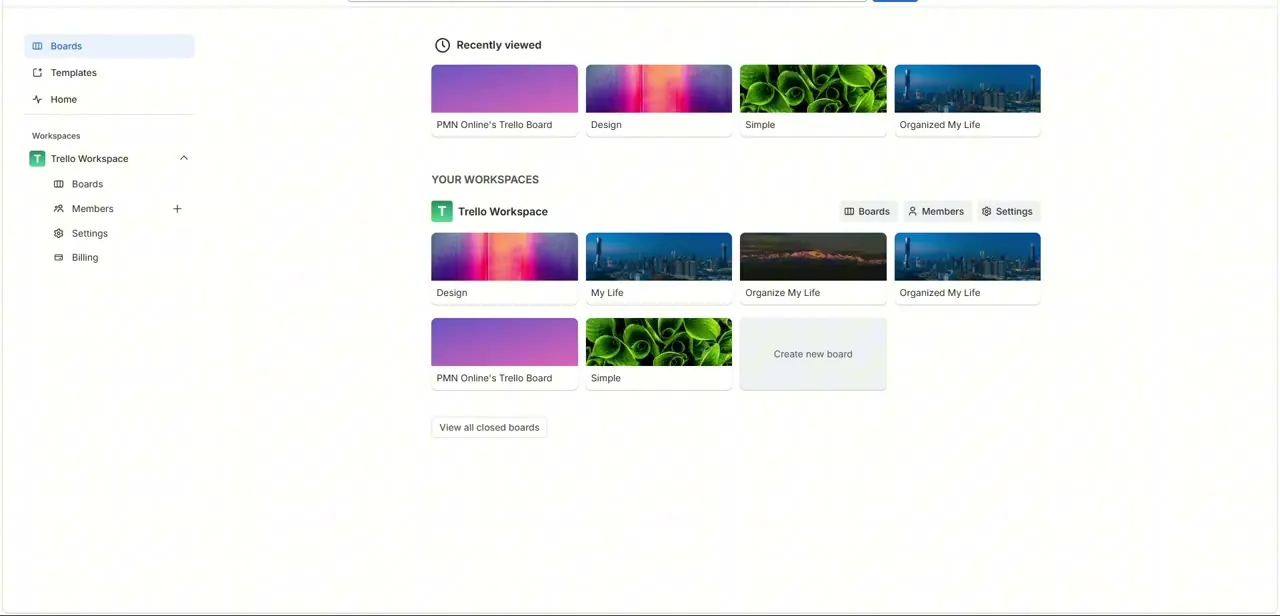
From your Trello home, the Boards view lists Recently Viewed boards up top and everything under Your Workspaces below, organized by workspace. Pick the specific board whose activity you want streaming into chat. The Power-Up applies at the board level, so a team juggling multiple boards needs to repeat the whole setup, including the Google Chat invite step, on each board that needs alerts.
03Look up the Power-Up before you connect it
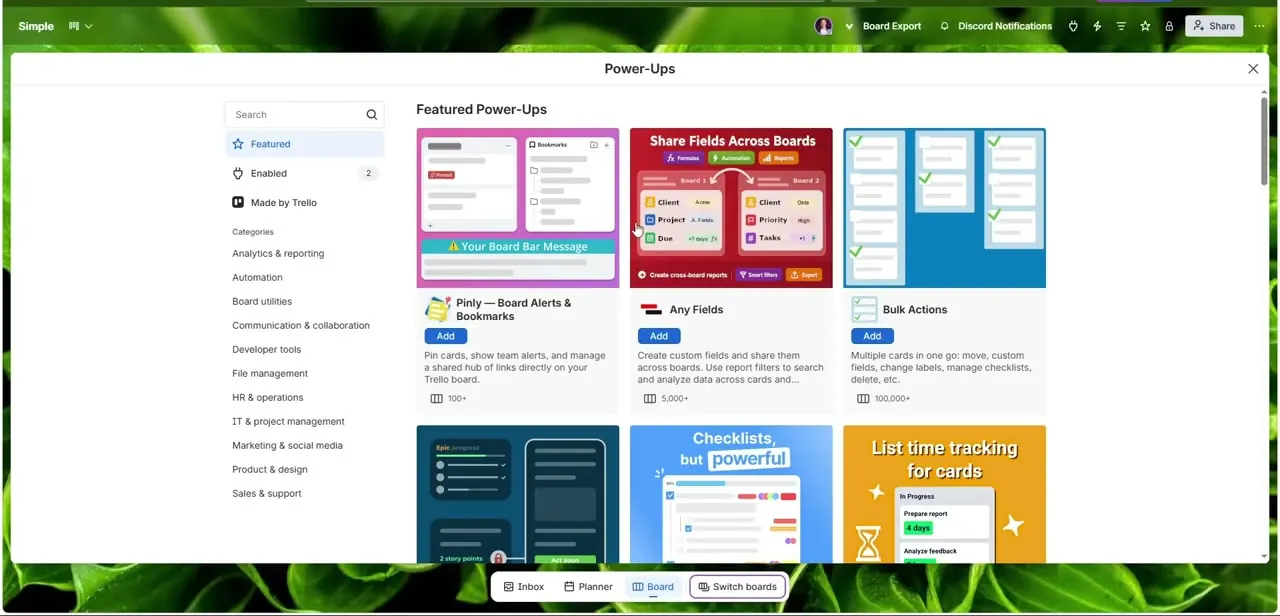
Open the Power-Ups menu from the board's top toolbar to see the directory. It opens on Featured, a grid of popular add-ons like cross-board field sharing, bulk card actions, and time tracking, with a category sidebar covering Automation, Communication & Collaboration, IT & Project Management, and more. Search "Google Chat" to find the listing directly instead of browsing categories.
04Read what the Power-Up does
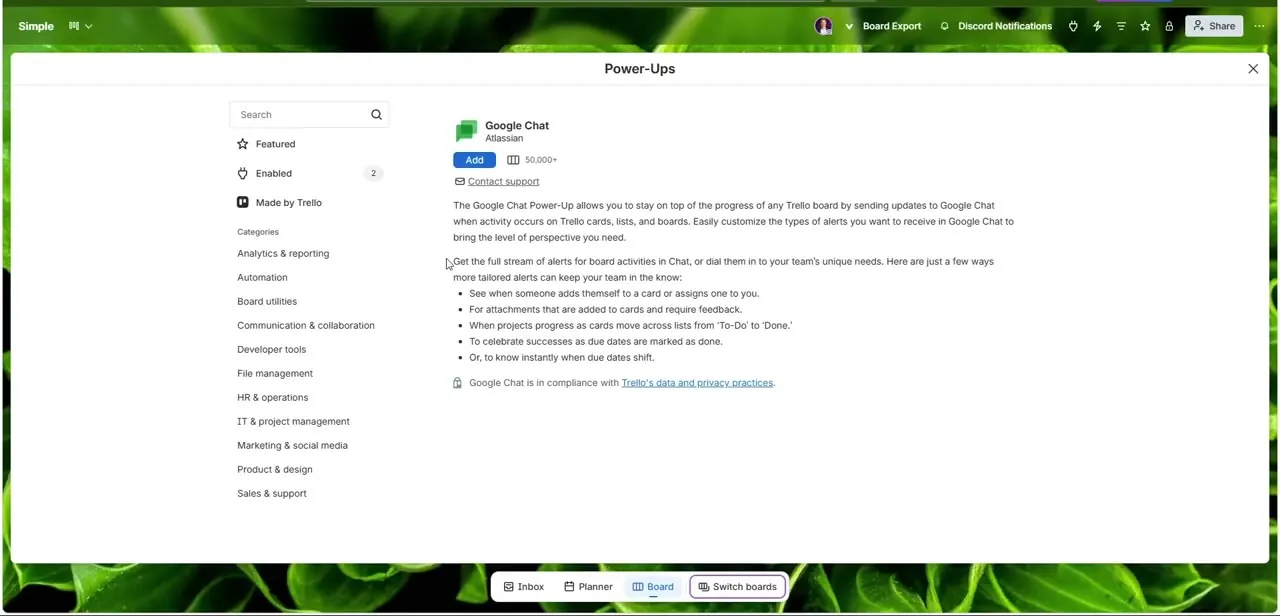
Open the Google Chat listing, published by Atlassian. Its description explains what it does: it streams updates to Google Chat whenever activity happens on your Trello cards, lists, and boards, and you choose which types of alerts you actually want.
The listing spells out concrete examples: someone adding themselves to a card or being assigned one, an attachment added that needs feedback, a card moving from one list to another, or a due date being marked done or shifted. Browsing this page tells you what will be configurable once you're connected, but clicking Add here isn't how the connection gets made.
05Start the connection from Google Chat
Trello's own setup instructions have this beginning in Google Chat, not on the board. Open the room or space you want alerts sent to and type @Trello to mention the bot, which invites it into that space. It sends you a direct message asking you to authorize the connection with your Trello account, then a dropdown to pick which board you want the Power-Up enabled on.
06Finish alert setup back on the board
Once you've authorized and picked a board in Google Chat, go back to that board and click the Google Chat alerts Power-Up button in the top right corner. Select the room or direct message that should receive alerts, then check the specific event types you want: card assignments, new comments, list moves, due date changes, and so on.
Resist checking everything. A chat space pinged for every single card edit gets muted within a week, so start narrow and expand later if something important is getting missed. To send alerts from this board to a second room, repeat the @Trello mention in that other space.
07Confirm a test alert arrives
Make a small real change on the board: move a card, add a comment, assign yourself to something. Check that the matching alert shows up in the connected Google Chat space within a few seconds. If nothing arrives, the next section covers the two most common reasons.
When it doesn't work
The Google Chat alerts button never appears on the board
Why: The connection has to be initiated from Google Chat first. Adding the Power-Up from the board's directory alone doesn't link an account; the board-side button only shows up after the @Trello mention and authorization step completes.
Fix: Go to the target Google Chat room, type @Trello to invite the bot, and complete the authorization direct message before checking the board again.
Alerts don't show up in a second Google Chat room
Why: The bot has to be invited into each room separately. Authorizing it in one space doesn't automatically extend to another.
Fix: Mention @Trello in the new room to invite the bot there too, then confirm the room appears as an option in the board's alert settings.
Frequently asked questions
Do I set this up in Trello or in Google Chat?
Both. Trello's documented flow starts in Google Chat, where you mention @Trello to invite and authorize the bot and pick a board, then finishes on that board where you select the room and which events trigger alerts.
Can I add the Power-Up from Trello's Power-Ups directory instead?
You can browse the listing there to see what it does, but the working connection is made by mentioning @Trello in the target Google Chat room first. That step is what links your account and board.
Can I choose which card events trigger a notification?
Yes. The board's alert settings let you check specific boxes for events like assignments, comments, list moves, or due date changes, so you're not stuck with every possible alert.
Do I need admin access in both Trello and Google Chat?
You need permission to add Power-Ups on the Trello board, and a Google Chat work or school account; personal Gmail accounts can't install Chat apps.
How do I connect a second Google Chat room to the same board?
Mention @Trello in that room too. The bot has to be invited into each space individually before it appears as an option in the board's alert settings.
Sources and last check
Screens for login, the board dashboard, and the Power-Up directory listing come from a walkthrough recorded in July 2025. The connection flow was re-checked against Atlassian's official Trello-for-Google-Chat support documentation in September 2026, which corrected the article's previous claim that the whole setup happens on Trello's side through the Power-Ups directory. The documented flow actually starts in Google Chat with an @Trello mention and finishes with alert selection on the board; this version follows that order.
About the author

Impran M N
I've been hooked on technology for as long as I can remember — especially the new tools and AI apps that seem to land every other week. Easy Tech Tuts is where I write up whatever I've just worked out: I do the task in the real product, record the screen, and turn it into the guide I wish I'd found first.