Easy Tech Tuts
How To Deploy GitHub Project on Vercel in 2026 Easily
By Impran M NLast checked against official docs
Vercel makes it possible to take a project sitting in a GitHub repository and turn it into a live, hosted website in a few clicks, with no backend required. This guide walks through uploading a project to GitHub, connecting it to Vercel, and configuring the deployment settings, using a simple to-do list app as the example. It applies just as well to React apps, Next.js projects, or any static site, and by the end you'll have both a live URL and a dashboard for managing future deploys.
Before you start
- A GitHub account with your project already pushed to a repository
- Ownership of that repository if it's under your personal GitHub account. Vercel requires you to be the repo Owner, not just a Collaborator, to create the webhook it needs to auto-deploy
01Upload your project to GitHub
Before Vercel enters the picture, your code needs to live in a GitHub repository. Create a new repo, name it something descriptive like "to-do," and use the Quick Setup screen's "Upload files" option to add your project directly from your file manager instead of dragging and dropping.
For a simple static project this can be as small as a single index.html file. Commit the changes, and your code is live on GitHub and ready to connect to a hosting platform.
02Start deploying from Vercel
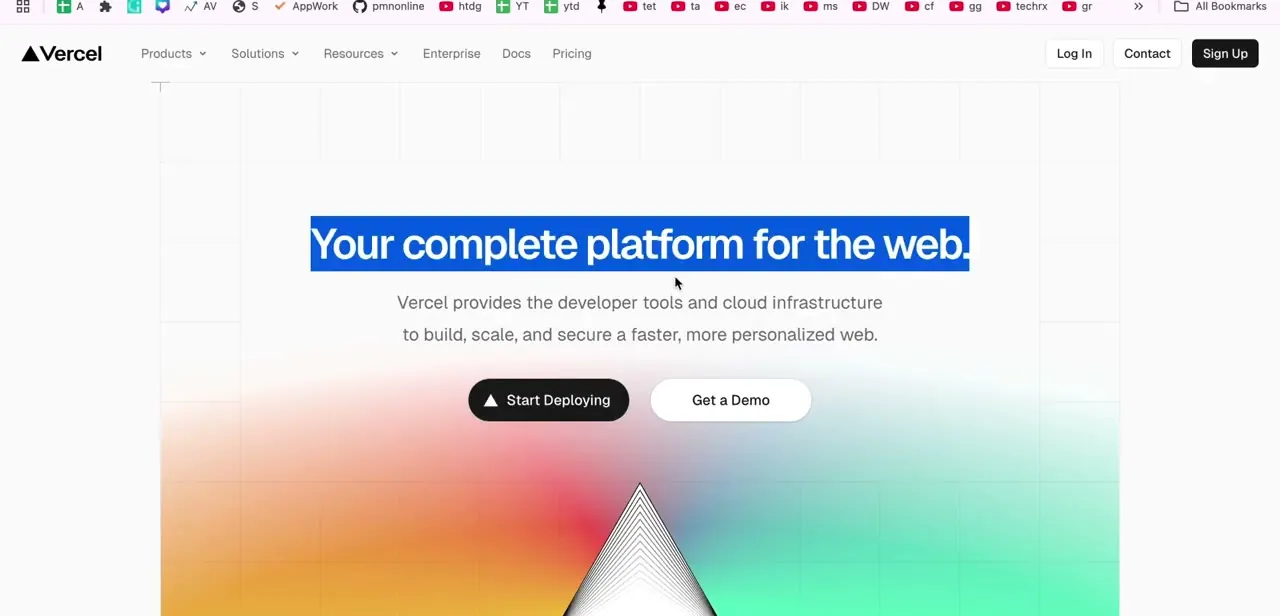
Head to vercel.com and click Start Deploying from the homepage, then continue with GitHub to authenticate. If you're already signed into GitHub in another tab, Vercel typically detects and links the account automatically without asking you to log in twice.
03Import your repository and grant access
After authenticating, click Import Git Repository. Vercel offers a choice between granting access to all of your GitHub repositories or just specific ones; selecting only the repository you're deploying is the safer option, since Vercel never sees the rest of your GitHub account.
Select the repo (to-do in this example) and click Install to finish linking it. If the repository doesn't appear in the picker, ownership is the usual reason: a Collaborator on a personal repo can't create a Vercel project from it, only the repo's Owner can.
04Configure the project and deploy
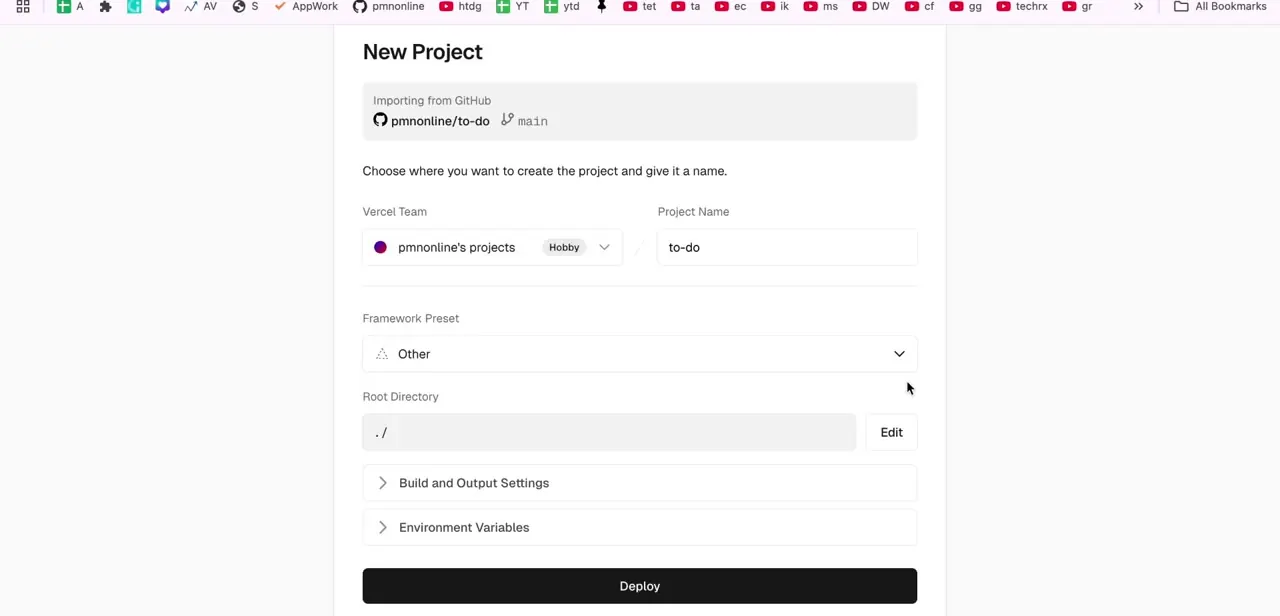
Vercel's New Project screen shows exactly what it's importing (the repository name and branch, pmnonline/to-do on main in this case) plus a form for the Vercel Team, Project Name, Framework Preset, and Root Directory. For a plain HTML project with no framework, set the Framework Preset to "Other" instead of guessing at a specific one; Build and Output Settings and Environment Variables stay collapsed and can be left alone for a simple static site. Click Deploy once everything looks right.
05Confirm the deployment finished
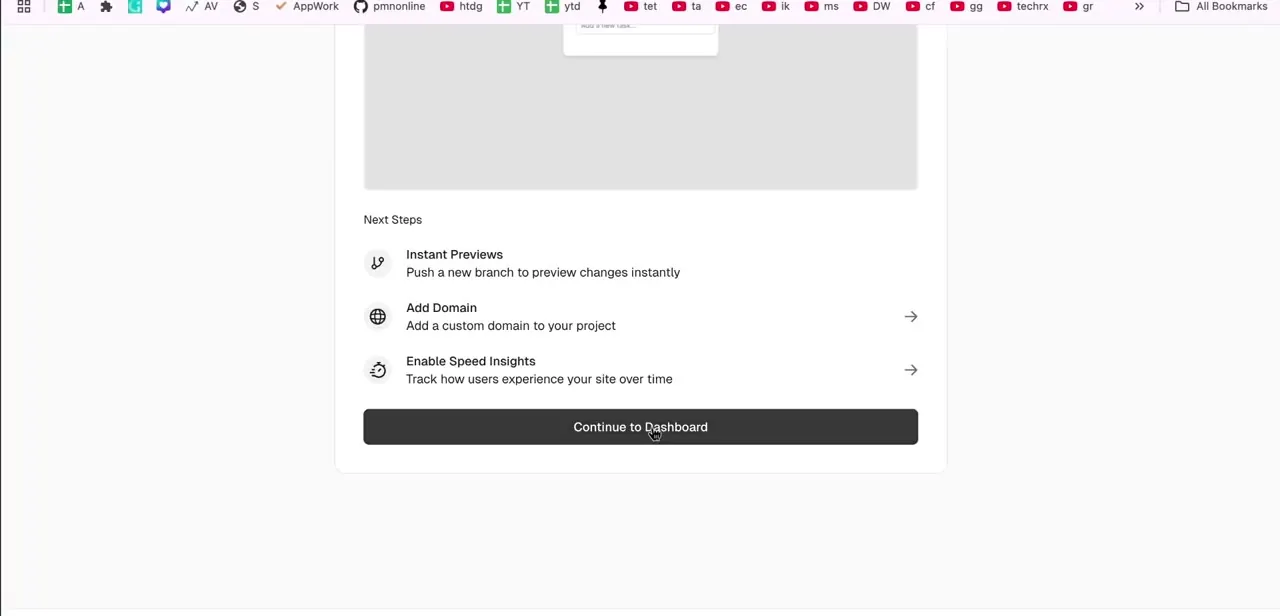
When the build completes, Vercel shows a Next Steps panel with shortcuts for what to do now that the site is live: push a new branch for Instant Previews, add a custom domain, or enable Speed Insights to track how real users experience the site over time. None of these are required for a working deployment; they're the next layer of polish once basic hosting is confirmed working. Click Continue to Dashboard to move on.
06Manage the site and let future pushes redeploy it
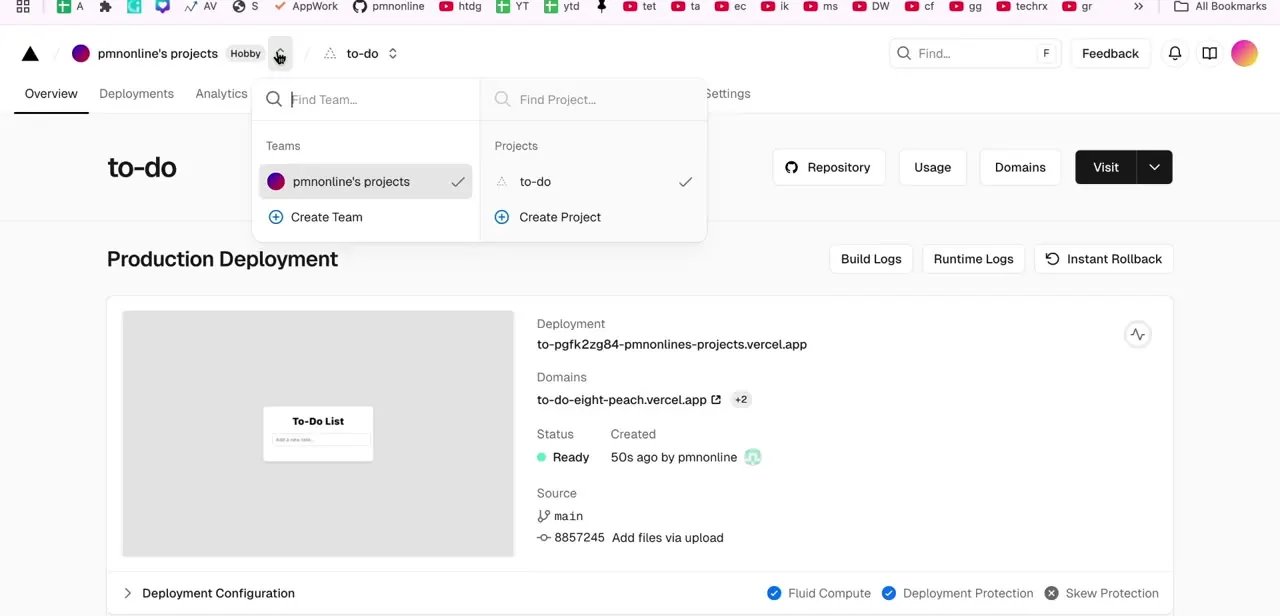
The Vercel dashboard's Production Deployment view is where everything about the live site comes together: the generated deployment URL, any custom domains attached, the current status (Ready, here), who deployed it and when, and which commit it was built from. The Hobby badge next to the team name confirms which plan the project is on.
From here you can open Build Logs and Runtime Logs, or use Instant Rollback if a future deploy breaks something. The real payoff of connecting GitHub instead of uploading files manually is that Vercel deploys every push by default. A push to the production branch (usually main) updates the live domain; a push to any other branch, or to a pull request, builds a separate Preview Deployment with its own URL instead of touching the live site.
When it doesn't work
The repository doesn't show up when importing
Why: For a personal GitHub account, Vercel requires you to be the repository's Owner, not just a Collaborator, to create the deploy webhook. For an organization-owned repo, you need to be an Org Owner or a Member with access to that specific repository.
Fix: Ask the repo's owner to do the import, or ask an org admin to grant repository access, then try again.
Importing an organization repository prompts Vercel to create a team
Why: Deploying from a GitHub organization on the Hobby plan requires a Vercel team, since organization collaboration is a Pro feature.
Fix: Upgrade to Pro, or move the code to a personal repository you own and import that instead.
The build succeeds but the live site is blank or shows the wrong content
Why: Root Directory or Framework Preset on the New Project screen don't match where the project's files actually sit in the repo.
Fix: Open Project Settings > General, correct Root Directory and Framework Preset, then redeploy.
Unsure whether the deployed site is allowed to make money
Why: The Hobby plan is restricted to non-commercial, personal use under Vercel's own fair use policy.
Fix: Upgrade the project to a Pro plan before using it for anything that generates revenue for you or a client.
Frequently asked questions
Is deploying a GitHub project on Vercel really free?
Yes, on the Hobby plan, but Hobby is restricted to non-commercial, personal use per Vercel's fair use guidelines. A site used for business or client work needs a Pro plan.
Does Vercel automatically update my site when I push new code?
Yes. A push to the production branch (usually main) updates the live domain automatically; pushes to other branches or pull requests get their own Preview Deployment URL instead.
Can I deploy a React or Next.js project the same way?
Yes, the same GitHub-to-Vercel connection process works for React, Next.js, and other front-end frameworks. Choose the matching Framework Preset instead of "Other" during setup.
Can I add a custom domain to my Vercel deployment?
Yes, custom domain settings are available from the Vercel project dashboard's Domains tab, and Vercel also surfaces an Add Domain shortcut right after your first deployment finishes.
Why doesn't my GitHub repository show up in the import list?
Usually a permissions issue: on a personal account you need to be the repo's Owner rather than a Collaborator, and on an organization repo you need to be an Org Owner or a Member with access to that repository.
Sources and last check
Click path and screens come from a recorded walkthrough, including the Hobby plan badge visible on the dashboard. Plan limits, the non-commercial-use restriction, repository-ownership requirements for importing, and how pushes map to production versus preview deployments were re-checked against Vercel's official docs in September 2026; the commercial-use restriction and the ownership requirement were not in the article before this pass.
About the author

Impran M N
I've been hooked on technology for as long as I can remember — especially the new tools and AI apps that seem to land every other week. Easy Tech Tuts is where I write up whatever I've just worked out: I do the task in the real product, record the screen, and turn it into the guide I wish I'd found first.